Creating documents in Salesforce
Generate documents from Salesforce records using pre-configured templates. This guide covers selecting templates, reviewing data, and saving generated documents.
If your organization hasn’t enabled signing yet, ask your Salesforce admin to complete Set up Salesforce and DWS signing integration.
Prerequisites
Before creating documents, verify:
- You have the Nutrient Create Documents permission assigned.
- The widget is available on your record pages:
- Create and Send Document with Nutrient (users with sign permission)
- Create Document with Nutrient (users without sign permission)
- At least one template exists for the record type you’re working with.
If the widget isn’t visible or you can’t select templates, contact your Salesforce administrator.
In new orgs, your admin may need to add Nutrient components to the Lightning record page before this widget appears.
Select a template
Navigate to any Salesforce record with configured templates (for example, Opportunity, Account, or Contact).
Locate the widget in the Related section of the record page:
- Create and Send Document with Nutrient (users with sign permission)
- Create Document with Nutrient (users without sign permission)

Click the Select a template dropdown to view available templates.
Select the template you want to use.
Click Create.
The system will prepare data from your Salesforce record using the template’s configuration.
Select dynamic data
Some templates require you to select specific Salesforce records at runtime. This step only appears if the template includes dynamic data inputs configured by the template builder.
- Review the data selection dialog.
- For each dynamic input, search and select the required records.
- Click Continue to proceed.
Only data inputs that can be resolved at runtime appear in this dialog. If you don’t see this step, the template doesn’t use dynamic data.
Review and edit data
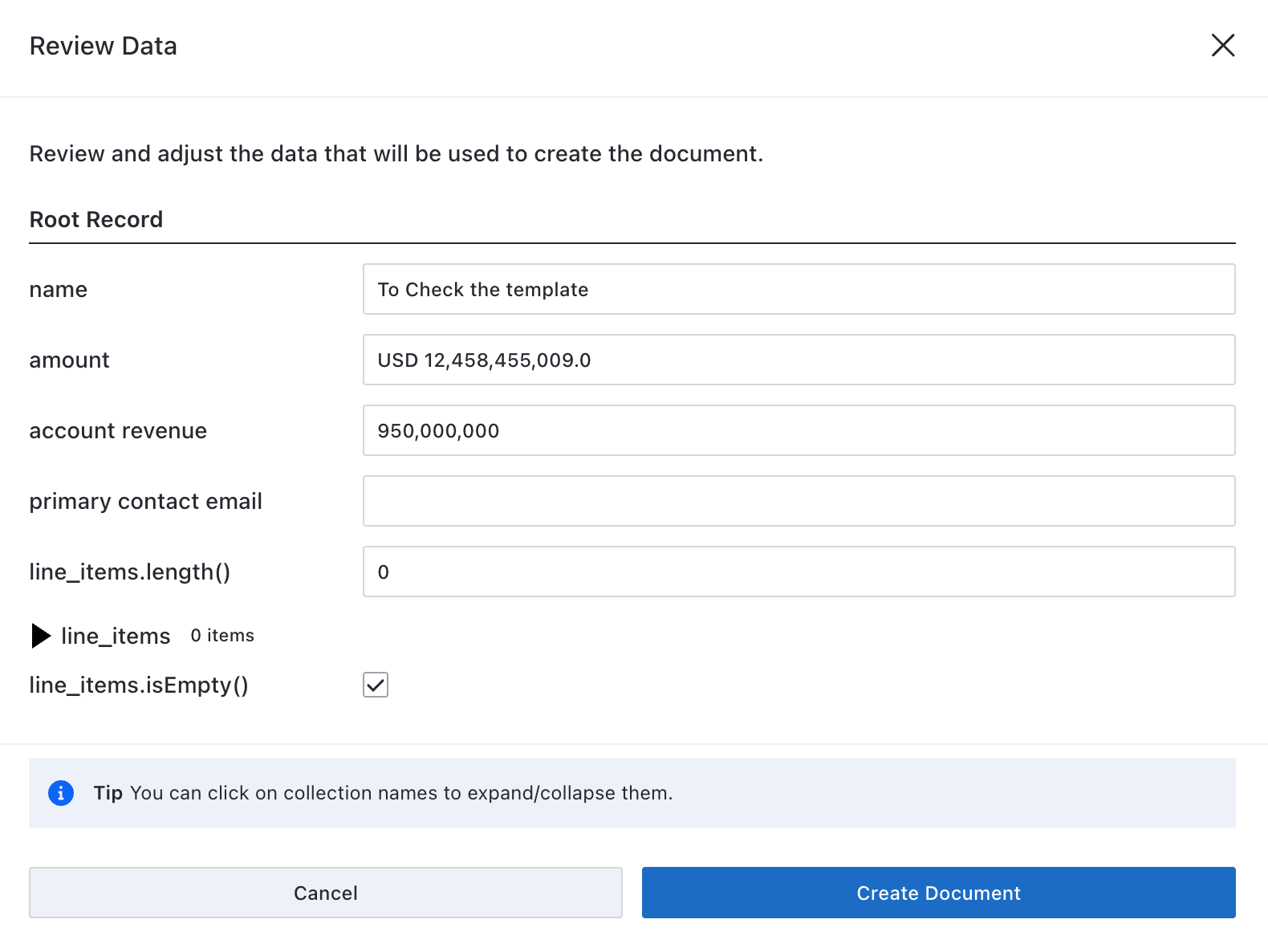
If your administrator enabled Allow data review in the Nutrient Admin settings, you can preview and modify data before document creation.
Review the data that will populate your document:
- Check merge field values for accuracy
- Verify collection data (for example, line items)
- Review conditional field results
Optional: Edit any values that need adjustment for this specific document.
Click Create Document to proceed.
Data resolution warnings
If Nutrient can’t resolve some template data, a warning appears. You can still create the document, but missing data won’t populate.
Common causes for warnings:
- Empty fields in Salesforce records
- Broken relationships or deleted related records
- Invalid navigation paths in template configuration
To fix persistent warnings, contact the template administrator to review the template configuration.
Preview or edit the generated document
After generation completes, the document opens in preview mode. Review the document to verify:
- All data populated correctly
- Formatting appears as expected
- Collections and conditional sections rendered properly
For editable templates (not locked templates), you can modify the generated document before saving or downloading.
- Click the Edit tab.
- Use the document editor to:
- Modify text content
- Adjust formatting
- Add additional information
- Polish layout and styling
- Return to the Preview tab to review your changes.

The editor provides the same capabilities used to build templates, giving you full control over the final document.
Locked templates cannot be edited after generation. If you need to make changes, generate a new document or contact your administrator about converting the template to an editable format.
Download the document
To download the document to your computer:
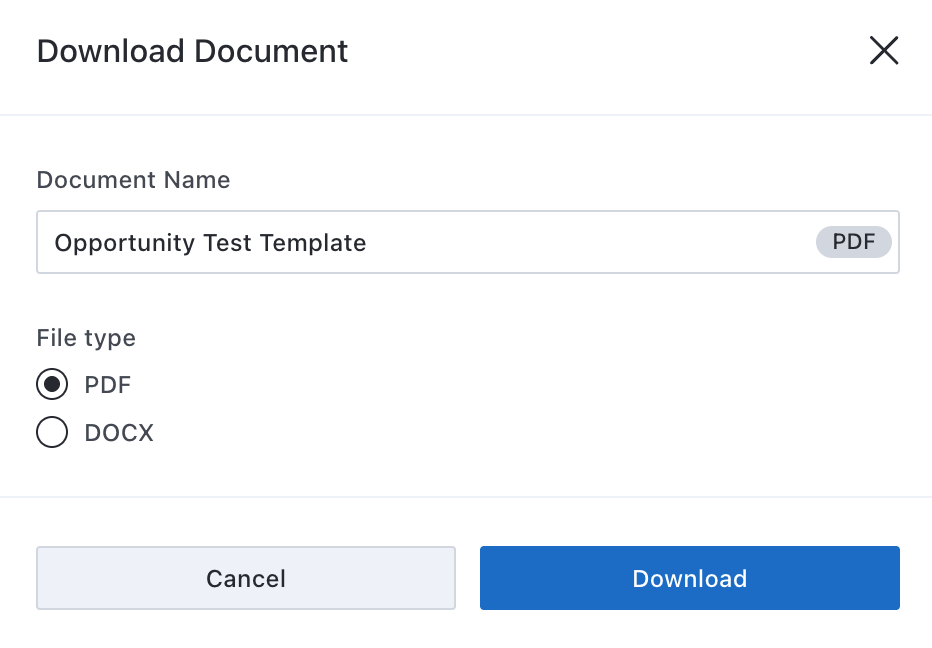
- Click Download in the upper-right corner.
- Select the output format:
- PDF — For viewing and sharing
- DOCX — For further editing in Microsoft Word
- Enter a filename.
- Click Download.
The file saves to your browser’s default download location.
Save to Salesforce
To attach the document to the current Salesforce record:
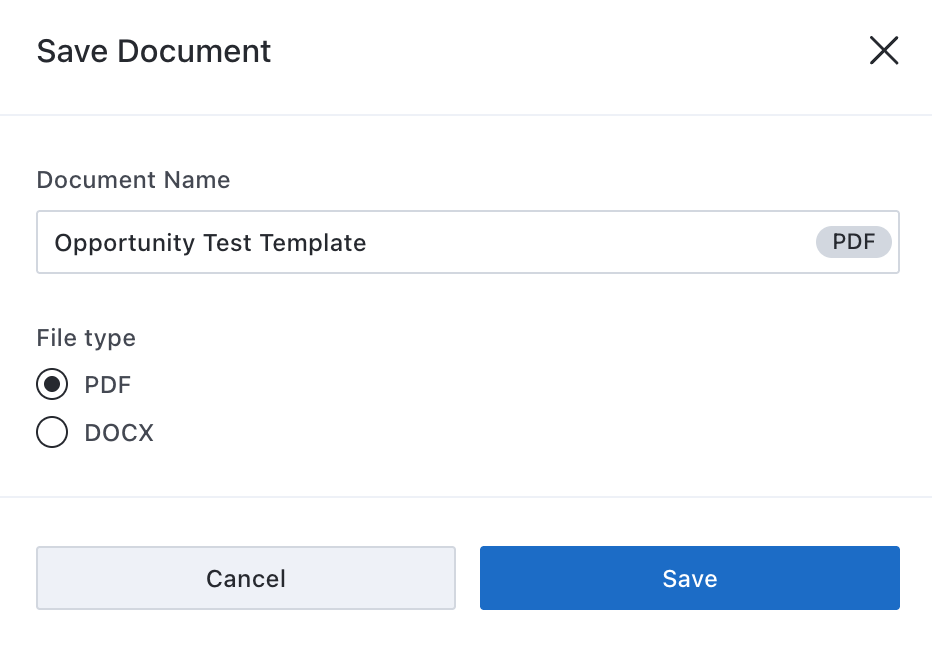
- Click Save in the upper-right corner.
- Select the output format:
- PDF — For viewing and sharing
- DOCX — For archival or future editing
- Enter a filename.
- Click Save.
The document saves under Notes & Attachments on the record. Other users with access to the record can view and download the document.
Next step: Send document for signing
If signing is enabled in your org, continue with Send documents for signing in Salesforce.
Troubleshoot common issues
If document creation fails or behaves unexpectedly, check these common issues and solutions.
No active templates found
Message — “No active templates found for Opportunity records. Please create templates first.”
Cause — No active template is available for the current Salesforce object.
Solution — Ask your admin to create and publish a template for that object in Template Manager (Nutrient Documents app).
Template configuration errors
Error message — “Effective ranges intersect undefined” or similar placeholder errors
Cause — The template has overlapping or unclosed placeholders (merge fields, collections, or conditions).
Solution — The template needs fixing. Contact your Salesforce administrator or template manager. In the meantime, try a different template if available.
Missing data warnings
Warning — “Unable to resolve some template data”
Cause — One or more of the following:
- Required Salesforce fields are empty
- Related records have been deleted
- Template navigation uses invalid relationships
Solution —
- Fill in missing fields on the Salesforce record
- Contact your administrator to fix the template configuration
- Check that all related records still exist
Empty documents
Issue — Document generates but shows blank sections
Cause — Collections returned no data, or conditions evaluated to false.
Solution — This may be expected behavior. For example:
- An Opportunity with no line items will show an empty line items section
- Conditional sections only appear when their conditions are true
If sections should contain data, verify the Salesforce record has the expected related records or field values.