Sending documents for signing in Salesforce
Use this guide after you generate a document from a template as described in Create documents in Salesforce.
If signing isn’t configured yet, ask your Salesforce admin to complete Set up Salesforce and DWS signing integration.
Prerequisites
Before sending for signing, verify:
- You can open a generated document in the Preview/Edit screen.
- Your user has signing permissions in Salesforce.
- Your org’s signing integration is enabled and working.
Send a document for signing
In the generated document view, click Send in the upper-right corner.
Enter a document name and click Save.
Configure the envelope:
- Envelope name
- Recipients (external recipients or Salesforce recipients)
- Optional email template/message and reminders
- Optional signing order (if no signing order is specified, recipients are processed as: Signers first, Reviewers second, and Recipients (CC) last):
- Enable Set signing order.
- For each recipient, enter name and email and select a role:
- Needs to sign — Recipient must complete signing fields before the envelope can progress.
- Needs to review — Recipient reviews the document but doesn’t apply a signature.
- Receives a copy — Recipient gets a copy for visibility/audit after required actions are complete.
- Set the sequence (who acts first, second, third, and so on).
- Example sequence in a sales contract flow:
- Customer signer — Needs to sign (Sequence 1)
- Sales manager — Needs to review (Sequence 2)
- Finance team inbox — Receives a copy (Sequence 3)
Click Next to open Add Fields.
Drag and configure the fields you need.
- Available field types include:
- Signature — Signer draws or uploads their signature.
- Name — Auto-filled with signer name (read-only).
- Initials — Signer draws or types initials.
- Signature Date — Auto-filled with signing date (read-only).
- Text Field — Editable input, optionally linked to Salesforce.
- Checkbox — True/false toggle, optionally linked to Salesforce.
- List — Dropdown list, optionally linked to a Salesforce picklist.
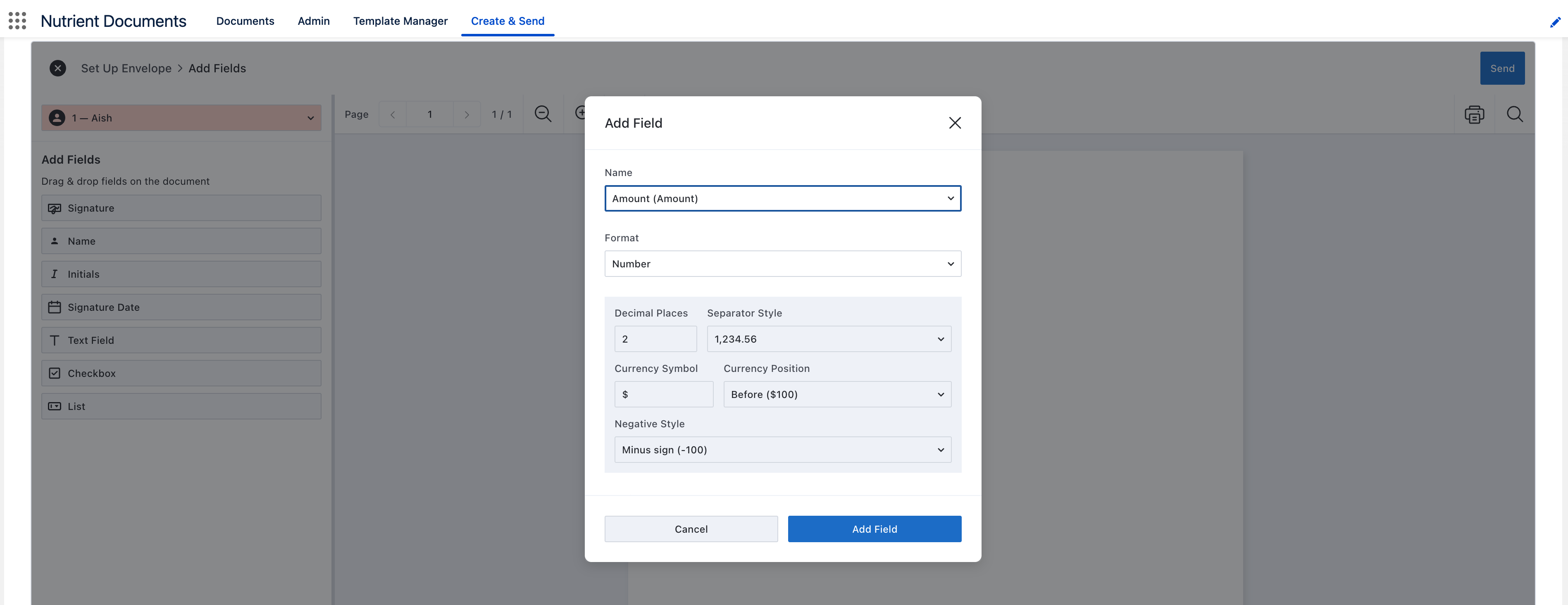
- For editable fields (for example, Text Field and List), configure data mapping and validation before placing the field:
- Select an existing Salesforce field, or type a custom field name.
- If you select an existing Salesforce field, Nutrient Documents app detects and loads the field format and available value/options when applicable.
- If you type a custom field name, select the field format manually.
- Set whether the field is Required.
- Click Add Field.
- Example field configuration:
- Available field types include:
Click Send in the upper-right corner.
- Recipients receive an email with a signing link.
Track progress and verify completion
- Wait for each participant to complete their action. You receive email updates as the envelope progresses.
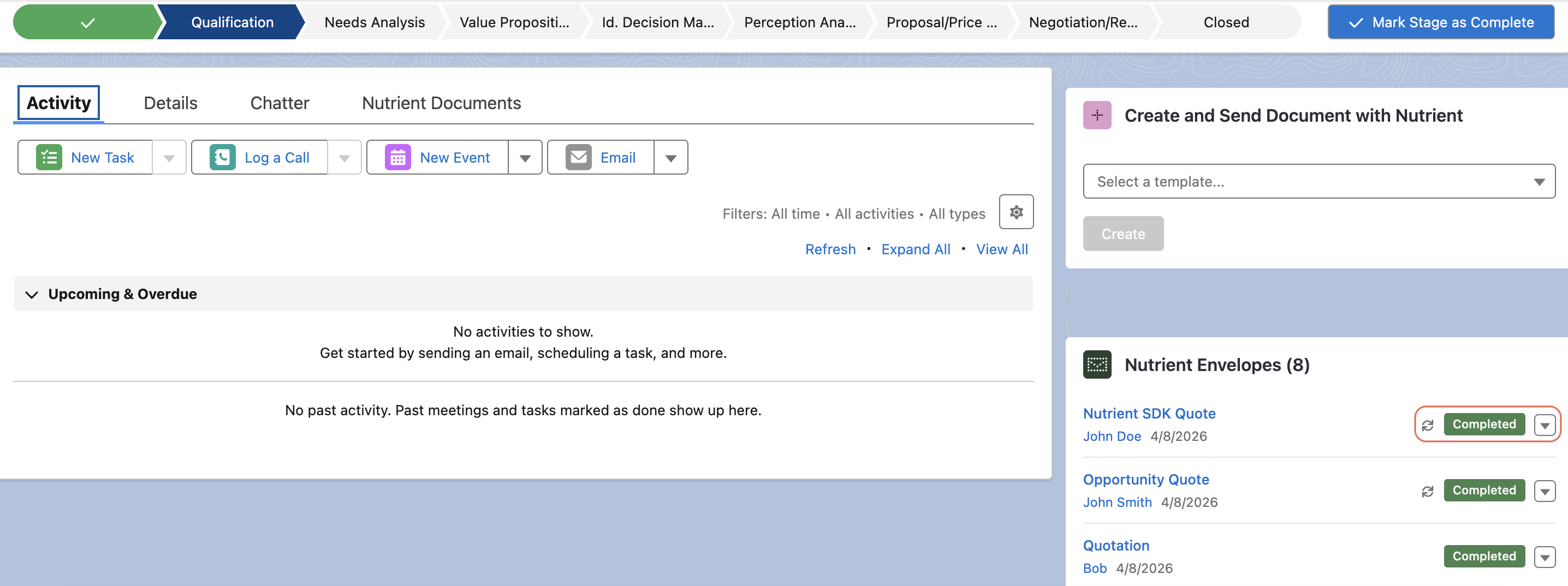
- Return to the source Salesforce record (for example, Opportunity, Account, or a custom object record) and verify envelope status updates in the Nutrient Envelopes widget.
- After all required signers complete signing, status updates to Completed.
- When status becomes Completed, click Sync (if shown) to push captured signer field data back to Salesforce.
Troubleshoot signing issues
Send fails with salesforce_integration_not_found
Cause — The selected Named Credential isn’t mapped to the active tenant/environment, or tenant integration isn’t fully enabled.
Solution —
- Ask your admin to verify Named Credential for Nutrient Signing in the Nutrient Admin tab.
- Ask your admin to validate DWS tenant/org integration setup.
Send fails before recipients receive email
Cause — Recipient setup or signing field configuration is incomplete.
Solution — Re-open envelope configuration, verify required recipients and fields, and send again.
Status doesn’t update after signing
Cause — Webhook delivery/configuration issue.
Solution — Ask your admin to verify DWS webhook configuration and Salesforce integration user setup.
Related guide
If you need the document creation steps, refer to Create documents in Salesforce.