Accessibility support for our JavaScript PDF viewer
We offer a range of accessibility features in Nutrient Web SDK, which are outlined below.
If you need a step-by-step implementation path for commenting and review, start with the keyboard-accessible review workflow guide. It combines focus order, keyboard shortcuts, accessible save/export actions, and review-layer persistence in one flow.
Screen readers
Our UI is built with screen readers such as NonVisual Desktop Access (NVDA) and JAWS in mind. All menus and navigation elements will be correctly announced by the user’s software and can be controlled from their keyboard.
You can view this in the video below: As soon as the focus is placed on the color button, the screen reader accurately announces its name (“Color”), role (“list box pop up collapsed, button”), and value (“Black”). When the list is expanded, each option is announced, along with its position. Once a selection is made, the screen reader announces that the popup has been collapsed, but this time with the updated color.
You can place text, note, and comment annotations without using a pointer device by activating the toolbar item using the Enter or Space keys, typing the content, and then using the arrow keys to position the annotation on the desired spot on the page. You can also add the Shift modifier key to move the annotation in larger increments.
It’s possible to extract the text of a PDF document for use in speech synthesis. For more information, refer to our text-to-speech guide.
Color contrast
We designed the UI and our default light and dark themes with the goal of achieving Web Content Accessibility Guidelines (WCAG) 2.1(opens in a new tab) Level AAA conformance for text contrast, and at least AA conformance for icons.
If you’re customizing the appearance of the Web SDK, consider contrast ratios, and use tools such as the Firefox Accessibility Inspector(opens in a new tab), Colour Contrast Analyser (CCA)(opens in a new tab), or the WebAIM Contrast Checker(opens in a new tab) to ensure proper support for all of your users’ needs.
Accessibility strings
Our accessibility strings are localized for all of our built-in languages so that assistive technology can properly parse and read out their contents.
If you want to change these, refer to our localization guide for more information.
PDF content rendered as WCAG 2.1-accessible HTML
The Nutrient viewer renders tagged PDF and PDF/UA documents as WCAG 2.1(opens in a new tab)-compliant HTML. PDF tags in a document are converted into their semantic HTML equivalents and rendered as WCAG-compliant HTML, ensuring screen readers will accurately read document contents.
Electronic signatures
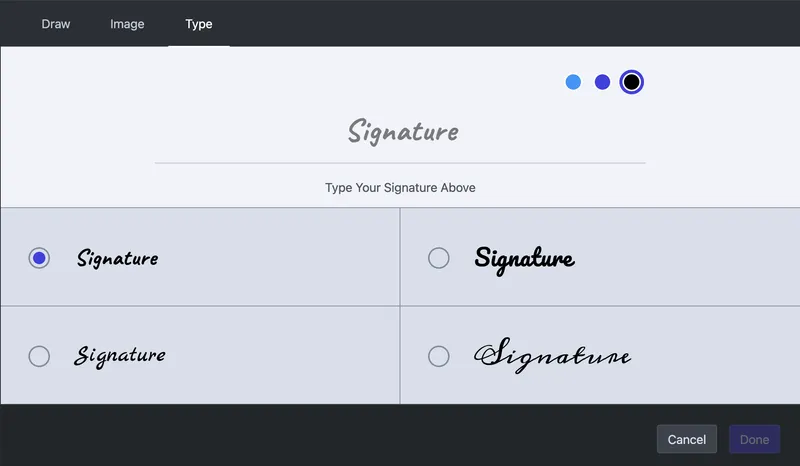
When signing with our Electronic Signatures component, it’s possible for users who need to use a keyboard to type a signature using the Type panel in our signature interface.
Keyboard navigation in the main toolbar
The main toolbar is a single stop in the page’s Tab sequence, following the ARIA Authoring Practices Guide (APG) toolbar pattern(opens in a new tab). It carries role="toolbar", so screen readers such as NVDA and JAWS announce it as a toolbar.
The toolbar responds to the keyboard as follows:
- Tab moves focus into the toolbar. Pressing Tab again moves focus out of the toolbar.
- On the first visit, focus lands on the first toolbar item when you enter with Tab, or on the last item when you enter with Shift-Tab. After that, returning to the toolbar restores the item that last held focus.
- Left Arrow and Right Arrow move focus across the toolbar items. Focus doesn’t wrap at either end, and Up Arrow and Down Arrow don’t move focus.
- Enter or Space activates the focused item.
- Escape closes an expanded responsive group and returns focus to the group button.
- Home and End don’t move focus inside the toolbar. The APG pattern lists them as optional.
Custom items added with toolbarItems live inside the same single tab stop: Changing the toolbar’s items changes its membership, not the keyboard model. Below 992px, most annotation tools collapse behind the annotate responsive group, so arrow traversal reaches the group button rather than the individual tools; activating it moves focus to the group’s Close button.
With the default top toolbar placement, continued tabbing moves from the toolbar through the document and its form fields, and then leaves the viewer for the next control on the host page, so focus isn’t trapped inside the viewer. An open sidebar adds its own block of tab stops along the way. With the bottom placement, the toolbar comes after the document in the Tab sequence, so pressing Shift-Tab from the host control that follows the viewer moves focus back into the toolbar and lands on its last item.
A single tab stop isn’t a WCAG failure. Success Criterion 2.1.1 Keyboard(opens in a new tab) doesn’t require a Tab stop per control, and its Understanding document states that deviating from common keyboard conventions “does not fail the normative requirement of this success criterion.” The APG names “reducing the number of tab stops in the keyboard interface” as a goal of the toolbar pattern. Making every button a separate Tab stop forces keyboard users to press Tab many times to move past the toolbar and reach the document.
Starting with Nutrient Web SDK 2024.6.0, the main toolbar uses this model as part of the Baseline UI migration. Earlier versions gave each toolbar button its own Tab stop. Focus restoration to the last-focused item was added in 1.12.0; between 2024.6.0 and 1.11.x, reentering the toolbar moved focus to the last item.
The toolbar container manages the Tab sequence, so per-item Tab stops aren’t a configuration option — setting tabindex on an individual item has no effect. To implement a different keyboard model, render your own controls in place of the built-in toolbar with the tools.main slot of the UI customization API, available since 1.14.0. Your application then owns the rendering, actions, and keyboard behavior of the controls it renders there.
Keyboard navigation through document pages
Pages in a document can be accessed sequentially by using standard keyboard shortcuts such as Tab to move to the next page and Shift-Tab to move to the previous one.
When a page contains annotations, you can also navigate through them using the Tab key. Their navigation order is determined by the settings specified for keyboard navigation on each page.
To keep documents accessible, the focus order should be laid out in a way that preserves meaning and operability according to the WCAG(opens in a new tab) guidelines. If a document’s focus order doesn’t adhere to these principles, you can rectify it using the instance#setPageTabOrder() API method.
Issues
Don’t hesitate to reach out to us at support@nutrient.io if you have any accessibility concern you’d like to share with us.