Set up Nutrient Documents for Salesforce
Use this guide to complete the one-time Salesforce setup required before users can use Nutrient Documents for Salesforce.
Who should use this guide
This guide is for Salesforce administrators who need to enable Nutrient Documents for Salesforce for users.
Prerequisites
Before you begin, confirm you have:
- Salesforce administrator access
- The Nutrient Documents app installed in Salesforce
- A Nutrient license key, if your organization uses a production license
If you need the Salesforce installation link, contact our Sales team.
You can use Nutrient Documents without a license, but generated documents include an evaluation watermark.
Configure license and general admin settings
Start in the Nutrient Admin tab to configure the license and general app settings.
- Open the Nutrient Documents app from the Salesforce App Launcher.
- Open the Admin tab.
- In the left sidebar, go to General > Settings.
- Paste your license key into Nutrient license key and click Save license.
- Optional: Enable Allow data review before generating if users should be able to review and edit resolved Salesforce data before document creation.
- Optional: Enable Show JSON (debug) if you need to view JSON data mapping in Template Manager.
- Optional: Enable Log inbound signature events only while troubleshooting signing webhook requests from DWS. Successful events can use Salesforce data storage.
- Optional: Enable Allow sign links for unverified email addresses if your organization uses SSO and users don’t have verified email addresses in Salesforce.
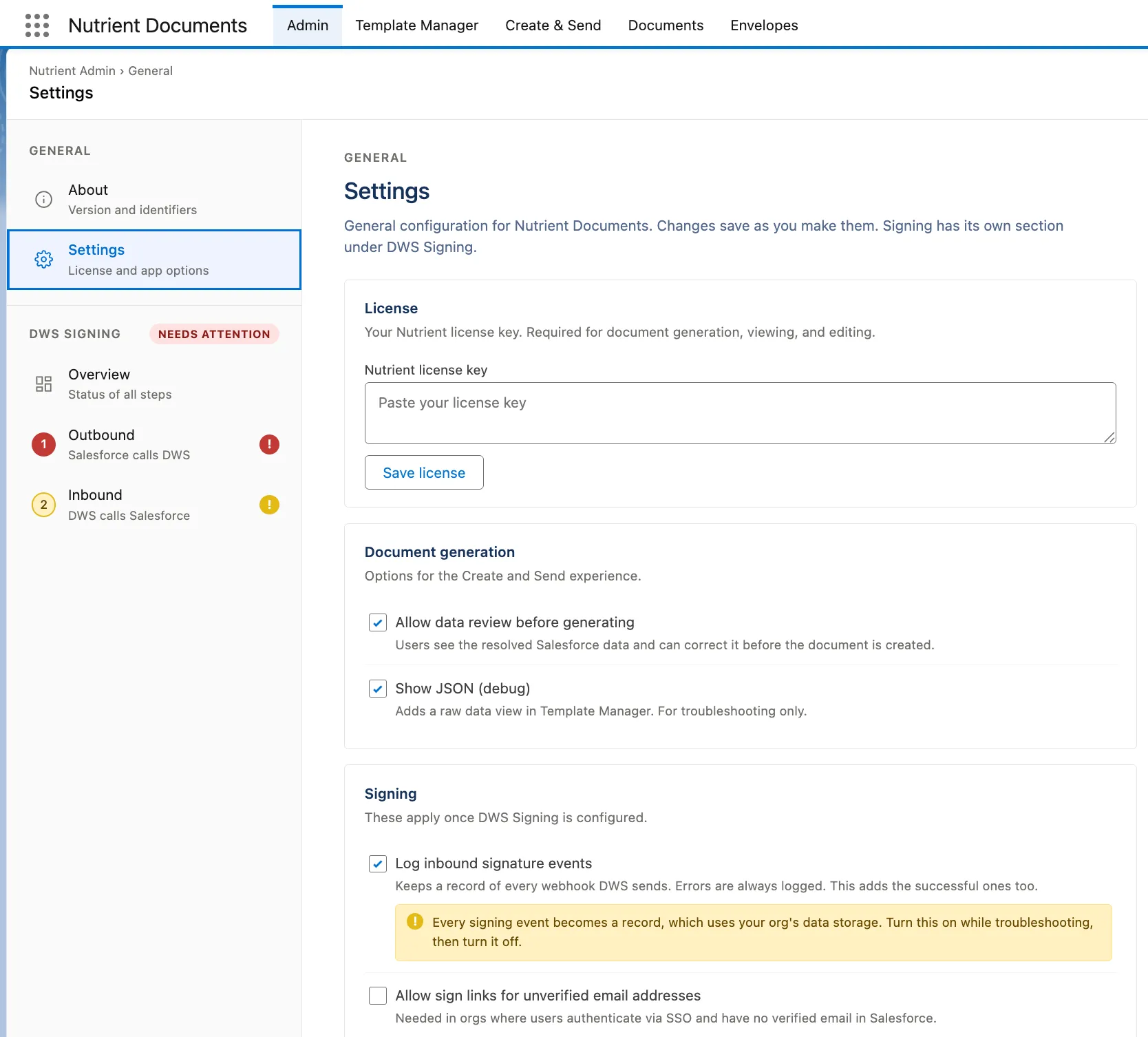
If you enable Allow data review before generating, the review step becomes available for all templates.
Review installation details
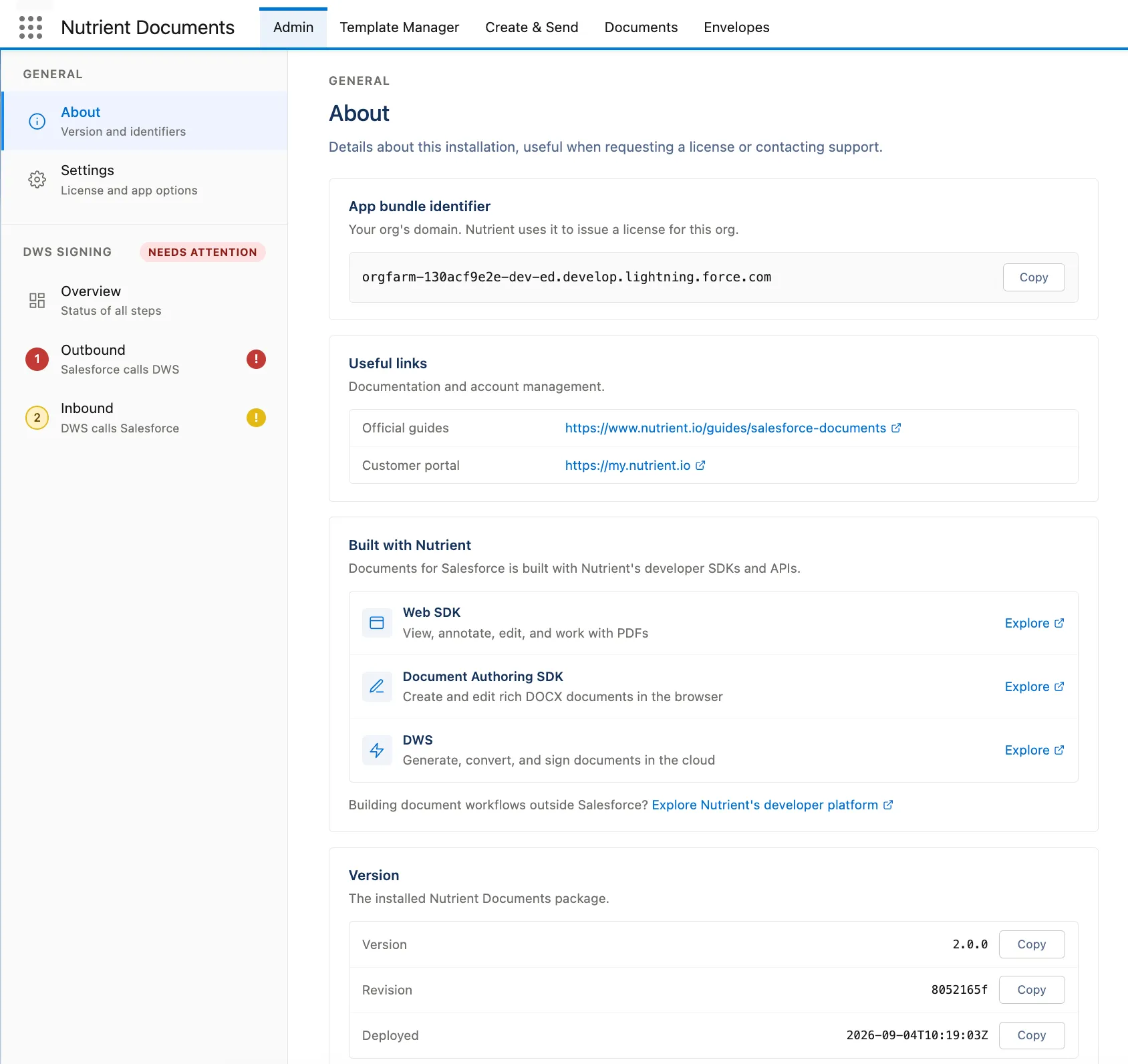
Use General > About when you need installation details for licensing or support. This page shows the app bundle identifier, useful links, and installed package version.
Next steps
After you finish the app-level setup, continue with the feature-specific guides:
- Refer to the set up document generation in Salesforce guide to add the document creation widget and assign document generation permissions.
- Refer to the set up digital signing in Salesforce guide to configure DWS signing integration and add the signing status widget.
Related guides
Refer to the following guides for related tasks:
- Set up document generation in Salesforce
- Manage document templates in Salesforce
- Build document templates in Salesforce
- Set up digital signing in Salesforce