DocuVieware integration in a .NET Core 3.0 web application
This guide explains how to integrate DocuVieware in a newly created C# .NET Core MVC web application project with Razor view engine.
Legacy guide notice
This guide describes a legacy integration approach using ASP.NET Core 3.0 preview6 and Visual Studio 2019 with GdPicture.NET 14. ASP.NET Core 3.0(opens in a new tab) has reached end of life and is no longer recommended for new applications.
Requirements — This guide uses .NET Core 3.0 v3.0.0-preview6(opens in a new tab) and requires enabling Preview Features in Visual Studio 2019(opens in a new tab).
Note — Screenshots and version-specific details may differ from the current release.
This guide is intended for maintaining existing applications within environments that have fixed legacy constraints.
In Visual Studio 2019, enable Preview Features as described below:
- Open Tools > Options > Environment > Preview Features.
- Select the Use previews of the .NET Core SDK checkbox.
- Click OK to save the changes, and restart Visual Studio if prompted.
Empty project creation
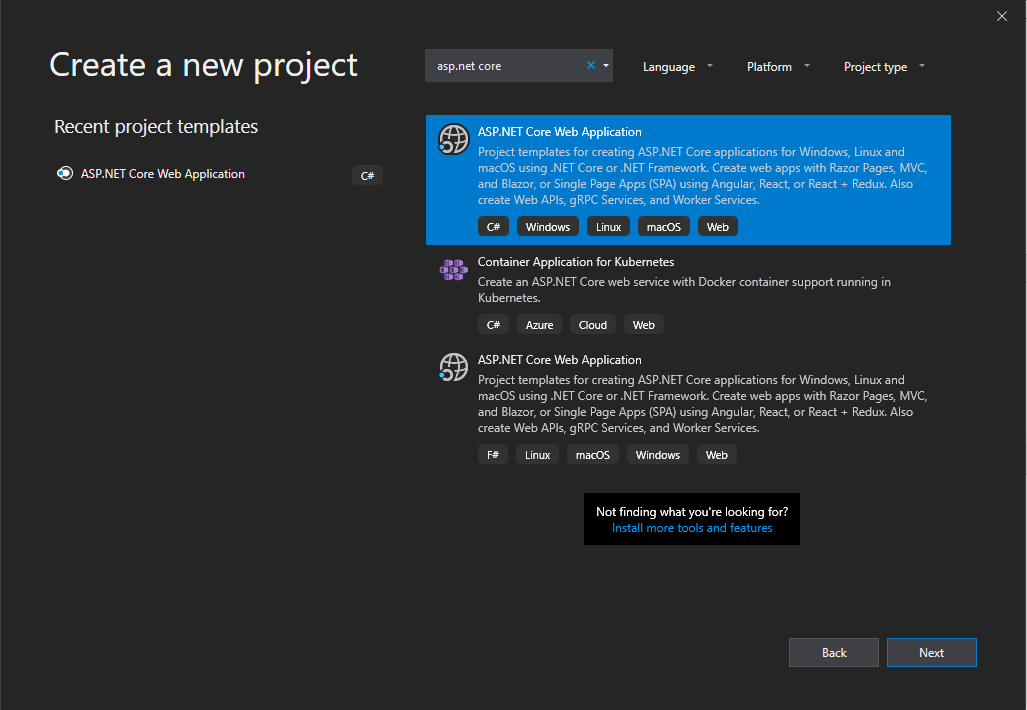
Start with the File > New > Project… menu. Then, in Visual C#, choose ASP.NET Core Web Application, as shown in the screenshot below.
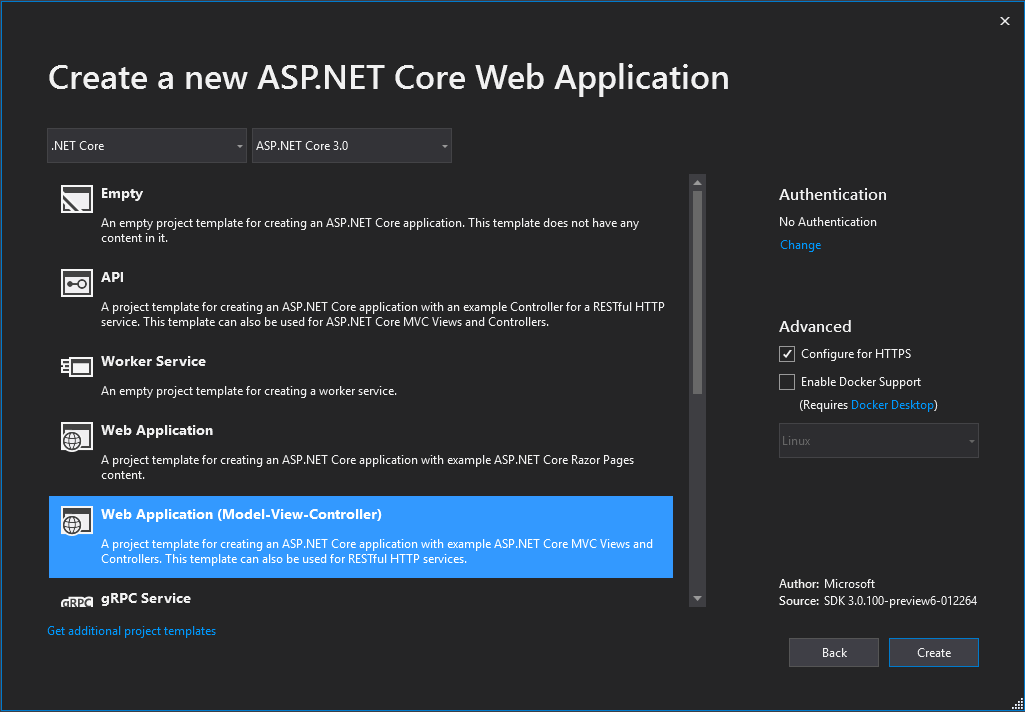
On the next page, choose .NET Core with ASP.NET Core 3.0 and select Web Application (Model-View-Controller), as shown in the screenshot below.
Now that the project structure is ready, the next step is to add project references and set up the project configuration.
Setting up the project configuration
- Add the reference to GdPicture.NET.14.WEB.DocuVieware.Core.dll, found in
[INSTALLATION FOLDER]\Redist\DocuVieware (.NET Core 3.0). - Add
Microsoft.AspNetCore.Mvc.NewtonsoftJsonwith the NuGet manager. - Add DocuVieware JavaScript and CSS to the project using
docuvieware-min.jsanddocuvieware-min.css, both of which are found in[INSTALLATION FOLDER]\Redist\DocuVieware (Resources). Add them to thecssandjsfolders of the project. - Download
jquery.min.jsfrom jQuery’s download page(opens in a new tab), or use the file included in the samples. This file isn’t added automatically when creating the project.
Setting up licensing
Now that the references are properly set, go to the Startup.cs file of the project to add mandatory imports and handle the licensing of DocuVieware.
Import the following DLLs:
using System.IO;using GdPicture14.WEB;To unlock DocuVieware, add a call to the RegisterKEY() method in the Startup method. Replace the placeholder with your actual license key.
DocuViewareLicensing.RegisterKEY("XXXX"); // Unlocking DocuVieware// Replace "XXXX" with your actual license key.Configuring DocuVieware
Next, set up the core configuration of DocuVieware through the DocuViewareManager.SetupConfiguration() method. Add this call directly after unlocking DocuVieware:
// DocuVieware Core ConfigurationDocuViewareManager.SetupConfiguration(true, DocuViewareSessionStateMode.File, Path.Combine(Directory.GetCurrentDirectory(), "Cache"), "/", "api/docuvieware3");Finally, add this code to the ConfigureServices method to enable the DocuVieware reference in Razor views:
services.AddMvc(option => option.EnableEndpointRouting = false).AddNewtonsoftJson();Below is what the Startup.cs file should look like at this point:
using Microsoft.AspNetCore.Builder;using Microsoft.AspNetCore.Hosting;using Microsoft.Extensions.Configuration;using Microsoft.Extensions.DependencyInjection;using Microsoft.Extensions.Hosting;using GdPicture14.WEB;using System.IO;
namespace DocuViewareNetCore{ public class Startup { public Startup(IConfiguration configuration) { // Unlocking DocuVieware DocuViewareLicensing.RegisterKEY("");
 // DocuVieware Core Configuration Configuration = configuration; DocuViewareManager.SetupConfiguration(true, DocuViewareSessionStateMode.File, Path.Combine(Directory.GetCurrentDirectory(), "Cache"), "/", "api/docuvieware3"); }
 public IConfiguration Configuration { get; }
 // This method gets called by the runtime. Use this method to add services to the container. public void ConfigureServices(IServiceCollection services) { services.Configure<CookiePolicyOptions>(options => { // This lambda determines whether user consent for non-essential cookies is needed for a given request. options.CheckConsentNeeded = context => true; });
 services.AddMvc(option => option.EnableEndpointRouting = false).AddNewtonsoftJson();
 services.AddControllersWithViews(); services.AddRazorPages(); }
 // This method gets called by the runtime. Use this method to configure the HTTP request pipeline. public void Configure(IApplicationBuilder app, IWebHostEnvironment env) { if (env.IsDevelopment()) { app.UseDeveloperExceptionPage(); } else { app.UseExceptionHandler("/Home/Error"); // The default HSTS value is 30 days. You may want to change this for production scenarios, see https://aka.ms/aspnetcore-hsts. app.UseHsts(); }
 app.UseHttpsRedirection(); app.UseStaticFiles();
 app.UseCookiePolicy();
 app.UseRouting();
 app.UseAuthorization();
 app.UseEndpoints(endpoints => { endpoints.MapControllerRoute( name: "default", pattern: "{controller=Home}/{action=Index}/{id?}"); endpoints.MapRazorPages(); }); } }}
Ensure the application has read/write permissions on the configured
Cachedirectory, or DocuVieware may fail at runtime.
DocuVieware integration
First, create an additional controller to handle and route DocuVieware actions. Create a new controller called DocuVieware3Controller.cs in the project’s Controllers folder:
using Microsoft.AspNetCore.Mvc;using GdPicture14.WEB;using System.Net.Http;using System.Net;namespace DocuViewareNetCore.Controllers{ [Route("api/docuvieware3")] public class DocuVieware3Controller : Controller { [HttpGet("ping")] public string ping() { return "pong"; } [HttpPost("baserequest")] public string baserequest([FromBody] object jsonString) { return DocuViewareControllerActionsHandler.baserequest(jsonString); }
 [HttpGet("print")] public HttpResponseMessage Print(string sessionID, string pageRange, bool printAnnotations) { return DocuViewareControllerActionsHandler.print(sessionID, pageRange, printAnnotations); }
 [HttpGet("getresource")] public IActionResult GetResource(string resourceID, string version) { DocuViewareControllerActionsHandler.getresource(resourceID, version, out HttpStatusCode statusCode, out byte[] content, out string contentType, out string fileName, out string reasonPhrase); if (statusCode == HttpStatusCode.OK) { return File(content, contentType, fileName); } else { return StatusCode((int)statusCode, reasonPhrase); } }
 [HttpGet("save")] public IActionResult Save(string sessionID, string fileName, string format, string pageRange, bool dropAnnotations, bool flattenAnnotations) { DocuViewareControllerActionsHandler.save(sessionID, ref fileName, format, pageRange,dropAnnotations, flattenAnnotations, out HttpStatusCode statusCode, out string reasonPhrase, out byte[] content, out string contentType); if (statusCode == HttpStatusCode.OK) { return File(content, contentType, fileName); } else { return StatusCode((int)statusCode, reasonPhrase); } }
 [HttpGet("twainservicesetupdownload")] public IActionResult TwainServiceSetupDownload(string sessionID) { DocuViewareControllerActionsHandler.twainservicesetupdownload(sessionID, out HttpStatusCode statusCode, out byte[] content, out string contentType, out string fileName, out string reasonPhrase); if (statusCode == HttpStatusCode.OK) { return File(content, contentType, fileName); } else { return StatusCode((int)statusCode, reasonPhrase); } }
 [HttpPost("formfieldupdate")] public string FormfieldUpdate([FromBody]object jsonString) { return DocuViewareControllerActionsHandler.formfieldupdate(jsonString); }
 [HttpPost("annotupdate")] public string AnnotUpdate([FromBody]object jsonString) { return DocuViewareControllerActionsHandler.annotupdate(jsonString); }
 [HttpPost("loadfromfile")] public string LoadFromFile([FromBody]object jsonString) { return DocuViewareControllerActionsHandler.loadfromfile(jsonString); }
 [HttpPost("loadfromfilemultipart")] public string LoadFromFileMultipart() { return DocuViewareControllerActionsHandler.loadfromfilemultipart(Request); } }}
The controller configuration shown here is intentionally minimal and doesn’t include authentication or authorization. For production scenarios, you must secure these endpoints appropriately.
Integrate a DocuVieware instance in the Index view. The same approach applies to any other view or content.
For the sake of clarity, replace the entire content of the Index view. Remove other views and the shared layouts as well; you won’t use them in this guide.
Create a div in Index.cshtml and insert the DocuVieware control in it. Then create a new DocuVieware object in the div and set its properties.
Below is what the Index.cshtml finally looks like after the integration is complete:
@usingSystem.IO;@{ Layout = null;}
<!DOCTYPE html><html style="height: 100%"><head> <meta name="viewport"content="width=device-width"/> <title>DocuVieware - Annotations Demo.</title> <meta name="viewport"content="width=device-width, initial-scale=1"/> <link href="~/css/docuvieware-min.css"rel="stylesheet"type="text/css"/> <script src="~/js/jquery-3.1.0.min.js"></script> <script src="~/js/docuvieware-min.js"></script></head><body style="overflow: hidden; margin: 0; height: 100%;"> <div style="width: 100%; height: 100%;"> @{ GdPicture14.WEB.DocuViewareControl docuVieware = new GdPicture14.WEB.DocuViewareControl("myControlSessionid", "DocuVieware1", 20) { Height = "100%", Width = "100%", DisableAnnotationDrawingModePanel = true, EnableMultipleThumbnailSelection = false, EnableFormFieldsEdition = true }; docuVieware.RenderControl(Output); docuVieware.Dispose(); } </div></body></html>
You can find the sample and mentioned source codes in this folder:
[INSTALLATION FOLDER]\Samples\ASP.NET\DocuVieware (.NET Core)\aspnetcore-mvc\_razor\_app.
That’s it! You can start the project and load documents in your brand-new DocuVieware.