Custom snap-in implementation using an MVC PartialView
This guide is an alternative to the MVC custom snap-in implementation guide and requires completion of the your first DocuVieware MVC Razor page guide.
A snap-in is an interface element that provides a rich and modular user experience. Depending on your custom snap-in content, it can become tedious to design and painful to maintain. The best option is to build the custom snap-in in an MVC PartialView.
This guide implements a custom snap-in containing a button that sends a ping command to the server, which replies with a pong message using the MVC PartialView concept.
Requirements — .NET Framework 4.6 or above
Note — Screenshots were taken using Visual Studio 2015 and GdPicture.NET 14. They may differ from the current release.
Preparing the PartialView implementation
Create a
ViewModelthat contains both the DocuVieware unique ID and your custom snap-in HTML content:CS public class IndexViewModel{public string DocuViewareID { get; set; }public string SnapInHtmlContent { get; set; }}Create an extension method that renders your PartialView to a string. Create a new
RenderRazorViewToStringHelper.csclass:CS public static class RenderRazorViewToStringHelper{public static string RenderRazorViewToString(this Controller controller, string viewName, object model){controller.ViewData.Model = model;using (StringWriter stringWriter = new StringWriter()){ViewEngineResult viewResult = ViewEngines.Engines.FindPartialView(controller.ControllerContext, viewName);ViewContext viewContext = new ViewContext(controller.ControllerContext, viewResult.View, controller.ViewData, controller.TempData, stringWriter);viewResult.View.Render(viewContext, stringWriter);viewResult.ViewEngine.ReleaseView(controller.ControllerContext, viewResult.View);return stringWriter.GetStringBuilder().ToString();}}}
Creating the snap-in content as a PartialView
Create a PartialView called
CustomSnapIn.cshtmlwith the following content:CS @model IndexViewModel<div id="customSnapInTutorialPanel@(Model.DocuViewareID)"><div style="float:left; margin-top:6px; margin-left:6px"><button id="customSnapInSubmit@(Model.DocuViewareID)" style="height:26px" class="btn-valid" onclick="ping(); return false;">Ping</button></div></div><script>function ping() {DocuViewareAPI.PostCustomServerAction('@(Model.DocuViewareID)', true, 'ping');}</script>In your controller action, create the model and render the PartialView:
CS IndexViewModel model = new IndexViewModel { DocuViewareID = "DocuVieware1" };model.SnapInHtmlContent = this.RenderRazorViewToString("_CustomSnapIn", model);return View(model);The model renders the PartialView and is then reinjected into the view containing your DocuVieware control.
In the
Indexview containing your DocuVieware control, inject the model and add the snap-in from its content:CS @model IndexViewModel…@{GdPicture14.WEB.DocuVieware docuVieware = new GdPicture14.WEB.DocuVieware{ID = Model.DocuViewareID,Height = new System.Web.UI.WebControls.Unit("100%"),Width = new System.Web.UI.WebControls.Unit("100%")};using (HtmlGenericControl icon = new HtmlGenericControl("svg")){icon.Attributes["viewBox"] = "0 0 16 16";icon.Attributes["width"] = "100%";icon.Attributes["height"] = "100%";icon.InnerHtml = "<path d=\"M6 0l-6 8h6l-4 8 14-10h-8l6-6z\"></path>";using (HtmlGenericControl panel = new HtmlGenericControl("div")){panel.ClientIDMode = ClientIDMode.Static;panel.InnerHtml = Model.SnapInHtmlContent;docuVieware.AddCustomSnapIn("customSnapInTutorial", "Custom Snap-In", icon, panel, true);}}docuVieware.RenderControl(Output);}
Handling your action server-side
As described in the client/server coming and going with custom actions guide, implement a custom action that processes the snap-in button click event.
Add the custom action event handler in the Global.asax.cs file:
private void CustomActionsHandler(object sender, CustomActionEventArgs e) { if ((e.actionName == "ping")) { e.message = new DocuViewareMessage("Pong", icon: DocuViewareMessageIcon.Information); } }Compile and start the page. The custom snap-in icon will appear in the left panel.
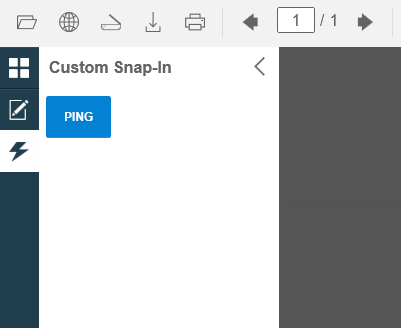
Now, if you select it and click the ping button, it’ll trigger the custom action and you should see a Pong message coming back from the server.