Client/server coming and going with custom actions
Before starting, complete the your first DocuVieware ASP.NET Web Forms page guide.
This guide shows how to implement a button that draws a QR code on the current document with a specified value prompted to the user in a C# ASP.NET Web Forms project.
Requirements — .NET Framework 4.6 or above
Note — Screenshots were taken using Visual Studio 2015 and GdPicture.NET 14. They may differ from the current release.
Preparing your action client-side
Add a button on the page and attach an
onclickevent to it that executes a JavaScript function:HTML <button onclick="drawQRCode(); return false;">Draw QRCode</button>Add the JavaScript function that calls the
PostCustomServerActionfunction from the DocuVieware JavaScript public API:JavaScript function drawQRCode() {var codeValue = prompt("Enter the text to encode", "DocuVieware");if (codeValue != null) {DocuViewareAPI.PostCustomServerAction("DocuVieware1", true, "drawQRCode", codeValue);}}
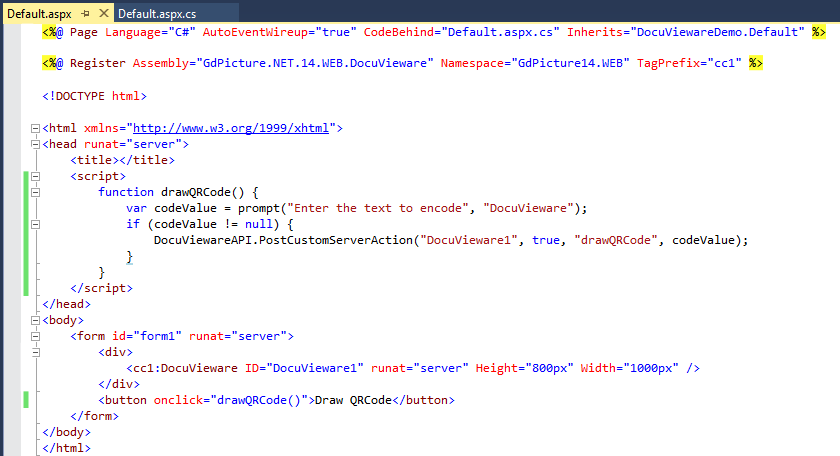
The screenshot below shows what your Default.aspx page should look like.
Handling your action server-side
The client-side part is done. Now route the DocuVieware custom action event in Global.asax.cs.
In
Application_Start, subscribe to theCustomActionevent and redirect it to a private handler namedCustomActionsHandler:C# protected void Application_Start(object sender, EventArgs e){DocuViewareLicensing.RegisterKEY("XXXX"); //Unlocking DocuViewareDocuViewareEventsHandler.CustomAction += CustomActionsHandler;}private void CustomActionsHandler(object sender, CustomActionEventArgs e){// if we are in the drawQRCode action and we have parametersif ((e.actionName == "drawQRCode") && (e.args != null)){Default.handleCustomAction(e);}}Now, each time the
PostCustomServerActionJavaScript function is called client-side, it fires the server-side event that goes into theCustomActionsHandlermethod. TheactionNameis checked and dispatched accordingly.Implement
Default.handleCustomAction. This doesn’t exist yet, so it won’t compile. Since you’re using GdPicture.NET to draw your barcode, add someusingstatements inDefault.aspx.cs.Implement the event handler that draws the QR code:
C# using GdPicture14.WEB;using GdPicture14;using System.Drawing;public static void handleCustomAction(CustomActionEventArgs e){string barcodeValue = e.args.ToString();if (e.docuVieware.PageCount > 0){// we need to check if the document is an image...if (e.docuVieware.GetDocumentType() == DocumentType.DocumentTypeBitmap){int ImageID;GdPictureStatus status = e.docuVieware.GetNativeImage(out ImageID);if (status == GdPictureStatus.OK){GdPictureImaging oGdPictureImaging = new GdPictureImaging();oGdPictureImaging.BarcodeQRWrite(ImageID, barcodeValue,BarcodeQREncodingMode.BarcodeQREncodingModeUndefined,BarcodeQRErrorCorrectionLevel.BarcodeQRErrorCorrectionLevelH,0, 5, 4, 10, 10, 0, Color.Black, Color.Transparent);}else{e.message = new DocuViewareMessage("Error during get native image : " + status.ToString() + ".","#ff5656", 2500, 300, 300, false, "130%", "normal","#ffffff", "none", "none", "48px", DocuViewareMessageIcon.Error);}}else{// ...or a PDF documentif (e.docuVieware.GetDocumentType() == DocumentType.DocumentTypePDF){GdPicturePDF oGdPicturePDF = new GdPicturePDF();GdPictureStatus status = e.docuVieware.GetNativePDF(out oGdPicturePDF);if (status == GdPictureStatus.OK){oGdPicturePDF.SetOrigin(PdfOrigin.PdfOriginTopLeft);oGdPicturePDF.SetMeasurementUnit(PdfMeasurementUnit.PdfMeasurementUnitCentimeter);oGdPicturePDF.DrawBarcodeQrCode(barcodeValue,BarcodeQREncodingMode.BarcodeQREncodingModeUndefined,BarcodeQRErrorCorrectionLevel.BarcodeQRErrorCorrectionLevelH,0, 4, 1, 1, Color.Black);}else{e.message = new DocuViewareMessage("Error during get native PDF : " + status.ToString() + ".","#ff5656", 2500, 300, 300, false, "130%", "normal","#ffffff", "none", "none", "48px", DocuViewareMessageIcon.Error);}}}}else{e.message = new DocuViewareMessage("Please load a document first.","#ff5656", 2500, 300, 300, false, "130%", "normal","#ffffff", "none", "none", "48px", DocuViewareMessageIcon.Error);}}
Sending and receiving data with a custom action
This part is demonstrated in the barcode recognition sample(opens in a new tab) provided within the SDK installer. Refer to it to understand how it should be used.
Below is a closer look at the PostCustomServerAction JavaScript function:
function PostCustomServerAction: function (docuViewareID, async, actionName, params, success, error)There are two extra parameters that weren’t used in the previous example: success and error. These two callbacks run your own code on success or on error. They’re optional functions you write on your own depending on what you want to achieve.
The important part here is the success callback. Through this, you can retrieve a result from the server action.
Define your success callback function:
JavaScript function onBarcodeDrawingSuccess(result) {alert("result: " + JSON.stringify(result));}Change the parameters you’re sending to include both the code value and a result field. Name this object
json. Then use it in thePostCustomServerActioncall together with the success callback:JavaScript function drawQRCode() {var codeValue = prompt("Enter the text to encode", "DocuVieware");if (codeValue != null) {var json = {value: codeValue,example: false};DocuViewareAPI.PostCustomServerAction("DocuVieware1", true, "drawQRCode", json, onBarcodeDrawingSuccess);}}From now on, each time the custom action is called and successful, the
onBarcodeDrawingSuccessfunction is triggered.Declare the structure of the new parameter you’re passing. It has to exactly match the JavaScript object you just created.
C# internal class myCustomActionParameters{public string value { get; set; }public bool example { get; set; }}Change the Boolean value called
examplefromfalsetotrue:C# public static void handleCustomAction(CustomActionEventArgs e){// we need to properly cast the parameters according to the internal class we have defined...myCustomActionParameters myParameters = JsonConvert.DeserializeObject<myCustomActionParameters>(e.args.ToString());// ...so we can access to its contentstring barcodeValue = myParameters.value;if (e.docuVieware.PageCount > 0){// we need to check if the document is an image...if (e.docuVieware.GetDocumentType() == DocumentType.DocumentTypeBitmap){int ImageID;GdPictureStatus status = e.docuVieware.GetNativeImage(out ImageID);if (status == GdPictureStatus.OK){GdPictureImaging oGdPictureImaging = new GdPictureImaging();oGdPictureImaging.BarcodeQRWrite(ImageID, barcodeValue,BarcodeQREncodingMode.BarcodeQREncodingModeUndefined,BarcodeQRErrorCorrectionLevel.BarcodeQRErrorCorrectionLevelH,0, 5, 4, 10, 10, 0, Color.Black, Color.Transparent);}else{e.message = new DocuViewareMessage("Error during get native image : " + status.ToString() + ".","#ff5656", 2500, 300, 300, false, "130%", "normal","#ffffff", "none", "none", "48px", DocuViewareMessageIcon.Error);}}else{// ...or a PDF documentif (e.docuVieware.GetDocumentType() == DocumentType.DocumentTypePDF){GdPicturePDF oGdPicturePDF = new GdPicturePDF();GdPictureStatus status = e.docuVieware.GetNativePDF(out oGdPicturePDF);if (status == GdPictureStatus.OK){oGdPicturePDF.SetOrigin(PdfOrigin.PdfOriginTopLeft);oGdPicturePDF.SetMeasurementUnit(PdfMeasurementUnit.PdfMeasurementUnitCentimeter);oGdPicturePDF.DrawBarcodeQrCode(barcodeValue,BarcodeQREncodingMode.BarcodeQREncodingModeUndefined,BarcodeQRErrorCorrectionLevel.BarcodeQRErrorCorrectionLevelH,0, 4, 1, 1, Color.Black);}else{e.message = new DocuViewareMessage("Error during get native PDF : " + status.ToString() + ".","#ff5656", 2500, 300, 300, false, "130%", "normal","#ffffff", "none", "none", "48px", DocuViewareMessageIcon.Error);}}}// now we change the example value we want to send back to client sidemyParameters.example = true;// and we put our parameter object into the proper onee.result = myParameters;}else{e.message = new DocuViewareMessage("Please load a document first.","#ff5656", 2500, 300, 300, false, "130%", "normal","#ffffff", "none", "none", "48px", DocuViewareMessageIcon.Error);}}