Your first DocuVieware ASP.NET Web Forms page
This guide shows how to integrate DocuVieware into a newly created C# ASP.NET Web Forms project.
Requirements — .NET Framework 4.6 or above
Note — Screenshots were taken using Visual Studio 2015 and GdPicture.NET 14. They may differ from the current release.
Empty project creation
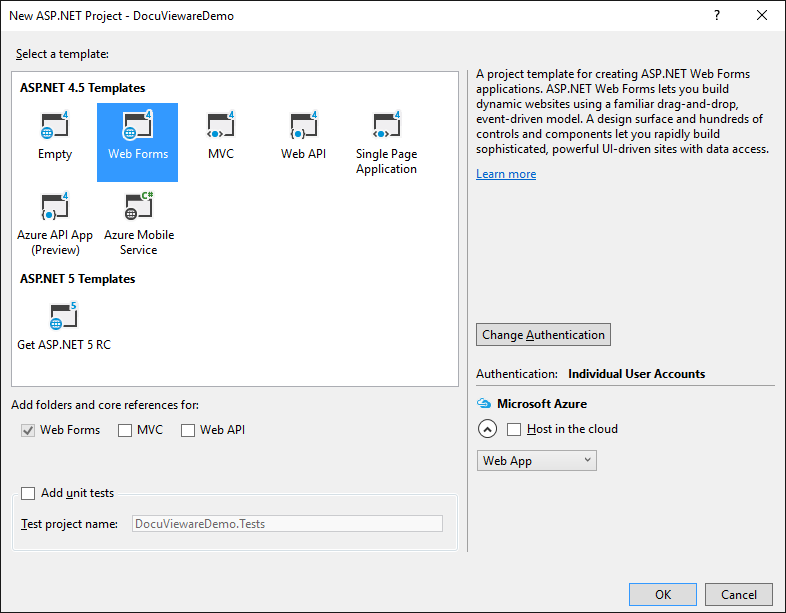
Start with the File > New > Project… menu. Then choose Web > ASP.NET Web Application. In this guide, you’ll be working on DocuVieware Demo, a new ASP.NET 4.5 Web Forms project.
Depending on your Visual Studio version, your project may not include a
Global.asaxfile. If it doesn’t, add one using Add > New Item…. Then select Global Application Class in the list.
The screenshot below shows the resulting structure.
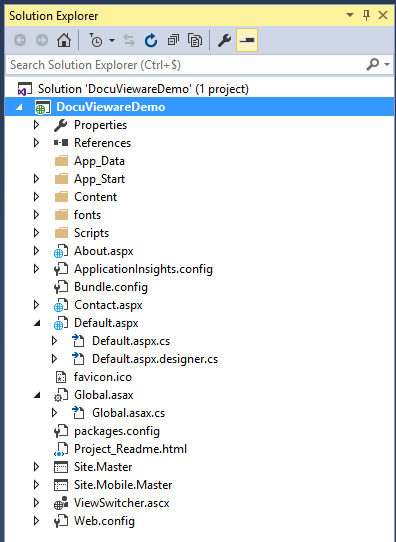
Now that the project structure is complete, the next step is to add project references.
Adding mandatory references
Add the following references:
GdPicture.NET.14.WEB.DocuVieware.dll, which is found in[INSTALLATION FOLDER]\Redist\DocuVieware(.NET Framework 4.6)System.Web.Httpfrom the Microsoft ASP.NET Web API
The
System.Web.Httpnamespace may not be directly available on your system. It requires Microsoft ASP.NET Web API to be installed first.
To install it, run the following command in the Package Manager Console (Tools > NuGet Package Manager > Package Manager Console):
PM> Install-Package Microsoft.AspNet.WebApiAdd
Newtonsoft JSON. Even though it may already be in the references, the version is likely outdated and will cause an error at runtime.
In the Package Manager Console, run the following command:
PM> Install-Package Newtonsoft.JSONThe project references should look as follows once the two references have been added.
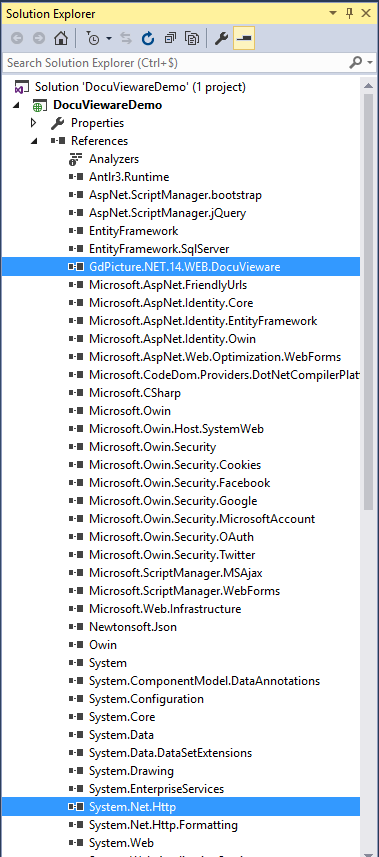
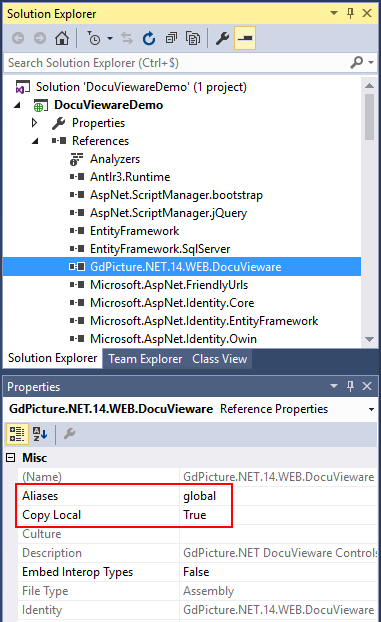
Ensure that the
GdPicture.NET.14.Web.DocuViewarereference is marked asCopy Local : Truein its properties window. For more information, refer to the Copy Local property documentation(opens in a new tab).
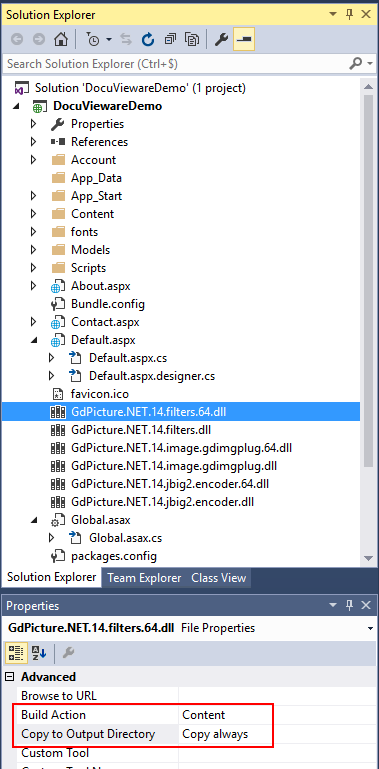
Extra libraries are mandatory for deployment. These files are found in [INSTALLATION FOLDER]\Redist:
GdPicture.NET.14.filters.dll(for 32-bit execution)GdPicture.NET.14.filters.64.dll(for 64-bit execution)GdPicture.NET.14.image.gdimgplug.dll(for 32-bit execution)GdPicture.NET.14.image.gdimgplug.64.dll(for 64-bit execution)GdPicture.NET.14.Imaging.Rendering.Skia.dll(for 32-bit execution)GdPicture.NET.14.Imaging.Rendering.Skia.64.dll(for 64-bit execution)GdPicture.NET.14.jbig2.encoder.dll(for 32-bit execution)GdPicture.NET.14.jbig2.encoder.64.dll(for 64-bit execution)
Add them to the project using the Add > Existing item… menu. Once done, set the Build Action property to Content and the Copy to Output Directory property to Copy always for each file.
Licensing and configuring
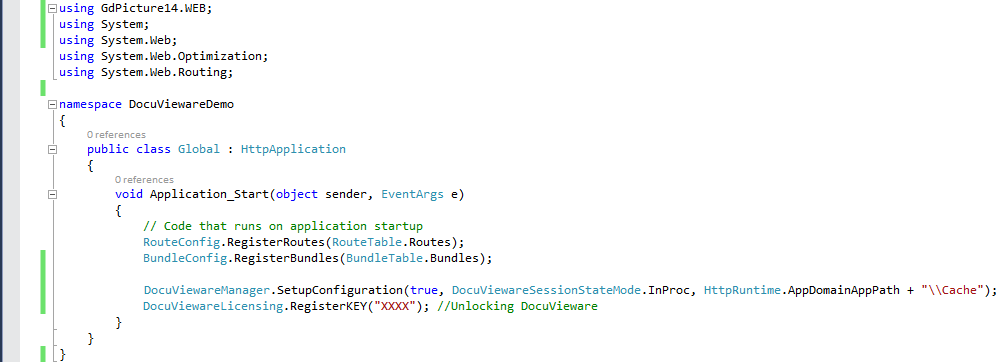
Now that the references are properly set, go into Global.asax.cs, add the mandatory import, and handle the licensing and configuration of DocuVieware.
Sample source code is available here:
[INSTALLATION FOLDER]\Samples\ASP.NET\DocuVieware\aspnet-webform\_app\Global.asax.cs.
Below is the mandatory import to add:
using GdPicture14.WEB;Imports GdPicture14.WEBTo unlock DocuVieware, add a call to the RegisterKEY() method in the Application_Start event. Then enter your license key in the method.
DocuViewareLicensing.RegisterKEY("XXXX"); // Unlocking DocuVieware// Replace "XXXX" with your actual license key.DocuViewareLicensing.RegisterKEY("XXXX") ' Unlocking DocuVieware' Replace "XXXX" with your actual license key.To set up the configuration of DocuVieware, add a call to the DocuViewareManager.SetupConfiguration() method in the Application_Start event. First, create a new folder in the project for the cache. For clarity, name it Cache.
DocuViewareManager.SetupConfiguration(true, DocuViewareSessionStateMode.InProc, HttpRuntime.AppDomainAppPath + "\\Cache");DocuViewareManager.SetupConfiguration(true, DocuViewareSessionStateMode.InProc, HttpRuntime.AppDomainAppPath + "\\Cache")The screenshot below shows what the file should look like.
Sample source code is available here:
[INSTALLATION FOLDER]\Samples\ASP.NET\DocuVieware\aspnet-webform\_app\Global.asax.cs.
DocuVieware integration
Add the assembly registration to the page so you can add a DocuVieware control on it. Below is the ASP.NET code to add:
ASP.NET <%@ Register Assembly="GdPicture.NET.14.WEB.DocuVieware" Namespace="GdPicture14.WEB" TagPrefix="cc1" %>Add the following DocuVieware control to
Default.aspx:ASP.NET <cc1:DocuVieware ID="DocuVieware1" runat="server" Height="800px" Width="1000px" />DocuVieware now has a fixed size of 1000×800 pixels.
The screenshot below shows how the page source code looks.

The integration is complete. Start the project and load documents in DocuVieware.