How to set up and use DocuVieware with React
One of the most popular frameworks for building browser-based applications is React(opens in a new tab), and it’s the perfect vehicle for hosting DocuVieware.
This guide shows how to set up and use DocuVieware in a web application using the React framework. As React is a frontend technology, it’s necessary to host it on a server and deploy it to the browser. To achieve this, you’ll use a .NET WebAPI application, which also acts as the server-side deployment host for the DocuVieware technology.
Legacy guide notice
This guide uses ASP.NET Web API on .NET Framework 4.6 and React.
ASP.NET Web API on .NET Framework 4.6 is no longer recommended for new applications.
This guide is intended for maintaining existing applications or environments with fixed legacy constraints.
Setting up the project
Download and install the DocuVieware SDK. Then install DocuVieware and the core GdPicture.NET package. Once finished, start setting up the WebAPI application.
To get a .NET WebAPI app up and running, use the helpers built into Microsoft Visual Studio. In Visual Studio, start a new project and choose an ASP.NET application. Then select the empty template and ensure the Web API checkbox is ticked.
DocuVieware uses version 4.6 of the .NET Framework, so ensure the project is set to use this.
Once you approve the default settings, Visual Studio takes care of building out the scaffolding required for this project.
After creating the project in Visual Studio, add a number of required libraries.
In Solution Explorer, select the references section and import GdPicture.NET.14.WEB.DocuVieware.dll from the [INSTALLATION FOLDER]\Redist\DocuVieware (.NET Framework 4.6)\ folder. It’s important to mark it as Copy Local.
Copy over the files needed for distribution, which are found in the [INSTALLATION FOLDER]\Redist\ folder. Select the DLLs relevant to the server you’re deploying on, 32- or 64-bit. The distribution libraries should be added to the references using the add command, not add link.
Finally, as with the core DLL, set the Build Action property to Content and the Copy to Output Directory property to Copy always for each file.
You’re now ready to configure the API.
Licensing the DocuVieware API
To use DocuVieware, first set its license key. This is done in the Global.asax.cs file in the root folder of the application:
usingSystem;usingSystem.Collections.Generic;usingSystem.Linq;usingSystem.Web;usingSystem.Web.Http;usingSystem.Web.Routing;usingGdPicture14.WEB;namespaceDocuViewareREST{ publicclassWebApiApplication:System.Web.HttpApplication { protectedvoidApplication_Start() { GlobalConfiguration.Configure(WebApiConfig.Register); DocuViewareManager.SetupConfiguration(true,DocuViewareSessionStateMode.InProc, HttpRuntime.AppDomainAppPath+"\\Cache"); DocuViewareLicensing.RegisterKEY("0479351806789477867332464"); DocuViewareEventsHandler.CustomAction+=CustomActionsDispatcher; } }}Setting the license consists of adding a reference to the core library (using GdPicture14.WEB) and passing in initial settings to let the library know where to store temporary cache files. For the entire process, refer to the serving DocuVieware through a REST API guide.
Implementing the service
There are a number of different ways to implement the service. For this example, the focus is on the React part of the project.
Create a test controller called DocuViewareRESTController. The purpose of the controller is to configure the default settings for the service, and to act as an endpoint to generate and transfer the service to the user in the browser. Follow the steps below.
Define the controller:
[HttpPost] [Route("api/DocuViewareREST/GetDocuViewareControl")] publicDocuViewareRESTOutputResponseGetDocuViewareControl(DocuViewareConfiguration controlConfiguration) { if(!DocuViewareManager.IsSessionAlive(controlConfiguration.SessionId)) { if(!string.IsNullOrEmpty(controlConfiguration.SessionId) && !string.IsNullOrEmpty(controlConfiguration.ControlId)) { DocuViewareManager.CreateDocuViewareSession(controlConfiguration.SessionId, controlConfiguration.ControlId,20); } else { thrownewException( "Invalid session identifier and/or invalid control identifier."); } }Set the service defaults:
using (DocuVieware docuVieware = new DocuVieware(controlConfiguration.SessionId)) { docuVieware.AllowPrint = controlConfiguration.AllowPrint; docuVieware.EnablePrintButton = controlConfiguration.EnablePrintButton; docuVieware.AllowUpload = controlConfiguration.AllowUpload; docuVieware.EnableFileUploadButton = controlConfiguration.EnableFileUploadButton; docuVieware.CollapsedSnapIn = controlConfiguration.CollapsedSnapIn; docuVieware.ShowAnnotationsSnapIn = controlConfiguration.ShowAnnotationsSnapIn; docuVieware.EnableRotateButtons = controlConfiguration.EnableRotateButtons; docuVieware.EnableZoomButtons = controlConfiguration.EnableZoomButtons; docuVieware.EnablePageViewButtons = controlConfiguration.EnablePageViewButtons; docuVieware.EnableMultipleThumbnailSelection = controlConfiguration.EnableMultipleThumbnailSelection; docuVieware.EnableMouseModeButtons = controlConfiguration.EnableMouseModeButtons; docuVieware.EnableFormFieldsEdition = controlConfiguration.EnableFormFieldsEdition; docuVieware.EnableTwainAcquisitionButton = controlConfiguration.EnableTwainAcquisitionButton; docuVieware.MaxUploadSize = 36700160; // 35MBRender the service out to the calling browser as HTMLContent:
using(StringWritercontrolOutput=newStringWriter()) { docuVieware.RenderControl(controlOutput); DocuViewareRESTOutputResponseoutput=newDocuViewareRESTOutputResponse { HtmlContent=controlOutput.ToString() }; returnoutput; }Setting up and integrating React
Place specific JavaScript and CSS files in your system and ensure they can be accessed from the HTML page. The required files are available in the [SDK INSTALL DIR]\Redist\DocuVieware (Resources)\ folder.
The DocuVieware files should be referenced in the <head> section of your main template:
<script src="docuvieware-min.js"></script><link rel="stylesheet" type="text/css" href="docuvieware-min.css" >This demo assumes you’ve already set up the backend so it can be referenced from React:
http://localhost:44355/api/DocuViewareREST/GetDocuViewareControlCreate a React component and service to insert the DocuVieware component into the document object model (DOM). Create the service first, as it’s the part that actually accesses the REST API through a POST request that returns the control markup. It’s also where you set the control properties.
Create a folder called components, and then create two files in that folder: docuvieware-component.js and docuvieware.api.js.
When creating the component-api class, first set up a configuration section (config), and declare the display and function options you want to be available to the user:
exportdefaultclassDocuViewareApi{ config= { SessionId:"mySessionId",//Set to an arbitrary value, should be replaced by the //session identifier from your session mechanism ControlId:"DocuVieware1", AllowPrint:true, EnablePrintButton:true, AllowUpload:true, EnableFileUploadButton:true, CollapsedSnapIn:true, ShowAnnotationsSnapIn:true, EnableRotateButtons:true, EnableZoomButtons:true, EnablePageViewButtons:true, EnableMultipleThumbnailSelection:true, EnableMouseModeButtons:true, EnableFormFieldsEdition:true, EnableTwainAcquisitionButton:true, };Then declare the call to the server endpoint that returns the DocuVieware control, sending the chosen configuration options in the body of the POST method:
getDocuViewareMarkup = async () => { try { const markup = fetch( "https://localhost:44355/api/DocuViewareREST/GetDocuViewareControl", { method: "POST", headers: { "Content-Type": "application/json", }, body: JSON.stringify(this.config), } ); return (await markup).json(); } catch (err) { return err; } };When the result is returned from the server endpoint, it’s rendered dynamically into the DOM:
insertMarkup = (markup, id) => { const fragment = document .createRange() .createContextualFragment(markup["HtmlContent"]); document.getElementById(id).appendChild(fragment); };The code of the component-api is in turn called from the main component file:
import React from "react";import DocuViewareApi from "./docuvieware.api";
 const api = new DocuViewareApi(); const DocuViewareComponent = () => { React.useEffect(() => { api .getDocuViewareMarkup() .then((markup) => api.insertMarkup(markup, "dvContainer")); }, []); return ( <div id="dvContainer" style={{ height: "100vh", width: "100%" }}></div> ); }; export default DocuViewareComponent;
The final step is to include the component you just built into the main frontend application, which is hosted using a Node.js server:
import React from "react";import DocuViewareComponent from "./components/docuvieware-component";
function App() { return ( <div className="layout"> <div> <DocuViewareComponent /> </div> </div> ); } export default App;
To test that everything is working as it should, run the .NET API server backend, and then run the React application by running npm start from the root React folder.
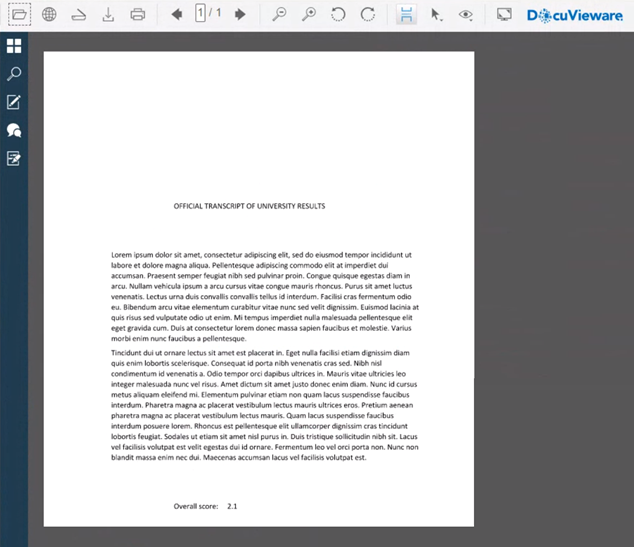
A browser instance should open automatically, and you’ll see the DocuVieware system embedded in the browser, ready to use.
In the example shown below, a PDF document has already been loaded. DocuVieware renders it with all of the functions requested in the React configuration parameters made available to the user.
Customizing DocuVieware
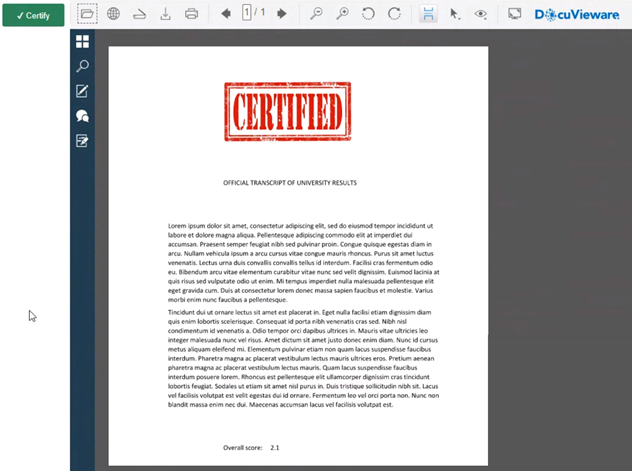
Beyond the extensive built-in functionality of DocuVieware, you can also customize the user experience in many ways. As an example, enable the user to approve and certify the university transcript in the example by adding a certified image to the document. To do this, add the code below to both the frontend React app and the server.
In the React code, declare a new function called drawCertify that calls a custom handler constructed on the server. The function is initiated by a custom button placed on the screen, Certify:
import React from "react";import DocuViewareComponent from "./components/docuvieware-component";
function App() { function drawCertify() { window.DocuViewareAPI.PostCustomServerAction( "DocuVieware1", true, "drawCertify", codeValue ); }
return ( <div className="layout"> <div> <button onClick={drawCertify} className="certify"> ✔ Certify </button> </div> <div> <DocuViewareComponent /> </div> </div> ); }
export default App;On the server, visit the Global.asax and create a CustomActionsDispatcher, which calls a new handler method called DrawCertify:
private void CustomActionsDispatcher(object sender, CustomActionEventArgs e){ if ((e.actionName == "drawCertify") && (e.args != null)) { CustomActions.DrawCertify(e); }}Then create a new CustomActions class and use GdPicture.NET, which is part of the DocuVieware library, to load the PDF, load the certification image, and draw the image onto the PDF document in the specified location:
using System.Drawing; using GdPicture14; using GdPicture14.WEB; namespace DocuViewareREST { public class CustomActions { public static void DrawCertify(CustomActionEventArgs e) { GdPicturePDF oGdPicturePdf; GdPictureStatus status = e.docuVieware.GetNativePDF(out oGdPicturePdf); oGdPicturePdf.SetOrigin(PdfOrigin.PdfOriginTopLeft); oGdPicturePdf.SetMeasurementUnit(PdfMeasurementUnit.PdfMeasurementUnitCentimeter); var ImageID = oGdPicturePdf.AddJpegImageFromFile("PATH TO YOUR IMAGE HERE"); var pageWidth = oGdPicturePdf.GetPageWidth(); var pageHeight = oGdPicturePdf.GetPageHeight(); oGdPicturePdf.SetMeasurementUnit(PdfMeasurementUnit.PdfMeasurementUnitPoint); oGdPicturePdf.SetOrigin(PdfOrigin.PdfOriginBottomLeft); oGdPicturePdf.DrawImage(ImageID, pageWidth / 3, pageHeight / 3, pageWidth * 10, pageHeight * 10); e.docuVieware.RedrawPage(); } } }The work is carried out on the server, and it’s immediately rendered as required in the browser to the user.
Wrapping up
This guide introduced DocuVieware and demonstrated how to set up and use it with the React frontend framework. It also examined how to add custom functionality to the application by using the postCustomServerAction feature.
As with most integration projects, the most difficult part is getting started and learning how the pieces fit together. This guide provides a solid base from which to work when developing with React.
For an overview of what can be achieved using DocuVieware, refer to the online demonstration site(opens in a new tab).