Integrating DocuVieware with Electron
Electron is a framework for building desktop applications using JavaScript, HTML, and CSS. By embedding Chromium and Node.js in its binary, Electron enables you to maintain a JavaScript codebase and build cross-platform applications that run on Windows, macOS, and Linux without native development experience.
Preparing your environment
To create an Electron sample, you need to have DocuVieware, Node.js(opens in a new tab), and Electron(opens in a new tab) installed on your machine. Use the latest LTS version available. DocuVieware requires at least the .NET Framework 4.6 or .NET Core 3.0 to run properly.
Creating your Electron sample
At the end of this guide, you’ll have an Electron app with DocuVieware embedded within. The application enables you to use DocuVieware’s default features, choose the language of the viewer, and dynamically create a custom signature field and sign it.
Create a new folder, DocuVieware-electron-sample and within it, create another folder called Client.
Once the folders are created, launch the CMD and run the npm init command. Set the package name and the information asked by Node.js.
This command creates a package.json file for your project’s frontend. A package.json file contains information about the project’s packages and dependencies. It also contains metadata for the project, such as version number, author, and description. Once it’s done, launch npm i --save-dev electron. This adds the third-party package to the package’s development dependencies. In the package.json, under scripts, add "start": "electron ." to set node scripts to run. Change the main parameter to "app/server.js". Create an app folder, and add an index.html file with this HTML code to give your application a loading screen.
<!DOCTYPE html><html><head> <meta charset="UTF-8"> <title>DocuVieware Sample</title> <style> html, body { margin: 0px; } </style></head><body style="height: 100vh; width:100vw;"><img src="https://www.pdfa.org/wp-content/uploads/2019/02/Logo_DocuVieware_no_version-wpv_x200.png" style="position: absolute; position: absolute; margin: auto; top: 0; left: 0; right: 0; bottom: 0;" /></body></html>Create a server.js file within the app folder, and add the code below to create the default window:
const { app, BrowserWindow, Menu } = require('electron')const path = require("path")require('dotenv').config()var win = null; function createWindow(){win = new BrowserWindow({ width: 800, height: 600 });win.loadFile('app/index.html')}app.whenReady().then(createWindow)In the Client folder, run the npm i dotenv command in the CMD. At this step, if you run npm start, the app should load with the DocuVieware image.
Integrating DocuVieware
Create a Server folder beside the Client one, and create a Visual Studio project within. Run Visual Studio and click Create a new project. Choose the ASP.NET Core Empty project.
Give your project a name and choose the Server folder as a location. Then click Next. Choose a target framework (4.6 or higher) and click Create.
Add the reference to GdPicture.NET.14.WEB.DocuVieware.Core.dll found in: [INSTALLATION FOLDER]\Redist\DocuVieware (.NET Core 3.0).
It’s also required to add Microsoft.AspNetCore.Mvc.NewtonsoftJson with NuGet manager.
Now that the references are properly set, create a Controllers folder and add a DocuVieware3Controller.cs file in your project to add some mandatory imports and handle the licensing part and the configuration part of DocuVieware:
using Microsoft.AspNetCore.Mvc;using GdPicture14.WEB;using System.Net.Http;using System.Net;namespace DocuViewareElectronServer.Controllers{ [Route("api/docuvieware3")] public class DocuVieware3Controller : Controller { [HttpGet("ping")] public string ping() { return "pong"; }
 [HttpPost("baserequest")] public string baserequest([FromBody] object jsonString) { return DocuViewareControllerActionsHandler.baserequest(jsonString); }
 [HttpGet("print")] public HttpResponseMessage Print(string sessionID, string pageRange, bool printAnnotations) { return DocuViewareControllerActionsHandler.print(sessionID, pageRange, printAnnotations); }
 [HttpGet("save")] public IActionResult Save(string sessionID, string fileName, string format, string pageRange, bool dropAnnotations, bool flattenAnnotations) { DocuViewareControllerActionsHandler.save(sessionID, ref fileName, format, pageRange,dropAnnotations, flattenAnnotations, out HttpStatusCode statusCode, out string reasonPhrase, out byte[] content, out string contentType); if (statusCode == HttpStatusCode.OK) { return File(content, contentType, fileName); } else { return StatusCode((int)statusCode, reasonPhrase); } }
 [HttpGet("twainservicesetupdownload")] public IActionResult TwainServiceSetupDownload(string sessionID) { DocuViewareControllerActionsHandler.twainservicesetupdownload(sessionID, out HttpStatusCode statusCode, out byte[] content, out string contentType, out string fileName, out string reasonPhrase); if (statusCode == HttpStatusCode.OK) { return File(content, contentType, fileName); } else { return StatusCode((int)statusCode, reasonPhrase); } }
 [HttpPost("formfieldupdate")] public string FormfieldUpdate([FromBody]object jsonString) { return DocuViewareControllerActionsHandler.formfieldupdate(jsonString); }
 [HttpPost("annotupdate")] public string AnnotUpdate([FromBody]object jsonString) { return DocuViewareControllerActionsHandler.annotupdate(jsonString); }
 [HttpPost("loadfromfile")] public string LoadFromFile([FromBody]object jsonString) { return DocuViewareControllerActionsHandler.loadfromfile(jsonString); }
 [HttpPost("loadfromfilemultipart")] public string LoadFromFileMultipart() { return DocuViewareControllerActionsHandler.loadfromfilemultipart(Request); } }}
In the Startup.cs file, add the following application URI and the DocuVieware basic configuration:
const string APP_URI = "http://localhost:5000";public Startup(IConfiguration configuration){DocuViewareLicensing.RegisterKEY("YOUR_KEY_HERE"); Configuration = configuration; DocuViewareManager.SetupConfiguration(true, Globals.DOCUVIEWARE_SESSION_STATE_MODE, Path.Combine(Globals.GetCacheDirectory(), "/", "api/docuvieware3"), APP_URI, "api/docuvieware3"); DocuViewareEventsHandler.CustomAction += Globals.CustomActionHandler;}Enable CORS:
public IConfiguration Configuration { get; }public void ConfigureServices(IServiceCollection services){ services.AddControllers();}public void Configure(IApplicationBuilder app, IWebHostEnvironment env){ if (env.IsDevelopment()) { app.UseDeveloperExceptionPage(); } app.UseCors(options => options .AllowAnyOrigin() .AllowAnyMethod() .AllowAnyHeader() ); app.UseRouting(); app.UseAuthorization(); app.UseEndpoints(endpoints => { endpoints.MapControllers(); });}Create a Models folder, and then create a DocuViewareConfiguration class in it to manage the SessionId and ControlId:
namespace DocuViewareElectronServer.Models{ public class DocuViewareConfiguration { public string SessionId { get; set; } public string ControlId { get; set; } }}Create a DocuViewareRESTOutputResponse class in the model folder, and declare the HtmlContent that’s communicated between the client and the server:
namespace DocuViewareElectronServer.Models{ public class DocuViewareRESTOutputResponse { public string HtmlContent { get; set; } }}Create a new controller, DocuViewareController:
namespace DocuViewareElectronServer.Controllers{ public class DocuViewareController : Controller { [HttpPost] [Route("GetDocuViewareControl")] public DocuViewareRESTOutputResponse GetDocuViewareControl(DocuViewareConfiguration controlConfiguration) { if (!DocuViewareManager.IsSessionAlive(controlConfiguration.SessionId)) { if (!string.IsNullOrEmpty(controlConfiguration.SessionId) && !string.IsNullOrEmpty(controlConfiguration.ControlId)) { DocuViewareManager.CreateDocuViewareSession(controlConfiguration.SessionId, controlConfiguration.ControlId, 20); } else { throw new Exception("Invalid session identifier and/or invalid control identifier."); } }
 using (DocuViewareControl docuVieware = new DocuViewareControl(controlConfiguration.SessionId)) { docuVieware.MaxUploadSize = 36700160; // 35MB docuVieware.ShowDigitalSignatureSnapIn = true;
 using (StringWriter controlOutput = new StringWriter()) { docuVieware.RenderControl(controlOutput); DocuViewareRESTOutputResponse output = new DocuViewareRESTOutputResponse { HtmlContent = controlOutput.ToString() }; return output; } } } }}
Create a new class file called Globals and add the lines below:
using GdPicture14;using GdPicture14.WEB;using Microsoft.AspNetCore.Http;using Microsoft.Net.Http.Headers;using System;using System.Collections.Generic;using System.IO;using System.Text.Json;using System.Text.Json.Serialization;
namespace DocuViewareElectronServer{ public static class Globals { private static readonly string m_rootDirectory = Directory.GetCurrentDirectory(); public static readonly int SESSION_TIMEOUT = 20; public const bool STICKY_SESSION = true; public const DocuViewareSessionStateMode DOCUVIEWARE_SESSION_STATE_MODE = DocuViewareSessionStateMode.File;
 public static string GetCacheDirectory() { return m_rootDirectory + "\\cache"; }
 public static string GetDocumentsDirectory() { return m_rootDirectory + "\\documents"; }
 public static string BuildDocuViewareControlSessionID(HttpContext HttpContext, string clientID) { if (HttpContext.Session.GetString("DocuViewareInit") == null) { HttpContext.Session.SetString("DocuViewareInit", "true"); }
 return HttpContext.Session.Id + clientID; } }}
Create a .env file, and set your hostname and port:
SERVER_SCHEME=httpSERVER_HOSTNAME=localhostSERVER_PORT=5000Add the line below as the first line of the server.js file:
require('dotenv').config()Add the following object in the BrowserWindow constructor (server.js):
webPreferences: { preload: path.join(__dirname, 'preload.js'), nodeIntegration: true, contextIsolation: false, webSecurity: false }Add a preload.js file and add the following lines to manage the preload process of your application:
import { ipcRenderer } from 'electron';window.addEventListener('DOMContentLoaded', () => {window.processId = `${process.pid}`;ipcRenderer.emit("preload-done"); });Create an index.js file and add the code below to wait until the end of the preload script to launch the application and let Electron execute the JavaScript:
import { ipcRenderer } from 'electron';
//We have to wait the end of the preload script to start the appipcRenderer.once('preload-done', () => launchControl());
//This is necessary because when we set the dv control in the innerHTML of a HTMLElement, electron does not execute the JS insideconst evalPageScripts = () => { const scripts = document.querySelectorAll('#dvcontrol script');
 scripts.forEach((script) => { const newScript = document.createElement('script'); newScript.type = 'text/javascript'; newScript.innerText = script.innerText;
 if (script.parentNode) { script.parentNode.removeChild(script); } return document.body.appendChild(newScript); })};
//Get the DV control from the server and display it in the windowfunction launchControl() { fetch(${process.env.SERVER_SCHEME}:/${process.env.SERVER_HOSTNAME}:${process.env.SERVER_PORT}/api/DocuVieware/GetDocuViewareControl, { method: 'POST', body: JSON.stringify({ SessionId: ${window.processId}, ControlId: "dvcontrol" }), headers: new Headers({ "Content-Type": "application/json" }) }) .then(response => response.json()) .then(result => { document.body.innerHTML = result.htmlContent; evalPageScripts(); });}
The evalpagescripts method is needed because when raw HTML is added to the DOM, Electron doesn’t evaluate script tags. Create an asset folder and copy-paste the min-js/min-css from the redist. In the head of index.html, add:
<script src="https://code.jquery.com/jquery-3.6.0.min.js" integrity="sha256-/xUj+3OJU5yExlq6GSYGSHk7tPXikynS7ogEvDej/m4=" crossorigin="anonymous"></script><script src="assets/docuvieware-min.js"></script><link rel="stylesheet" href="assets/docuvieware-min.css"><script src="./index.js"></script>At this point, if you run the server through Visual Studio and the client by running it through the command npm start in the CMD, the DocuVieware control should be displayed in Electron’s window.
Adding the switch language feature
Go to the DocuViewareConfiguration class in the DocuViewareConfiguration.cs file, and add the following property:
public DocuViewareLocale Lang { get; set; }In the GetDocuViewareControl method, add the following line:
docuVieware.Locale = controlConfiguration.Lang;In the DocuViewareController.cs file, add a method that returns the supported DocuVieware languages:
[HttpGet] [Route("GetDocuviewareLanguages")] public IActionResult GetSupportedLanguages() { var languages = new List<string>(); foreach (var lang in Enum.GetValues(typeof(DocuViewareLocale))) { if ((DocuViewareLocale)lang == DocuViewareLocale.Auto) { continue; }
 languages.Add($"{(int)lang}|{lang}"); } return Ok(languages); }
To send requests, install electron-fetch with this command: npm i --save electron-fetch. In the createwindow method in the Server.js file, add the following method after the win affectation. It gets the available DocuVieware language list sent by the previous method:
fetch(`${process.env.SERVER_SCHEME}://${process.env.SERVER_HOSTNAME}:${process.env.SERVER_PORT}/api/DocuVieware/GetDocuviewareLanguages`) .then(response => response.json()) .then(result => { var languages = []; result.forEach(lang => { var infos = lang.split('|'); var code = parseInt(infos[0]); var label = infos[1]; languages.push({ label: label, click: () => changeControlLang(code) }) }); let menu = Menu.buildFromTemplate([ { label: 'Lang', submenu: languages }, { label: "Dev", submenu: [{ label: "DevTool", role: 'toggleDevTools' },{ label: "Reload", role: 'reload' }] } ]); Menu.setApplicationMenu(menu); }).catch(console.error);Add the code below in the index.js file to get the event of a language change:
//Get language change event from the menu and reload controlipcRenderer.on('change-lang', function (event, lang) { launchControl(lang);});To support the language management on the client-side, replace the loadControl method with the following:
//Get the DV control from the server and display it in the windowfunction launchControl(lang) { //if no lang is provided, use Auto if (!lang) { lang = 0; } fetch(${process.env.SERVER_SCHEME}:/${process.env.SERVER_HOSTNAME}:${process.env.SERVER_PORT}/api/DocuVieware/GetDocuViewareControl, { method: 'POST', body: JSON.stringify({ SessionId: ${window.processId}, ControlId: "dvcontrol", Lang: lang }), headers: new Headers({ "Content-Type": "application/json" }) }) .then(response => response.json()) .then(result => { document.body.innerHTML = result.htmlContent; evalPageScripts(); });}Run both server and client, and a new menu should be displayed and offer to change the DocuVieware language.
Adding the custom signature field feature
On the server-side, in the Startup.cs file, add a CustomActionHandler event to let your client communicate with a custom server method:
DocuViewareEventsHandler.CustomAction += Globals.CustomActionHandler;Add the method in the Global.cs file with the custom creation of a Signature field:
public static void CustomActionHandler(object sender, CustomActionEventArgs e){ var status = e.docuVieware.GetNativePDF(out GdPicturePDF pdf);
 if (status != GdPictureStatus.OK) { e.message = new DocuViewareMessage("The document is not a PDF !"); return; }
 switch (e.actionName) { case "AddSignatureFormField": //The GetSelectionAreaCoordinates return value in Inch pdf.SetMeasurementUnit(PdfMeasurementUnit.PdfMeasurementUnitInch); pdf.SetOrigin(PdfOrigin.PdfOriginTopLeft);
 var addSignatureFormFieldArgs = JsonSerializer.Deserialize<PostCustomActionModels.AddSignatureFormFieldModel>( e.args.ToString(), new JsonSerializerOptions { PropertyNameCaseInsensitive = true, NumberHandling = JsonNumberHandling.Strict });
 pdf.AddSignatureFormField( addSignatureFormFieldArgs.Region.Left, addSignatureFormFieldArgs.Region.Top, addSignatureFormFieldArgs.Region.Width, addSignatureFormFieldArgs.Region.Height, addSignatureFormFieldArgs.FormFieldName);
 status = pdf.GetStat();
 if (status != GdPictureStatus.OK) { e.message = new DocuViewareMessage("The signature could not be added"); return; }
 pdf.DrawRectangle( addSignatureFormFieldArgs.Region.Left, addSignatureFormFieldArgs.Region.Top, addSignatureFormFieldArgs.Region.Width, addSignatureFormFieldArgs.Region.Height, false, true);
 e.docuVieware.RedrawPage();
 break; }}
To define the area where the signature field should be placed, create a custom class:
public static class PostCustomActionModels{ public class AddSignatureFormFieldModel { public string FormFieldName { get; set; } public Region Region { get; set; } }
 public class Region { public float Width { get; set; } public float Height { get; set; } public float Top { get; set; } public float Left { get; set; } }}
Running the application
Launch your sample by running the server through Visual Studio, and launch npm start through the CMD on the Electron project.
You can find the complete sample in the installation folder of DocuVieware on your machine.
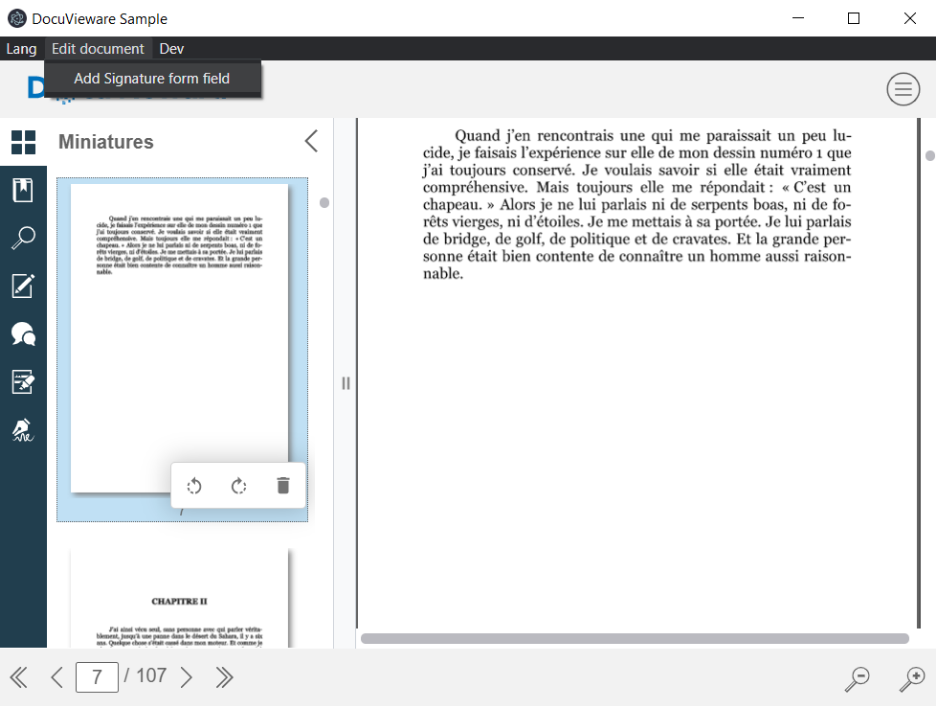
Change the DocuVieware default language through Electron’s main menu.
Related guides
- Serving DocuVieware through a REST API
- Client/server coming and going with custom actions
- Custom snap-in implementation