Custom snap-in implementation
Before starting, complete the serving DocuVieware through a REST API guide.
Snap-ins are powerful interface elements that can be used for various purposes. DocuVieware comes with several handy built-in snap-ins, such as the thumbnails, bookmarks, text search, or annotations palette.
This guide shows how to create a custom snap-in with a button that triggers a custom action server-side to return a message.
Implement a custom snap-in that contains a button which sends a ping command to the server and receives a pong message reply.
Requirements — .NET Framework 4.6 or above
Preparing the custom snap-in content
Add a method that builds the content of the custom snap-in and adds it to a given DocuVieware instance. Add this method in your
DocuViewareRESTController.csclass, as demonstrated below:C# private static void AddMyCustomSnapIn(DocuVieware dvInstance){using (HtmlGenericControl icon = new HtmlGenericControl("svg")){icon.Attributes["viewBox"] = "0 0 16 16";icon.Attributes["width"] = "100%";icon.Attributes["height"] = "100%";icon.InnerHtml = "<path d=\"M6 0l-6 8h6l-4 8 14-10h-8l6-6z\"></path>";using (HtmlGenericControl panel = new HtmlGenericControl("div")){panel.ClientIDMode = ClientIDMode.Static;panel.ID = "customSnapInTutorialPanel" + dvInstance.UniqueID;using (HtmlGenericControl customSnapInTutorialButtonDiv = new HtmlGenericControl("div")){customSnapInTutorialButtonDiv.Style["float"] = "left";customSnapInTutorialButtonDiv.Style["margin-top"] = "6px";customSnapInTutorialButtonDiv.Style["margin-left"] = "6px";using (HtmlGenericControl customSnapInTutorialButton = new HtmlGenericControl("button")){customSnapInTutorialButton.ID = "customSnapInSubmit" + dvInstance.UniqueID;customSnapInTutorialButton.Style["height"] = "26px";customSnapInTutorialButton.Style["background-color"] = ColorTranslator.ToHtml(dvInstance.ActiveSelectedColor);customSnapInTutorialButton.InnerHtml = "Ping";customSnapInTutorialButton.Attributes["class"] = "btn-valid";customSnapInTutorialButton.Attributes["onclick"] = "ping(); return false;";customSnapInTutorialButtonDiv.Controls.Add(customSnapInTutorialButton);}panel.Controls.Add(customSnapInTutorialButtonDiv);}dvInstance.AddCustomSnapIn("customSnapInTutorial", "Custom Snap-In", icon, panel, true);}}}Add a call to the newly created method between your control creation and rendering so your custom snap-in is added to the DocuVieware object markup in the response:
C# [HttpPost][Route("api/DocuViewareREST/GetDocuViewareControl")]public DocuViewareRESTOutputResponse GetDocuViewareControl(DocuViewareConfiguration controlConfiguration){if (!DocuViewareManager.IsSessionAlive(controlConfiguration.SessionId)){if (!string.IsNullOrEmpty(controlConfiguration.SessionId) && !string.IsNullOrEmpty(controlConfiguration.ControlId)){DocuViewareManager.CreateDocuViewareSession(controlConfiguration.SessionId,controlConfiguration.ControlId,20);}else{throw new Exception("Invalid session identifier and/or invalid control identifier.");}}DocuVieware docuViewareInstance = new DocuVieware(controlConfiguration.SessionId){AllowPrint = controlConfiguration.AllowPrint,EnablePrintButton = controlConfiguration.EnablePrintButton,AllowUpload = controlConfiguration.AllowUpload,EnableFileUploadButton = controlConfiguration.EnableFileUploadButton,CollapsedSnapIn = controlConfiguration.CollapsedSnapIn,ShowAnnotationsSnapIn = controlConfiguration.ShowAnnotationsSnapIn,EnableRotateButtons = controlConfiguration.EnableRotateButtons,EnableZoomButtons = controlConfiguration.EnableZoomButtons,EnablePageViewButtons = controlConfiguration.EnablePageViewButtons,EnableMultipleThumbnailSelection = controlConfiguration.EnableMultipleThumbnailSelection,EnableMouseModeButtons = controlConfiguration.EnableMouseModeButtons,EnableFormFieldsEdition = controlConfiguration.EnableFormFieldsEdition,EnableTwainAcquisitionButton = controlConfiguration.EnableTwainAcquisitionButtonMaxUploadSize = 36700160 // 35MB};AddMyCustomSnapIn(docuViewareInstance);using (StringWriter controlOutput = new StringWriter()){docuViewareInstance.RenderControl(controlOutput);DocuViewareRESTOutputResponse output = new DocuViewareRESTOutputResponse{HtmlContent = controlOutput.ToString()};return output;}}Add the JavaScript function called on the snap-in button click event that triggers the custom action, as demonstrated below:
JavaScript function ping() {DocuViewareAPI.PostCustomServerAction("DocuVieware1", true, "ping");}
Handling your action server-side
As seen in the client/server coming and going with custom actions guide, implement a custom action that processes the snap-in button click event.
Add the proper custom action event handler routing in your dispatcher in the Global.asax.cs file, as demonstrated below:
private static void CustomActionsDispatcher(object sender, CustomActionEventArgs e){ if ((e.actionName == "ping")) { e.message = new DocuViewareMessage("Pong", icon: DocuViewareMessageIcon.Information); }}Compile and start the REST service. The custom snap-in icon appears in the left panel when loaded from your client page.
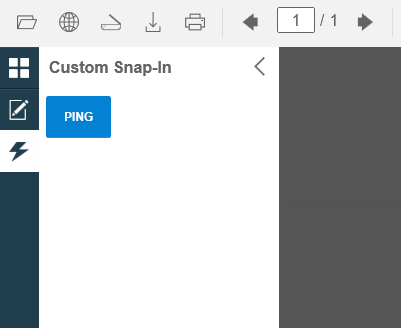
Now, if you select it and click on the Ping button, it triggers the custom action and you should see a Pong message coming back from the server.