Serving DocuVieware through a REST API
This guide shows how to serve DocuVieware to another application through a newly created C# REST service project with ASP.NET Web API 2 from the .NET Framework.
Requirements — .NET Framework 4.6 or above
Note — Screenshots were taken using Visual Studio 2015 and GdPicture.NET 14. They may differ from the current release.
Empty project creation
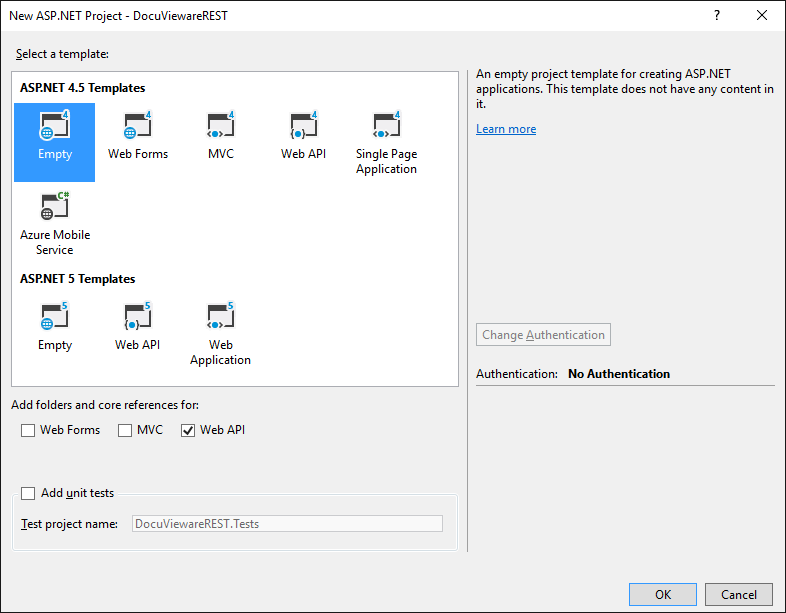
Start with the File > New > Project… menu. Then choose Web > ASP.NET Web Application. In this guide, the new ASP.NET 4.6 empty Web API project has been named DocuViewareREST.
The image below shows the resulting structure.
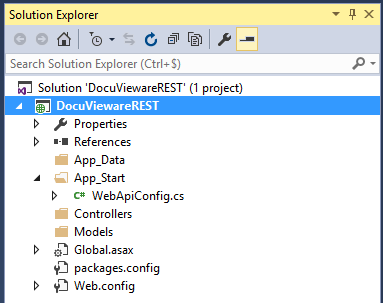
Now that the project structure is ready, the next step is to add project references.
Adding mandatory references
Add a reference to GdPicture.NET.14.WEB.DocuVieware.dll found in [INSTALLATION FOLDER]\Redist\DocuVieware (.NET Framework 4.6).
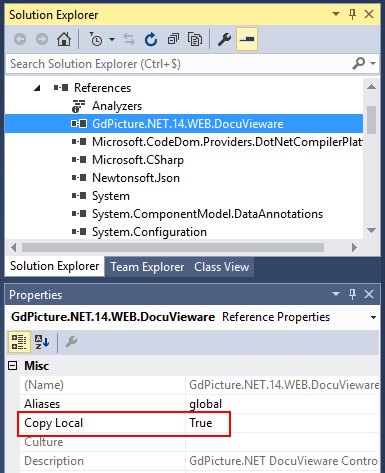
Once added, make sure it’s marked as Copy Local : True in its properties window. For more information, refer to the copy local property documentation(opens in a new tab).
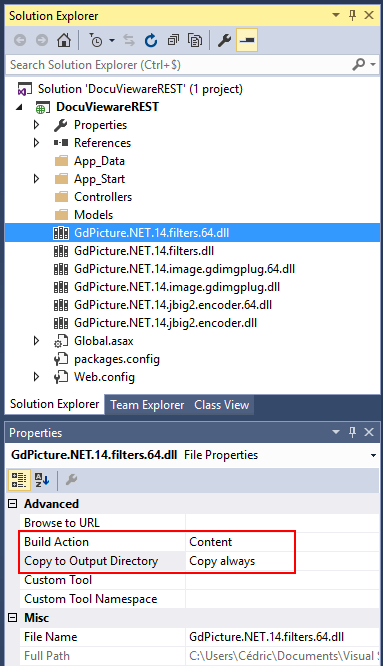
Extra libraries are mandatory for deployment. These files are found in [INSTALLATION FOLDER]\Redist:
GdPicture.NET.14.filters.dll(for 32-bit execution)GdPicture.NET.14.filters.64.dll(for 64-bit execution)GdPicture.NET.14.image.gdimgplug.dll(for 32-bit execution)GdPicture.NET.14.image.gdimgplug.64.dll(for 64-bit execution)GdPicture.NET.14.Imaging.Rendering.Skia.dll(for 32-bit execution)GdPicture.NET.14.Imaging.Rendering.Skia.64.dll(for 64-bit execution)GdPicture.NET.14.jbig2.encoder.dll(for 32-bit execution)GdPicture.NET.14.jbig2.encoder.64.dll(for 64-bit execution)
Add them to the project using Add > Existing item…. Browse and then select Add (not Add as link). Once done, set the Build Action property to Content and the Copy to Output Directory property to Copy always for each file.
Licensing and configuring
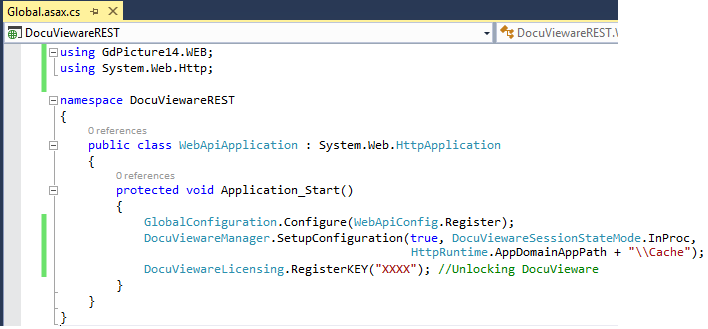
Now that the references are properly set, go to the Global.asax.cs file of the project to add some mandatory imports and handle the licensing and configuration of DocuVieware.
Below is the mandatory import to add:
using GdPicture14.WEB;To unlock DocuVieware, add a call to the RegisterKEY() method in the Application_Start event. Then enter your license key in the method:
DocuViewareLicensing.RegisterKEY("XXXX"); // Unlocking DocuVieware// Replace "XXXX" with your actual license key.To set up the configuration of DocuVieware, add a call to the DocuViewareManager.SetupConfiguration() method in the Application_Start event. Create a new folder in the project for the cache. For clarity, name it Cache.
DocuViewareManager.SetupConfiguration(true, DocuViewareSessionStateMode.InProc, HttpRuntime.AppDomainAppPath + "\\Cache");Below is what the Global.asax.cs file should look like at this point:
Setting up the service
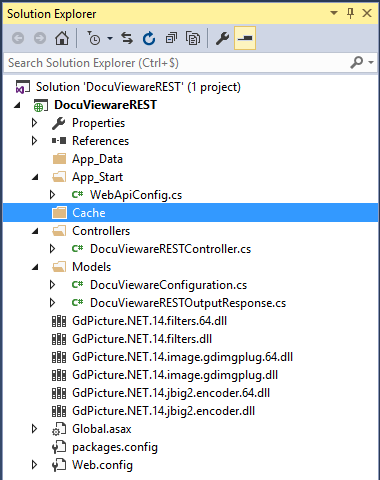
Create a new folder in the project root called
Cachethat stores session data when the service is running.For convenience, reusability, and maximum compatibility, the service receives and sends data using JSON format. All required references are already part of the Web API project, so add the proper configuration line in the
WebApiConfig.csfile in the project’sApp_Startfolder as follows:C# // Web API configuration and servicesconfig.Formatters.JsonFormatter.SupportedMediaTypes.Add(new MediaTypeHeaderValue("text/html"));You’ll most likely need to enable Cross Origin Resource Sharing (CORS) in the project as well so the service can be accessed from other applications that might not be hosted on the same server.
Run the following command in your Package Manager Console (Tools > NuGet Package Manager > Package Manager Console):
Package Manager Console PM> Install-Package Microsoft.AspNet.WebApi.CorsOnce the package has been installed, add your CORS configuration in the
WebApiConfig.csfile as follows:C# EnableCorsAttribute cors = new EnableCorsAttribute("*", "*", "*");config.EnableCors(cors);Once done, your
WebApiConfig.csfile looks like the one shown below: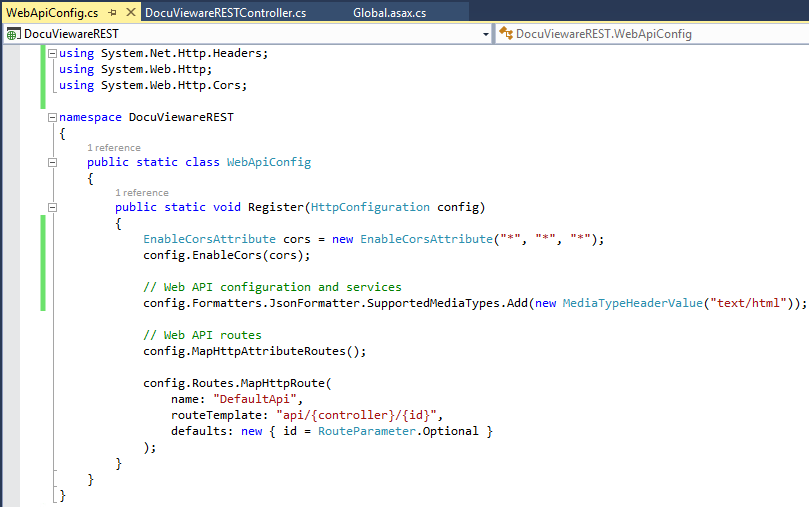
To set specific restrictions for CORS, refer to the Microsoft CORS documentation(opens in a new tab).
Implementing the service
Define the data sent and received by the REST service.
Right-click the
Modelsfolder, and select Add > Class…. Create aDocuViewareConfigurationclass to define the input data (the DocuVieware control configuration). Open it and add the content definition as follows:C# namespace DocuViewareREST.Models{/// <summary>/// This is the description of the configuration we will be sending from client/// </summary>public class DocuViewareConfiguration{public string SessionId;public string ControlId;public bool AllowPrint;public bool EnablePrintButton;public bool AllowUpload;public bool EnableFileUploadButton;public bool CollapsedSnapIn;public bool ShowAnnotationsSnapIn;public bool EnableRotateButtons;public bool EnableZoomButtons;public bool EnablePageViewButtons;public bool EnableMultipleThumbnailSelection;public bool EnableMouseModeButtons;public bool EnableFormFieldsEdition;public bool EnableTwainAcquisitionButton;}}Only
SessionIdandControlIdare required. The other properties have been arbitrarily chosen and aren’t exhaustive. Adapt the structure of thisDocuViewareConfigurationobject to your needs.Within the
Modelsfolder, create another class namedDocuViewareRESTOutputResponseto define the data the REST service sends back. As it’s HTML content, the following is the required definition:C# namespace DocuViewareREST.Models{public class DocuViewareRESTOutputResponse{public string HtmlContent;}}The image below shows your project content at this point.
Add a new controller to the project by right-clicking the
Controllersfolder and selecting Add > Controller…. Choose Web API 2 Controller - Empty and click the Add button. Call itDocuViewareRESTController.Proceed with the service method definition in
DocuViewareRESTController.cs. Only one method is required. It responds to thePOSTverb. It receives the configuration object (DocuViewareConfiguration) and returns the response (DocuViewareRESTOutputResponse).This unique method checks for an existing session identified by the
SessionIdvalue using theDocuViewareManager.IsSessionAlivestatic method. If the session exists, the method uses the existing session. If it doesn’t exist, the method creates a new session from this identifier using theDocuViewareManager.CreateDocuViewareSessionstatic method.The received configuration is then applied to a new DocuVieware object and finally, the resulting HTML markup is sent back.
Below is the C# implementation of this
POSTmethod:C# using System;using System.IO;using System.Web;using System.Web.Http;using DocuViewareREST.Models;using GdPicture14.WEB;namespace DocuViewareREST.Controllers{public class DocuViewareRESTController : ApiController{/// <summary>/// This POST request will return the control HTML markup corresponding to the provided session and configuration./// </summary>/// <remarks>InitializeDocuVieware has to be called beforehand to make sure the session exists.</remarks>/// <param name="controlConfiguration">A DocuViewareConfiguration object</param>/// <returns>A DocuViewareRESTOutputResponse JSON object that contains all the control HTML to include in the client page.</returns>[HttpPost][Route("api/DocuViewareREST/GetDocuViewareControl")]public DocuViewareRESTOutputResponse GetDocuViewareControl(DocuViewareConfiguration controlConfiguration){if (!DocuViewareManager.IsSessionAlive(controlConfiguration.SessionId)){if (!string.IsNullOrEmpty(controlConfiguration.SessionId) && !string.IsNullOrEmpty(controlConfiguration.ControlId)){DocuViewareManager.CreateDocuViewareSession(controlConfiguration.SessionId,controlConfiguration.ControlId, 20);}else{throw new Exception("Invalid session identifier and/or invalid control identifier.");}}using(DocuVieware docuVieware = new DocuVieware(controlConfiguration.SessionId)){docuVieware.AllowPrint = controlConfiguration.AllowPrint;docuVieware.EnablePrintButton = controlConfiguration.EnablePrintButton;docuVieware.AllowUpload = controlConfiguration.AllowUpload;docuVieware.EnableFileUploadButton = controlConfiguration.EnableFileUploadButton;docuVieware.CollapsedSnapIn = controlConfiguration.CollapsedSnapIn;docuVieware.ShowAnnotationsSnapIn = controlConfiguration.ShowAnnotationsSnapIn;docuVieware.EnableRotateButtons = controlConfiguration.EnableRotateButtons;docuVieware.EnableZoomButtons = controlConfiguration.EnableZoomButtons;docuVieware.EnablePageViewButtons = controlConfiguration.EnablePageViewButtons;docuVieware.EnableMultipleThumbnailSelection = controlConfiguration.EnableMultipleThumbnailSelection;docuVieware.EnableMouseModeButtons = controlConfiguration.EnableMouseModeButtons;docuVieware.EnableFormFieldsEdition = controlConfiguration.EnableFormFieldsEdition;docuVieware.EnableTwainAcquisitionButton = controlConfiguration.EnableTwainAcquisitionButton;docuVieware.MaxUploadSize = 36700160; // 35MBusing (StringWriter controlOutput = new StringWriter()){docuVieware.RenderControl(controlOutput);DocuViewareRESTOutputResponse output = new DocuViewareRESTOutputResponse{HtmlContent = controlOutput.ToString()};return output;}}}}}The DocuVieware object is handled in a using statement so the object is automatically disposed when the control has been rendered and sent to the client. This is important to avoid memory leaks — otherwise, every DocuVieware object created here piles up, eventually causing memory outage.
The service is complete. Start the service and serve DocuVieware to any other application that can consume a REST service.
The next step is control integration, which is detailed in several guides, each corresponding to a different language.
Related guides
- Client/server coming and going with custom actions
- Use and handling of the selection area
- Custom snap-in implementation