Update a record automatically when an envelope is signed
Use a record-triggered flow to update a Salesforce record when recipients sign a document sent from that record. This example updates an opportunity when recipients sign its quote:
- Sets Stage to Closed Won.
- Sets Close Date to the signing date.
Your existing Salesforce automation responds to these changes. Build the flow in Flow Builder without writing code.
Who should use this guide
Use this guide if you’re a Salesforce administrator who builds flows for your organization and already sends documents for signing with Nutrient Documents for Salesforce.
Prerequisites
Before you start, complete these prerequisites:
- Set up digital signing in Salesforce. Refer to the set up digital signing in Salesforce guide.
- Confirm you have the Manage Flow permission to create and activate flows.
- Send documents for signing from the record that the flow updates.
For example, to update an opportunity’s Stage, send the document from that opportunity. The envelope stores a link to the sending record, which the flow uses to find the record to update.
Opening the Document Browser from an account links the envelope to that account, even when you send a file from an opportunity within it. The sending wizard shows Signing From: Account. The flow finds no opportunity and doesn’t update any records.
Recommended: Build and test the flow in a sandbox before deploying it to production.
How the flow finds the signed record
When a user sends a document for signing from a Salesforce record, Nutrient creates a Nutrient Signature Envelope record (Nutrient_Signature_Envelope__c). Nutrient Document Web Services (DWS) webhooks update this record with the signing status. The flow uses two fields:
| Field | API name | Contents |
|---|---|---|
| Record Id | Record_Id__c | The 18-character ID of the record the document was sent from. Empty for envelopes sent from the Documents tab, which aren’t tied to a record. |
| Status | Status__c | The envelope status from Nutrient signing. Values: draft, in_progress, correcting, completed, voided, expired, failed. |
The flow starts when Status changes to completed. It then uses the ID in Record Id to find and update the sending record.
Record Id is a text field, not a lookup field. A flow can’t follow it to the related record the way it follows a lookup. Instead, the Update Records element finds the record by filtering on its ID.
Nutrient adds the signed PDF and the Certificate of Completion to the record a few seconds after Status changes to completed. The flow starts at the status change and can run before Nutrient adds the files. Don’t add steps that depend on these files.
Create the flow
Configure the flow to update the opportunity’s Stage and Close Date when its envelope reaches completed.
1. Create a record-triggered flow
Create the flow in Salesforce Setup:
- Go to Flows.
- Create a new flow.
- Select Record-Triggered Flow as the flow type.
2. Configure the start
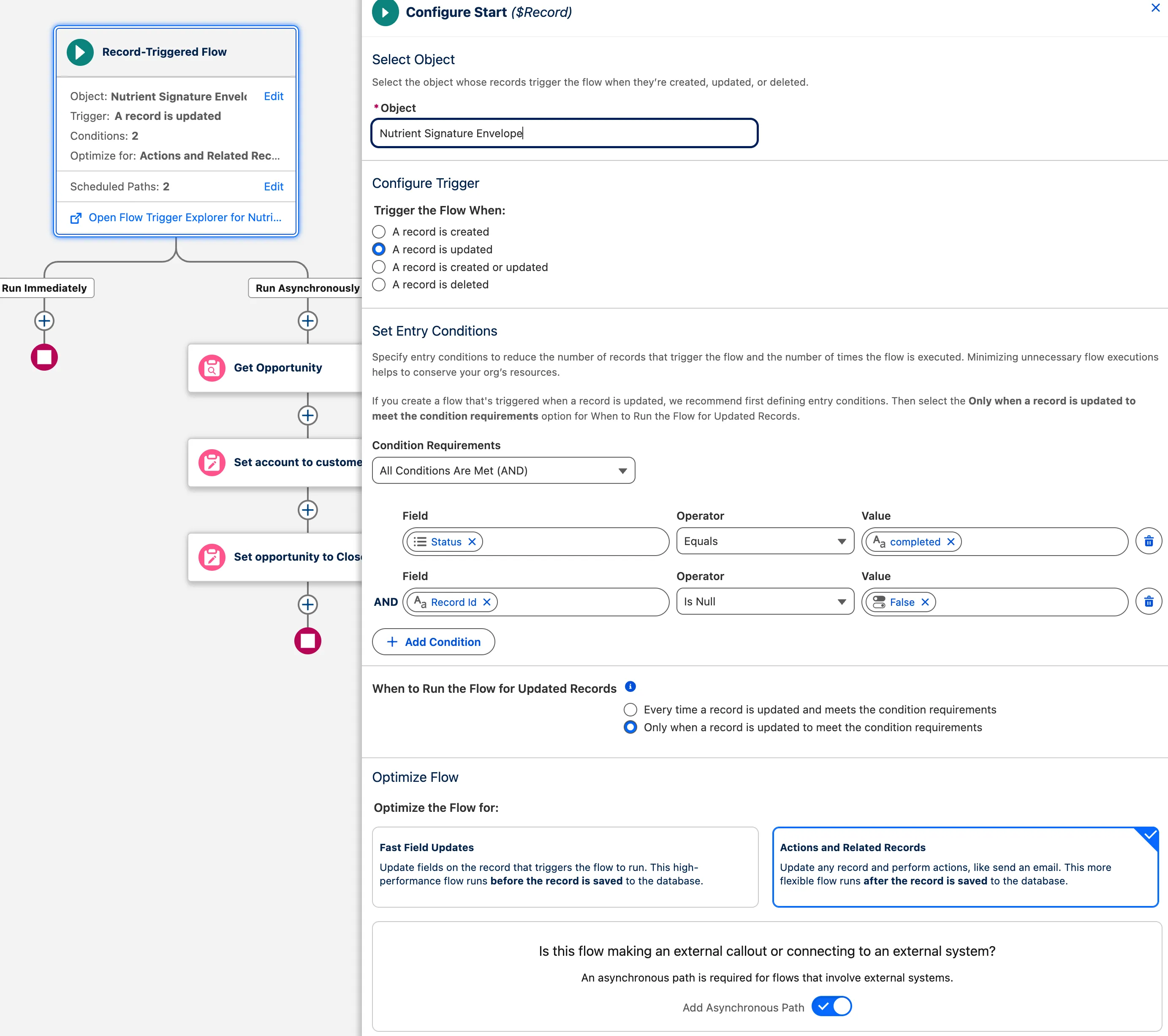
Configure the trigger in the Configure Start panel:
In Object, select Nutrient Signature Envelope.
In Trigger the Flow When, select A record is updated.
In Condition Requirements, select All Conditions Are Met (AND).
Add these two conditions:
- Field Status, Operator Equals, Value
completed - Field Record Id, Operator Is Null, Value False
The second condition excludes envelopes from the Documents tab because they don’t link to a record.
- Field Status, Operator Equals, Value
Under When to Run the Flow for Updated Records, select the following option:
- Only when a record is updated to meet the condition requirements
In Optimize the Flow for, select Actions and Related Records.
Enable Add Asynchronous Path under the external callout setting.
The external callout setting reads Is this flow making an external callout or connecting to an external system?
Nutrient sets Record Id when a user sends the document. The flow runs once when the envelope first meets both conditions, as Status changes to completed. Later updates don’t trigger the flow again.
The canvas shows two paths below Start: Run Immediately and Run Asynchronously.
3. Create the signing date formula
The envelope has no field that stores its completion date. When the flow starts, Last Modified Date records when Nutrient changed Status to completed. Create a formula resource to convert that date and time into a date for Close Date:
- In the Toolbox panel, click New Resource.
- In Resource Type, select Formula.
- In API Name, enter
SignedDate. - In Data Type, select Date.
- In Formula, enter
DATEVALUE({!$Record.LastModifiedDate}). - Click Done.
DATEVALUE returns the date in the timezone of the user the flow runs as, the Nutrient integration user. If Close Date is a day off from the signing date, set that user’s Time Zone to the company’s timezone in Setup > Users.
4. Add the update on the asynchronous path
Use the asynchronous path to keep a failed opportunity update from rolling back the envelope status.
Add the update to Run Asynchronously, not Run Immediately. The Run Immediately path shares the transaction that saves the envelope status. If a validation rule blocks the opportunity update, Salesforce also rolls back the envelope status. The envelope never reaches completed in Salesforce, and Nutrient’s retries fail for the same reason.
The Run Asynchronously path saves the completed status before updating the opportunity. If the opportunity update fails, the envelope keeps its completed status.
On Run Asynchronously, click Add Element (+).
Select Update Records.
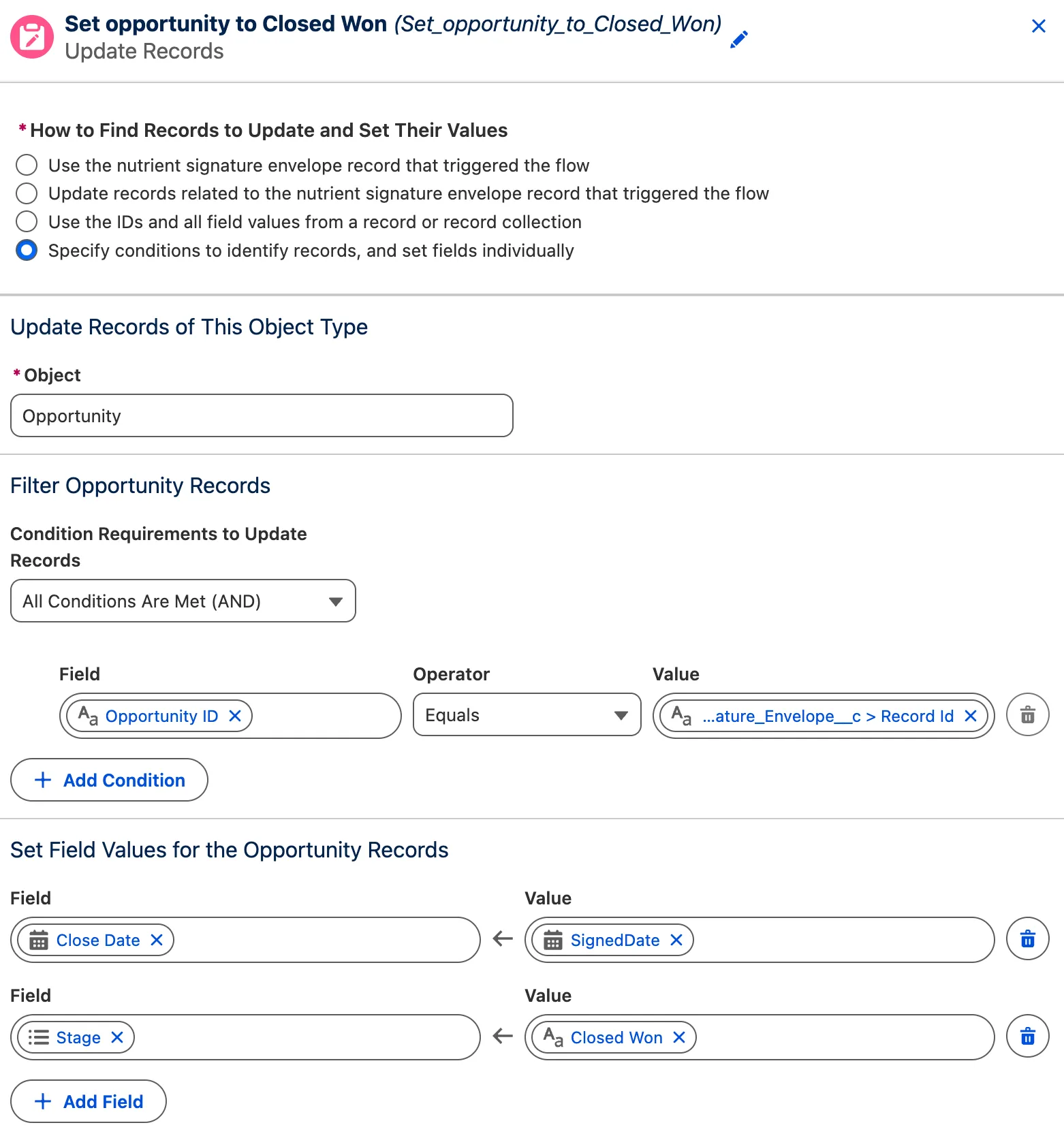
In Label, enter
Set opportunity to Closed Won.Salesforce fills in API Name automatically.
Under How to Find Records to Update and Set Their Values, select the following option:
- Specify conditions to identify records, and set fields individually
In Object, select Opportunity.
Under Filter Opportunity Records, in Condition Requirements to Update Records, select All Conditions Are Met (AND).
Add this condition:
- Field — Opportunity ID
- Operator — Equals
- Value — Select Triggering Nutrient_Signature_Envelope__c. Select Record Id.
The value shows as Triggering Nutrient_Signature_Envelope__c > Record Id. Flow Builder shortens it in the field — for example, to …ature_Envelope__c > Record Id.
Under Set Field Values for the Opportunity Records, set these field values:
- Field Stage, Value Closed Won
- Field Close Date, Value SignedDate — Select SignedDate under Formulas in the value picker.
Set Close Date in the same element. Salesforce doesn’t change Close Date when Stage changes to Closed Won. Without this setting, the opportunity keeps its previous close date. Revenue reports then count the opportunity as won in the wrong period.
5. Update the related account (optional)
The flow also supports updates to records related to the opportunity. This example sets the account’s Account Type to Customer - Direct when recipients sign the document. The first signed deal changes the account from a prospect to a customer.
The envelope stores only the opportunity ID, so the flow first gets the opportunity to find its account. Add both elements to Run Asynchronously:
Add Get Records before the account update. It can go before or after the opportunity update.
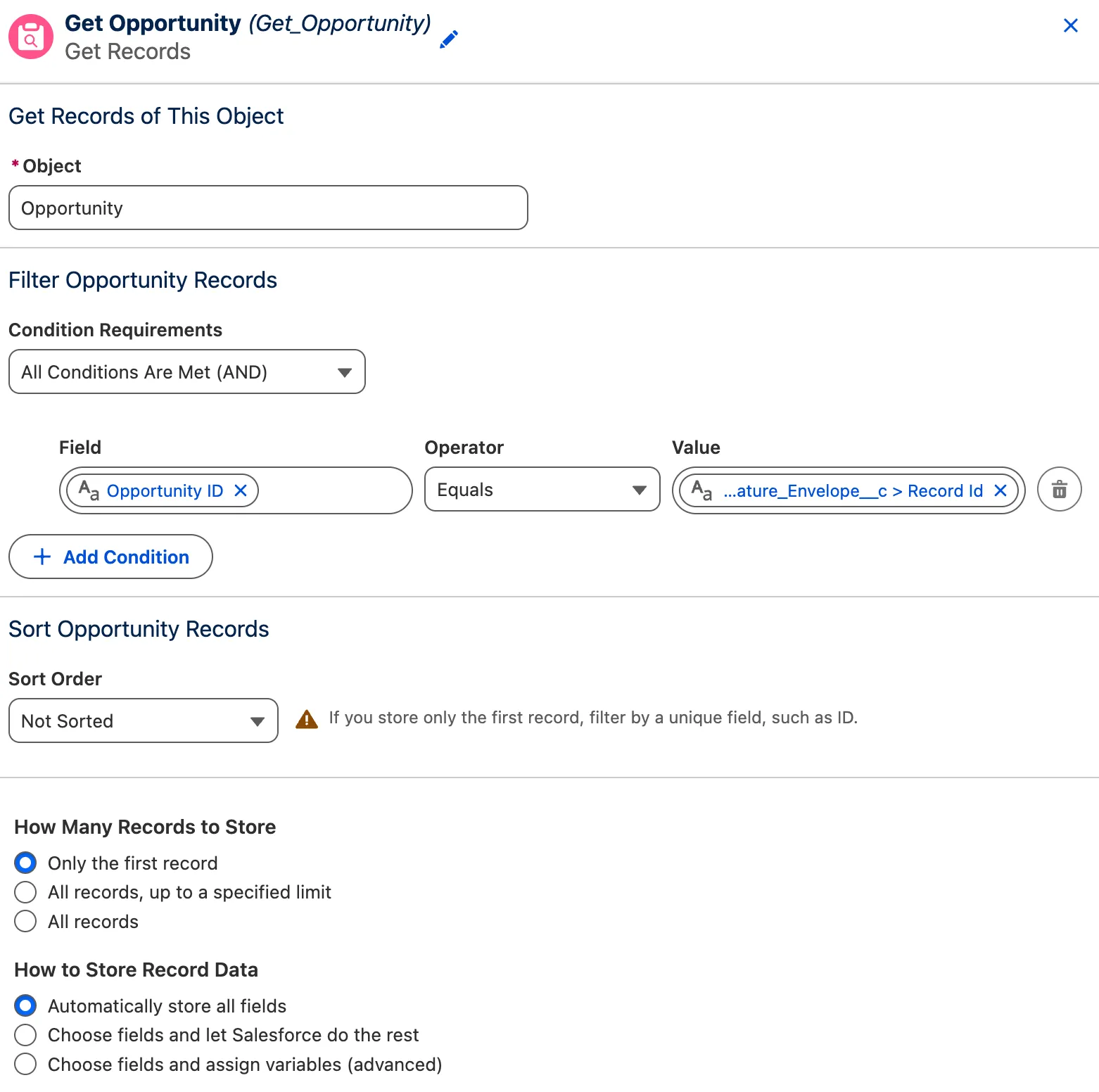
In Label, enter
Get Opportunity.Salesforce fills in API Name automatically.
In Object, select Opportunity.
Under Filter Opportunity Records, in Condition Requirements, select All Conditions Are Met (AND).
Add this condition:
- Field — Opportunity ID
- Operator — Equals
- Value — Select Triggering Nutrient_Signature_Envelope__c. Select Record Id.
The value shows as Triggering Nutrient_Signature_Envelope__c > Record Id.
Select Record Id, not Record ID. Record ID identifies the envelope itself. Using Record ID returns no opportunity, so the account update changes nothing without showing an error.
In How Many Records to Store, select Only the first record.
In How to Store Record Data, select Automatically store all fields.
After the Get Records element, add an Update Records element:
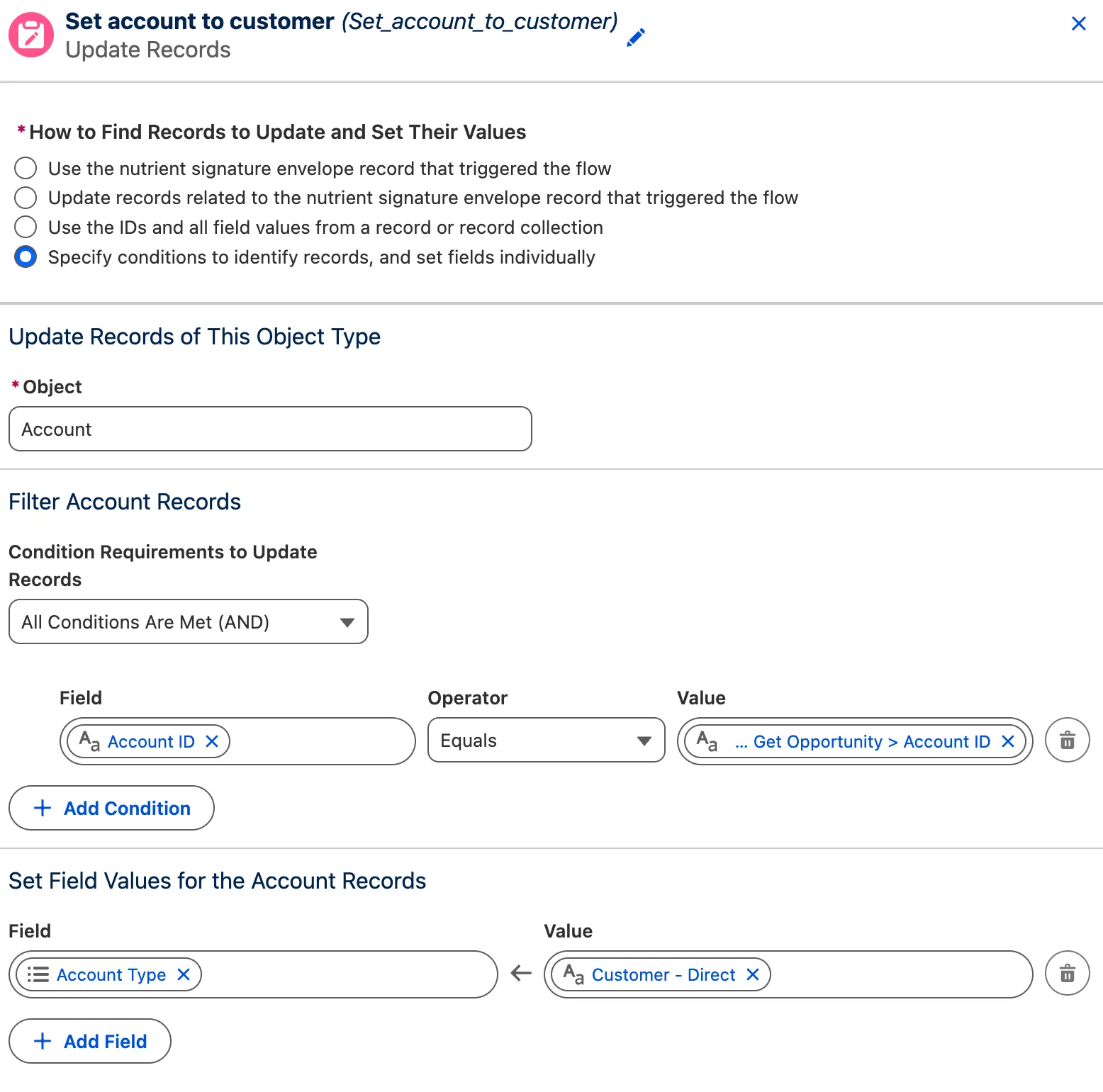
In Label, enter
Set account to customer.Under How to Find Records to Update and Set Their Values, select the following option:
- Specify conditions to identify records, and set fields individually
In Object, select Account.
Under Filter Account Records, in Condition Requirements to Update Records, select All Conditions Are Met (AND).
Add this condition:
- Field — Account ID
- Operator — Equals
- Value — Select Opportunity from Get Opportunity. Select Account ID, not its arrow (>).
The value shows as Opportunity from Get Opportunity > Account ID.
Under Set Field Values for the Account Records, set Field Account Type to Value Customer - Direct.
The account update runs in the same transaction as the opportunity update. Last Modified By on the account shows the Nutrient integration user.
The same Get Records and Update Records pattern works for any record related to the opportunity.
6. Save the flow
Save the configuration with a descriptive label:
Click Save.
In Flow Label, enter
Update record when envelope is completed.Salesforce fills in Flow API Name automatically.
Click Save.
7. Activate the flow
To start processing envelope updates, click Activate.
Salesforce doesn’t support saving changes over an active version. To change the flow later, follow these steps:
- Edit the flow.
- Click Save As New Version.
- Activate the new version.
Test the flow
Recommended: Test in a sandbox first.
To test the flow with a real signed envelope:
- Open a test opportunity whose Stage isn’t Closed Won.
- If you added the account update, confirm the account’s Account Type isn’t already Customer - Direct.
- Send a document for signing from the opportunity.
- Sign the document as all recipients.
- Wait until the envelope status in Salesforce changes to
completed. - Open the opportunity.
- Confirm Stage reads Closed Won.
- Confirm Close Date matches the envelope’s completion date.
- If you added the account update, open the opportunity’s account.
- If you added the account update, confirm Account Type reads Customer - Direct.
- If you added the account update, confirm Last Modified By shows the Nutrient integration user.
The asynchronous update can take a short time after the envelope reaches completed. If the account already has the target Account Type, you won’t see that field change.
On the updated opportunity, Last Modified By shows the Nutrient integration user. Refer to the who the flow runs as section.
Who the flow runs as
The flow runs as the Nutrient integration user you selected during inbound signing setup. DWS signs in to Salesforce as this user to save the envelope status. A record-triggered flow runs as the user who changed the record.
This behavior applies to Run Immediately and Run Asynchronously. The updated record’s Last Modified By field and field history show the Nutrient integration user.
Record-triggered flows run in system context. The integration user’s object and field access doesn’t restrict the flow, so it updates opportunities that the user can’t access. Don’t grant the integration user extra object access for this flow.
A record-triggered flow has no setting to choose a different running user. To control the name that appears on updated records, choose a clearly named integration user when you set up signing. Refer to the set up digital signing in Salesforce guide.
Troubleshooting
Use the checks below to identify configuration issues.
The record doesn’t update
Check the flow configuration and the envelope’s sending record:
Confirm the flow is active.
Confirm the start condition value is exactly
completed, in lowercase.Check When to Run the Flow for Updated Records for the following selection:
- Only when a record is updated to meet the condition requirements
Envelopes that reached
completedbefore activation don’t trigger the flow.Confirm the envelope has a Record Id.
Envelopes from the Documents tab have no Record Id, so the flow excludes them.
Confirm the ID in the envelope’s Record Id belongs to an opportunity.
Sending from another object, such as an account through the Document Browser, returns no opportunity and updates no records.
Confirm no validation rule or other opportunity flow blocks the update.
Check the flow error email that Salesforce sends to the administrator.
Check Setup > Paused and Failed Flow Interviews.
The opportunity updates, but the account doesn’t
Check the IDs that the account update uses:
- Confirm the condition in Get Opportunity uses the envelope’s Record Id, not Record ID.
- Confirm the account update condition uses Opportunity from Get Opportunity > Account ID.
The envelope doesn’t change to completed
On Run Immediately, a failed record update also rolls back the envelope status. To correct the update path, follow these steps:
- Confirm Update Records uses Run Asynchronously.
- If it uses Run Immediately, move the element to Run Asynchronously.
- Click Save As New Version.
- Activate the new version.
Related guides
Refer to these guides for signing and document generation setup:
- Refer to the set up digital signing in Salesforce guide.
- Refer to the set up document generation in Salesforce guide.