A PDF page label(opens in a new tab) is the human-readable name a PDF reader displays for a page — what users see in the toolbar, the table of contents, and the thumbnail strip. It’s separate from the page’s position in the file, which is what code typically operates on.
A document with no page label dictionary uses 1, 2, 3, … by default. Once page labels are set, the reader follows them. So a 12-page document might display i, ii, iii, iv, 1, 2, 3, 4, 5, 6, A-1, A-2.
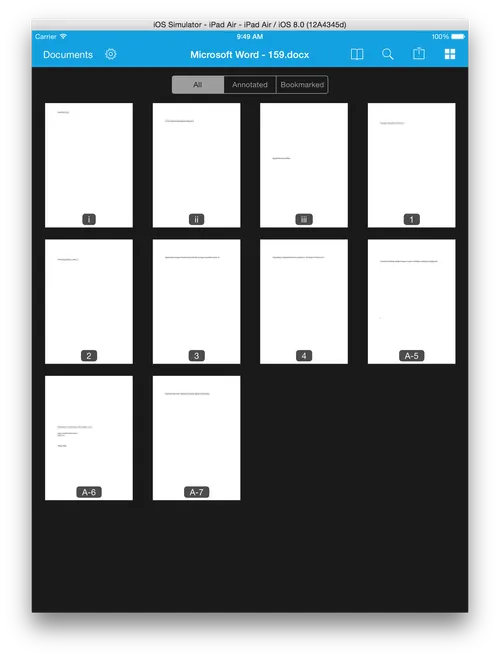
How page labels are stored
Page labels are stored at the document level in the PDF (not on individual pages) and are organized into ranges. Each range has:
- A starting page index (where the range begins)
- A numbering style (Arabic, Roman, letters, or none)
- An optional prefix string
- An optional starting value for the numeric portion
Section 12.4.2 of the PDF specification (ISO 32000)(opens in a new tab) defines five numbering styles plus a “no style” option:
| Style key | What it produces | Typical use |
|---|---|---|
D | Decimal Arabic: 1, 2, 3, … | Body content |
R | Uppercase Roman: I, II, III | Front matter or formal sections |
r | Lowercase Roman: i, ii, iii | Front matter |
A | Uppercase letters: A, B, … AA, BB | Appendices |
a | Lowercase letters: a, b, … aa, bb | Footnotes or annexes |
| (none) | Prefix only, no number | Cover pages, unnumbered inserts |
Letter styles wrap by repeating: Page 27 with style A becomes AA, page 28 becomes BB, and so on. The optional prefix is a freeform string prepended to the generated label, producing labels such as Chapter 1-1, A-1, Intro, or Cover. A range with a prefix and no style yields the prefix on every page in that range, with no number.
Page labels vs. page indices vs. printed numbers
These three concepts are often conflated:
- Page index is the position of the page in the file, starting at
0(or1, depending on the API). It’s how every PDF library addresses pages internally. - Page label is the metadata string the PDF reader displays for that page.
- Printed page numbers are part of the page content — drawn as text at render time. A PDF can show
42on the page without having any page labels set, and vice versa.
Most APIs accept page indices, not labels. Resolving a label to an index requires walking the page label ranges or using an SDK helper.
Page labels in Nutrient
Nutrient SDKs help bridge the gap between page indices and the labels users see in the document UI. The exact workflow varies by product, depending on whether you need to display, edit, or process page labels server-side. Use the table below to navigate to the relevant per-product guide.
| Task | Product | Guide |
|---|---|---|
| Display page labels in a web viewer | Nutrient Web SDK | Page label navigation |
| Edit page labels client-side in JavaScript | Nutrient Web SDK | Edit page labels in a PDF |
| Set page labels server-side as part of a build pipeline | Document Engine | Change PDF page labels server-side |
| Display and override labels in iOS apps | Nutrient iOS SDK | Customizing the page number |
| Toggle label display in Android apps | Nutrient Android SDK | Customizing the page number |
| Read, add, modify, or delete page label ranges in .NET | Nutrient .NET SDK | Page label metadata |
| Display labels in a MAUI viewer | Nutrient .NET MAUI SDK | Page label navigation |
The sections below summarize how each Nutrient product exposes page label support.
Nutrient Web SDK
Nutrient Web SDK exposes page label edits through its operation API. Calling instance.applyOperations with a setPageLabel operation sets or clears the label for one or more pages. The viewer’s pagination widget displays page labels alongside page numbers, and page label information is available for navigation-related UI.
Document Engine
Document Engine accepts a labels array in the /build endpoint instructions. Each entry can target a single page index, a contiguous range, or an explicit list of indices. Use this when page labels are part of a generation, merge, or conversion job — for example, applying Roman numerals to front matter after merging two files.
Nutrient iOS and Android SDKs
Both mobile SDKs read existing page labels and surface them in the table of contents, page position view, and thumbnails. Nutrient Android SDK exposes a pageLabelsEnabled flag in PdfActivityConfiguration to suppress them. Nutrient iOS SDK enables you to subclass LabelParser to override what the viewer displays without modifying the underlying PDF.
Nutrient .NET SDK
Nutrient .NET SDK has the most complete API surface for page label ranges. GetPageLabel reads an individual label, GetPageLabelsRange and GetPageLabelsRangeCount enumerate the existing ranges, AddPageLabelsRange adds a new range with a chosen PdfPageLabelStyle, a family of SetPageLabelsRange… methods (Style, Prefix, StartPage, NumPortion) modify any field of an existing range, and DeletePageLabelsRange clears one.
Nutrient .NET MAUI SDK
Nutrient .NET MAUI SDK exposes pager-related toolbar integration. Refer to adding page labels to navigation for the supported page label navigation behavior and configuration details.
Next steps
For use cases, common pitfalls, and frequently asked questions about page labels, refer to our PDF page labels blog post.
For complete Nutrient capabilities, explore the SDK or contact Sales.