Adding page labels to navigation in our viewer
This guide explains how page labels appear in Nutrient MAUI SDK and how users can navigate with them in the viewer toolbar.
For a cross-product overview of how PDF page labels work and how each Nutrient product handles them, refer to the PDF page labels guide.
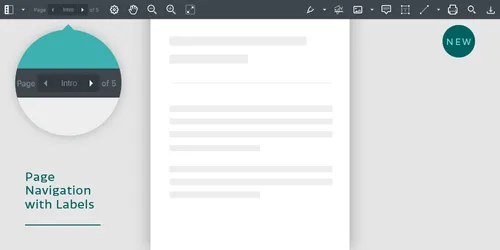
Each page in a PDF document can have a human-readable label associated with it. These kinds of labels, added by the document author, can result in a friendlier navigation experience by making content more easily identifiable.
Furthermore, page labels are often used to assign a number to pages which otherwise would be identified by their page index. For example, the first few pages of a document could include a table of contents, introduction, etc., and the author may want the actual page number count to start from the sixth page of the document (e.g. pages i, ii, iii, iv, v, followed by 1, 2, 3).
Just like our other PDF solutions, Nutrient MAUI SDK supports page labels instead of numbers. In the example above, the page with the label 2 would actually be page 7.
If the current page includes a label, it’s shown along with the actual page number in parentheses. When no label is available, only the page number is displayed.
Users can also enter a page label in the pagination widget of the main toolbar to jump to it directly.