Customizing the page number
This guide explains how page labels appear in Nutrient iOS SDK and how to configure them in a PDF.
For a cross-product overview of how PDF page labels work and how each Nutrient product handles them, refer to the PDF page labels guide.
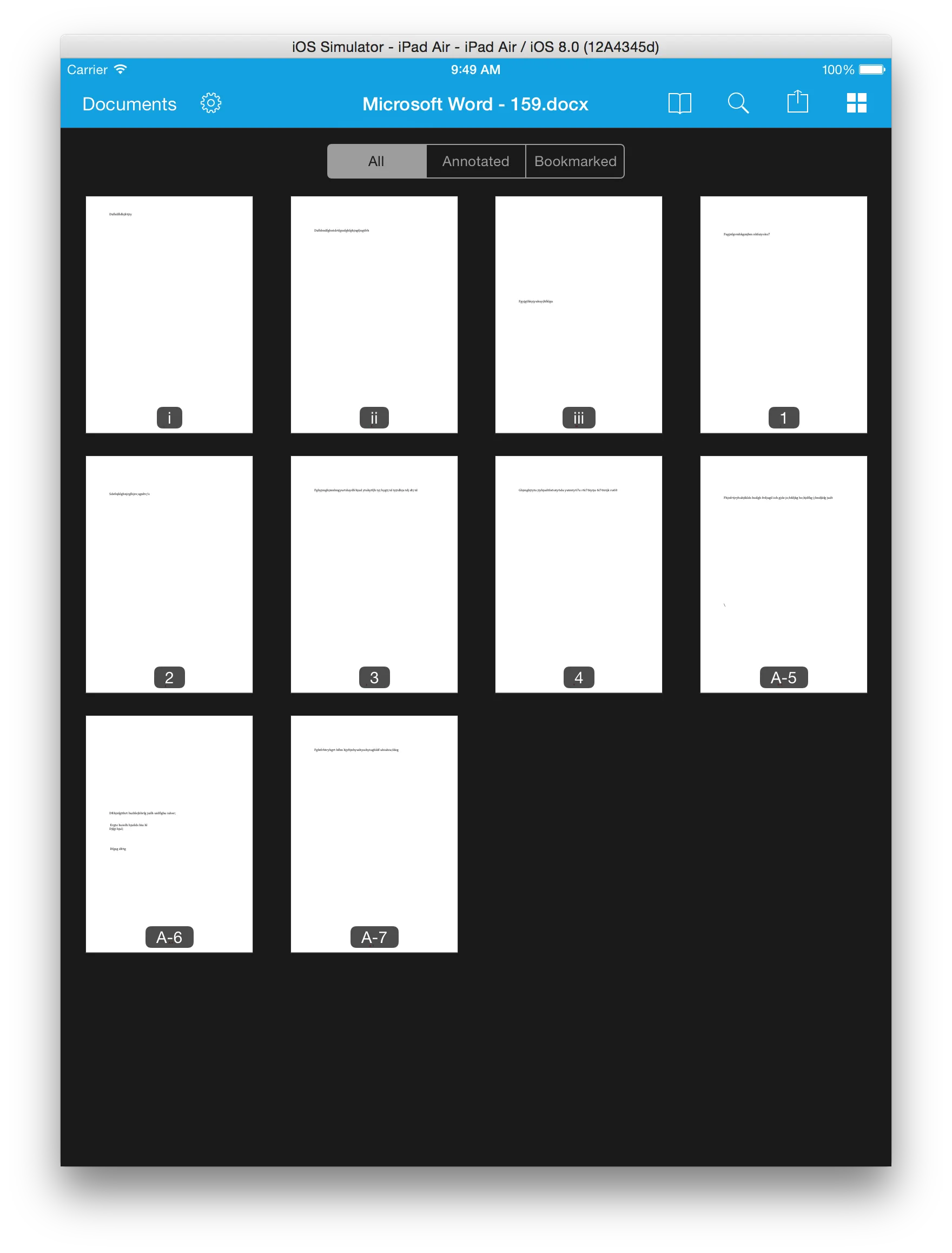
The PDF format has a page label feature that allows the creator of a PDF to set custom page labels such as Prelude, Table of Contents, 1, and 2 instead of the traditional serial numbering. Page labels can be numbers, Roman numerals, or even any string.
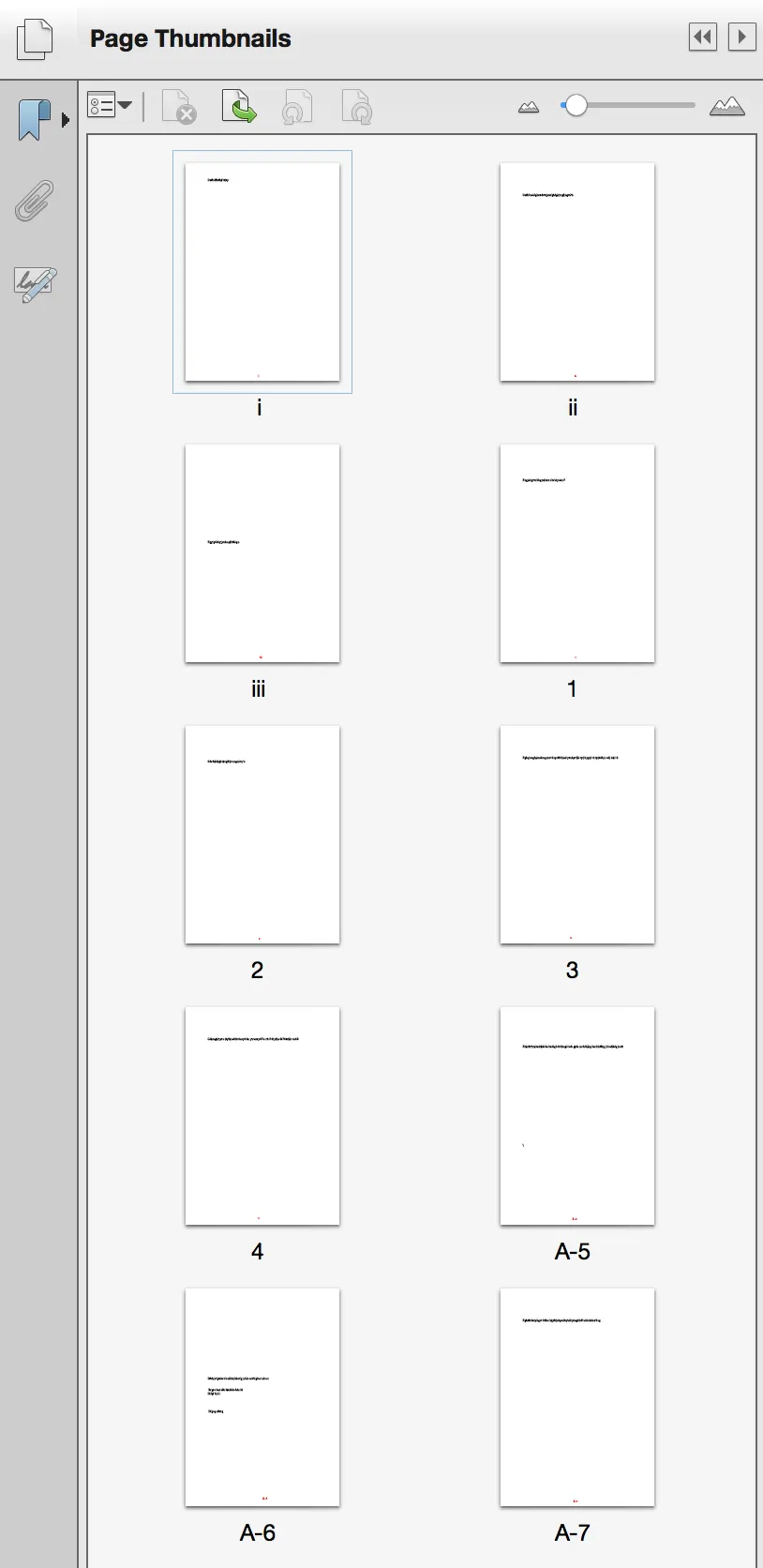
Nutrient fully supports page labels and will show custom labels instead of the default numbering, when available, in all places where page labels are displayed. This includes the Table of Contents view controller, the page position view, and the thumbnail views.
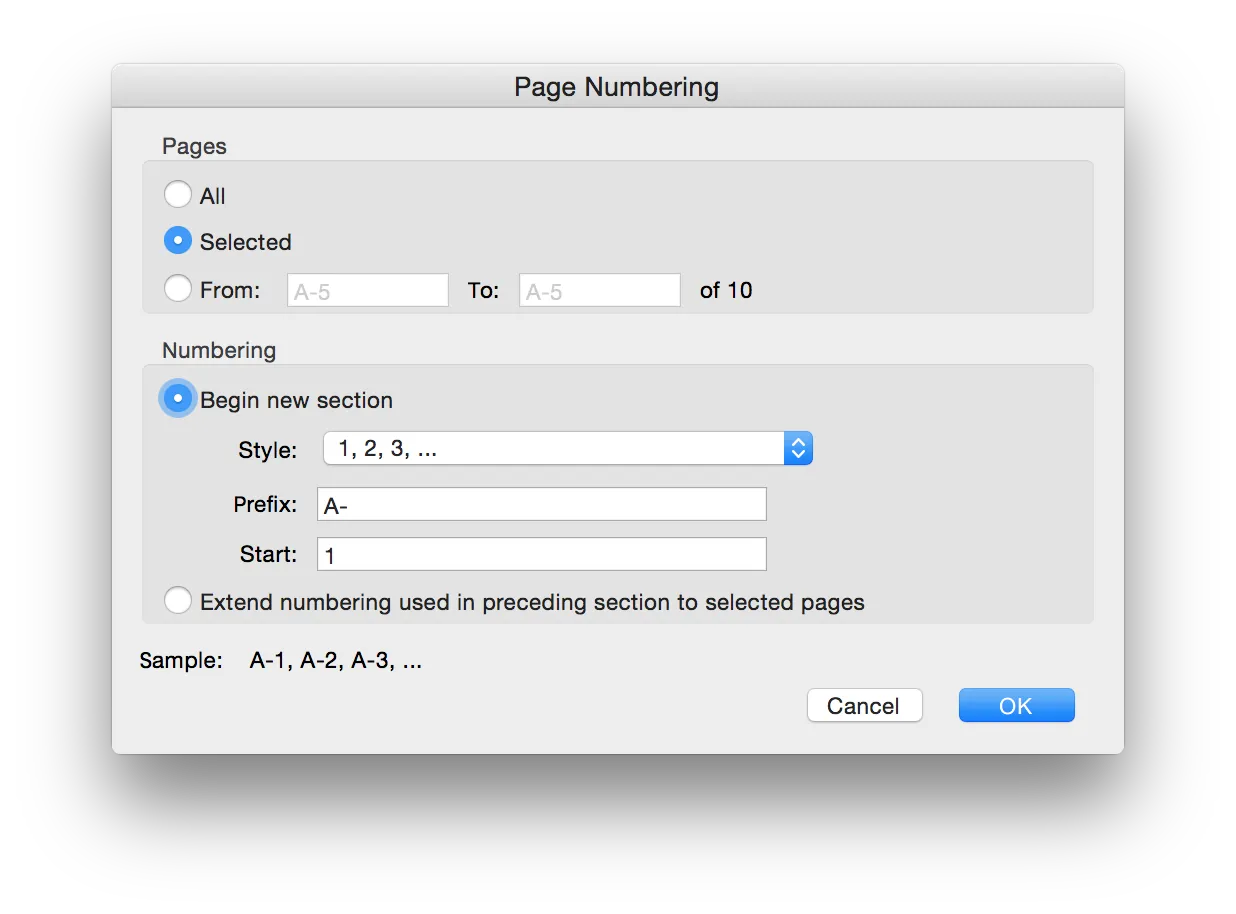
You can configure page labels via Adobe Acrobat by opening the thumbnail view, right-clicking on a page, and choosing the Number Pages… menu entry.
Showing custom page labels
Nutrient supports showing custom page labels in the UI. To show custom labels in the UI, register a subclass of LabelParser and override the pageLabelForPage(at:) and page(forPageLabel:partialMatching:) methods. This does not edit the PDF itself.