Import and export annotations from XFDF files on iOS
XFDF is an XML-based standard from Adobe XFDF (ISO 19444-1:2016)(opens in a new tab) for encoding annotations and form field values. An XFDF file will contain a snapshot of a PDF document’s annotations and form field values. It doesn’t include the form elements or the form fields themselves — only the filled values. It’s compatible with Adobe Acrobat and several other third-party frameworks.
XFDF has various limitations. In most cases, using Instant JSON will result in a smaller file. Or, you can use Instant for a complete synchronization solution.
Nutrient iOS SDK supports both reading and writing XFDF. It also offers an annotation provider subclass — XFDFAnnotationProvider — that will save/load annotations to/from XFDF automatically.
Importing XFDF
You can import annotations and form field values from an XFDF file to a document like so:
// Load from an example XFDF file.let externalAnnotationsFile = URL(fileURLWithPath: "path/to/XFDF.xfdf")
let documentProvider = (document.documentProviders.first)!let dataProvider = FileDataProvider(fileURL: externalAnnotationsFile)
// Create the XFDF parser and parse all annotations.let parser = XFDFParser(dataProvider: dataProvider, documentProvider: documentProvider)let annotations = try! parser.parse()
// Add the parsed annotations to the document.document.add(annotations: annotations)
// Load from an example XFDF file.NSURL *externalAnnotationsFile = [NSURL fileURLWithPath:@"path/to/XFDF.xfdf"];
PSPDFDocumentProvider *documentProvider = document.documentProviders.firstObject;PSPDFFileDataProvider *dataProvider = [[PSPDFFileDataProvider alloc] initWithFileURL:externalAnnotationsFile];
// Create the XFDF parser and parse all annotations.PSPDFXFDFParser *parser = [[PSPDFXFDFParser alloc] initWithDataProvider:dataProvider documentProvider:documentProvider];NSArray<PSPDFAnnotation *> *annotations = [parser parseWithError:NULL];
// Add the parsed annotations to the document.[document addAnnotations:annotations options:nil];Exporting to XFDF
You can export annotations and form field values from a document to an XFDF file like so:
// Collect all existing annotations from the document.let annotations = document.allAnnotations(of: .all).values.flatMap { $0 }
// Write the file.let dataSink = try! FileDataSink(fileURL: externalAnnotationsFile)do {  try XFDFWriter().write(annotations, to: dataSink, documentProvider: document.documentProviders.first!)} catch {  print("Failed to write XFDF file: \(error.localizedDescription))")}
// Collect all existing annotations from the document.NSMutableArray<PSPDFAnnotation *> *annotations = [NSMutableArray<PSPDFAnnotation *> array];for (NSArray<PSPDFAnnotation *> *pageAnnotations in [document allAnnotationsOfType:PSPDFAnnotationTypeAll].allValues) { [annotations addObjectsFromArray:pageAnnotations];}
// Write the file.NSError *error;PSPDFFileDataSink *dataSink = [[PSPDFFileDataSink alloc] initWithFileURL:externalAnnotationsFile options:PSPDFDataSinkOptionNone error:&error];NSAssert(dataSink != nil, @"%@", error);if (![[PSPDFXFDFWriter new] writeAnnotations:annotations toDataSink:dataSink documentProvider:tempDocument.documentProviders[0] error:&error]) { NSLog(@"Failed to write XFDF file: %@", error.localizedDescription);}Using an XFDF annotation provider
Nutrient offers an annotation provider subclass — XFDFAnnotationProvider — which uses XFDFParser and XFDFWriter internally and ensures the best performance.
You can use an XFDFAnnotationProvider to set up an XFDF annotation provider for a document, which will ensure that all annotation changes will be saved into the XFDF file. This can be done like so:
// Load from an example XFDF file.let externalAnnotationsFile = URL(fileURLWithPath: "path/to/XFDF.xfdf")
// Create `document` and set up the XFDF provider.let document = Document()document.annotationSaveMode = .externalFiledocument.didCreateDocumentProviderBlock = { documentProvider in  let XFDFProvider = XFDFAnnotationProvider(documentProvider: documentProvider, fileURL: externalAnnotationsFile)  documentProvider.annotationManager.annotationProviders = [XFDFProvider]}
// Load from an example XFDF file.NSURL *externalAnnotationsFile = [NSURL fileURLWithPath:@"path/to/XFDF.xfdf"];
// Create `document` and set up the XFDF provider.PSPDFDocument *document = [[PSPDFDocument alloc] initWithURL:documentURL];document.annotationSaveMode = PSPDFAnnotationSaveModeExternalFile;document.didCreateDocumentProviderBlock = ^(PSPDFDocumentProvider *documentProvider) { PSPDFXFDFAnnotationProvider *XFDFProvider = [[PSPDFXFDFAnnotationProvider alloc] initWithDocumentProvider:documentProvider fileURL:externalAnnotationsFile]; documentProvider.annotationManager.annotationProviders = @[XFDFProvider];};Take a look at XFDFAnnotationProviderExample.swift(opens in a new tab) in the Catalog app for a runnable sample project.
Nutrient also allows you to use an encrypted XFDF file in your XFDF annotation provider. For sample code, refer to EncryptedXFDFAnnotationProviderExample.swift(opens in a new tab) from the Catalog app.
Handling external changes
If the XFDF file used to store annotations for a document is changed outside of Nutrient, the cache for that document needs to be manually cleared. For performance reasons, PDFCache does not take the annotations on a given page into account. As such, when a previously used document is loaded in a PDFViewController with an XFDF file that was changed externally, the cache will return stale images.
To counter this, you can clear the cache like so:
// Where `document` is a `Document` instance.SDK.shared.cache.remove(for: document)// Where `document` is a `PSPDFDocument` instance.[PSPDFKitGlobal.sharedInstance.cache removeCacheForDocument:document];Exporting annotations to XFDF via Adobe Acrobat
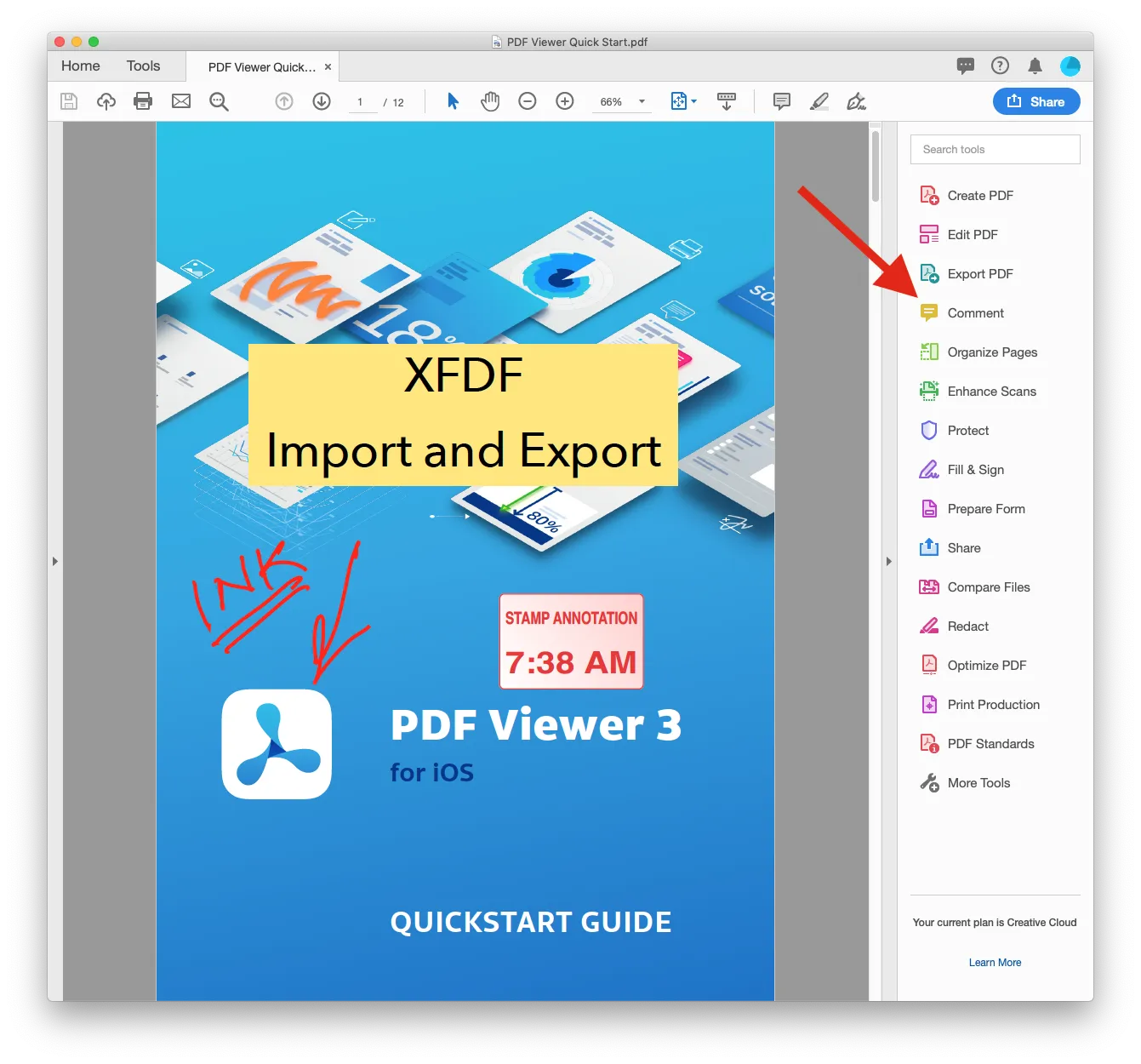
Adobe Acrobat can export annotations into XFDF. The export menu is part of the Comments tool and is accessed by opening the tool in the sidebar.
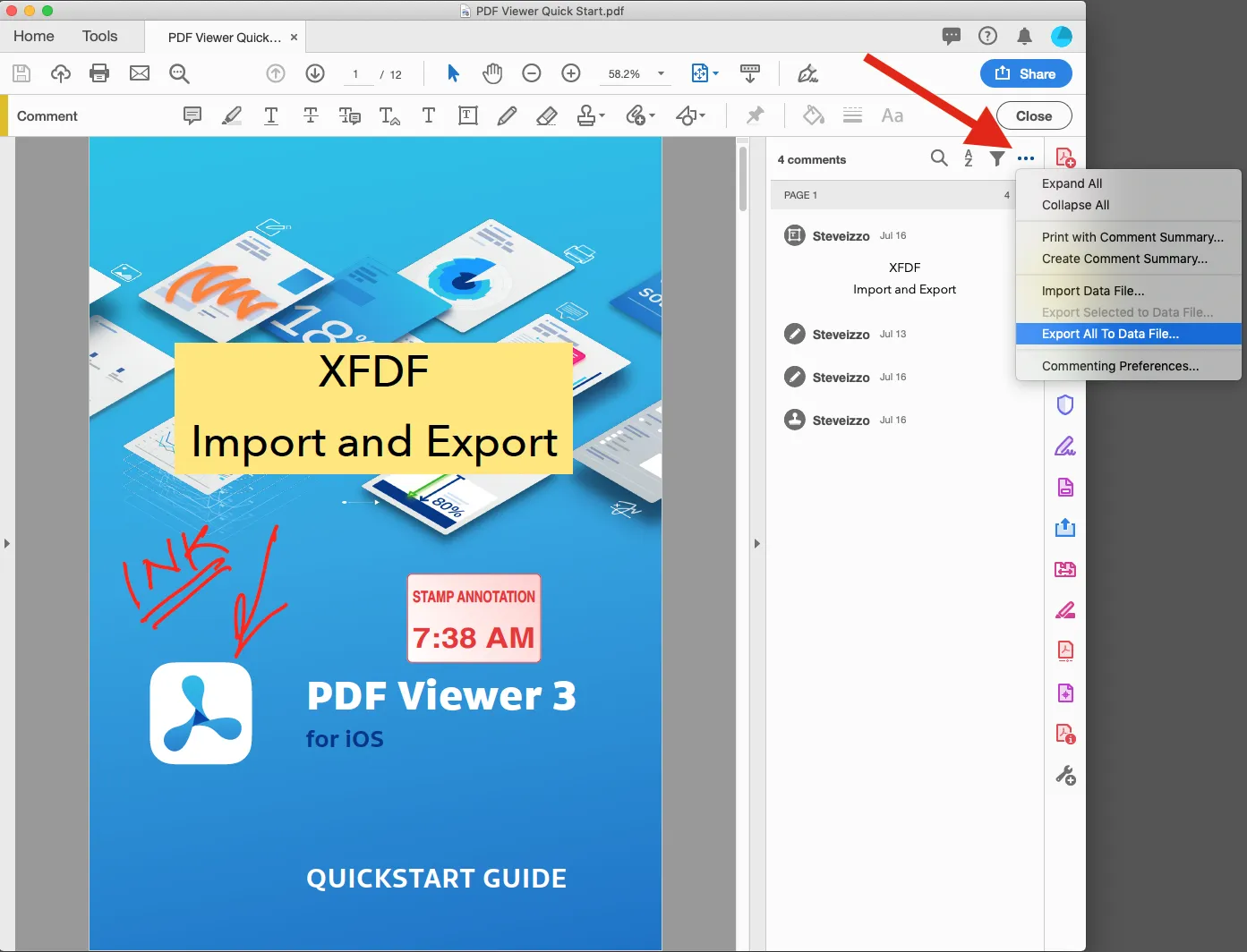
You can access the export function by clicking on the three dots and then choosing Export All To Data File.
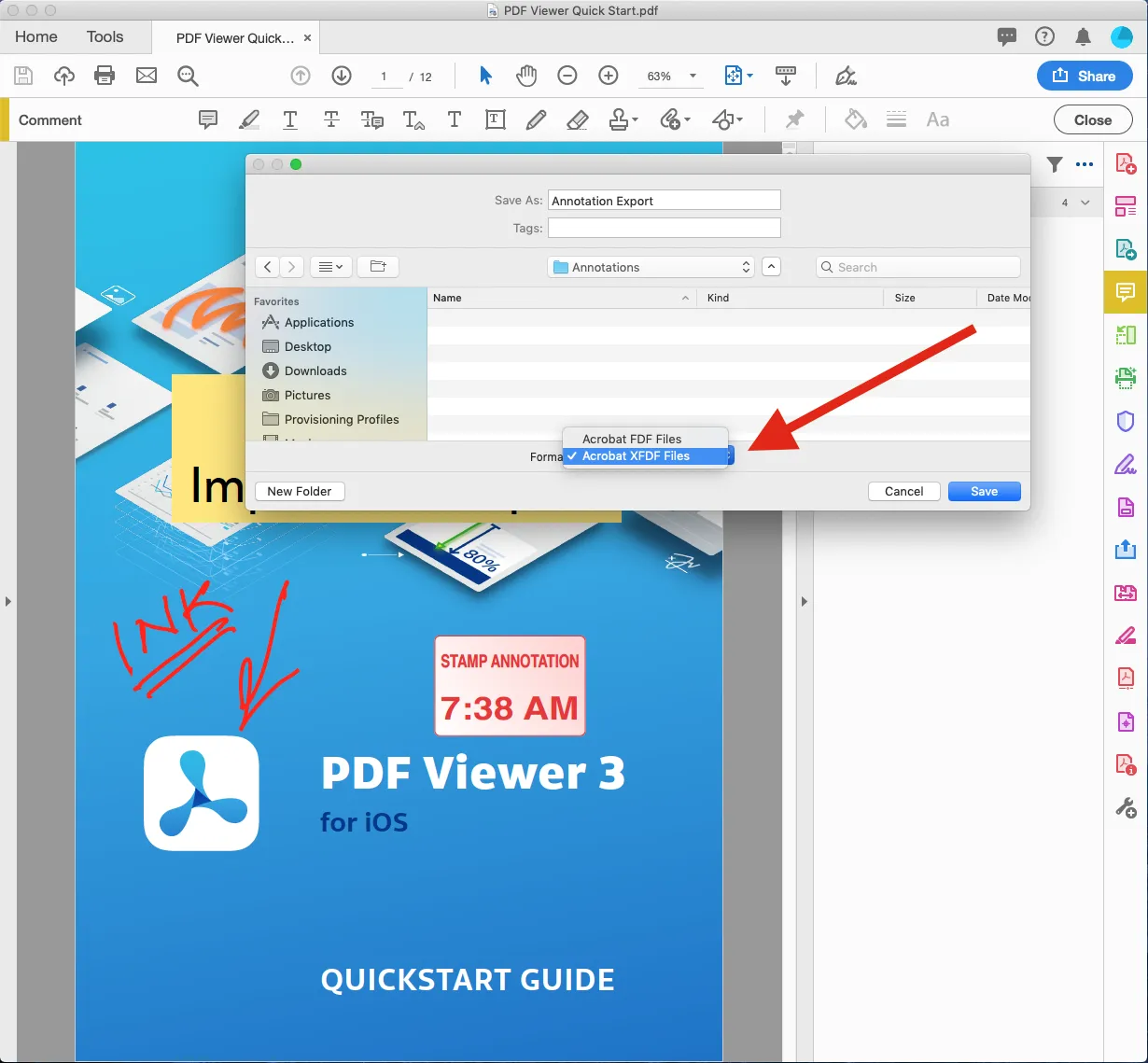
- At the bottom of the page, choose Acrobat XFDF Files.
- Select the directory you wish to save the XFDF file to and name the file.
- Click save.
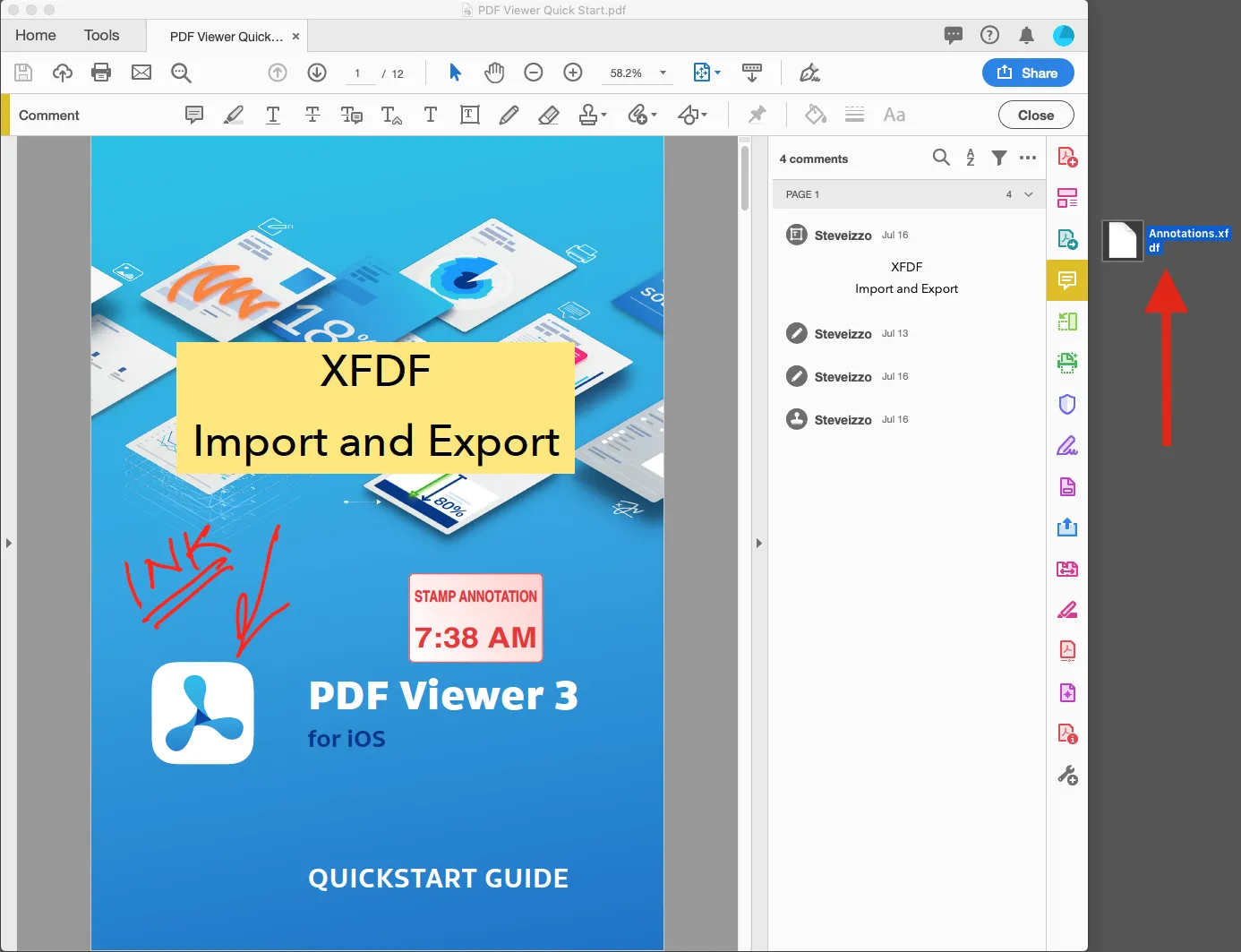
A successful export will result in a file with an .xfdf extension.
Importing annotations to XFDF via Adobe Acrobat
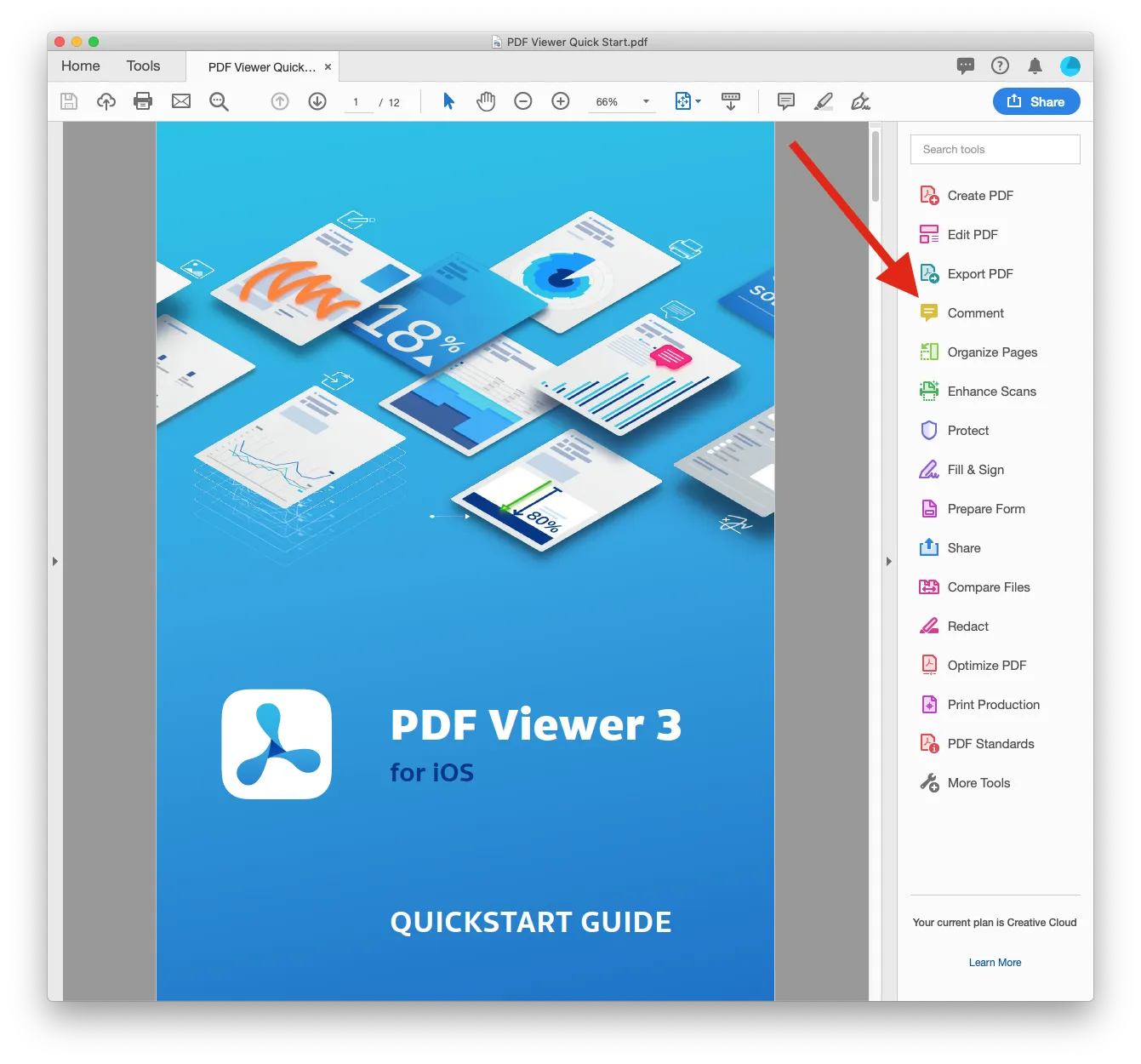
The export function is part of the Comments tool and is accessed by clicking on its icon.
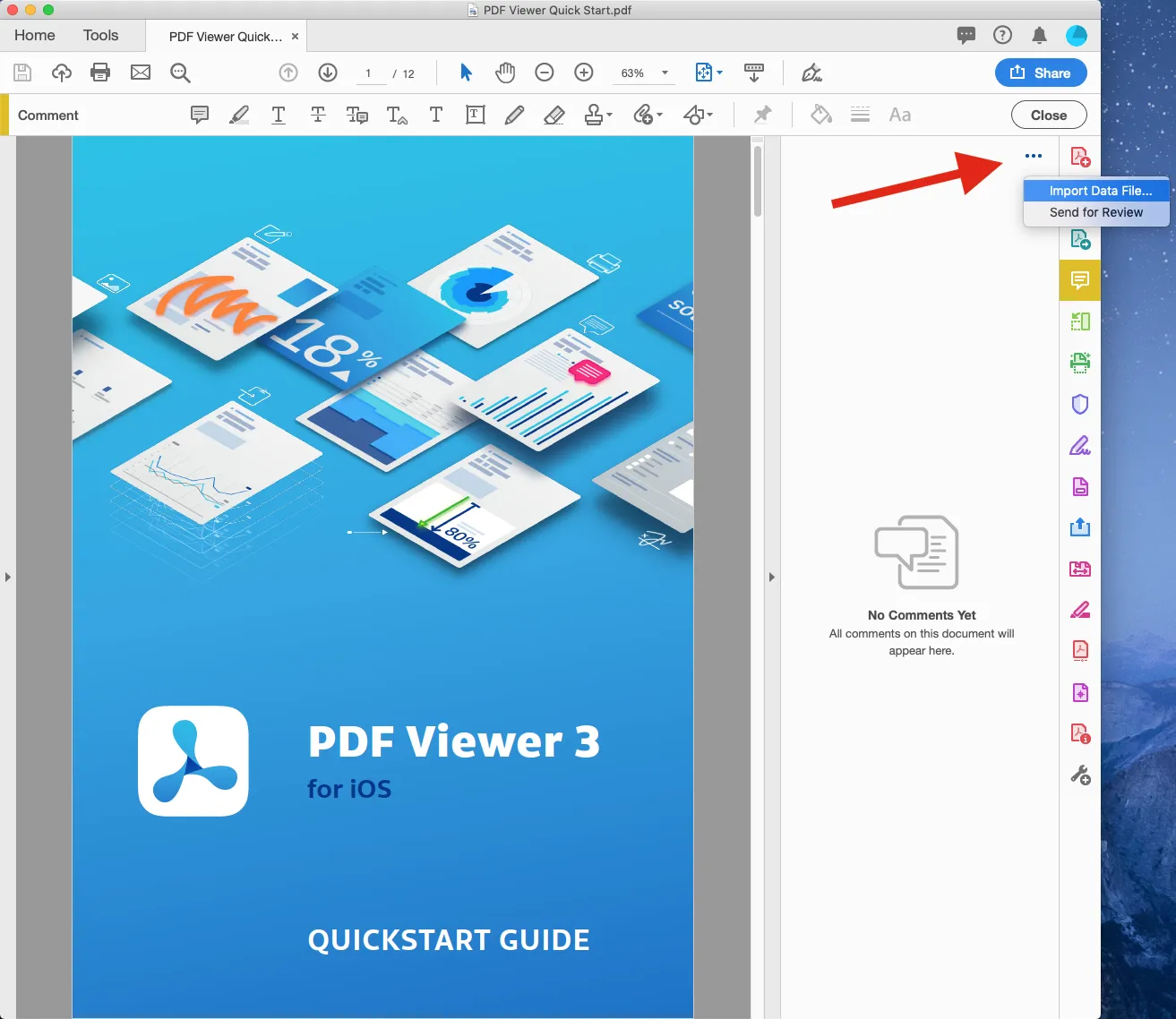
Click on the three dots to open the import menu, and then click on Import Data File.
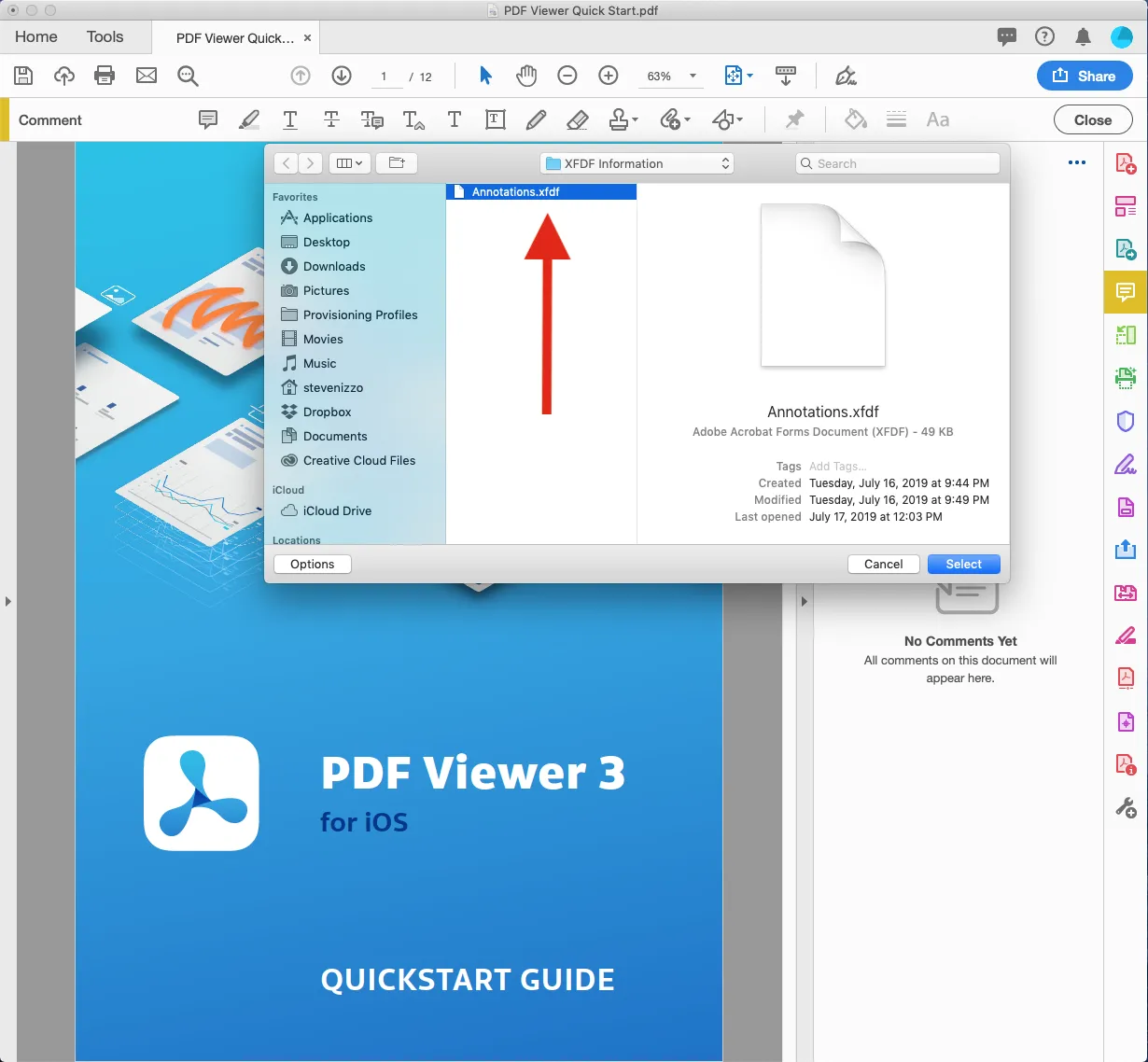
Highlight the .xfdf file you wish to import and click Select.
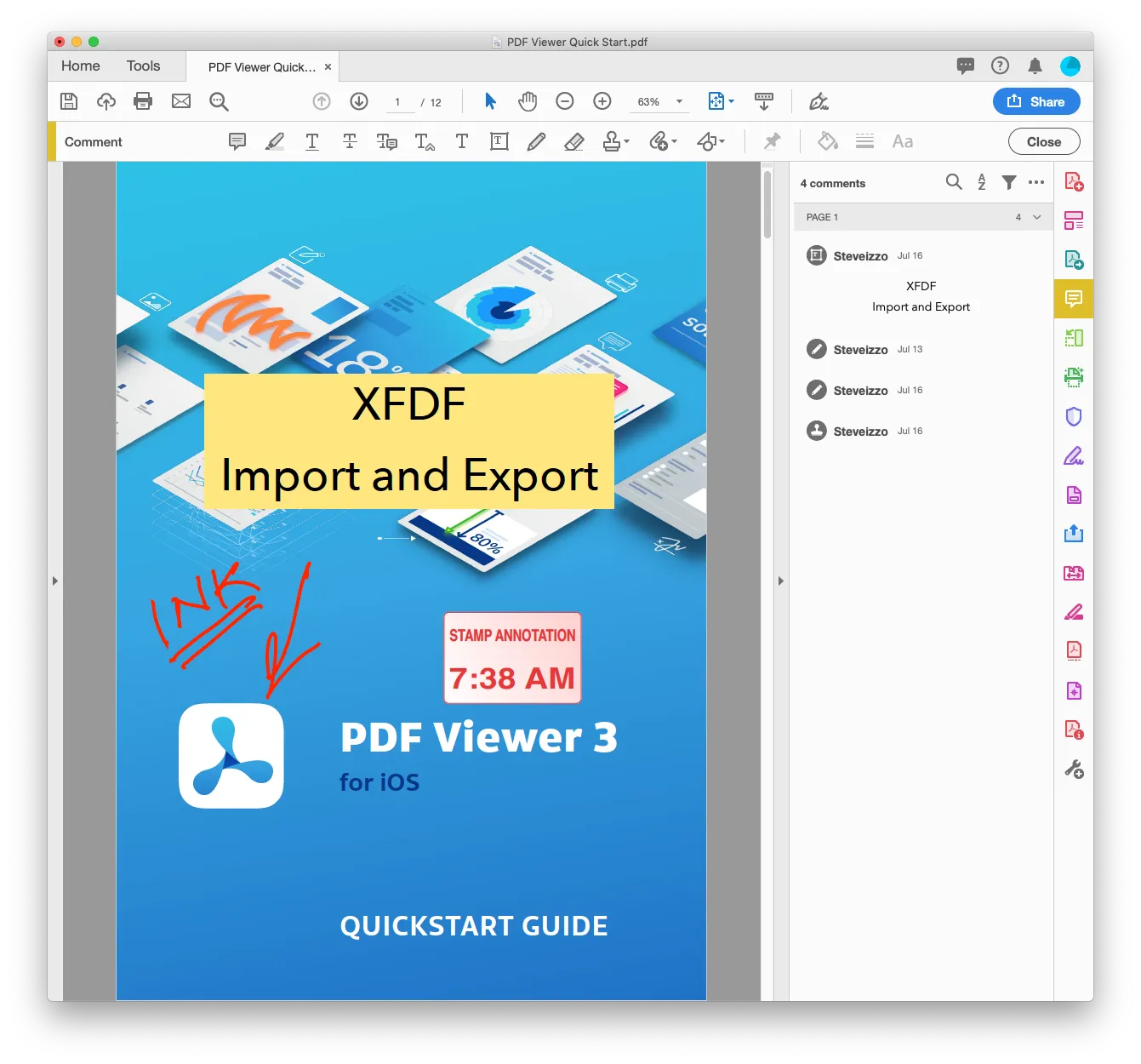
The import function completes with the annotations being placed on the document.
Adobe Acrobat error conditions
| Error description | Screenshot |
|---|---|
| Damaged/missing document body | 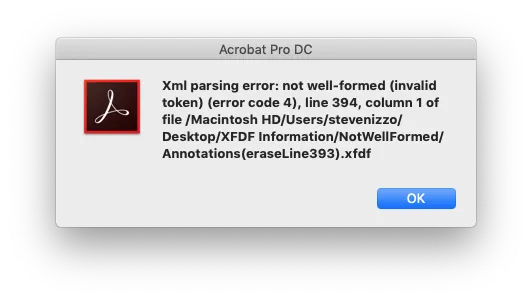 |
| Damaged/missing description tag | 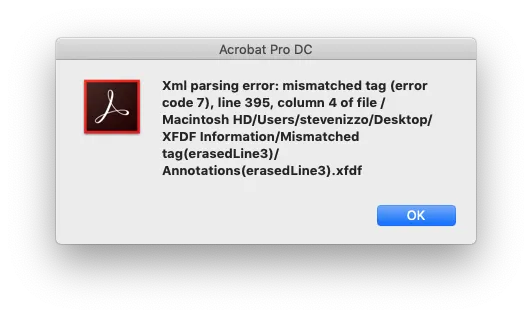 |
| Missing document flag | 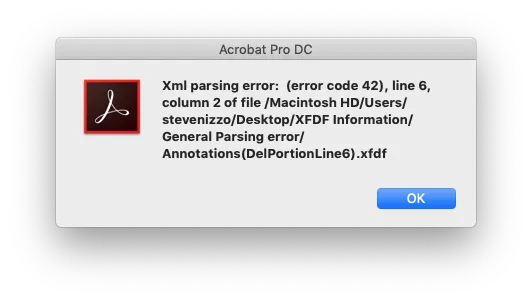 |