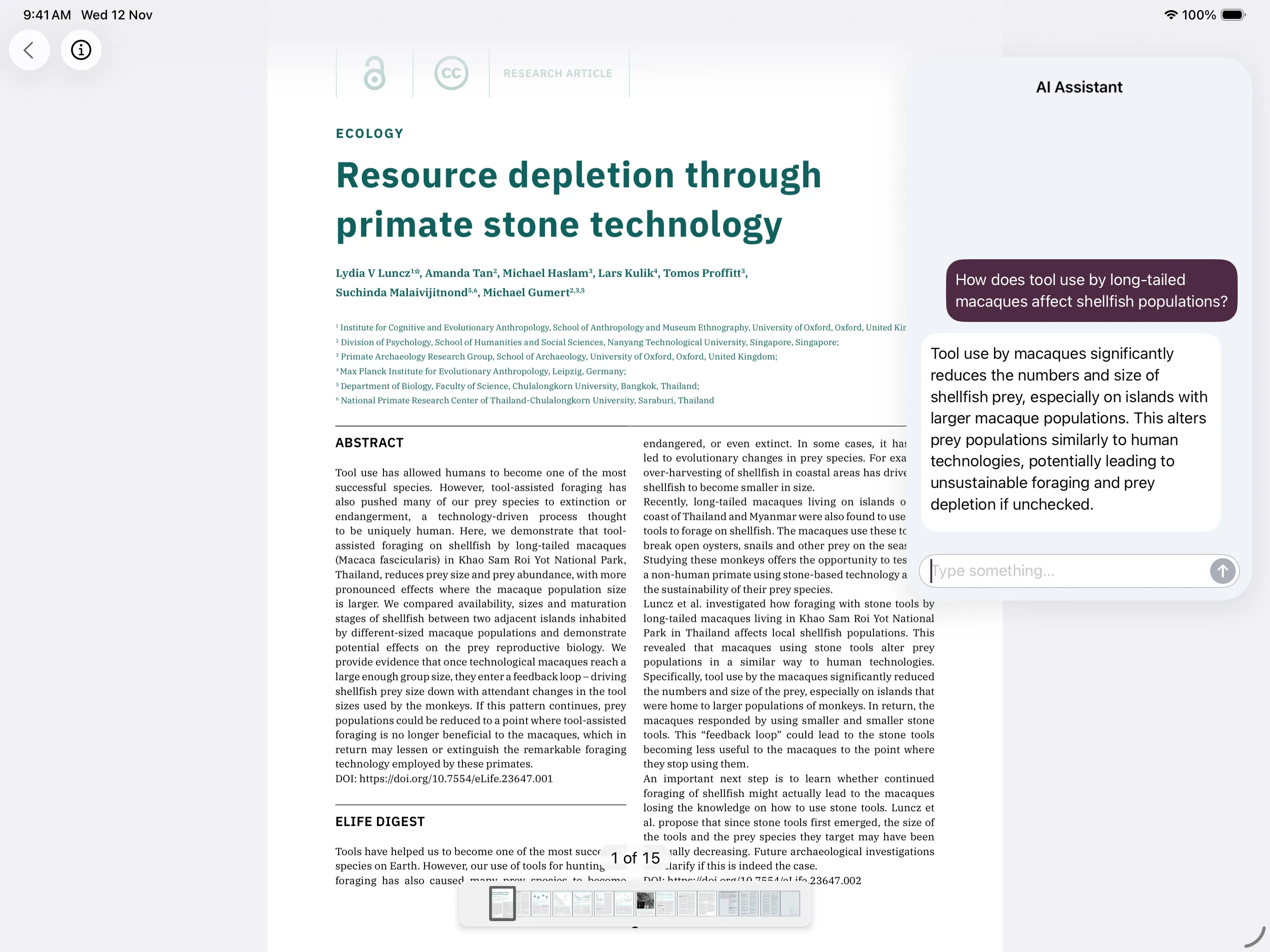
On-device AI Assistant with Apple Intelligence
On-device AI Assistant answers document questions with Apple’s Foundation Models, which power Apple Intelligence. Starting with iOS 27, you can use Apple’s system model or provide your own Foundation Models language model.
Users can ask questions about text in the open document. This feature works best when users ask natural language questions that target specific information. AI Assistant can make mistakes, so users should verify important information.
Apple’s Foundation Models have a limited context window. In Nutrient’s on-device AI Assistant, this doesn’t limit document size. Nutrient’s on-device retrieval-augmented generation (RAG) pipeline selects relevant passages from the full document, so users can ask questions about large documents.
Requirements
Check these requirements before you enable on-device AI Assistant.
On-device AI Assistant with Apple’s system model requires a device compatible with Apple Intelligence(opens in a new tab) on iOS 26 or later. Users must enable Apple Intelligence in the Settings app on iOS and visionOS, or in System Settings on macOS.
Custom on-device AI Assistant models require iOS 27 or later. The model must conform to Foundation Models’ LanguageModel(opens in a new tab) protocol, and device and memory requirements depend on the model. For example, models hosted through MLX(opens in a new tab) need a physical device or an Apple silicon Mac with enough memory for model weights.
For production, your Nutrient iOS SDK license must include the on-device AI Assistant feature; to add it, contact support(opens in a new tab).
Enable on-device AI Assistant
Choose the integration option that matches your app interface.
Add AIAssistantButton to your toolbar. This example shows the button without other toolbar items:
struct DocumentViewerWithAIAssistant: View {    let document: Document    @PDFView.Scope private var scope
    var body: some View {        PDFView(document: document)            .toolbar {                AIAssistantButton()            }            .pdfViewScope(scope)    }}
Set Scope for the view hierarchy so the toolbar button and PDFView can communicate.
Add your PDFViewController’s aiAssistantButtonItem to its navigation bar or toolbar. This example shows the button without other toolbar items:
pdfViewController.navigationItem.setRightBarButtonItems( [pdfViewController.aiAssistantButtonItem], for: .document, animated: false)Refer to the main toolbar customization guide for more toolbar options.
When you use Apple’s system model, Nutrient automatically hides this button if Apple Intelligence isn’t available or enabled in Settings or System Settings. With a custom model, the button’s visibility doesn’t depend on Apple Intelligence.
Use a custom model starting with iOS 27
Starting with iOS 27, AI Assistant can use any model that conforms to Foundation Models’ LanguageModel(opens in a new tab) protocol. Configure PDFConfiguration.aiAssistantSource with AIAssistantModel.custom(_:identifier:contextWindow:) to use your model instead of Apple’s system model.
A custom model can run on the device or call a server, and AI Assistant sends document text, questions, and conversation history to the model. Review the model’s data handling before you ship.
Use this configuration pattern to select a custom model:
let controller = PDFViewController(document: document) { $0.aiAssistantSource = .languageModel(.custom(model, identifier: "qwen3-4b-4bit:8k", contextWindow: 8_192))}Present the chat UI yourself
You can present the chat UI from your own interface instead of using the built-in button. Create an AIAssistantSession(document:configuration:) with an AIAssistantModelConfiguration. Then show the session with AIAssistantView or AIAssistantViewController.
The configuration selects the model and identifies stored chat history by session ID and optional user ID. Use a session ID that your app owns and stores, because a document’s uid can change when the document is moved or modified. This works with Apple’s system model on iOS 26 or later, and with a custom model on iOS 27 or later.
let configuration = AIAssistantModelConfiguration(sessionID: conversationID)let session = try AIAssistantSession(document: document, configuration: configuration)let aiAssistantViewController = AIAssistantViewController(session: session)Privacy and security
On-device AI Assistant with Apple’s system model processes documents and questions on users’ devices; it doesn’t send that data to a server.
If you use a custom model, privacy depends on the model implementation. A custom model may process data on the device or send data to a server.
Nutrient uses two internal persistent stores on a device when you use on-device AI Assistant:
- A cache stores document text and embeddings locally to improve load time. Nutrient refreshes the cache when the document changes.
- Chat history stores users’ questions and AI answers. This history typically includes content from documents.
Limitations
- On-device AI Assistant may fail to find information that exists in a document.
- On-device AI Assistant doesn’t support questions about multiple documents.
- On-device AI Assistant doesn’t support navigation to the document part where it found the answer.
- The built-in button doesn’t support multiple separate chat histories for the same document. When you use the API directly, key history by session and user ID.
- On-device AI Assistant doesn’t support password-protected documents.
- Don’t use on-device AI Assistant to summarize large documents unless the document already includes a summary.
- Use on-device AI Assistant to find specific information in large documents.
- Apple’s system model supports the languages Apple Intelligence supports, but it may favor English responses. Language support for custom models depends on their implementation.
Share your feedback(opens in a new tab) to help us prioritize AI Assistant enhancements.