Import library settings effortlessly and accurately
Document Searchability also provides the ability to import settings from an existing library. However, “locations”, “excluded locations” and “excluded documents” are not imported because it is not allowed to have the same locations in multiple libraries.
To import settings:
Click on the Add new library button on the Dashboard to open the wizard.

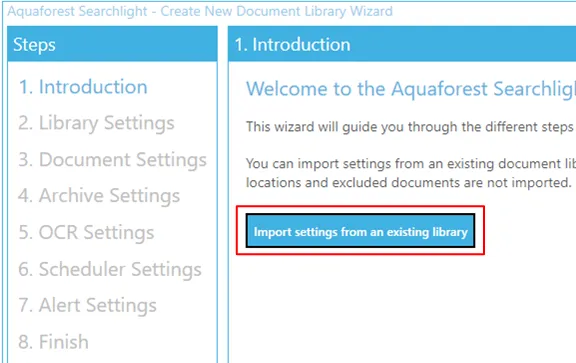
From the wizard select Import settings from an existing library
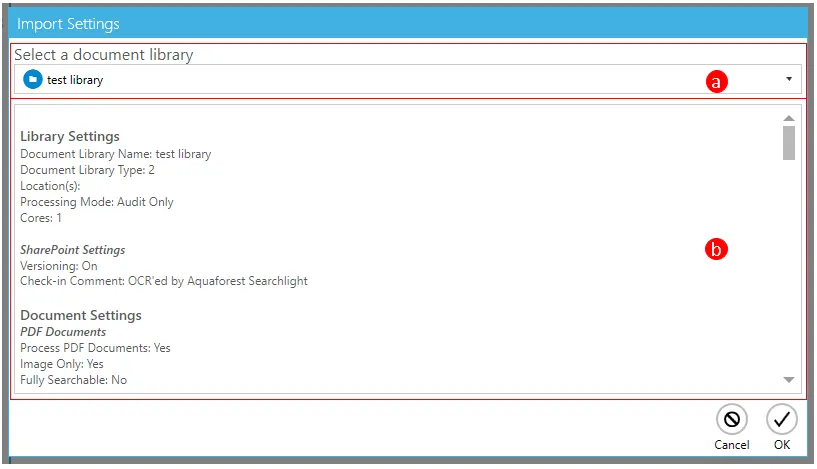
From the Import Settings window:
3.1. Select the document library from which the settings are to be imported.
3.2. A summary of the settings of the selected document library will be displayed in the text box underneath.
After clicking OK from the Import Settings window, go to Library Settings and add the location(s) to process. Optionally, add specific locations and documents to exclude.
Review all the settings in the other sections and click Create.