DWS Viewer API backend authentication
Requests to the DWS Viewer API are protected by a secret API key.
By default, a live API key works with every DWS integration enabled for your account. Create a scoped live key when an integration requires restricted access.
API key authentication
Create or copy a live API key from the DWS API keys page(opens in a new tab).
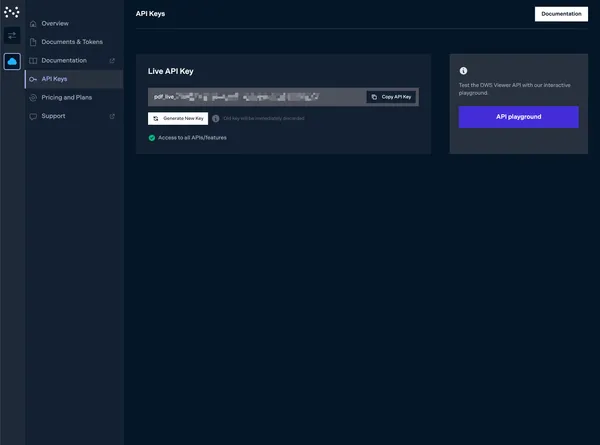
Because the API allows full access to data stored in your DWS Viewer API application, it’s only meant to be used by your backend services, which we assume are fully trusted. To view documents from DWS Viewer API in the browser using Nutrient Web SDK, you’ll need to use session tokens that can be handed out to users.
Using the API key
Each API request needs to be authenticated by providing the Authorization: Bearer your_api_key_here header:
curl -X POST https://api.nutrient.io/viewer/documents \ -H "Authorization: Bearer your_api_key_here" \ -H "Content-Type: application/pdf" \ --fail \ -F file=@document.pdfcurl -X POST https://api.nutrient.io/viewer/documents ^ -H "Authorization: Bearer your_api_key_here" ^ -H "Content-Type: application/pdf" ^ --fail ^ -F file=@document.pdfPOST https://api.nutrient.io/viewer/documents HTTP/1.1Content-Type: multipart/form-data; boundary=--customboundaryAuthorization: Bearer your_api_key_hereContent-Type: application/pdf
--customboundaryContent-Disposition: form-data; name="file"; filename="document.pdf"Content-Type: application/pdf
(file data)--customboundary--JSON Web Token (JWT) authentication
API key authentication falls short when you require more granular control over the permissions of the client making the request. In such cases, you can use JWT-based authentication via API access tokens.
Session tokens vs. API access tokens
Use the token type that matches your integration:
- Browser viewer sessions — Use
POST /viewer/sessions. This is the preferred endpoint for opening documents in Nutrient Web SDK. - Programmatic DWS Viewer API requests from trusted backend services — Use
POST /viewer/tokensto create an API access token.
Don’t use POST /viewer/tokens for browser viewer sessions.
Creating an API access token
To authenticate trusted backend requests, generate an API access token using the API key via the POST /viewer/tokens endpoint:
curl -X POST https://api.nutrient.io/viewer/tokens \ -H "Content-Type: application/json" \ -H "Authorization: Bearer your_api_key_here" \ --fail \ -d '{ "allowed_documents": [ { "document_id": "<document_id>", "permissions": [ "read", "write", "download" ] } ], "exp": 1793769299 }'curl -X POST https://api.nutrient.io/viewer/tokens ^ -H "Content-Type: application/json" ^ -H "Authorization: Bearer your_api_key_here" ^ --fail ^ -d "{\"allowed_documents\": [{\"document_id\": \"<document_id>\", \"permissions\": [\"read\", \"write\", \"download\"]}], \"exp\": 1793769299}"POST https://api.nutrient.io/viewer/tokens HTTP/1.1Content-Type: application/jsonAuthorization: Bearer your_api_key_here
{ "allowed_documents": [ { "document_id": "<document_id>", "permissions": [ "read", "write", "download" ] } ], "exp": 1793769299}You can then retrieve the JWT from the response. The token is returned in the top-level jwt field:
{ "jwt": "<created_access_token>"}API access tokens can be created with additional optional claims to further control their properties. Refer to our API reference to learn more.
Using an API access token
API requests need to be authenticated by providing the Authorization: Bearer your_jwt_goes_here header:
Upload a document
curl -X POST https://api.nutrient.io/viewer/documents \ -H "Accept: application/json" \ -H "Authorization: Bearer your_jwt_goes_here" \ -H "Content-Type: application/pdf" \ --fail \ -F file=@document.pdfcurl -X POST https://api.nutrient.io/viewer/documents ^ -H "Accept: application/json" ^ -H "Authorization: Bearer your_jwt_goes_here" ^ -H "Content-Type: application/pdf" ^ --fail ^ -F file=@document.pdfPOST https://api.nutrient.io/viewer/documents HTTP/1.1Content-Type: multipart/form-data; boundary=--customboundaryAccept: application/jsonAuthorization: Bearer your_jwt_goes_hereContent-Type: application/pdf
--customboundaryContent-Disposition: form-data; name="file"; filename="document.pdf"Content-Type: application/pdf
(file data)--customboundary--Getting documents
curl -X GET https://api.nutrient.io/viewer/documents \ -H "Accept: application/json" \ -H "Authorization: Bearer your_jwt_goes_here" \ --failcurl -X GET https://api.nutrient.io/viewer/documents ^ -H "Accept: application/json" ^ -H "Authorization: Bearer your_jwt_goes_here" ^ --failGET https://api.nutrient.io/viewer/documents HTTP/1.1Content-Type: multipart/form-data; boundary=--customboundaryAccept: application/jsonAuthorization: Bearer your_jwt_goes_here
--customboundary--