Getting started with DWS Viewer API
Nutrient Document Web Services Viewer API is a service that authorizes Web SDK viewer sessions, tracks usage, and optionally stores and renders your documents.
DWS Viewer API supports two document paths:
- DWS-managed documents — Upload documents to Nutrient infrastructure. DWS stores, streams, and manages them for viewing in Web SDK.
- App-provided documents — Keep documents in your app or browser. Your app passes a file, URL, Blob, or ArrayBuffer directly to Web SDK, while DWS Viewer API authorizes and meters the viewer session.
This guide walks you through opening a DWS-managed document in Nutrient Web SDK. If your browser app already has the file or URL and you don’t want to upload it to DWS, use the app-provided document guide instead.
Nutrient Document Web Services Viewer API is the simplest way to add Nutrient Web Viewer to your app — no infrastructure to deploy or manage. It authorizes and meters viewer sessions, can optionally store and render your documents, and is self-serve, so you start free and scale as you grow.
Choose how your documents reach the viewer:
- App-provided (standalone) — Your app passes the file, URL, Blob, or ArrayBuffer to Web SDK; Nutrient doesn’t store anything. It’s the same client-side Web SDK you’d run with a license key, licensed self-serve.
- DWS-managed — Upload to Nutrient, and DWS stores, streams, and manages your documents for viewing.
This guide uses a DWS-managed document: You upload the file first, and Nutrient hosts it for viewing. For the fastest Web SDK setup, where your app provides the document directly, follow the recommended Web SDK quick start guide.
See DWS Viewer API capabilities in the Nutrient dashboard.
Prefer to jump straight into code? View a detailed example that covers various capabilities of DWS APIs.
Setting up your DWS dashboard
Before you begin, sign up(opens in a new tab) for a free account in the Document Web Services (DWS) dashboard.
Create a new application in the DWS Viewer API dashboard(opens in a new tab).
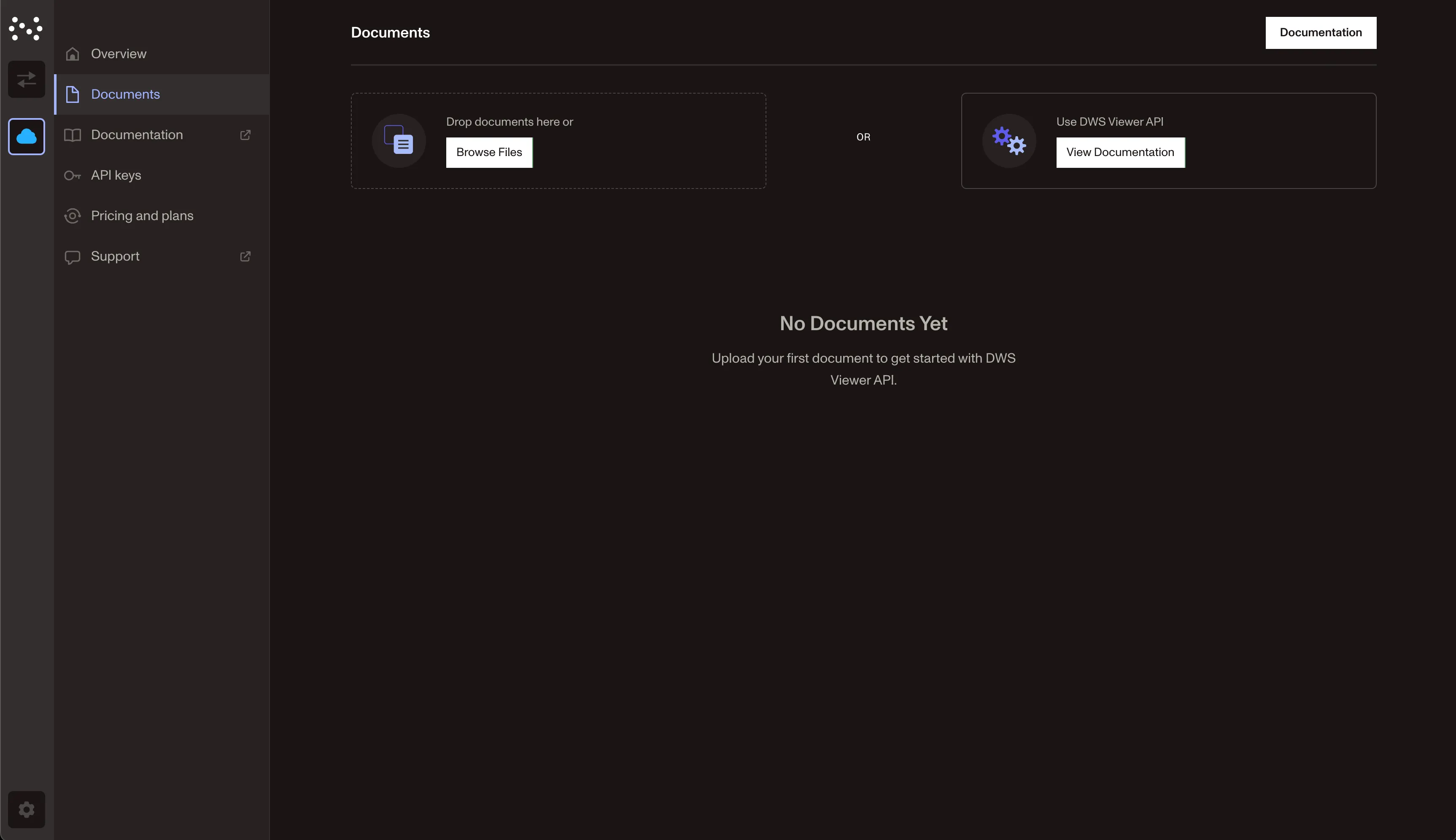
Select the Documents tab and upload a test document to your application. Uploading creates a DWS-managed document, which is stored and managed by Nutrient infrastructure. You may download and use our sample PDF for testing purposes.
You’ll see the uploaded document in the dashboard. Click the View button to open the document in the DWS dashboard.
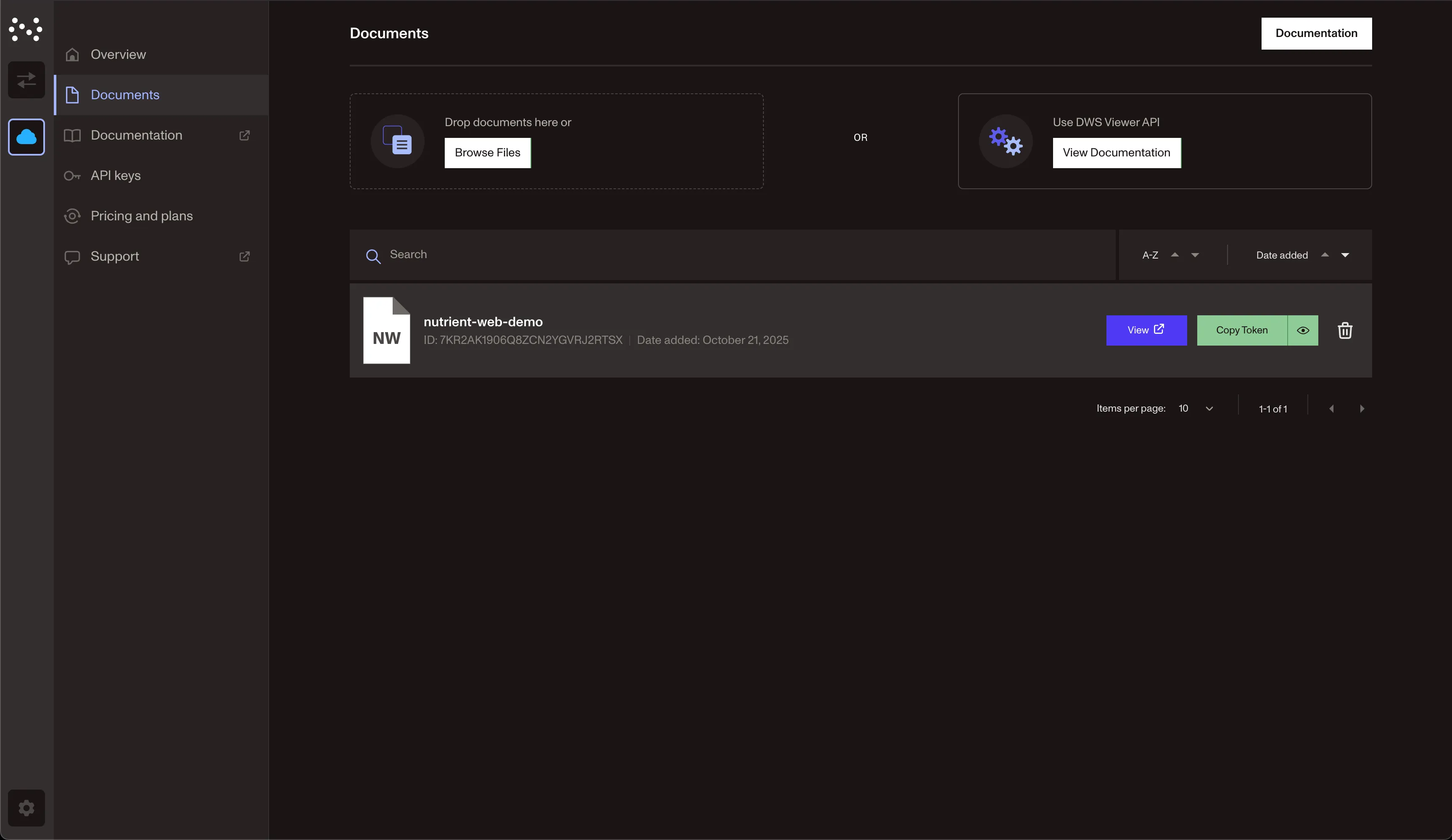
You’re now ready to integrate DWS Viewer API using Nutrient Web SDK. You’ll use the session token for this document from the Copy token button and render it using Nutrient Web SDK.
Session tokens generated from the DWS dashboard have a default expiry time of 24 hours. For production use cases, it’s recommended to generate a session token programmatically.
For this guide, you may continue using the token generated from the dashboard.
Which authentication endpoint should I use?
- Use
POST /viewer/sessionsfor browser viewer sessions with Nutrient Web SDK. - Use
POST /viewer/tokensonly for programmatic DWS Viewer API access from trusted backend services. Don’t use it to open a document in the browser.
The session creation response returns the token in the top-level jwt field:
{ "jwt": "<session_token>"}Pass that value directly to NutrientViewer.load({ session: ... }).
Setting up Nutrient Web SDK
You’ll use React and Vite to demonstrate the integration of Nutrient Web SDK with DWS Viewer API. However, you can use Nutrient Web SDK with any frontend framework of your choice.
You may also refer to the Web SDK getting started guide with React + Vite for a detailed walkthrough on setting up your React application with Nutrient Web SDK.
Installation
This guide uses the CDN installation to keep things simple.
Add the following
<script>tag in yourindex.htmlfile:index.html <!doctype html><html lang="en"><head><meta charset="UTF-8" /><link rel="icon" type="image/svg+xml" href="/vite.svg" /><meta name="viewport" content="width=device-width, initial-scale=1.0" /><title>Vite + React + TS</title></head><body><div id="root"></div><script src="https://cdn.cloud.nutrient.io/pspdfkit-web@1.23.0/nutrient-viewer.js"></script><script type="module" src="/src/main.tsx"></script></body></html>You’re now ready to use Nutrient Web SDK and reference
window.NutrientViewerin the client-side code.
Rendering a PDF
Load the PDF file in
App.tsx. Pass the session token you copied from the DWS dashboard in thesessionproperty of the configuration object for theNutrientViewer.load()method:App.tsx import { useEffect, useRef } from "react";function App() {const containerRef = useRef(null);useEffect(() => {const container = containerRef.current;const { NutrientViewer } = window;if (container && NutrientViewer) {NutrientViewer.load({container,// Paste the session token you copied from the DWS dashboard here.session: "<Your session token>",});}return () => {NutrientViewer?.unload(container);};}, []);// Set the container height and width.return (<div ref={containerRef} style={{ height: "100vh", width: "100vw" }} />);}export default App;Start the development server:
You’ll see the PDF rendered in the Nutrient Web SDK user interface (UI), powered by DWS Viewer API. Try filling form fields, adding annotations, or leaving comments, and they’ll automatically be persisted by DWS Viewer API with its out-of-the-box syncing capabilities.
For cross-product overviews of Web SDK, Document Engine, and DWS Viewer API workflows, refer to the choose the right annotation workflow setup, choose the right forms workflow setup, and choose the right search, bookmarks, and document navigation setup guides.
Next steps
DWS Viewer API comes with various capabilities you can explore further:
- It enables you to upload and process documents directly from your application.
- It can open app-provided documents without storing them as DWS-managed documents.
- For production use cases, generate a session token programmatically.
- Configure token settings such as expiry date, time, and editing permissions. For details, refer to the DWS API authentication guide.
For detailed instructions on integrating Nutrient Web SDK, check out our React + Vite guide.
See DWS Viewer API capabilities in the Nutrient dashboard.
Follow a detailed tutorial that goes more in depth on DWS Viewer and DWS Processor.