



How to extract text from a PDF using PyMuPDF and Python

Table of contents
- PyMuPDF — An open source library for extracting text from native PDFs. It requires AGPL licensing compliance and additional development for OCR, table detection, and form handling.
- Nutrient API — A cloud-based API with built-in OCR, automatic error handling, and zero infrastructure management. It processes both native and scanned documents.
- Key difference — PyMuPDF requires custom development and ongoing maintenance. Nutrient provides a complete solution with faster implementation.
PyMuPDF is an open source library for PDF text extraction. It works well for native text PDFs, but it requires additional development for OCR integration, table detection, form handling, and error recovery.
Nutrient API is a cloud-based API that includes OCR, layout analysis, and automatic updates. It handles both native and scanned documents without requiring custom integration work.
This guide shows both approaches with code examples and feature comparisons to help you evaluate which solution fits your requirements.
PyMuPDF
PyMuPDF(opens in a new tab) (imported in Python as pymupdf) is a Python wrapper for MuPDF that lets you extract text from native PDFs. It supports multiple extraction modes, ranging from simple plain text to detailed coordinate-based data.
Installation and basic setup
# Create and activate a virtual environment (recommended).python -m venv .venv# macOS/Linuxsource .venv/bin/activate# Windows (PowerShell). .venv/Scripts/Activate.ps1
# Install PyMuPDF.pip install PyMuPDF
This installs PyMuPDF. The virtual environment isolates dependencies.
Licensing considerations
Important — PyMuPDF is licensed under AGPL v3, which requires that any modifications or integration into a larger application must also be open sourced under AGPL. For commercial applications (such as SaaS platforms, internal business tools, or proprietary software), you must either comply with AGPL’s open source requirements or obtain a commercial license from PyMuPDF.
If you’re building a commercial API, closed source product, or enterprise solution, review the AGPL license terms(opens in a new tab).
Text extraction methods
PyMuPDF’s page.get_text() supports several extraction modes:
"text"— Plain text in reading order (fastest for basic extraction)"blocks"/"words"— Lists of blocks or words with positions"dict"— Structured data with fonts, coordinates, and layout information"json"— Same as"dict", but in JSON format"html","xml","rawdict", and"rawjson"— Also available
Use "text" for simple extraction; use "dict" when you need coordinates for tables or forms.
Basic text extraction
To perform basic text extraction, use the following code:
import pymupdf
def extract_text_pymupdf(pdf_path):    doc = pymupdf.open(pdf_path)    try:        text = ""        for page in doc:            text += page.get_text("text") # plain text        return text    finally:        doc.close()
# Extract text from a PDF.result = extract_text_pymupdf("invoice.pdf")print(result)
This opens the document once and concatenates text from each page. It works for native PDFs, but not for scans.
Getting layout information
For tables and forms, you need coordinates:
import pymupdf
def extract_with_coordinates(pdf_path):29 collapsed lines
"""Extract text with position and font information for layout analysis.""" doc = pymupdf.open(pdf_path) try: results = [] # Process each page in the document. for page_num, page in enumerate(doc): # Get structured data: blocks contain lines, lines contain spans. data = page.get_text("dict") # Returns hierarchical text structure
# Navigate the hierarchy: blocks > lines > spans. for block in data["blocks"]: # Skip image blocks (they don't have "lines" key). for line in block.get("lines", []): # Each span is the smallest text unit with consistent formatting. for span in line["spans"]: results.append({ "page": page_num, "text": span["text"], "bbox": span["bbox"], # (x0,y0,x1,y1) coordinates in points "font": span["font"] # Font name for styling analysis }) return results finally: # Always close the document to free memory. doc.close()
# Usage example: Extract positioned text for table detection.result = extract_with_coordinates("invoice.pdf")print(result[:5]) # Preview first 5 text spans with positionsThe "dict" mode returns text spans, along with their bounding boxes and font information. Coordinates are measured in points (1/72 inch) from the top-left corner, and PyMuPDF automatically accounts for page rotation.
Get started with Nutrient DWS Processor API today and receive 200 free credits monthly! Perfect for watermark-free document processing targeting many use cases.
Table extraction (bordered tables)
PyMuPDF includes basic table detection for bordered tables:
import pymupdf
def extract_tables_pymupdf(pdf_path): doc = pymupdf.open(pdf_path)17 collapsed lines
try: all_tables = [] for page in doc: # Returns a `TableFinder` object. table_finder = page.find_tables() # `TableFinder` for table in table_finder.tables: # Sequence of `Table` objects all_tables.append(table.extract()) # Each is a list of rows. return all_tables finally: doc.close()
# Usageresult = extract_tables_pymupdf("invoice.pdf")for i, table in enumerate(result[:5]): # First 5 tables. print(f"--- Table {i} ---") for row in table: print(row)The code above finds tables with visible borders and returns rows as lists. Multipage tables and merged cells need manual handling.
Handling scanned PDFs (OCR fallback)
PyMuPDF doesn’t handle image-only pages. This section outlines how to add Tesseract OCR for scanned content.
- Install OCR prerequisites:
# Python depspip install pytesseract Pillow
# Tesseract engine (system package)# macOSbrew install tesseract# Ubuntu / Debiansudo apt-get install tesseract-ocr# Windows# 1) Install from: https://github.com/UB-Mannheim/tesseract/wiki# 2) Add the install directory (e.g. C:\Program Files\Tesseract-OCR) to PATH- Use the OCR-aware extractor:
import pymupdfimport pytesseractfrom PIL import Imageimport io
def is_scanned(page, threshold=40) -> bool: """Check if page has little text (likely scanned/image-only).""" return len(page.get_text("text").strip()) < threshold
27 collapsed lines
def extract_with_ocr(pdf_path: str, ocr_lang: str = "eng") -> str: """Hybrid extraction: use native text when available, OCR when needed.""" doc = pymupdf.open(pdf_path) try: out = [] for page in doc: if is_scanned(page): # Page has minimal text — likely scanned, use OCR. pix = page.get_pixmap(dpi=300) # Render at 300 DPI for good OCR quality. img = Image.open(io.BytesIO(pix.tobytes("png"))) # Convert to PIL Image # Run Tesseract OCR with specified language. out.append(pytesseract.image_to_string(img, lang=ocr_lang)) else: # Page has native text — extract directly (much faster). out.append(page.get_text("text")) return "".join(out) finally: doc.close()
# Example usage with error handling.if __name__ == "__main__": try: result = extract_with_ocr("invoice.pdf") print(f"Extracted {len(result)} characters") print(result[:500]) # Preview first 500 characters. except Exception as e: print(f"Extraction failed: {e}")This code checks each page for text. If it’s empty, it renders the page at 300 DPI and runs OCR. Then it sets ocr_lang to non-English (e.g. "deu", "spa").
For poorly scanned documents, first preprocess them with OpenCV using binarization, deskewing, and denoising techniques.
Performance best practices
- Open once — Call
pymupdf.open()once per document. Don’t reopen for each page. - Prefer
"text"mode — Usepage.get_text("text"), unless you need coordinates or font data. - Skip unnecessary rendering —
page.get_pixmap()is slow, so only use it for OCR. - Handle invalid files — Use
try/exceptfor corrupted PDFs. - Parallelize batches —
Documentobjects are independent, so use multiprocessing for bulk jobs.
Nutrient DWS Processor API for Python
Nutrient DWS Processor API is a cloud-based PDF processing API with built-in OCR and data extraction. One API call handles:
- AI and machine learning-driven OCR that processes poor-quality scans, handwriting, and mixed file types
- Intelligent reading order that maintains logical text flow in complex or multicolumn layouts
- Adaptive layout understanding that recognizes headers, paragraphs, lists, and document sections
- Key-value pair detection for forms, invoices, and other structured documents
- Layout-aware analysis that preserves spatial relationships between text, images, and annotations
Step 1: Sign up and get your API key
Sign up at Nutrient Processor API(opens in a new tab). After email verification, get your API key from the dashboard. You start with 200 free credits.
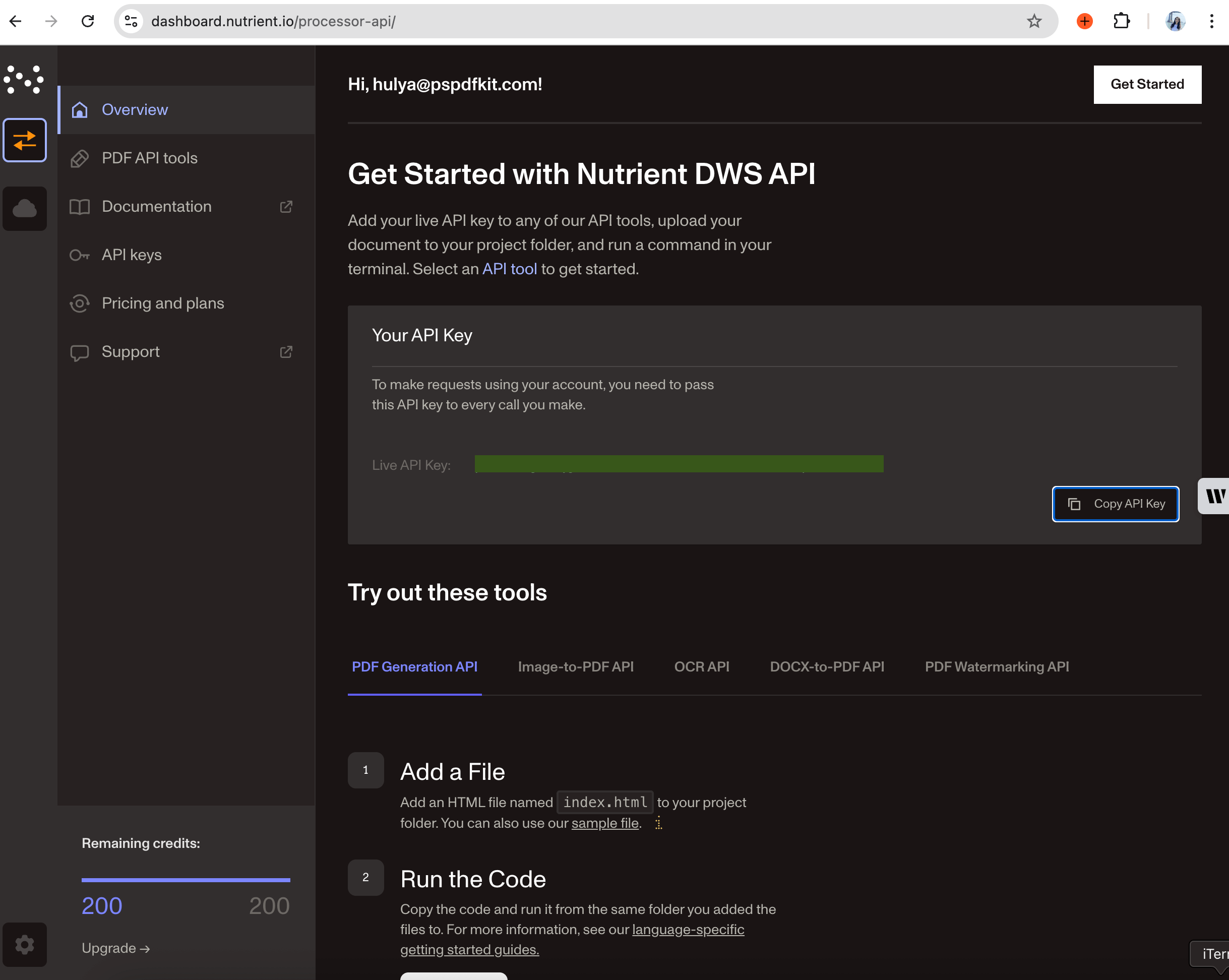
There are two ways to integrate Nutrient. Both use the same processing engine but differ in API interaction.
Step 2: Choose your integration
Choose between the Python client (nutrient-dws) or direct HTTP calls.
Option A — The official Python client
The official Python client (nutrient-dws) handles authentication, uploads, and response parsing. It’s good for automation scripts, backend services, or data pipelines. Additionally, it includes helper functions and error handling.
Use this if you:
- Want clean Python code
- Need automatic OCR and parsing
- Use AI code assistants (Claude, Copilot, Cursor)
pip install nutrient-dwsexport NUTRIENT_API_KEY="your_api_key_here"Minimal extraction:
import asyncio, osfrom nutrient_dws import NutrientClient
async def main():    client = NutrientClient(api_key=os.getenv("NUTRIENT_API_KEY"))    result = await client.extract_text("invoice.pdf")    print(result.get("text") or result)
asyncio.run(main())
The client uploads invoice.pdf, applies OCR if needed, and returns extracted text; no OCR setup is required.
AI code helpers
The SDK includes helpers for AI coding assistants. After installing, run these commands for better completion:
# Claude Codedws-add-claude-code-rule
# GitHub Copilotdws-add-github-copilot-rule
# JetBrains (Junie)dws-add-junie-rule
# Cursordws-add-cursor-rule
# Windsurfdws-add-windsurf-rule
These enable SDK method suggestions and examples in your editor.
Option B: HTTP API
The HTTP API works with any language. Send a request with your document, and you’ll get JSON back. Use this for non-Python projects or when you need direct control.
Use this if you:
- Use another language (Java, Go, C#, Node.js)
- Need to integrate with existing REST systems
- Want direct control over requests and responses
Start with the Python client for prototyping. Use the HTTP API for multi-language teams or existing service integration.
pip install requestsexport NUTRIENT_API_KEY="your_api_key_here"Request with retry:
import requestsimport jsonimport os
API_KEY = os.getenv("NUTRIENT_API_KEY") or "your_api_key_here"
response = requests.post( "https://api.nutrient.io/build", headers={ "Authorization": f"Bearer {API_KEY}" }, files={ "document": open("invoice.pdf", "rb") }, data={ "instructions": json.dumps({ "parts": [ {"file": "document"} ], "output": { "type": "json-content", "plainText": True, "structuredText": False } }) }, stream=True)
7 collapsed lines
if response.ok: with open("result.json", "wb") as fd: for chunk in response.iter_content(chunk_size=8192): fd.write(chunk) print("Saved to result.json")else: print(f"Error {response.status_code}: {response.text}")Feature comparison
The table below highlights how PyMuPDF and Nutrient compare across key PDF processing capabilities, from native text extraction to scanned documents, tables, forms, and overall development effort.
| Feature | PyMuPDF | Nutrient |
|---|---|---|
| Native PDF text | Excellent; get_text("text") is very fast | Excellent |
| Scanned documents | Requires external OCR integration | Built-in OCR |
| Table extraction | Basic bordered tables via find_tables() | Can return tables when requested in output |
| Form fields/KVP | Manual coding or heuristics required | Can return key-value pairs with instructions |
| Output format | Plain text, dict/JSON with coordinates | Plain text and structured JSON (order and hierarchy) |
| Setup complexity | pip install PyMuPDF | API key and HTTP or SDK client |
| Development time | 2–3 months for full pipeline | 1 week to production |
| Maintenance load | High (OCR, edge cases, error handling) | Minimal (automatic updates, provider-managed) |
PyMuPDF strengths
- Fast on native PDFs, low memory use
- Runs locally, no network latency
- Multiple output formats (text, words, blocks, coordinates)
- Basic table detection with
page.find_tables() - No external dependencies for text extraction
- Full control over processing
When PyMuPDF is sufficient
PyMuPDF works well long-term for specific use cases where document characteristics are predictable:
Internal document processing — Organizations generating their own PDFs (reports, invoices, statements) with consistent formatting benefit from PyMuPDF’s speed and control. When document structure is standardized and predictable, PyMuPDF handles high-volume processing efficiently.
High-volume batch processing — Teams processing millions of native text PDFs monthly can justify the initial development investment. The per-document cost becomes negligible at scale, and local processing avoids API rate limits.
Air-gapped environments — Systems requiring offline operation (government, healthcare, secure facilities) need local processing. PyMuPDF provides extraction capabilities without external dependencies or network calls.
Simple extraction workflows — Applications needing only plain text from native PDFs (content indexing, search engines, basic analytics) don’t require OCR or advanced layout analysis. PyMuPDF’s get_text("text") method handles these efficiently.
Cost-sensitive projects — Small teams or open source projects with AGPL-compatible licensing can use PyMuPDF without commercial licensing costs. Academic research, personal projects, and open source tools fit this category.
PyMuPDF limitations (and hidden costs)
While PyMuPDF excels at native PDF text extraction, production deployments reveal significant challenges:
- No OCR — Requires Tesseract integration, preprocessing pipelines, and accuracy tuning. Production-ready OCR requires significant development effort.
- Limited table detection — Only handles simple bordered tables. Borderless, multipage, and merged-cell tables need custom algorithms and additional development.
- No form intelligence — Form field extraction requires manual coordinate parsing and validation logic.
- Error handling gaps — Corrupted PDFs, password protection, and malformed documents need defensive coding, which is an ongoing maintenance burden.
- No accuracy improvements — Document format changes (new PDF versions, unusual fonts) require code updates. Nutrient updates automatically.
- Licensing complexity — AGPL requires open sourcing your application or purchasing a commercial license for closed source products.
Building production-ready PDF processing with PyMuPDF requires substantial initial development, plus ongoing maintenance for edge cases and updates.
Nutrient DWS Processor API strengths
- Consistent handling — Works with digital and scanned text, forms, and complex layouts
- Built-in OCR — Automatic OCR and image correction (deskewing, contrast)
- Regular updates — Accuracy improvements without code changes
- Production-ready — Scales with large document volumes
Nutrient DWS Processor API limitations
- Overhead for small tasks — Open source may be simpler for one-off extractions
- Setup required — Need to integrate SDK or API calls
- Paid service — Commercial solution, not open source
Cost considerations
When evaluating total cost of ownership for PDF processing, consider both direct and indirect costs:
PyMuPDF approach requires
- Initial development time for OCR integration, table extraction, and error handling
- Commercial licensing fees (if not open sourcing under AGPL)
- Infrastructure costs for processing servers, storage, and monitoring
- Ongoing maintenance for bug fixes, edge cases, and accuracy improvements
- Engineering time diverted from core product development
Nutrient API approach includes
- Faster initial integration (days vs. months)
- Volume-based API pricing with OCR and all features included
- Zero infrastructure management (cloud-based service)
- Minimal maintenance overhead with automatic updates
- Engineering resources available for product features
Actual costs vary significantly by geographic location, team experience, document complexity, and processing volume. Factor in both implementation time and ongoing maintenance when comparing options.
Choosing the right tool
The decision comes down to three factors: time-to-market, total cost, and accuracy requirements.
Choose PyMuPDF only if
- Documents are exclusively native text PDFs (no scans, no forms, no complex tables)
- The project allows significant engineering time for initial development
- AGPL licensing compliance is acceptable, or a commercial license budget is available
- The team has capacity for ongoing maintenance
- Lower OCR accuracy (Tesseract vs. commercial OCR) meets requirements
- Time-to-market is flexible with extended development timelines
Choose Nutrient if
- Any scanned documents need processing, or reliable OCR is required
- Production-ready extraction is needed in days, not months
- Predictable costs without hidden engineering expenses are important
- Documents include forms, tables, or complex layouts
- High accuracy is critical for contracts, invoices, or legal documents
- Building product features takes priority over maintaining PDF parsing code
- Processing volumes exceed 500 documents monthly, where cloud infrastructure becomes cost-competitive
Teams may find their document processing requirements evolve over time as business needs expand.
When to evaluate cloud API solutions
Some teams start with PyMuPDF and later consider cloud API solutions as requirements evolve. Understanding potential scenarios can help inform your initial architecture decision.
Scenario 1: Document complexity increases
Initial use case — Extract text from native PDFs generated internally or from known sources.
Evolution — Business requirements expand to include customer-uploaded documents (scanned receipts, mixed-format invoices, handwritten forms). OCR integration becomes necessary but proves more complex than anticipated.
Decision point — Teams evaluate whether building and maintaining OCR pipelines aligns with core product goals, or whether a cloud API solution better serves customers.
Scenario 2: Scale and infrastructure
Initial use case — Processing hundreds of documents monthly on existing infrastructure.
Evolution — Volume grows to thousands or tens of thousands of documents. Infrastructure costs increase (storage, compute for OCR), and deployment complexity grows.
Decision point — Compare total cost of self-hosted solution (infrastructure and engineering time) against cloud API pricing at scale.
Scenario 3: Accuracy requirements
Initial use case — Internal documents where 90 percent extraction accuracy is acceptable.
Evolution — Processing contracts, invoices, or compliance documents where errors have business impact. Customers report extraction failures that require manual intervention.
Decision point — Evaluate whether accuracy improvements justify additional development investment or migration to commercial-grade OCR.
Migration considerations
Teams typically migrate from PyMuPDF when encountering:
- Scanned documents requiring reliable OCR beyond Tesseract capabilities
- Complex table structures (borderless, multipage, merged cells)
- Form field extraction needing more than coordinate-based parsing
- Processing volumes exceeding 10,000 documents monthly
- Accuracy requirements for financial or legal documents
Migrating to a cloud API generally requires less effort than building custom PyMuPDF pipelines from scratch.
Conclusion
PyMuPDF is a capable open source library for native PDF text extraction. Production deployments require additional development for OCR integration, table detection, form parsing, error handling, and AGPL licensing compliance.
Nutrient API is a cloud-based service that includes OCR, table extraction, form handling, and automatic updates. One API call processes both native and scanned documents without requiring custom integration.
Making the decision
PyMuPDF works well for predictable, native text PDFs with limited complexity. Nutrient handles the full spectrum: native documents, scanned files, complex layouts, and everything in between.
For commercial applications, consider your document types, processing requirements, and available engineering resources. PyMuPDF offers control and customization but requires development effort. Nutrient provides a complete solution with cloud infrastructure.
Ready to evaluate document processing options? Start with 200 free Nutrient credits(opens in a new tab) (no credit card required) to test your actual documents. Compare results against the PyMuPDF examples in this guide, and then choose based on your accuracy requirements, document complexity, and team priorities.
FAQ
No. PyMuPDF needs external OCR like Tesseract. You handle preprocessing and integration. Nutrient has built-in OCR.
PyMuPDF is open source under AGPL v3, but commercial use requires either AGPL compliance (open sourcing your code) or a commercial license. Consider the engineering time for development and ongoing maintenance. Nutrient’s pricing includes built-in OCR, regular updates, and production support with faster implementation.
Yes. Start with a hybrid approach: Keep simple PDFs on PyMuPDF, and send complex ones to Nutrient. Migrate fully when ready.
At scale (thousands of documents), Nutrient has better throughput and auto-scaling. PyMuPDF needs infrastructure work.
Yes. Nutrient extracts bordered, semi-bordered, and borderless tables to JSON or Excel. It handles multipage and merged-cell tables in most cases, but very complex layouts may need post-processing.