How to build a React Native PDF viewer (step-by-step)

Table of contents
Build a production-ready React Native PDF viewer with the Nutrient React Native PDF SDK. Add annotations, form filling, electronic signatures, and a customizable user interface (UI) to your iOS and Android apps. This tutorial walks you through project setup, platform configuration, and rendering your first PDF. Start a free trial or launch the demo.
With Nutrient’s React Native PDF SDK, you can add a fully featured PDF viewer to your app. It includes annotations, form filling, and electronic signatures out of the box — features that would take significant engineering effort to build from scratch or that aren’t available in open source alternatives like react-native-pdf.
Mobile apps often need to display PDFs — contracts, reports, invoices, or reference documents. PDFs are widely used across industries like education, finance, healthcare, and legal services.
With Nutrient, you can build apps that:
- Let users annotate and collaborate — Add highlights, comments, and drawings to contracts, reports, or educational materials.
- Capture signatures on mobile — Collect electronic signatures from users without leaving your app.
- Fill and submit forms — Enable users to complete PDF forms and export the data to your backend.
This tutorial shows you how to integrate the Nutrient React Native PDF SDK into your app. It also compares it to the open source react-native-pdf(opens in a new tab) library so you can see the difference.
You’ll learn how to create a new project, add the necessary dependencies, configure platform-specific settings, and display a PDF document. By the end of this tutorial, you’ll have a fully functional PDF viewer in your React Native app.
Why Nutrient for React Native PDF viewing?
Most React Native PDF libraries only handle basic viewing. Nutrient adds annotations, form filling, and signatures, so you don’t have to build them yourself. The viewer runs on native components on both iOS and Android.
React Native PDF viewer use case
This post assumes you’re familiar with React Native and that you’ve previously developed apps using React Native. If that isn’t the case, you can use our getting started guides to create a new React Native project that uses Nutrient.
Which React Native PDF viewer should you choose?
- Use Nutrient React Native PDF SDK if you’re building a customer-facing or enterprise app. You get annotations, form filling, electronic signatures, security features, and ongoing support, plus a configurable UI that works on both iOS and Android.
- Use
react-native-pdfif you only need basic view-only functionality for an internal tool or prototype and don’t need advanced features.
In the video below, you can see how to open a PDF file using react-native-pdf and Nutrient React Native SDK.
Prerequisites
Before getting started, ensure you have the following:
- A development environment for React Native using the React Native CLI(opens in a new tab) (not the Expo CLI)
- The latest stable versions of Android Studio(opens in a new tab), the Android NDK(opens in a new tab), and an Android Virtual Device(opens in a new tab) or hardware device
- The latest stable versions of Xcode(opens in a new tab) and CocoaPods(opens in a new tab)
Step 1 — Creating a new React Native project
Open your terminal and navigate to the directory where you want to create your project. For this example, you’ll use the ~/Documents/ directory:
cd ~/DocumentsCreate a new React Native project:
npx @react-native-community/cli init ReactNativePDFViewerNext, you’ll add the required dependencies.
Step 2 — Installing the Nutrient dependency
Navigate to your project directory:
Terminal window cd ReactNativePDFViewerThen, add the Nutrient dependency:
yarn add @nutrient-sdk/react-nativeInstall all the dependencies for the project:
Terminal window yarn install
Step 3 — Configuring the Android platform
Open
android/build.gradleand add the Nutrient repository:allprojects {repositories {mavenCentral()maven { url 'https://my.nutrient.io/maven/' }}}Open
android/app/build.gradleand update the SDK versions:android {compileSdkVersion rootProject.ext.compileSdkVersioncompileSdkVersion 34defaultConfig {applicationId "com.reactnativepdfviewer"minSdkVersion rootProject.ext.minSdkVersionminSdkVersion 21targetSdkVersion rootProject.ext.targetSdkVersion}}
Step 4 — Configuring the iOS platform
Open
ios/Podfileand set the platform version to iOS 16:platform :ios, '11.0'platform :ios, '16.0'Navigate to the
iosfolder and install the required dependencies:Terminal window cd iospod installOpen the Workspace in Xcode:
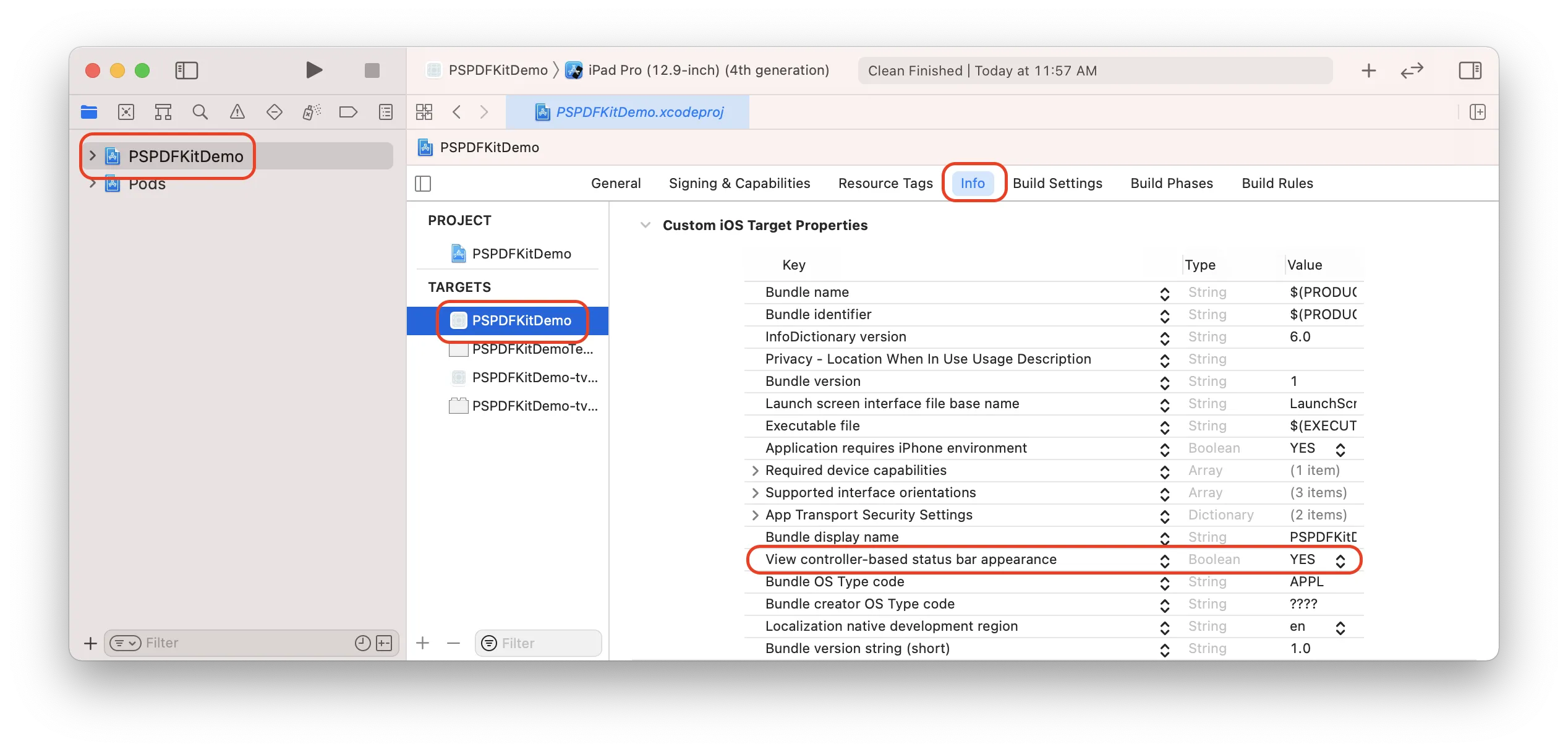
Terminal window open ReactNativePDFViewer.xcworkspaceIn Xcode, ensure the deployment target is set to 16.0 or higher.
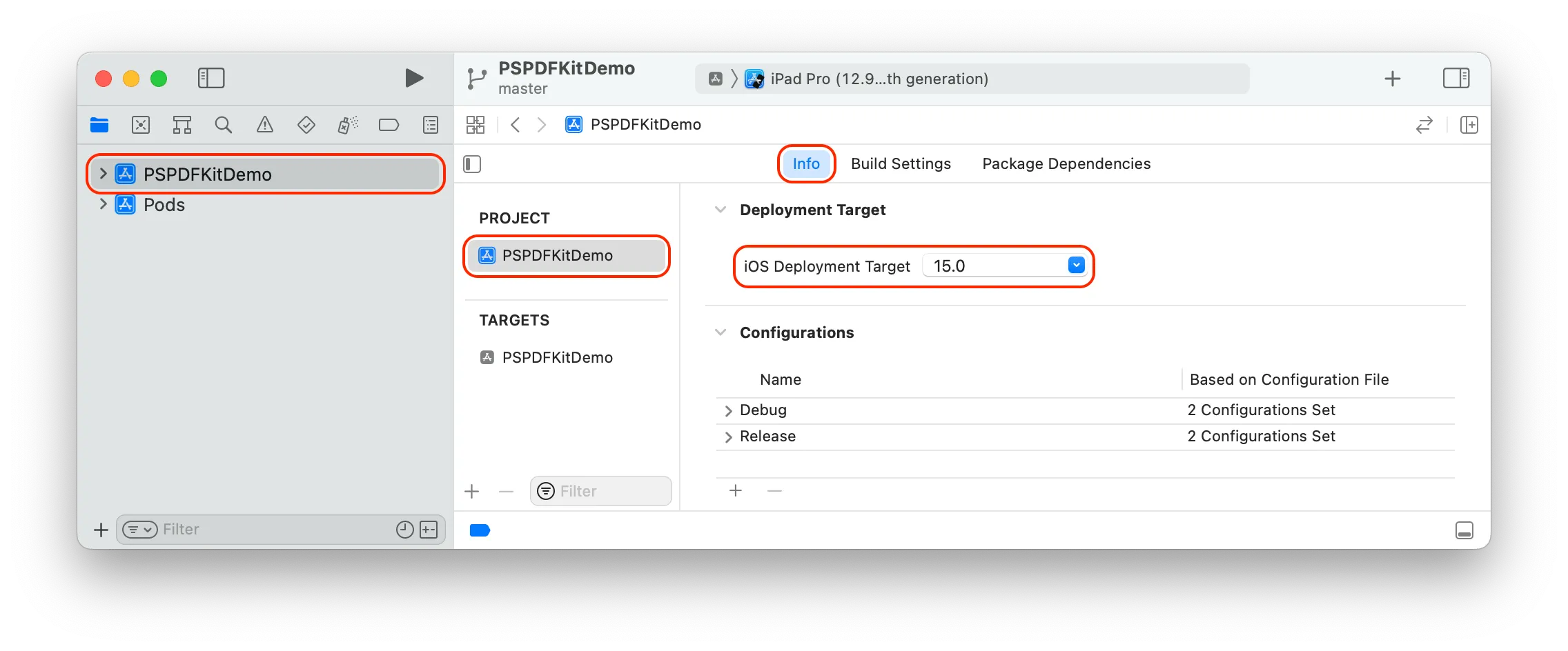
- Change View controller-based status bar appearance to
YESinInfo.plist.
Step 5 — Displaying a PDF document
Drag a PDF document into your project to use as a sample.
If you haven’t already, create an assets directory for Android:
Terminal window mkdir android/app/src/main/assetsPlace your PDF document in the
assetsdirectory:Terminal window cp ~/Downloads/Document.pdf android/app/src/main/assets/Document.pdfOpen
App.jsand replace its contents with the following code snippet:
import React, { Component } from 'react';import { Platform } from 'react-native';import NutrientView from '@nutrient-sdk/react-native';import { NativeModules } from 'react-native';
const Nutrient = NativeModules.Nutrient;Nutrient.setLicenseKey(null);
const DOCUMENT =    Platform.OS === 'ios'      ? 'Document.pdf'    : 'file:///android_asset/Document.pdf';export default class NutrientDemo extends Component<{}> {    render() {      var pdfRef: React.RefObject<NutrientView | null> = React.createRef();      return (        <NutrientView          document={DOCUMENT}          configuration={{            showThumbnailBar: 'scrollable',            pageTransition: 'scrollContinuous',            scrollDirection: 'vertical',          }}          ref={pdfRef}          fragmentTag="PDF1"          style={{ flex: 1 }}        />      );    }}
Step 6 — Launching the app
Run the app on your chosen platform:
npx react-native run-androidnpx react-native run-iosWhy Nutrient instead of react-native-pdf?
Both libraries display PDFs, but Nutrient adds the editing and document features production apps need. Here’s how they compare:
| Feature | react-native-pdf | Nutrient React Native PDF SDK |
|---|---|---|
| Cost | Free (open source) | Paid (commercial) |
| Features | Basic viewing, zooming | Advanced features (annotations, search, forms) |
| Performance | Moderate | Optimized for high performance |
| Ease of integration | Simple | Requires licensing setup |
| Customization options | Limited | Extensive UI customization |
| Community support | Active, open source | Professional support available |
| Platform compatibility | Android, iOS | Android, iOS |
Bottom line:
If PDF viewing is core to your app’s value, start with Nutrient. Teams that start with react-native-pdf often switch to Nutrient once they need annotations, forms, or signatures, which means rewriting the viewer layer later instead of building on it from the start.
What you can build with Nutrient that you can’t with react-native-pdf
Production apps often need more than basic PDF viewing. Here’s what Nutrient enables that react-native-pdf doesn’t support:
1. Annotation support
- Limitations of
react-native-pdf—react-native-pdfonly renders annotations that were already in the source file. It doesn’t support annotation editing, so users won’t be able to create, update, or delete annotations in the PDF. - Nutrient SDK features — Nutrient React Native SDK supports comprehensive annotation capabilities, enabling you to add, edit, and remove various types of annotations programmatically or via the user interface. It supports 17+ annotation types, including highlights, text, ink, notes, and shapes. You can also import and export annotations in XFDF or JSON formats, with advanced features like cloudy annotations and custom appearances.
2. Interactive PDF forms
- Limitations of
react-native-pdf—react-native-pdfonly renders forms and their values from the source file and doesn’t support form editing. Users won’t be able to fill forms in a PDF document. - Nutrient SDK features — Nutrient React Native SDK provides full support for interactive PDF forms, enabling users to fill, read, and edit PDF AcroForms programmatically or through the UI. You can capture form field data, export it, or embed it into the PDF.
3. Electronic signatures
- Limitations of
react-native-pdf—react-native-pdfhas no built-in signature support, so users can’t sign documents in the app. - Nutrient SDK features — Nutrient React Native SDK supports adding electronic signatures through the UI or programmatically. Cryptographic digital signatures aren’t bridged directly in the React Native SDK; they’re applied through the underlying iOS, Android, or Web layer.
4. Customizing the PDF viewer UI
- Limitations of
react-native-pdf— The customization options for the PDF viewer inreact-native-pdfare limited compared to the Nutrient SDK. - Nutrient SDK features — Nutrient offers extensive customization of the PDF viewer UI. You can modify the toolbar, adjust the background color, and configure the layout to match your app’s design. The viewer supports multiple page modes and transitions, ensuring the UI aligns with your app’s user experience.
5. Long-term support and updates
react-native-pdf— As a community-maintained open source project,react-native-pdfrelies on volunteer contributions, so the scope and timing of new features, fixes, and compatibility updates depend on maintainer availability.- Nutrient SDK features — The Nutrient SDK ships regular releases that add features, fix bugs, and maintain compatibility with the latest React Native versions, OS updates, and dependencies, backed by dedicated commercial support. This keeps your app current with the latest PDF capabilities.
Optimizing performance of the PDF viewer in React Native
To optimize the performance of the PDF viewer in React Native applications using Nutrient SDK, follow the best practices outlined below.
Optimize PDF documents
Before rendering, optimize your PDF documents for mobile viewing by reducing image sizes to save memory, avoiding JPEG 2000 for image compression due to its complexity, and using tools like Adobe Acrobat to optimize PDFs for mobile devices.
Implement caching
Improve performance for recurring users by caching documents locally — for example, storing downloaded PDFs in app storage so they don’t need to be refetched each time the document is opened.
Use Reader View
For text-heavy documents, consider using the Reader View feature, which presents content in an easy-to-read, single-column view optimized for mobile devices. It ignores non-essential elements like images and headers, improving reading flow and enhancing performance.
Configure page transitions
Optimize page transitions for smoother scrolling by using continuous scrolling modes, which keep navigation between pages uninterrupted.
Lazy loading
Consider implementing lazy loading techniques to load only the visible pages and their immediate neighbors, reducing memory usage and improving initial load times.
Optimize UI rendering
Customize the UI to show only necessary elements by hiding unnecessary toolbar buttons to reduce UI complexity and using the
NutrientViewcomponent to adjust the layout of the native UI component for optimal performance.Use the latest version
Always use the latest version of Nutrient React Native SDK, as it likely includes performance improvements and bug fixes.
Apply these based on your document types and performance requirements.
Conclusion
In this tutorial, you saw how to integrate PDF viewing into a React Native app using both react-native-pdf and the Nutrient React Native PDF SDK. react-native-pdf is a solid choice for basic viewing in simple or internal apps, but it falls short when you need advanced features like annotations, interactive forms, electronic signatures, or long-term support.
If your business depends on PDFs, it’s usually more efficient to adopt a dedicated React Native PDF viewer library like Nutrient from the start. We offer a commercial, feature-rich, and completely customizable React Native PDF SDK that’s easy to integrate and comes with well-documented APIs to handle advanced use cases. Check out our demos or start a free trial to see it in action.
If you have any questions about our Nutrient React Native SDK(opens in a new tab), reach out to us(opens in a new tab).
FAQ
Two popular options are the open source react-native-pdf library and the commercial Nutrient React Native PDF SDK. react-native-pdf works well for basic PDF viewing, while Nutrient provides a full React Native PDF viewer with annotations, form filling, electronic signatures, and long-term support — making it a better fit for production and enterprise apps.
react-native-pdf is an open source React Native library that lets you display PDF files in iOS and Android apps using a <Pdf /> component. It’s a good fit for simple, view-only React Native PDF viewers. For advanced features like annotations, form filling, and electronic signatures, developers often switch to the Nutrient React Native PDF SDK.
You can display PDF files using either react-native-pdf or the Nutrient React Native PDF SDK. Both libraries expose React Native components that render PDFs on iOS and Android. In this tutorial, you install the dependencies, add a sample PDF to your project, and use the SDK’s viewer component to show the document in your app.
react-native-pdf can render existing annotations in a PDF but doesn’t support creating or editing them. For full annotation support — including adding, modifying, and deleting annotations from your React Native app — use the Nutrient React Native PDF SDK, which provides an annotation API and built-in UI tools.
Yes. While react-native-pdf displays form fields as they appear in a PDF, it doesn’t support interactive form filling. Nutrient React Native PDF SDK includes complete interactive form support, so users can fill out, validate, and submit PDF forms directly from your React Native PDF viewer.
Nutrient React Native PDF SDK gives you accurate rendering, annotation editing, form filling, electronic signatures (with cryptographic digital signing via the native platforms), UI customization, performance optimizations, and ongoing updates for new React Native and OS versions. It’s designed as a production-ready React Native PDF viewer library rather than a basic renderer.
Install the @nutrient-sdk/react-native package, configure Android and iOS as shown in this tutorial, and then use the NutrientView component to load your PDF. To try it out in your own environment, start a free trial or explore the React Native SDK page.
Related reading
- Opening a PDF in React Native — Load and display a document with React Native SDK
- How to build a Flutter PDF viewer — Complete Flutter PDF integration tutorial
- Build an Android PDF viewer using Nutrient — Step-by-step Android PDF viewer guide
- Top five document viewers for developers — Compare DOCX and PDF viewer libraries side by side
Explore all available platforms on the mobile SDK overview.