How to open and view a PDF in React Native

Table of contents
Open a PDF in React Native with react-native-pdf for viewing, scrolling, and zooming, or Nutrient React Native SDK for annotation and form workflows. Both require native installation. Expo projects need a development build rather than Expo Go. The example below opens a bundled PDF on iOS and Android.
React Native enables you to create mobile apps in JavaScript using the same user interface (UI) building blocks as regular iOS and Android apps. In this post, you’ll use React Native to build an app that opens a PDF with the press of a button.
In the first part of this tutorial, you’ll use wonday(opens in a new tab)’s react-native-pdf library to open a PDF in an app. In the second part, you’ll learn how to view PDFs using the Nutrient React Native PDF library. You’ll also learn about Expo compatibility, New Architecture support, and common troubleshooting issues.
Prerequisites
Before you start, make sure you have the following installed:
- Node.js(opens in a new tab), preferably a long-term support (LTS) version
- Yarn(opens in a new tab) or npm
- Watchman(opens in a new tab) (macOS only)
- Android Studio(opens in a new tab) for Android development
- Xcode for iOS development (macOS only)
- A physical device or emulator/simulator for testing
Choosing a React Native PDF library
React Native doesn’t include a PDF viewer. Choose a library based on the document interactions your app needs:
- react-native-pdf(opens in a new tab) — An open source viewer with scrolling, zooming, and rendering of existing annotations. It doesn’t provide annotation authoring or form filling.
- Nutrient React Native PDF library — A commercial SDK for viewing, annotation authoring, form filling, and document editing. Features depend on your license. Shared annotation workflows require an Instant synchronization backend.
| Feature | react-native-pdf | Nutrient React Native SDK |
|---|---|---|
| PDF rendering, zoom, and scroll | Yes | Yes |
| Annotation authoring | No | Yes |
| Form filling | No | Yes |
| Document editing | No | Yes |
| New Architecture | Supported; check versions | Supported in SDK 4+ |
| Expo | Development build and plugins | Development build and plugin |
| Support | Community issue tracker | Commercial support |
| License | MIT | Commercial |
Check the library’s release notes against your React Native version. For Expo, also check the configuration plugins’ compatibility with your Expo SDK. Test on both iOS and Android before choosing a library.
Opening a PDF in React Native with react-native-pdf
Follow these steps to open a PDF with react-native-pdf(opens in a new tab).
Step 1 — Installing the prerequisites
You’ll use yarn to install packages. If you haven’t yet installed it, follow the Yarn installation guide(opens in a new tab) to set it up on your system.
To create React Native apps from the command line, you also need to install Node.js(opens in a new tab) and Watchman(opens in a new tab) using Homebrew(opens in a new tab):
brew install nodebrew install watchmanThen download and install Android Studio(opens in a new tab) and configure it following instructions from the official React Native guide(opens in a new tab).
Windows users
To manage Node.js versions, you can install Chocolatey(opens in a new tab), a popular package manager for Windows. Use an LTS version of Node. To switch between versions, install Node through nvm-windows(opens in a new tab), a Node version manager for Windows.
React Native also requires the Java Development Kit (JDK), which you can install with Chocolatey. To do this, open an administrator command prompt by right-clicking Command Prompt and selecting Run as Administrator. Then, run the following command:
choco install -y nodejs-lts microsoft-openjdk17Use the Node.js, JDK, and Android SDK versions required by your React Native release. The environment setup guide(opens in a new tab) currently recommends JDK 17. Keep Gradle aligned with the React Native template’s requirements.
Step 2 — Creating a new React Native app
Create a new React Native app from the command line. This example uses the name OpeningaPDF for the app. These steps use the React Native CLI; Expo projects should follow the Expo section instead:
npx @react-native-community/cli init OpeningaPDF
npxis the npm package runner. You can read more about it in the npx documentation(opens in a new tab).
For the rest of the tutorial, you’ll work in OpeningaPDF:
cd OpeningaPDFStep 3 — Installing dependencies
You’ll use react-navigation(opens in a new tab) components so that you can switch from one view to another in your app:
yarn add @react-navigation/native @react-navigation/native-stack react-native-screens react-native-safe-area-contextNext, add react-native-pdf(opens in a new tab) and its required dependency, react-native-blob-util:
yarn add react-native-pdf react-native-blob-utilFor iOS, install the native dependencies after adding the packages:
bundle installcd iosbundle exec pod installcd ..Follow the React Navigation setup instructions(opens in a new tab) for any additional native configuration required by your version.
Step 4 — Downloading a PDF document
You can download a sample PDF document:
curl --fail --location https://www.nutrient.io/downloads/pspdfkit-react-native-quickstart-guide.pdf -o Document.pdfAfter downloading the document, add it to each platform’s project as described below.
For iOS
Move or copy the document to ios/Document.pdf. Open the iOS project ios/OpeningaPDF.xcworkspace in Xcode and add the document to the root of the OpeningaPDF project. Ensure it belongs to the app target and appears under Copy Bundle Resources:
cp Document.pdf iosFor Android
Move or copy the document to android/app/src/main/assets/Document.pdf:
mkdir -p android/app/src/main/assetscp Document.pdf android/app/src/main/assets/Document.pdfStep 5 — Writing the app
Now you can start implementing your app. First, import all the required packages and initialize your navigation stack in App.js:
import React, { useState } from 'react';import Pdf from 'react-native-pdf';import {  Dimensions,  StyleSheet,  View,  Button,  Text,} from 'react-native';import { NavigationContainer } from '@react-navigation/native';import { createNativeStackNavigator } from '@react-navigation/native-stack';
const DOCUMENT = { uri: 'bundle-assets://Document.pdf' };
const PdfScreen = () => {  const [error, setError] = useState(null);  if (error) {    return <Text accessibilityRole="alert">Could not open PDF: {error}</Text>;  }  return (    <Pdf      source={DOCUMENT}      style={styles.pdf}      trustAllCerts={false}      onError={(cause) => setError(String(cause))}    />  );};
const HomeScreen = ({ navigation }) => {  return (    <View style={styles.container}>      <Button        onPress={() => navigation.navigate('Pdf')}        title="Open PDF"      />    </View>  );};
const Stack = createNativeStackNavigator();
const App = () => {  return (    <NavigationContainer>      <Stack.Navigator>        <Stack.Screen          name="Home"          component={HomeScreen}          options={{ title: 'Home' }}        />        <Stack.Screen          name="Pdf"          component={PdfScreen}          options={{ title: 'PDF' }}        />      </Stack.Navigator>    </NavigationContainer>  );};
export default App;
const styles = StyleSheet.create({  container: {    flex: 1,    justifyContent: 'center',    alignItems: 'center',  },  pdf: {    flex: 1,    width: Dimensions.get('window').width,  },});
HomeScreen contains an Open PDF button that navigates to PdfScreen, which renders the PDF using the Pdf component from react-native-pdf. The App component sets up the navigation stack, and the styles center the button and make the PDF fill the screen.
The source object uses the library’s documented bundled-asset URI on both platforms. Loading errors appear on the screen.
If the generated entry file is App.tsx, replace it with this App.js example; don’t leave both files in the project root. Start Metro with yarn start. In another terminal, run yarn ios or yarn android with a simulator, emulator, or device available. Verify that the button opens the PDF and that scrolling and zooming work.
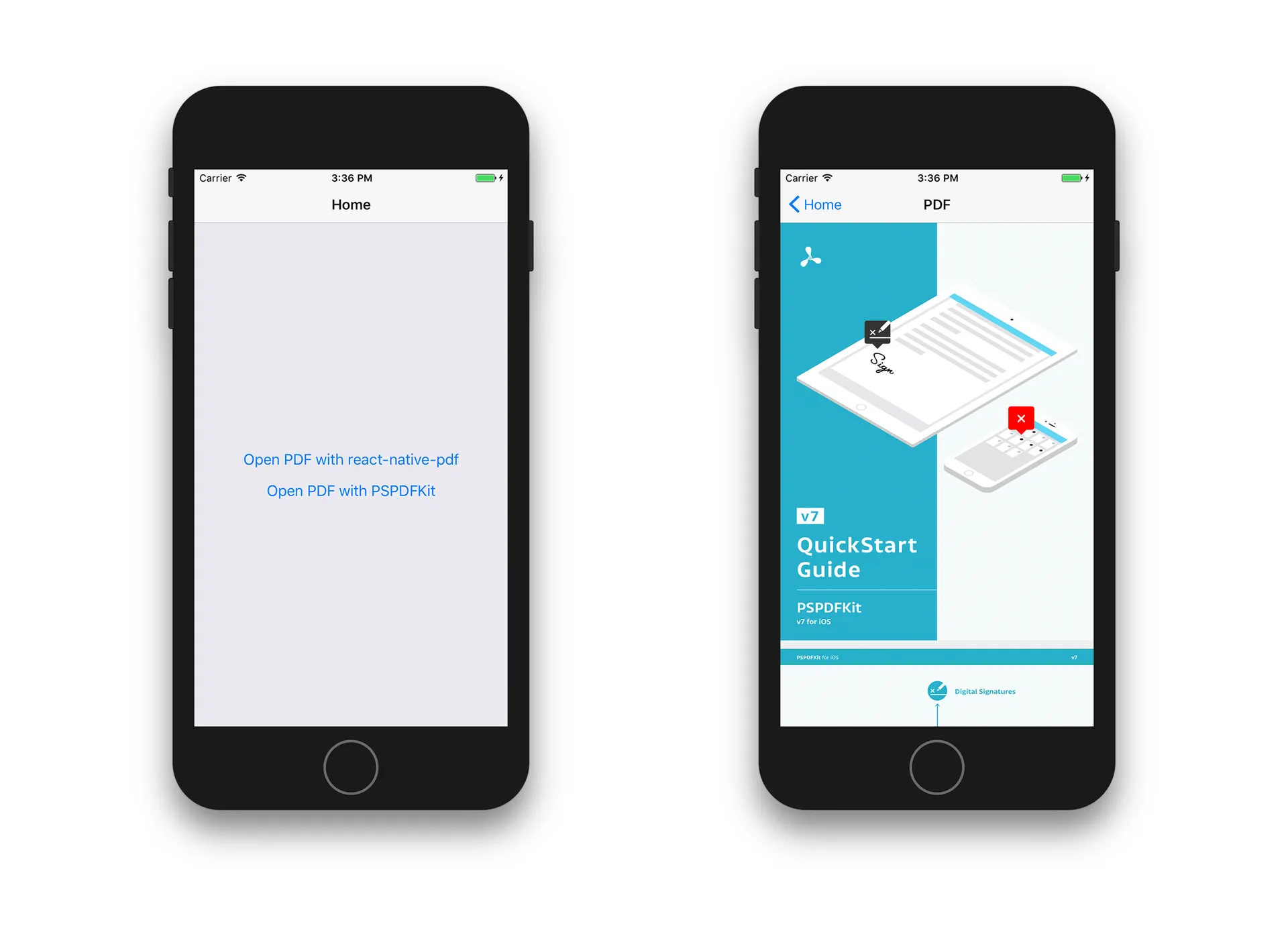
The image below illustrates the viewer on iOS.
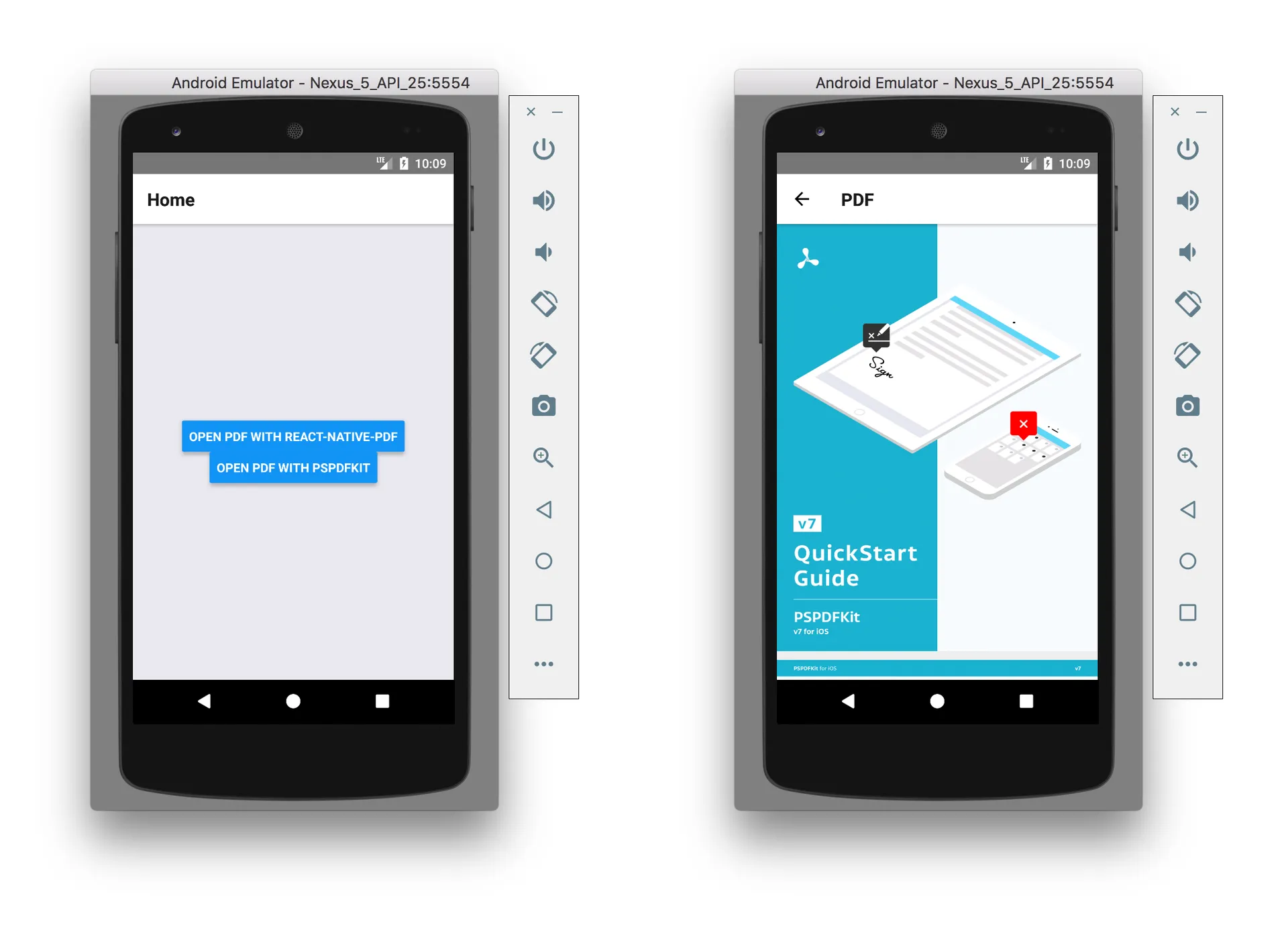
The image below shows how it looks on Android.
The original tutorial repository(opens in a new tab) is a historical companion; use the example above with the current installation instructions.
You can now open, scroll, and zoom a PDF. For creating annotations, filling forms, or editing documents, you can integrate Nutrient as described next.
Opening a PDF with Nutrient React Native PDF library
To start, follow the integration guide for iOS and Android.
Add the following import and initialization alongside the existing imports and constants. Replace the existing HomeScreen with this version to add a second button:
import { NativeModules, Platform } from 'react-native';
const { Nutrient } = NativeModules;
Nutrient.setLicenseKey(null); // Or your valid license keys using `setLicenseKeys`.
const NUTRIENT_DOCUMENT =  Platform.OS === 'ios'    ? 'Document.pdf'    : 'file:///android_asset/Document.pdf';
const HomeScreen = ({ navigation }) => {  const openWithNutrient = () => {    Nutrient.present(NUTRIENT_DOCUMENT, {      pageTransition: 'scrollContinuous',      scrollDirection: 'vertical',    });  };
  return (    <View style={styles.container}>      <Button        onPress={() => navigation.navigate('Pdf')}        title="Open PDF with react-native-pdf"      />      <Button        onPress={openWithNutrient}        title="Open PDF with Nutrient"      />    </View>  );};
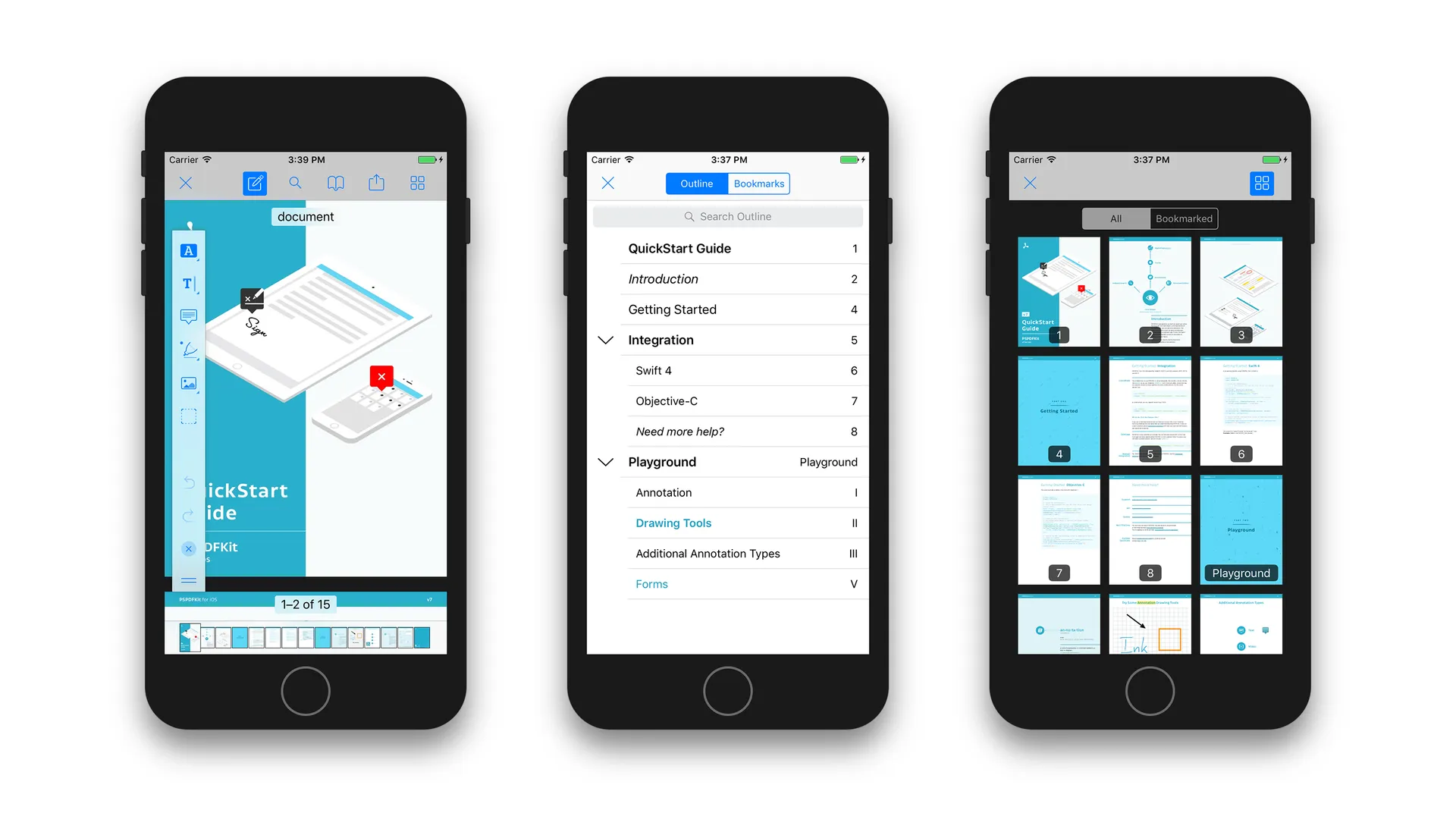
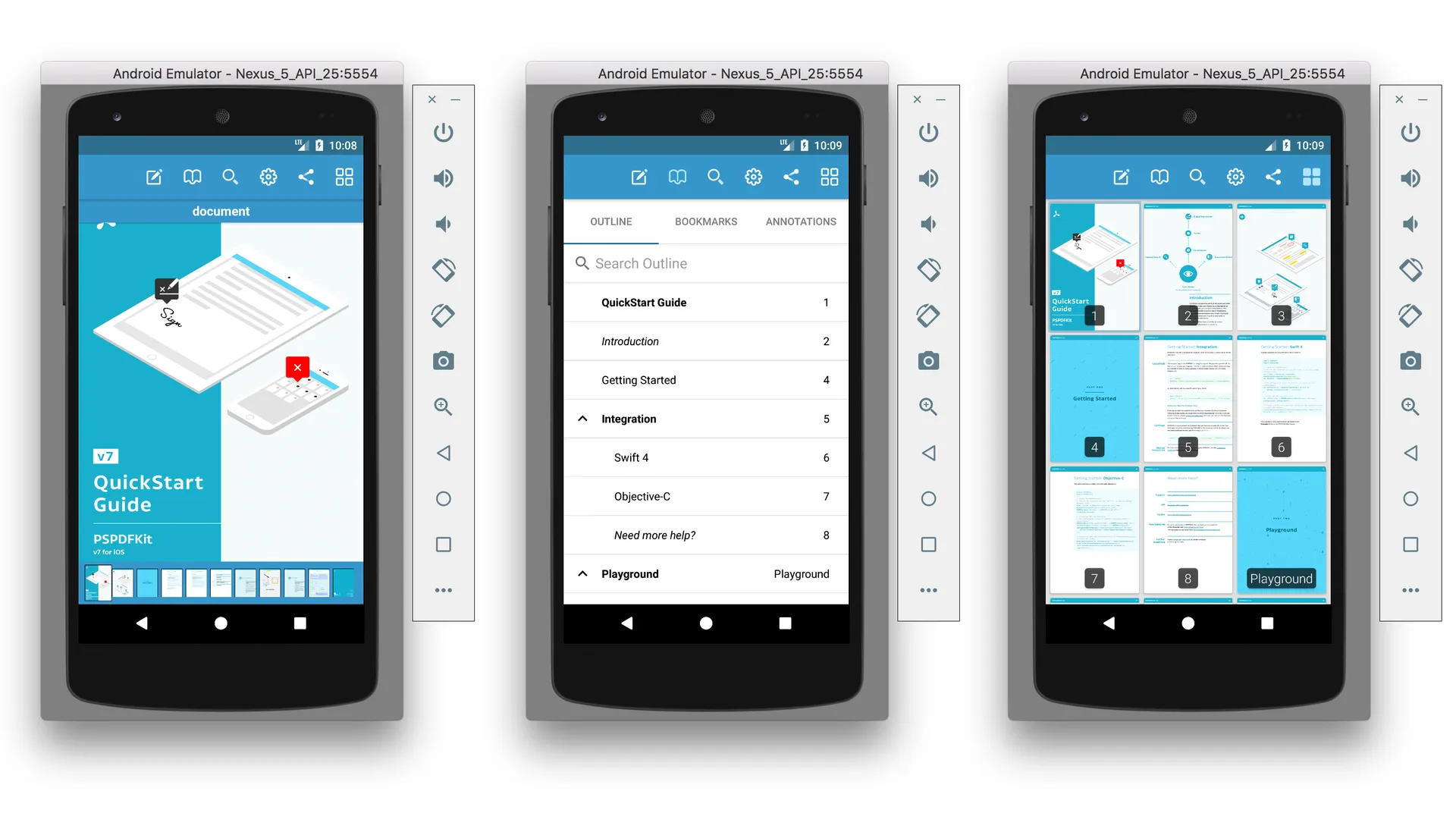
Nutrient.present() opens a PDF viewer that supports zooming, annotations, form filling, document outline navigation, text search, and bookmarks. You can customize the viewer by passing configuration options as the second argument.
Here’s the Nutrient-powered viewer on iOS.
Here’s the same viewer on Android.
The historical tutorial project(opens in a new tab) is available on GitHub.
React Native New Architecture compatibility
Both libraries support the New Architecture(opens in a new tab). The react-native-pdf release notes(opens in a new tab) document Fabric fixes and Android 16 KB page-size support in the 7.x releases. Reports about older versions don’t establish the behavior of a current installation.
Nutrient added New Architecture support in SDK 4. Follow its migration guide and the integration guide for your React Native version. Rebuild native projects after changing native dependencies.
Using a React Native PDF viewer with Expo
Neither library works in Expo Go because each needs native code that Expo Go doesn’t bundle. Use an Expo development build(opens in a new tab).
For react-native-pdf, follow the maintained Expo configuration-plugin example(opens in a new tab). It includes the PDF library, react-native-blob-util, and their configuration plugins. Match those versions to your Expo SDK.
For Nutrient, follow the Nutrient Expo guide. The native integration and license setup still apply.
Running npx expo prebuild generates native projects; it doesn’t build or install a development client by itself. Use the development-build instructions to compile and install it. Rebuild the client after adding or updating native modules.
Troubleshooting common React Native PDF issues
- The viewer is blank — Check the loading error, the document source, and that the viewer’s width and height aren’t zero. Reproduce the problem with a small local PDF before testing a remote file.
- Bundled files aren’t found — For this
react-native-pdfexample, use{ uri: 'bundle-assets://Document.pdf' }and package the file as described above. Nutrient’s native presentation API uses a string path instead; don’t interchange the two source formats. - A native build fails after an upgrade — Check the release notes(opens in a new tab), plugin compatibility, and native installation steps. Rebuild after updating CocoaPods or Android dependencies.
- An HTTPS download fails — Check the URL, credentials, and server certificate chain. Keep
trustAllCerts={false}; bypassing certificate validation isn’t a production fix. - A large PDF loads slowly — Measure download time separately from rendering. For remote files,
react-native-pdfaccepts caching inside thesourceobject — for example,{ uri: pdfUrl, cache: true }. Choose cache retention deliberately for sensitive files.
If the problem persists, include the library versions, the platform, the error message, and a shareable sample PDF in your report to the issue tracker(opens in a new tab).
Conclusion
Use react-native-pdf for a PDF viewer with scrolling and zooming. Choose Nutrient when your app needs annotation authoring, form filling, or document editing, and verify the features included in your license.
Try the Nutrient React Native SDK with a free trial, explore the demos, or contact the Support team(opens in a new tab).
FAQ
You can open a PDF in React Native by installing a PDF library like react-native-pdf (open source) or Nutrient React Native SDK (commercial). After installing the library, add a PDF document to your project and create a component that renders the viewer. Then configure platform-specific settings for iOS and Android. See the step-by-step tutorial above for complete instructions.
Choose react-native-pdf for basic viewing with scrolling and zooming. Choose Nutrient for annotation authoring, form filling, and document editing. Check native-version compatibility and licensing for your requirements; collaboration also needs a backend.
react-native-pdf doesn’t work with Expo Go because it requires native code. To use it with Expo, you need to create a development build(opens in a new tab) and install the configuration plugins @config-plugins/react-native-pdf and @config-plugins/react-native-blob-util. Nutrient also provides an Expo configuration plugin for its React Native SDK.
Yes. Its release notes document Fabric support and fixes. Use a compatible library version and test your specific React Native, iOS, and Android combination. Older issue reports may describe problems fixed in later releases.
The open source react-native-pdf library renders existing annotations but doesn’t provide tools to create them. To add annotation capabilities like highlighting, drawing, text notes, and stamps to your React Native app, use a commercial SDK like Nutrient. Its annotation toolkit includes more than 15 annotation types.
Yes, but not with react-native-pdf, which only supports viewing. Nutrient React Native SDK supports interactive PDF form filling, including text fields, checkboxes, radio buttons, dropdowns, and signature fields. Form data can be read and written programmatically.
For remote PDFs, use cache: true inside the react-native-pdf source object to reuse downloaded files. Profile download time and rendering separately, and test representative documents on your target devices. Decide how long to retain cached files and when to delete them.