How to add PDF support to your web app in no time

Table of contents

PDF files are ubiquitous in many business processes today: From contracts and order forms to schematics and blueprints, PDF has become one of the common interchange formats that gets everyone on the same page.
And while more and more business software is being written with web technologies, PDF files are not as tightly integrated with web apps as they could be, often resulting in less efficient workflows for end users.
In fact, the PDF format(opens in a new tab) (originally developed by Adobe, and now an open standard) was designed to be integrated into other systems, supporting a wide range of features that make it perfect for modeling all types of business processes.
Nutrient Web SDK aims to bring this power to the web. It’s a drop-in JavaScript library that enables viewing and annotating PDF files in the browser without any plugins. It works on both mobile and desktop, and it supports all modern browsers.
Getting started with Nutrient Web SDK
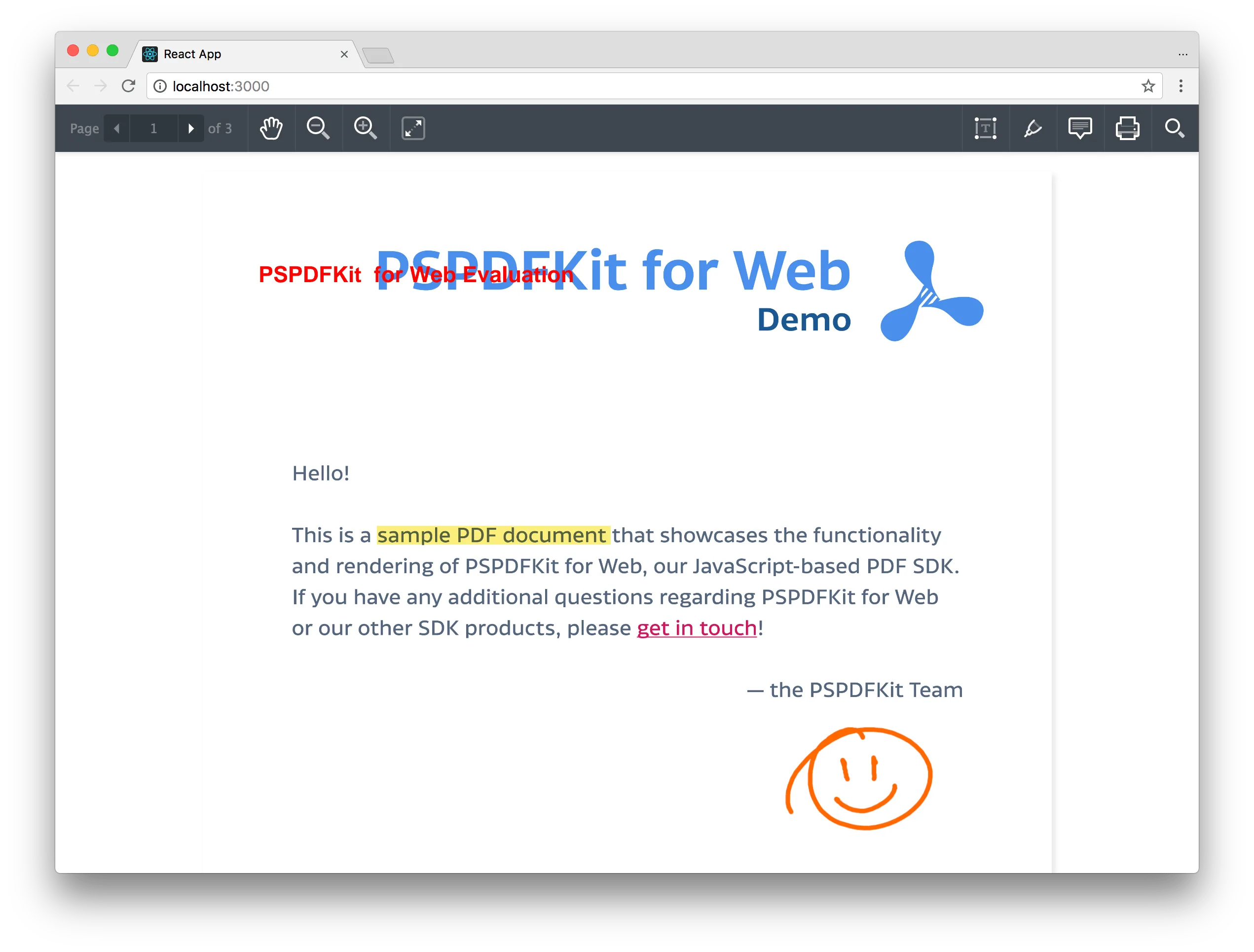
This tutorial will show you how to add Nutrient Web SDK to a React application to display a fully interactive PDF in the browser. Here’s what we’re going to build:
Prerequisites
To follow along, you’ll need these things:
- Node.js(opens in a new tab)
- Yarn(opens in a new tab) or npm(opens in a new tab)
- A PDF file(opens in a new tab)
A more advanced version of the code for this tutorial is available on GitHub: https://github.com/PSPDFKit/nutrient-web-examples/tree/main/examples/react(opens in a new tab)
Create a React app
We’ll use create-react-app(opens in a new tab) to scaffold out a simple React application:
yarn global add create-react-appcreate-react-app nutrient-react-examplecd nutrient-react-examplenpm install -g create-react-appcreate-react-app nutrient-react-examplecd nutrient-react-exampleNow let’s add Nutrient Web SDK as a dependency.
yarn add @nutrient-sdk/viewernpm install --save @nutrient-sdk/viewerWhile we’re setting things up, let’s also save the PDF we’ll be using into the /public folder:
curl https://raw.githubusercontent.com/PSPDFKit/pspdfkit-web-example-react/master/public/example.pdf > public/example.pdfAs we’re using the WebAssembly build of Nutrient Web SDK, the final setup step is to copy over some files from the npm module that the browser will need:
cp -R ./node_modules/@nutrient-sdk/viewer/dist/nutrient-viewer-lib ./publicAdd a component
Now let’s add a NutrientViewerComponent that imports @nutrient-sdk/viewer as a dependency:
import React, { Component } from 'react';import NutrientViewer from '@nutrient-sdk/viewer';
class NutrientViewerComponent extends Component {  render() {    return (      <div ref="container" />    );  }}
export default NutrientViewerComponent;
Load a PDF
To load Nutrient Web SDK into our NutrientViewerComponent, we use NutrientViewer#load when our component has mounted:
import React, { Component } from 'react';import NutrientViewer from '@nutrient-sdk/viewer';
// This tells Nutrient Web SDK where our WebAssembly files are located:const baseUrl = `${window.location.protocol}//${window.location.host}/${process.env.PUBLIC_URL}`;
class NutrientViewerComponent extends Component {  componentDidMount() {    NutrientViewer.load({      document: this.props.pdfUrl,      container: this.refs.container,      baseUrl: baseUrl    })      .then(instance => {        console.log("Successfully mounted Nutrient Web SDK", instance);      })      .catch(error => {        console.error(error.message);      });  }
  render() {    return (      <div ref="container" style={{width: '100%', height: '100%', position: 'absolute'}} />    );  }}
export default NutrientViewerComponent;
Render our component
Now all that’s left is to render our NutrientViewerComponent in App.js, loading the PDF we downloaded earlier:
import React, { Component } from 'react';import NutrientViewerComponent from './NutrientViewerComponent';import './App.css';
class App extends Component {  render() {    return (      <div className="App" style={{width: '100%', height: '100%', position: 'absolute'}}>        <NutrientViewerComponent pdfUrl={'/example.pdf'} />      </div>    );  }}
export default App;
Start the app (if you didn’t already) and view it in the browser:
yarn startnpm startYou should now see your PDF rendered into the #container element. Try using the toolbar to navigate, annotate, and search the document. Please note that because Nutrient is a commercial product, you’ll see an Evaluation Notice message.
Conclusion
I hope this tutorial has demonstrated how easy it is to add PDF support to your web app, and that it gives you ideas on how more business problems could be solved using PDF and the web platform. Learn more about Nutrient Web SDK, see the finished source code(opens in a new tab) for this tutorial, or check out our other example projects for Node.js(opens in a new tab) and Rails(opens in a new tab).