How to use PDF.js to highlight text programmatically

Table of contents

- PDF.js (free viewer) can simulate highlights with HTML overlays but cannot embed or save them in the PDF. It’s great for quick, lightweight visuals.
- Nutrient Web SDK (commercial) offers a full annotation API that writes real highlight objects into a file, with precise positioning, flattening, and other advanced features. Use it when you need persistent, production-grade PDF annotations.
PDF.js is primarily designed as a PDF viewer, and its manipulation capabilities may be limited compared to those of dedicated PDF editing software.
Downloading the PDF.js library
Download(opens in a new tab) the PDF.js library as a ZIP file, clone the repository using Git, or install it via npm:
npm install pdfjs-distIf you downloaded the ZIP file, extract it and copy the pdf.mjs and pdf.worker.mjs files from the build/ folder to your project directory. If you installed via npm, copy them from node_modules/pdfjs-dist/build/:
cp node_modules/pdfjs-dist/build/pdf.mjs node_modules/pdfjs-dist/build/pdf.worker.mjs .Loading and rendering PDF documents
Load the PDF document and render it in a canvas element. Replace annotation.pdf with your PDF document path (you can use this demo document as an example):
<!doctype html><html>  <head>    <title>PDF.js Highlight Annotations</title>    <style>      body {        margin: 0;        padding: 20px;        position: relative;      }      #canvas {        border: 1px solid #ccc;      }    </style>  </head>  <body>    <!-- Canvas to place the PDF -->    <canvas id="canvas"></canvas>
    <script type="module">      import * as pdfjsLib from './pdf.mjs';
      // Get the canvas element.      const canvas = document.getElementById('canvas');
      // Get the PDF file URL.      const pdfUrl = 'annotation.pdf'; // Replace with the URL of your PDF document
      // Configure the PDF.js worker source.      pdfjsLib.GlobalWorkerOptions.workerSrc = './pdf.worker.mjs';
      // Load the PDF file using PDF.js.      pdfjsLib.getDocument(pdfUrl).promise.then(function (pdfDoc) {        // Get the first page of the PDF file.        pdfDoc.getPage(1).then(function (page) {          const viewport = page.getViewport({ scale: 1 });
          // Set the canvas dimensions to match the PDF page size.          canvas.width = viewport.width;          canvas.height = viewport.height;
          // Set the canvas rendering context.          const ctx = canvas.getContext('2d');
          const renderContext = {            canvasContext: ctx,            viewport: viewport,          };
          // Render the PDF page to the canvas.          page.render(renderContext).promise.then(function () {            console.log('Rendering complete');            // Call the function to render highlight annotations after the PDF page is rendered.            renderHighlightAnnotations(page, viewport);          });        });      });    </script>  </body></html>
Adding highlight annotations programmatically
Use the getAnnotations() method to retrieve existing annotations from the PDF page. Add the following function inside your <script type="module"> block:
function renderHighlightAnnotations(page, viewport) {  // Anchor highlights to an overlay layered on top of the canvas so they stay  // aligned when the page is scrolled, zoomed, or otherwise reflowed.  const parent = canvas.parentNode;  if (getComputedStyle(parent).position === 'static') {    parent.style.position = 'relative';  }  const overlay = document.createElement('div');  overlay.style.position = 'absolute';  overlay.style.left = canvas.offsetLeft + 'px';  overlay.style.top = canvas.offsetTop + 'px';  overlay.style.width = viewport.width + 'px';  overlay.style.height = viewport.height + 'px';  overlay.style.pointerEvents = 'none';  parent.appendChild(overlay);
  page.getAnnotations().then(function (annotations) {    annotations.forEach(function (annotation) {      if (annotation.subtype === 'Highlight') {        // Convert the PDF user-space rectangle to viewport (canvas)        // coordinates. This handles the bottom-up Y axis, the current        // scale, and any page rotation in one step.        const [x1, y1, x2, y2] = viewport.convertToViewportRectangle(          annotation.rect,        );        const highlight = document.createElement('div');        highlight.style.position = 'absolute';        highlight.style.left = Math.min(x1, x2) + 'px';        highlight.style.top = Math.min(y1, y2) + 'px';        highlight.style.width = Math.abs(x2 - x1) + 'px';        highlight.style.height = Math.abs(y2 - y1) + 'px';        highlight.style.backgroundColor = 'yellow';        highlight.style.opacity = '0.5';        highlight.style.pointerEvents = 'none';        overlay.appendChild(highlight);      }    });  });}
The renderHighlightAnnotations(page, viewport) function retrieves all annotations from the specified page. If the annotation’s subtype matches 'Highlight', it creates a yellow rectangle (highlight) using a div element. PDF rectangles live in user space (origin at the bottom-left, bottom-up Y axis), so call viewport.convertToViewportRectangle() to translate each one into the canvas’s coordinate system — this also accounts for the current scale and any page rotation. The highlights are appended to an overlay div anchored to the canvas, so they stay aligned during scrolling and zoom rather than being positioned in viewport coordinates against the document body.
After executing these steps, the highlight annotations present in the PDF document will be displayed as yellow rectangles with 50 percent opacity on top of the PDF pages.
Nutrient Web SDK
Nutrient provides a commercial JavaScript PDF viewer library for web applications. Nutrient Web SDK includes 30+ features for viewing, annotating, editing, and signing PDFs directly in the browser. The following sections cover how to set up the SDK and add highlight annotations programmatically.
Requirements
- Node.js(opens in a new tab)
- A package manager compatible with npm
Adding Nutrient to your project
Install the @nutrient-sdk/viewer package via npm, or download the SDK manually:
npm i @nutrient-sdk/viewerpnpm add @nutrient-sdk/vieweryarn add @nutrient-sdk/viewerTo run Nutrient Web SDK in the browser, copy the required library files (artifacts) to your assets folder:
cp -R ./node_modules/@nutrient-sdk/viewer/dist/ ./assets/Make sure your assets/ folder contains:
nutrient-viewer.js(entry point)- A
nutrient-viewer-lib/directory with the required runtime assets
Integrating into your project
Add the PDF document you want to display (e.g.
document.pdf) to the root of your project. You can use our demo document as an example.Add an empty
<div>element to your HTML where the viewer will mount:<div id="nutrient" style="height: 100vh;"></div>Import the SDK and initialize it using
NutrientViewer.load():
<!doctype html><html lang="en">  <head>    <title>Nutrient PDF Viewer</title>    <meta name="viewport" content="width=device-width, initial-scale=1.0" />  </head>  <body>    <div id="nutrient" style="height: 100vh;"></div>
    <script type="module">      import './assets/nutrient-viewer.js';
      const baseUrl = `${window.location.protocol}//${window.location.host}/assets/`;
NutrientViewer.load({ container: '#nutrient', document: 'document.pdf', baseUrl, }) .then((instance) => { console.log('Nutrient Viewer loaded', instance); }) .catch((error) => { console.error(error.message); }); </script> </body></html> 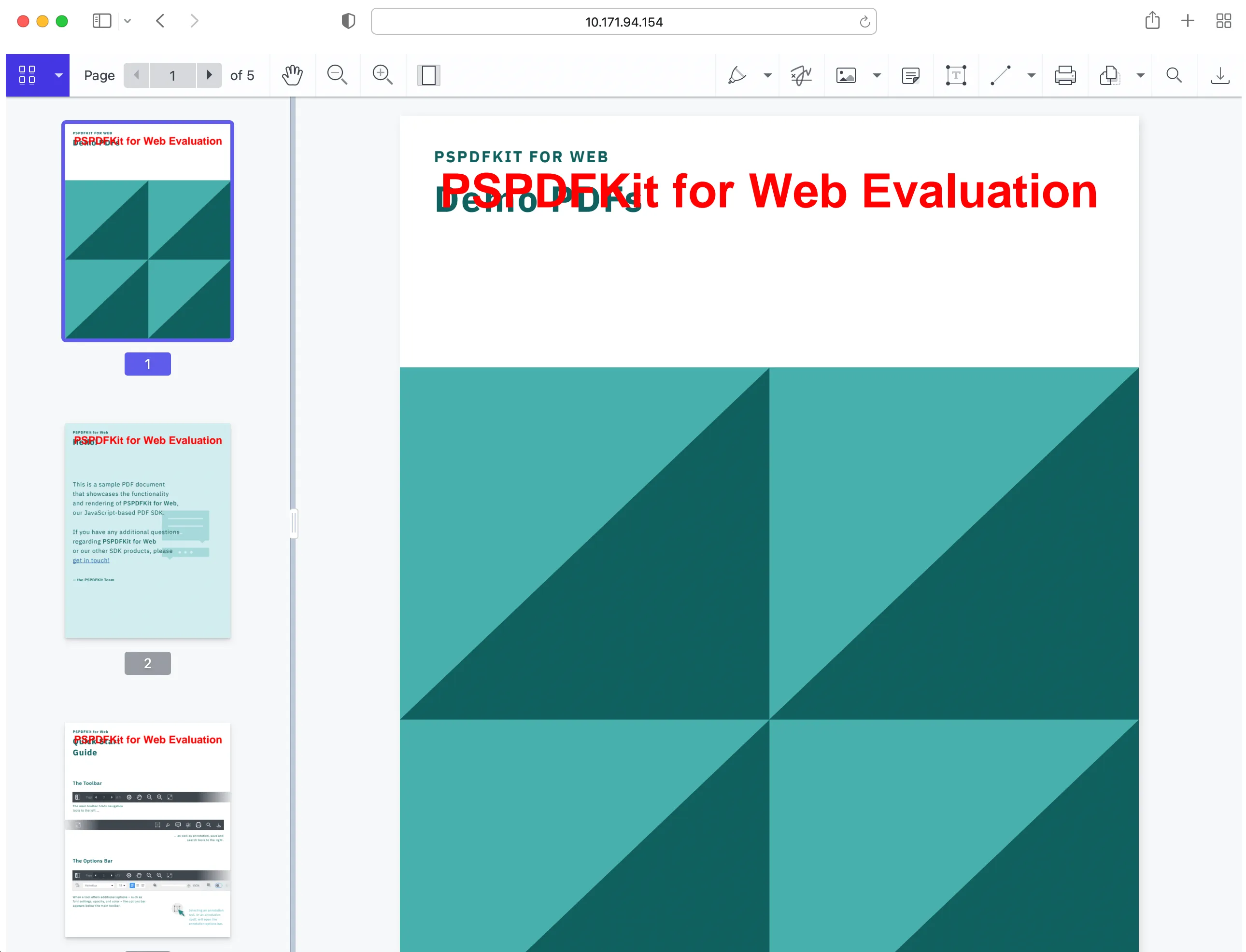
Adding highlight annotations programmatically
The NutrientViewer.Annotations.HighlightAnnotation constructor creates a new highlight annotation object with properties like page index and rectangles to highlight:
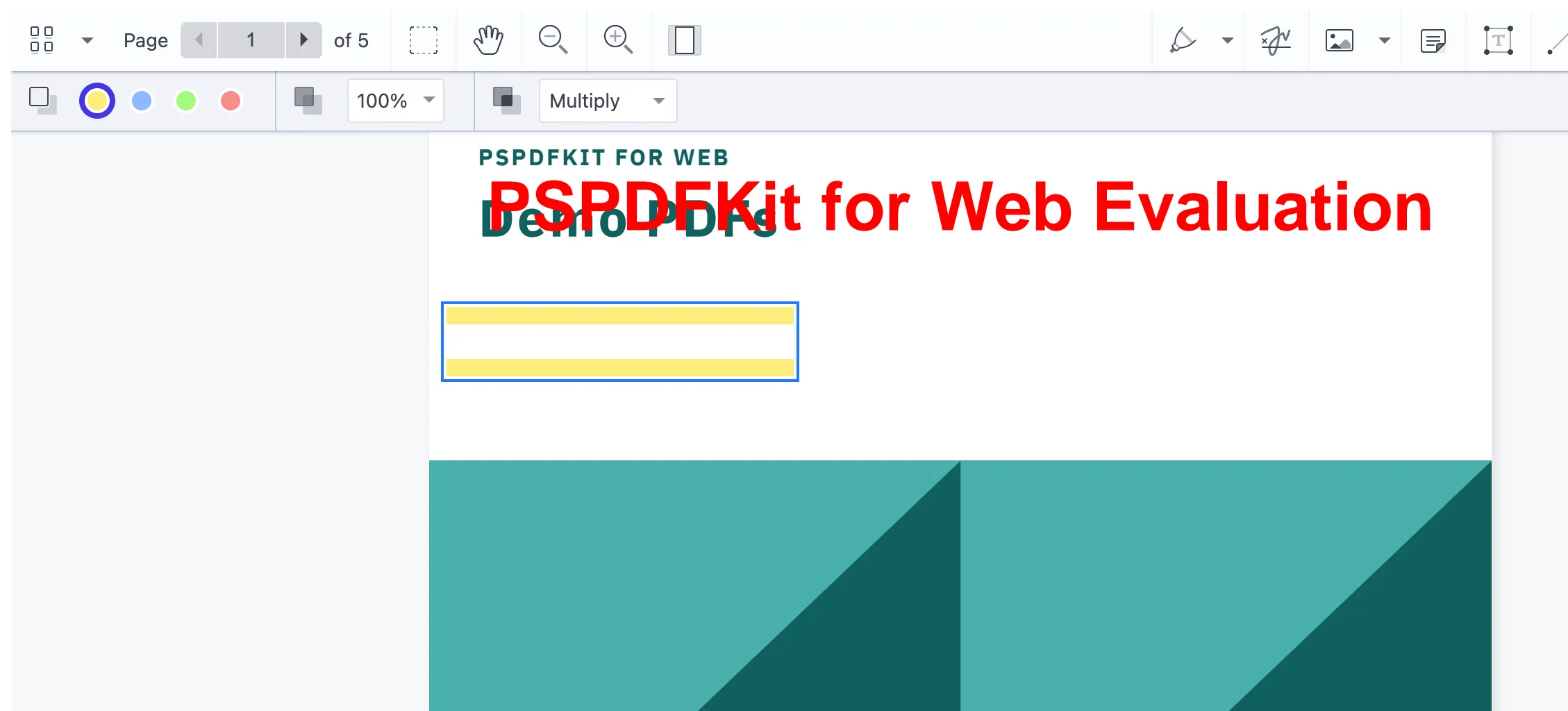
NutrientViewer.load({ container: '#nutrient', document: 'document.pdf', baseUrl,}) .then(async function (instance) { try { console.log('Nutrient loaded', instance); const rects = NutrientViewer.Immutable.List([ new NutrientViewer.Geometry.Rect({ left: 10, top: 120, width: 200, height: 10, }), new NutrientViewer.Geometry.Rect({ left: 10, top: 150, width: 200, height: 10, }), ]); const annotation = new NutrientViewer.Annotations.HighlightAnnotation( { pageIndex: 0, rects: rects, boundingBox: NutrientViewer.Geometry.Rect.union(rects), }, ); await instance.create(annotation); console.log('Highlight annotation added successfully.'); } catch (error) { console.error('Error adding highlight annotation:', error.message); } }) .catch(function (error) { console.error('NutrientViewer failed to load:', error.message); });The provided rects array defines the bounding boxes of the areas to be highlighted, and the pageIndex property specifies the page where the highlight annotation will be added.
Serving your website
Install the
servepackage:Terminal window npm install --global serveServe the contents of the current directory:
Terminal window serve -l 8080 .Navigate to
http://localhost:8080to view the website.
Conclusion
This post covered two methods for programmatically adding highlight annotations to PDFs. PDF.js(opens in a new tab) retrieves existing highlight annotations and renders them as HTML overlays, providing a lightweight solution for web applications. Nutrient Web SDK offers a full annotation API that writes real highlight objects into the PDF file.
To try Nutrient, contact our Sales team or launch our demo.
FAQ
Nutrient Web SDK provides a full annotation API that embeds real annotations into PDF files, while PDF.js only renders existing annotations as HTML overlays without modifying documents.
Install the @nutrient-sdk/viewer package via npm, copy the library assets to your project, and initialize the viewer with NutrientViewer.load().
Yes. Use the NutrientViewer.Annotations.HighlightAnnotation constructor to create highlight annotations programmatically.
PDF.js focuses on PDF viewing and can render existing annotations, but it cannot create or embed new annotations into PDF files.