Job management tools for document automation
This section of the application displays a list of all current Job Definitions and the set of operations to be performed shown in the menu table below.
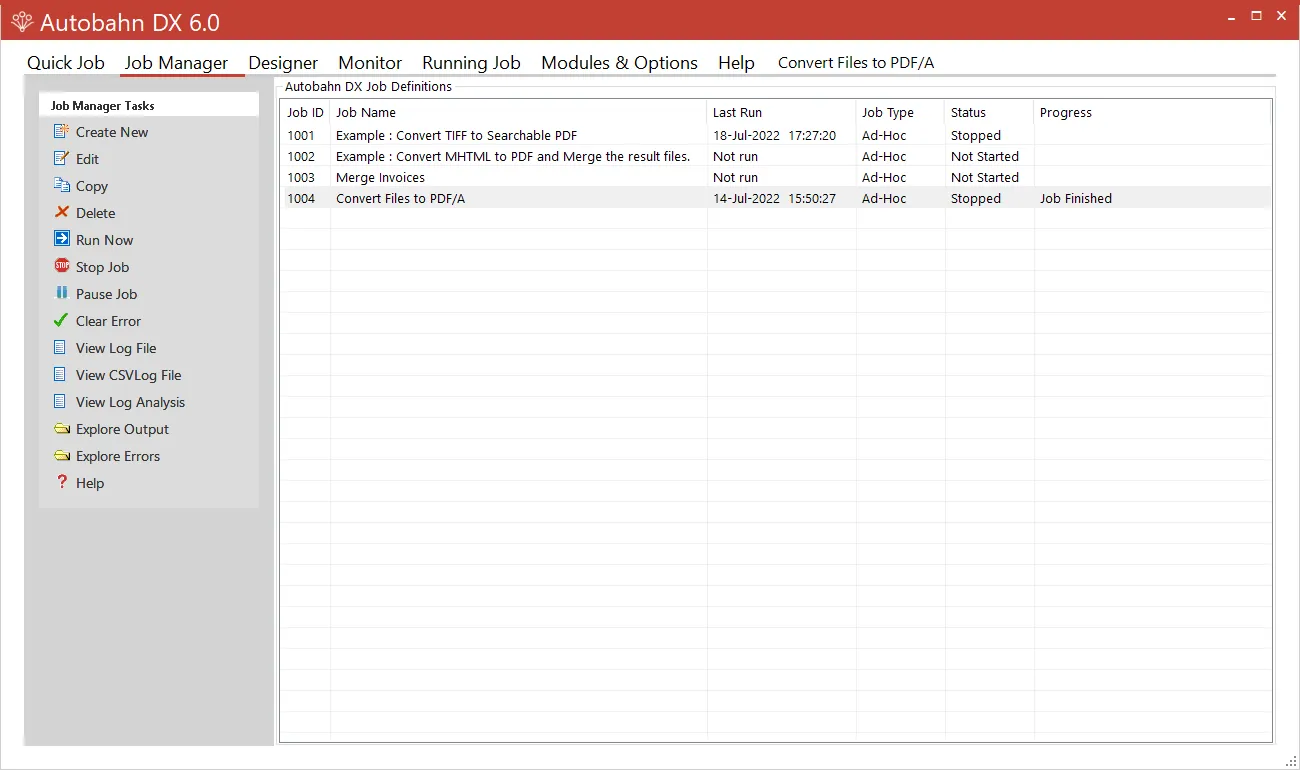
| Menu items | Actions |
|---|---|
| Create New | Creates a new, skeleton job definition from jobtmplt.xml and then switches the display to the Job Designer. |
| Edit | Switches the view to Edit on the selected Job. |
| Copy | Creates a copy of the selected job. The job name will be Job %JOBID% (Copy of %JOBNAME%). |
| Delete | Deletes the selected job definition after confirmation. |
| Run Now | Executes the selected job via the interface in the Run tab window. |
| Stop Job | Stops a running job. |
| Pause Job | Pauses a job that’s running. |
| Clear Error | Clears jobs in error. |
| View Log File | Displays the most recent log file for the selected job. |
| View CSVLog File | Displays the most recent CSV log file for the selected job. |
| View Log Analysis | Displays analysis of the most recent log file for the selected job. |
| View Usage Report | Opens the Usage Reporter to create a record of Document Automation Server (DAS) usage. |
| Explore Output | Launches windows explorer on the job output folder. |
| Explore Errors | Launches windows explorer on the job error folder. |
| Help | Opens the help tab in the DAS Graphical User Interface (GUI). |