Electronic signature API: How to sign PDFs programmatically

Table of contents
Add timestamped digital signatures to contracts and reports with Nutrient DWS API. Test with a free API key.
Nutrient DWS API adds digital signatures to PDFs so recipients can check whether the signed content has changed. Use the /sign endpoint for invisible signatures, visible signing details, or a drawn signature image. Send the document as multipart form data and save the signed PDF returned by the API. Your application remains responsible for identifying signers and recording their consent.
When your application generates a contract or report, recipients need a way to check that its contents haven’t changed. Placing a signature image on the page doesn’t provide that check.
Nutrient DWS API signs the PDF and embeds the data a compatible reader needs to validate it. You can add this step after generating or filling a document, while Nutrient handles the signing certificate and timestamp. For a workflow that collects a person’s signature, your application must also capture their approval before sending the PDF for signing.
Electronic vs. digital signatures: What does the API apply?
The two terms get used interchangeably, but they’re different layers of the same workflow:
- An electronic signature is the legal concept — any electronic record of a person’s intent to sign. It can be anything from a typed name or drawn mark to a click on “I agree.”
- A digital signature is the cryptographic mechanism — a signature computed with a private key over a hash of the document. A compatible PDF reader uses the public key in the signing certificate to validate the signed content.
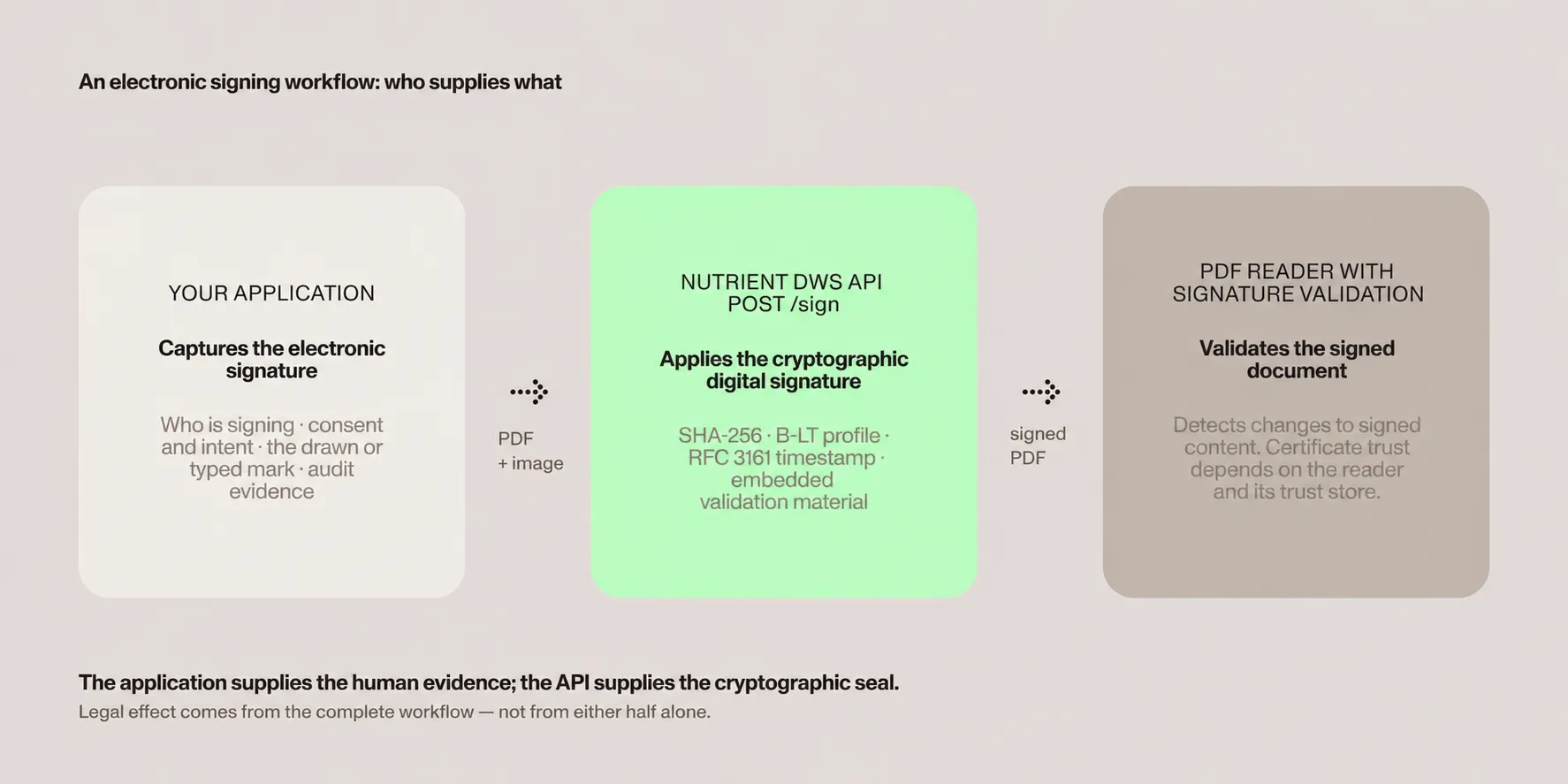
Nutrient’s /sign endpoint applies a cryptographic digital signature. Your application authenticates the person and records their intent to sign; Nutrient makes changes to the signed content detectable. The digital signature alone doesn’t identify an individual signer. See the difference between digital and electronic signatures for more context, or electronic signatures in a PDF for the signature types PDFs support.
Nutrient DWS API provides the signing operation covered here. For hosted signing sessions with recipients, reminders, and workflow state, use Nutrient DWS Signer API.
How to add an electronic signature to a PDF with an API
To sign a PDF with the Nutrient DWS API:
- Get a free Nutrient API key — Sign up on the Nutrient digital signature API page and copy your key from the dashboard.
- POST the PDF to
/sign— Send the file as multipart form data with your key in theAuthorizationheader. - Save the response — The API returns the signed PDF. Optionally pass a
dataobject to control where the signature appears and what it shows.
The minimal request signs the document with an invisible signature:
curl --fail -X POST https://api.nutrient.io/sign \ -H "Authorization: Bearer $NUTRIENT_API_KEY" \ -F file=@document.pdf \ -o result.pdfThe --fail option makes curl return a nonzero exit code on HTTP errors, such as an invalid API key or exhausted credits. Curl then doesn’t save the error response as result.pdf.
Open result.pdf in a reader that supports digital signature validation to inspect the signature. The reader can validate the signed revision and report subsequent changes. Whether a later change invalidates a signature depends on the change and any certification permissions.
Nutrient applies a fixed signing profile: SHA-256 at the baseline long-term (B-LT) level. B-LT is a technical signature profile, not a legal assurance level. It embeds an RFC 3161 timestamp, the certificate chain, and revocation information for validation after the signing certificate expires. Certificate trust still depends on the reader and its trust store.
Add a visible signature
To show signing details on the page, pass a data object with a position and an appearance to Nutrient’s signing endpoint. The position.rect array uses PDF points in the format [left, top, width, height]:
curl --fail -X POST https://api.nutrient.io/sign \ -H "Authorization: Bearer $NUTRIENT_API_KEY" \ -F file=@document.pdf \ -F 'data={ "position": { "pageIndex": 0, "rect": [72, 650, 250, 80] }, "appearance": { "mode": "signatureAndDescription", "showWatermark": true, "showSignDate": true } };type=application/json' \ -o result.pdfThe appearance.mode option controls the layout:
signatureOnly— Just the signature graphic.signatureAndDescription— Graphic plus signing details.descriptionOnly— Signing details as text, no graphic.
Set showSignDate to render the signing timestamp in the appearance, and showDateTimezone to include the timezone.
Add a hand-drawn signature image
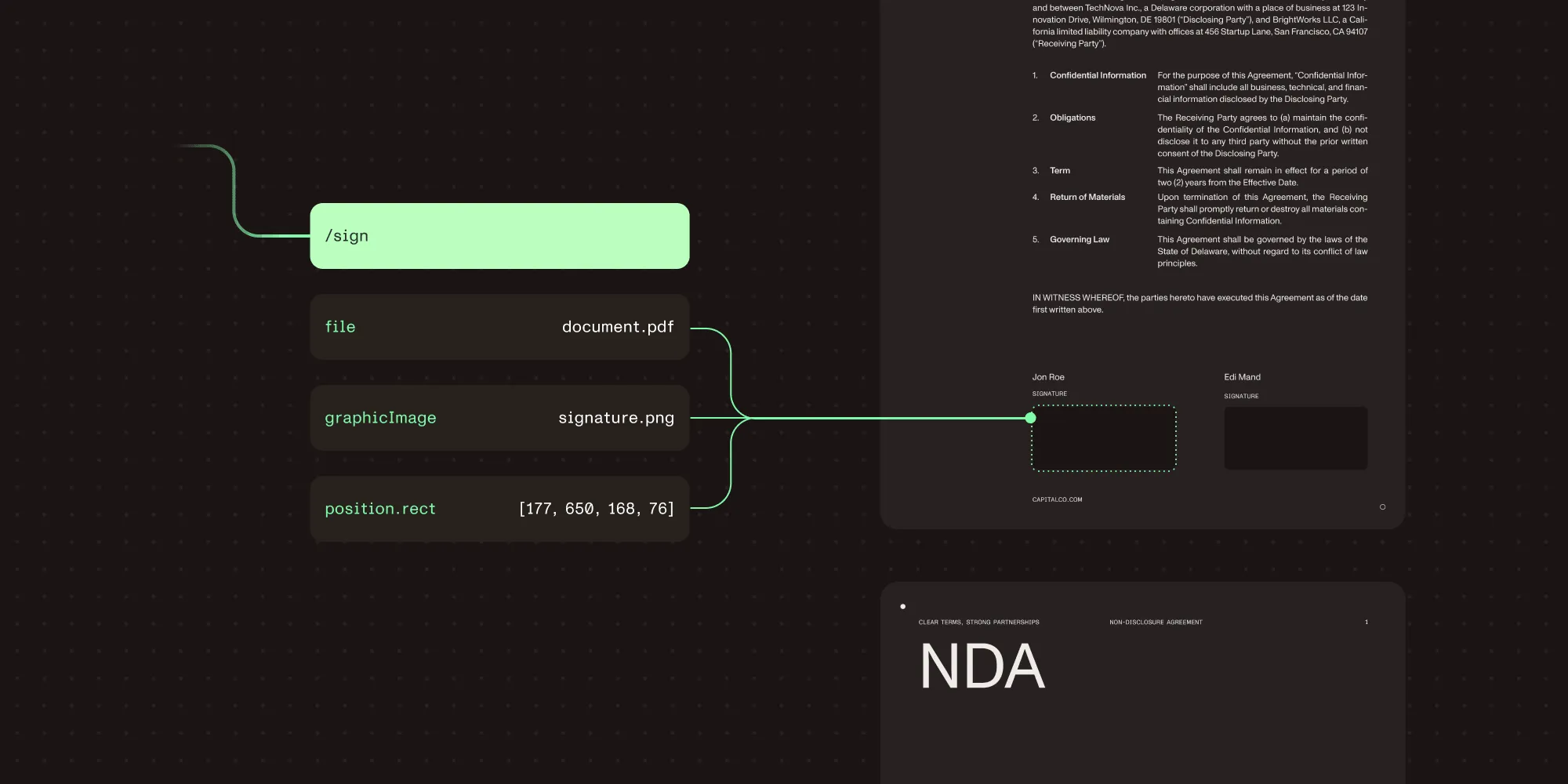
If your application captures a hand-drawn signature, include it in the request as the graphicImage part, which is the signature graphic itself. The signature can come from a signature pad, a stylus, or an uploaded image. The separate image part is the watermark drawn behind the signature, and showWatermark: false keeps the default Nutrient logo out of the appearance:
curl --fail -X POST https://api.nutrient.io/sign \ -H "Authorization: Bearer $NUTRIENT_API_KEY" \ -F file=@document.pdf \ -F graphicImage=@signature.png \ -F 'data={ "position": { "pageIndex": 0, "rect": [72, 650, 250, 80] }, "appearance": { "mode": "signatureOnly", "showWatermark": false, "showSignDate": false } };type=application/json' \ -o result.pdfSupported image content types include image/png and image/jpeg. The result is a PDF that shows the person’s drawn signature on the page, backed by a cryptographic signature that makes any later modification detectable.
Sign an existing signature field
If the PDF already contains a signature form field, sign that field by name with formFieldName instead of specifying a position. A contract template with a designated signing box is a typical case:
curl --fail -X POST https://api.nutrient.io/sign \ -H "Authorization: Bearer $NUTRIENT_API_KEY" \ -F file=@contract.pdf \ -F 'data={ "formFieldName": "signature-field", "appearance": { "mode": "signatureAndDescription", "showWatermark": true, "showSignDate": true } };type=application/json' \ -o result.pdfIf no field with that name exists, the API can create one at a position you provide.
Sign a PDF with an API in Node.js
The same request works from any language that can send multipart form data. In Node.js 18 or later, the built-in fetch and FormData cover it with no dependencies:
import { readFile, writeFile } from "node:fs/promises";
const apiKey = process.env.NUTRIENT_API_KEY;if (!apiKey) {  throw new Error("Set NUTRIENT_API_KEY before running this example.");}
const form = new FormData();form.append(  "file",  new Blob([await readFile("document.pdf")], { type: "application/pdf" }),  "document.pdf",);form.append(  "data",  new Blob(    [      JSON.stringify({        position: { pageIndex: 0, rect: [72, 650, 250, 80] },        appearance: { mode: "signatureAndDescription", showSignDate: true },      }),    ],    { type: "application/json" },  ),);
const response = await fetch("https://api.nutrient.io/sign", {  method: "POST",  headers: { Authorization: `Bearer ${apiKey}` },  body: form,});
if (!response.ok) {  throw new Error(`Signing failed: ${response.status} ${await response.text()}`);}
await writeFile("result.pdf", Buffer.from(await response.arrayBuffer()));
Save the example as sign.mjs to enable ECMAScript (ES) modules, set the NUTRIENT_API_KEY environment variable, and place document.pdf in your working directory. Run node sign.mjs to produce result.pdf with a visible signature on the first page. To sign invisibly, drop the data field.
Nutrient also ships official client libraries that wrap the same API: @nutrient-sdk/dws-client-typescript for TypeScript/Node.js and nutrient-dws for Python. Both expose a sign() method alongside the rest of the document-processing toolset, including merge, convert, optical character recognition (OCR), and extraction.
Nutrient Document Engine supports signing in your infrastructure with your certificates and hardware security modules (HSMs).
Handle real-world documents
Use these Nutrient signing options when preparing documents for production:
- Password-protected PDFs — Pass the document password in the
pspdfkit-pdf-passwordheader. If the password contains characters that HTTP header handling might modify, pass it asbase64:<encoded-password>. - Flatten before signing — Set
"flatten": truein thedataobject to remove interactive annotations and form fields while preserving their appearance. Use it only when the signed output is a final artifact. Flattening doesn’t prevent later editing of page content. - Sign last — Run content-changing operations (merging, form filling, redaction, watermarking, and optimization) via the Nutrient Build API before signing the result. Later changes can be detected during signature validation.
What the signature does — and doesn’t — establish
The table below separates what Nutrient’s signature establishes from the evidence your application needs to retain.
| Property | What the API signature establishes | What your workflow must supply |
|---|---|---|
| Document integrity | The signature covers the signed byte range; validation detects any change to signed content. | Nothing — this is the API’s core guarantee. |
| Attribution | The certificate identity is derived from your organization account, attributing the signature to it. | Verifiers need to know your expected organization ID and compare it with the identifier in the certificate’s organizational unit (OU) field. |
| Signer identity | Nothing by itself — the API authenticates your application’s request, not a person. | Authenticating the individual, and recording their consent and intent. |
| Legal effect | Timestamp and validation material that strengthen the evidence trail. | The complete workflow: signer authentication, consent records, and retained audit evidence. |
A signature from the API can anchor a legally enforceable electronic signing workflow, but it isn’t categorically legally binding on its own. Legal effect depends on the full workflow, the document type, and the jurisdiction. Production plans sign with certificates that chain to a publicly trusted root. The free plan uses a private test certificate, so use it to build and test the integration, not for production signatures.
Test your signing workflow with Nutrient
Create a free Nutrient API key and sign a sample PDF from your application. Check the signature’s appearance, certificate, and timestamp in a reader that supports digital signature validation. Use that result to test your integration before switching to a production plan.
FAQ
Send the PDF to Nutrient DWS API’s /sign endpoint as a multipart POST request with your API key in the Authorization header. The API returns the signed PDF. Add a data object with position and appearance for a visible signature, or a graphicImage part for a hand-drawn signature graphic.
Not automatically. The API provides the cryptographic digital signature — document integrity, a trusted timestamp, and validation material. Legal enforceability depends on your complete workflow, including how you authenticate the signer, record their consent and intent, and retain audit evidence. The document type and jurisdiction also matter.
An electronic signature is the legal concept — an electronic record of intent to sign. A digital signature is the cryptographic mechanism that makes a document tamper-evident. Most real signing workflows use both: The application captures the electronic signature (who signed, and their intent), and a digital signature seals the document.
Nutrient DWS API manages the signing certificate and derives its identity from your organization account. You can’t supply your own certificate to this endpoint. For signing with your certificates or HSM, use Nutrient Document Engine.
Use the built-in fetch and FormData in Node.js 18+ to POST the file to https://api.nutrient.io/sign — see the complete example above. Alternatively, use the official TypeScript client, @nutrient-sdk/dws-client-typescript, which wraps the same endpoint in a sign() method.
Nutrient DWS API has a free plan you can use to build and test the signing integration. The free plan signs with a private test certificate; production signatures with publicly trusted certificates require a paid plan.