Add a signature pad to PDF documents using JavaScript

Table of contents
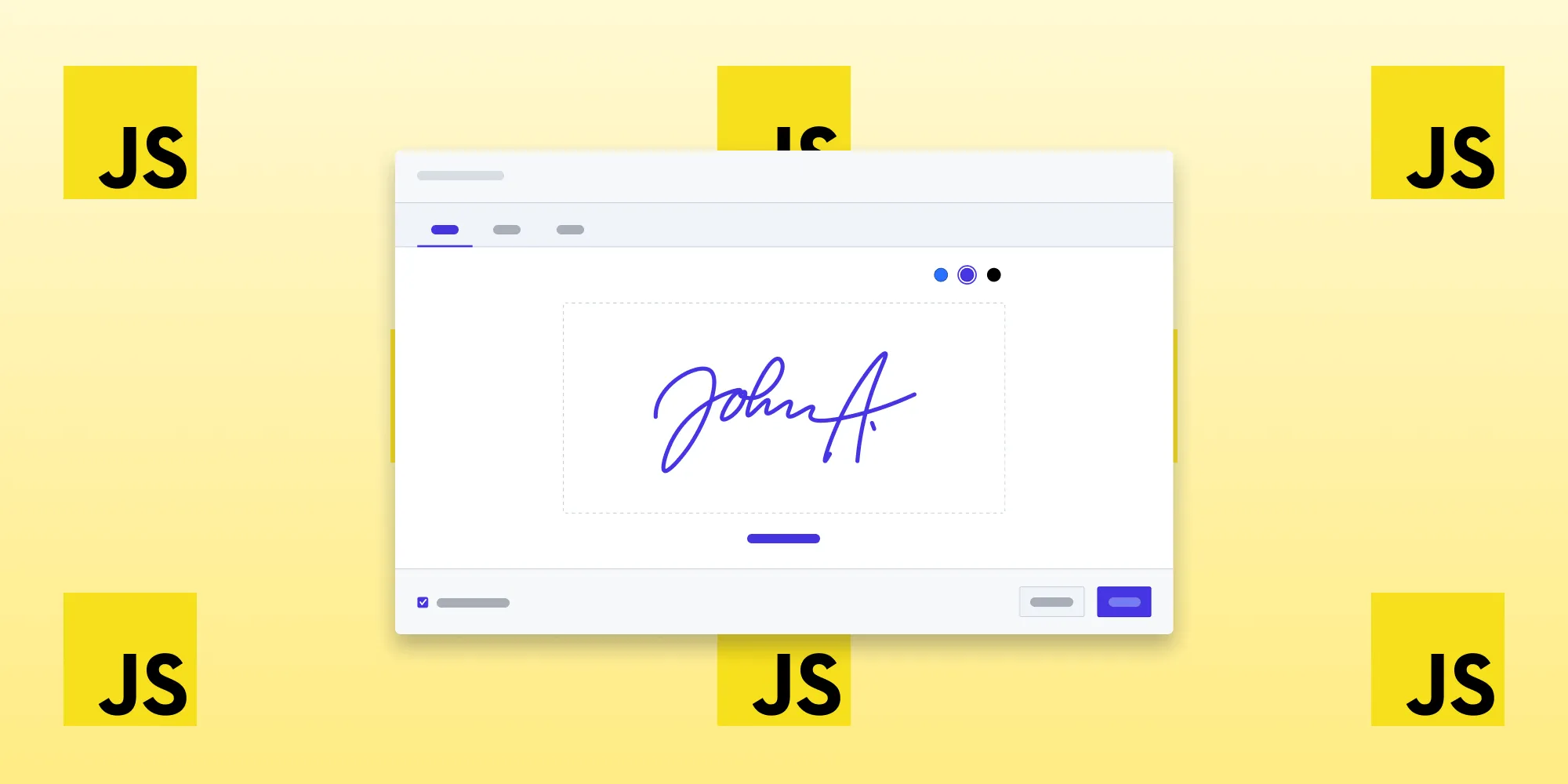
This tutorial covers two approaches for adding signature pads to PDFs: the open source Signature Pad library for basic canvas-based signatures, and Nutrient Web SDK for full-featured electronic signatures with ink annotations, image signatures, and signature form fields.
This tutorial shows how to add a signature pad to PDFs using JavaScript. The first part uses the Signature Pad(opens in a new tab) library, and the second part uses Nutrient Web SDK.
A signature pad is a graphical user interface that captures user signatures on documents. Users can sign using a mouse, electronic pen, or specialized signing device. The signature pad saves signatures as images that can be added to PDF documents.
Signature Pad library
Signature Pad(opens in a new tab) is a JavaScript library for drawing signatures on an HTML5 canvas element. Signatures can be saved as image files or added to PDF documents. The library supports mobile and desktop devices with touch and mouse input and is commonly used in contract management, digital forms, and document signing applications.
Using the Signature Pad library
Include the Signature Pad library in your project by adding the following script tag to your HTML file:
<script src="https://cdn.jsdelivr.net/npm/signature_pad@4.0.0/dist/signature_pad.umd.min.js"></script>Add a canvas element to your HTML file where the signature will be drawn:
<canvas id="signatureCanvas" width="400" height="200"></canvas>Create a new
SignaturePadinstance in your JavaScript file by selecting the canvas element and passing it as an argument:const canvas = document.querySelector('#signatureCanvas');const signaturePad = new SignaturePad(canvas);Add a button element to your HTML file that will trigger the signature save process:
<button id="saveButton">Save</button>Add an event listener to the save button that will save the signature as a PDF file when clicked:
const saveButton = document.querySelector('#saveButton');saveButton.addEventListener('click', function () {// Signature save logic goes here.});Call the
toDataURL()method on theSignaturePadinstance to save the signature as an image file:// Check if the signature pad is empty and display an error message if it is.if (signaturePad.isEmpty()) {alert('Please provide a signature.');return;}// Get the signature image as a Base64-encoded data URL.const signatureImage = signaturePad.toDataURL();Use a PDF generation library such as jsPDF(opens in a new tab) to save the signature image as a PDF file. Include the jsPDF library in your project by adding the following script tag to your HTML file:
<script src="https://cdnjs.cloudflare.com/ajax/libs/jspdf/2.5.1/jspdf.umd.min.js"></script>Import the jsPDF library:
const { jsPDF } = window.jspdf;Inside your event listener function for the save button, create a new instance of the jsPDF object and use its
addImage()method to add the signature image to the PDF document. Set theimageTypeparameter to PNG, and adjust thex,y,width, andheightparameters as desired to position and size the image on the page:// Create a new PDF document and add the signature image to it.const doc = new jsPDF();doc.addImage(signatureImage, 'PNG', 10, 10, 100, 50);Use the
save()method of the jsPDF object to save the PDF document with the signature image added:// Save the PDF document with the signature added.doc.save('signed_document.pdf');Refer to our blog on how to convert HTML to PDF using React for more information on using jsPDF.
Optional: Customize the appearance of the canvas element and save button with CSS:
.signature-canvas {border: 2px solid #000;margin-bottom: 10px;}.save-button {background-color: #4caf50;color: white;padding: 10px;border: none;border-radius: 4px;cursor: pointer;}Optional: Add additional functionality to the signature pad, such as the ability to clear or undo the signature; change the pen color; or save the signature as a PNG, JPEG, or SVG file. See the Signature Pad documentation(opens in a new tab) for more information.
Complete Signature Pad example
Here’s the complete HTML file with Signature Pad and jsPDF:
<!DOCTYPE html><html lang="en"><head>    <meta charset="UTF-8">    <meta name="viewport" content="width=device-width, initial-scale=1.0">    <title>Signature Pad Example</title>    <style>        .signature-canvas {            border: 2px solid #000;            margin-bottom: 10px;        }        .save-button {            background-color: #4caf50;            color: white;            padding: 10px 20px;            border: none;            border-radius: 4px;            cursor: pointer;        }    </style></head><body>    <h1>Sign Your Document</h1>    <canvas id="signatureCanvas" class="signature-canvas" width="400" height="200"></canvas>    <br>    <button id="saveButton" class="save-button">Save as PDF</button>    <button id="clearButton">Clear</button>
    <script src="https://cdn.jsdelivr.net/npm/signature_pad@4.0.0/dist/signature_pad.umd.min.js"></script>    <script src="https://cdnjs.cloudflare.com/ajax/libs/jspdf/2.5.1/jspdf.umd.min.js"></script>
    <script>        const canvas = document.querySelector('#signatureCanvas');        const signaturePad = new SignaturePad(canvas);        const { jsPDF } = window.jspdf;
        document.querySelector('#saveButton').addEventListener('click', function () {            if (signaturePad.isEmpty()) {                alert('Please provide a signature.');                return;            }
            const signatureImage = signaturePad.toDataURL();            const doc = new jsPDF();            doc.text('Signed Document', 10, 20);            doc.addImage(signatureImage, 'PNG', 10, 30, 100, 50);            doc.save('signed_document.pdf');        });
        document.querySelector('#clearButton').addEventListener('click', function () {            signaturePad.clear();        });    </script></body></html>
Nutrient Web SDK JavaScript library
Nutrient offers a commercial JavaScript PDF viewer library that integrates into web applications. It includes 30+ features for viewing, annotating, editing, and signing documents directly in the browser.
- A prebuilt and polished UI
- 15+ annotation tools
- Support for multiple file types
- Dedicated support from engineers
Requirements
- Node.js(opens in a new tab) installed on your computer.
- A code editor of your choice.
- A package manager compatible with npm.
Adding Nutrient to your project
You can load Nutrient Web SDK from the CDN (recommended) or install it locally via npm.
Option 1: CDN installation (recommended)
Add the following script tag to your HTML file:
<script src="https://cdn.cloud.pspdfkit.com/pspdfkit-web@1.10.0/nutrient-viewer.js"></script>Option 2: Local installation via npm
Install the
@nutrient-sdk/viewerpackage from npm:Terminal window npm install @nutrient-sdk/viewerCopy the library files to your
assetsfolder:Terminal window cp -R ./node_modules/@nutrient-sdk/viewer/dist/* ./assets/Make sure your
assetsdirectory contains thenutrient-viewer.jsfile and anutrient-viewer-libdirectory with the library assets.Include the script in your HTML:
<script src="assets/nutrient-viewer.js"></script>
Integrating into your project
Add the PDF document you want to display to your project’s directory. You can use our demo document as an example.
Add an empty
<div>element with a defined width and height to where Nutrient will be mounted:<div id="nutrient" style="height: 100vh; width: 100vw;"></div>Initialize Nutrient Web SDK in JavaScript by calling
NutrientViewer.load():const NutrientViewer = window.NutrientViewer;async function loadNutrient() {try {// Ensure there's only one instanceNutrientViewer.unload('#nutrient');const instance = await NutrientViewer.load({container: '#nutrient',document: 'document.pdf',});console.log('Nutrient loaded', instance);} catch (error) {console.error(error.message);}}loadNutrient();
You can see the full index.html file below:
<!DOCTYPE html><html>    <head>        <title>My App</title>        <meta            name="viewport"            content="width=device-width, initial-scale=1.0, minimum-scale=1.0, maximum-scale=1.0, user-scalable=no"        />    </head>    <body>        <div id="nutrient" style="height: 100vh; width: 100vw;"></div>
        <script src="https://cdn.cloud.pspdfkit.com/pspdfkit-web@1.10.0/nutrient-viewer.js"></script>
        <script>            const NutrientViewer = window.NutrientViewer;
            async function loadNutrient() {                try {                    NutrientViewer.unload('#nutrient');
                    const instance = await NutrientViewer.load({                        container: '#nutrient',                        document: 'document.pdf',                    });
                    console.log('Nutrient loaded', instance);                } catch (error) {                    console.error(error.message);                }            }
            loadNutrient();        </script>    </body></html>
Serving your website
Make sure to copy a PDF file into the folder and rename it to
document.pdf.Install the
servepackage:Terminal window npm install --global serveServe the contents of the current directory:
Terminal window serve -l 8080 .Navigate to
http://localhost:8080to view the website.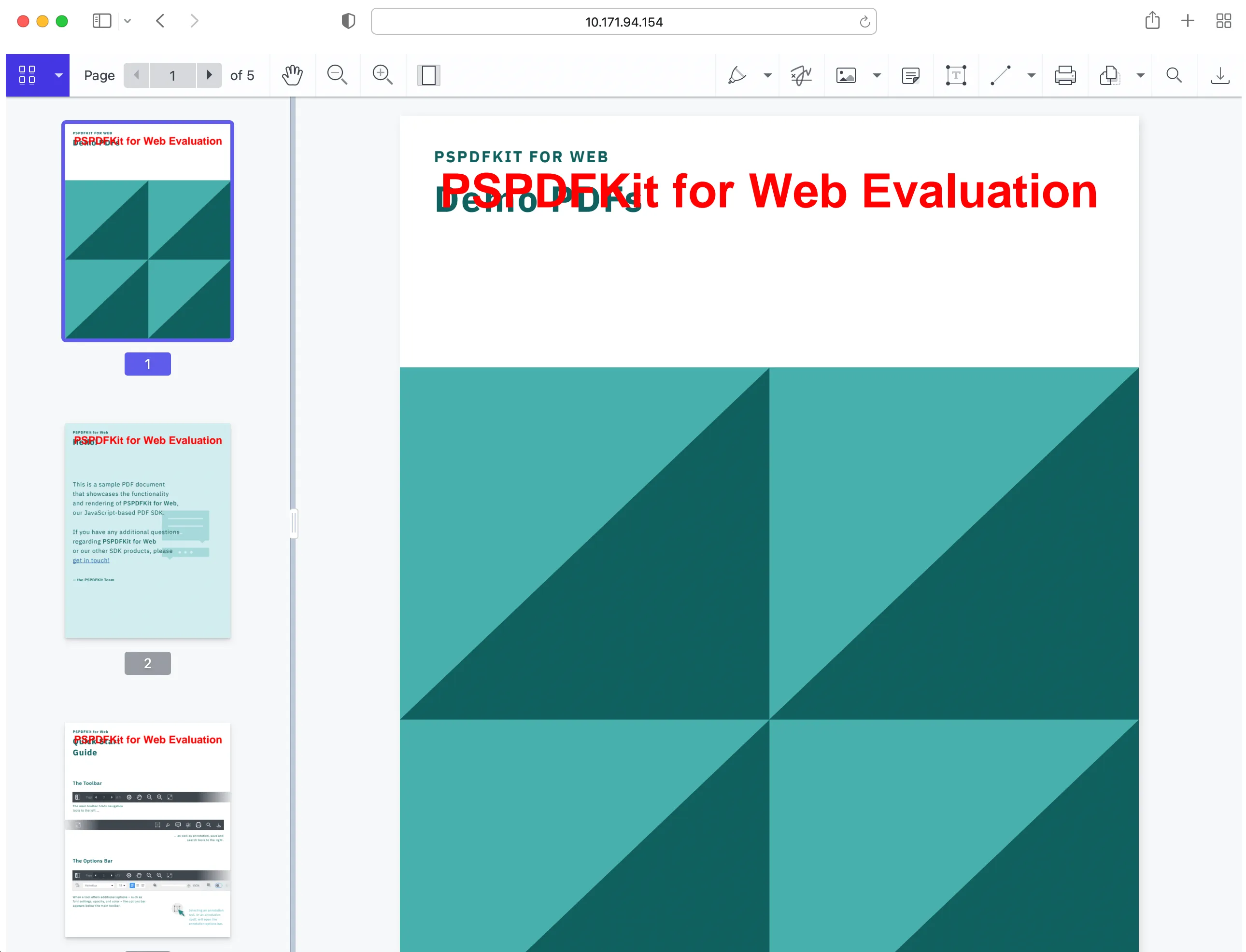
If you want to download Nutrient manually or integrate it as a module, you can check out our JavaScript getting started guide.
Adding eSignatures via the Nutrient UI
To sign PDF documents using the Nutrient UI, open the demo and click the sign icon. A dialog box appears where you can sign your name. You can customize the signature by selecting the pen color or inserting an image or text. Signatures can be resized and repositioned as needed.
The following sections show how to programmatically add ink and image signatures to PDF documents.
Adding eSignatures programmatically in JavaScript
Nutrient supports two signature types for PDF documents: ink and image signatures. This section covers how to create both types programmatically.
Adding ink signatures programmatically
Ink signatures are similar to traditional pen and paper signatures and can be drawn on a signature pad provided by Nutrient.
To add an ink signature programmatically, modify the loadNutrient() function to create an ink annotation after the instance loads:
const NutrientViewer = window.NutrientViewer;
async function loadNutrient() {    try {        NutrientViewer.unload('#nutrient');
        const instance = await NutrientViewer.load({            container: '#nutrient',            document: 'document.pdf',        });
        console.log('Nutrient loaded', instance);
        // Create ink annotation.        const inkAnnotation = new NutrientViewer.Annotations.InkAnnotation({            pageIndex: 0,            isSignature: true,            lines: NutrientViewer.Immutable.List([                NutrientViewer.Immutable.List([                    new NutrientViewer.Geometry.DrawingPoint({ x: 5, y: 5 }),                    new NutrientViewer.Geometry.DrawingPoint({ x: 95, y: 95 }),                ]),                NutrientViewer.Immutable.List([                    new NutrientViewer.Geometry.DrawingPoint({ x: 95, y: 5 }),                    new NutrientViewer.Geometry.DrawingPoint({ x: 5, y: 95 }),                ]),            ]),            boundingBox: new NutrientViewer.Geometry.Rect({                left: 0,                top: 0,                width: 100,                height: 100,            }),        });
        await instance.create(inkAnnotation);        console.log('Ink annotation created successfully.');    } catch (error) {        console.error(error.message);    }}
loadNutrient();
The NutrientViewer.load() function initializes the Nutrient instance, and NutrientViewer.Annotations.InkAnnotation creates freehand drawings for ink signatures, with the isSignature property set to true. The lines and boundingBox parameters define the signature path, while NutrientViewer.Geometry.DrawingPoint specifies the points that make up the ink signature. The boundingBox determines its position and size.

Adding image signatures programmatically
An image annotation is a type of annotation in Nutrient that enables you to add an image to a PDF document. The image can be fetched from a URL or from a file on the user’s device.
Modify the loadNutrient() function to create an image annotation:
const NutrientViewer = window.NutrientViewer;
async function loadNutrient() {    try {        NutrientViewer.unload('#nutrient');
        const instance = await NutrientViewer.load({            container: '#nutrient',            document: 'document.pdf',        });
        console.log('Nutrient loaded', instance);
        // Create image annotation.        const request = await fetch('signature.png');        const blob = await request.blob();        const attachmentId = await instance.createAttachment(blob);
        const imageAnnotation = new NutrientViewer.Annotations.ImageAnnotation({            pageIndex: 0,            contentType: 'image/png',            imageAttachmentId: attachmentId,            description: 'Signature Image',            boundingBox: new NutrientViewer.Geometry.Rect({                left: 30,                top: 20,                width: 300,                height: 150,            }),        });
        await instance.create(imageAnnotation);        console.log('Image annotation created successfully.');    } catch (error) {        console.error(error.message);    }}
loadNutrient();
In the code snippet, NutrientViewer.Annotations.ImageAnnotation is created by passing several properties:
pageIndexspecifies the page number on which the image annotation is added.contentTypespecifies the MIME type of the image file.imageAttachmentIdspecifies the ID of the attachment that contains the image data.descriptionis an optional property that provides a description for the image.boundingBoxspecifies the position and size of the image on the PDF document.
Once the image annotation is created, it can be added to the PDF document using the instance.create() method.
To be able to see the image, upload an image file named signature.png to the root directory of your project.

Creating signature fields in PDF documents
Nutrient supports creating signature fields in PDF documents. Modify the loadNutrient() function to create a signature field:
const NutrientViewer = window.NutrientViewer;
async function loadNutrient() {    try {        NutrientViewer.unload('#nutrient');
        const instance = await NutrientViewer.load({            container: '#nutrient',            document: 'document.pdf',        });
        console.log('Nutrient loaded', instance);
        // Create signature form field.        const widget = new NutrientViewer.Annotations.WidgetAnnotation({            pageIndex: 0,            boundingBox: new NutrientViewer.Geometry.Rect({                left: 200,                top: 200,                width: 250,                height: 150,            }),            formFieldName: 'My signature form field',            id: NutrientViewer.generateInstantId(),        });
        const formField = new NutrientViewer.FormFields.SignatureFormField({            name: 'My signature form field',            annotationIds: NutrientViewer.Immutable.List([widget.id]),        });
        await instance.create([widget, formField]);        console.log('Signature form field created successfully.');    } catch (error) {        console.error(error.message);    }}
loadNutrient();
In the code snippet above, you create a signature field that enables users to sign within that specific field. The NutrientViewer.Annotations.WidgetAnnotation function defines the properties of the signature field, such as its page index, bounding box dimensions, and form field name. The NutrientViewer.FormFields.SignatureFormField function specifies the name and IDs of the annotations associated with the signature field. The instance.create() function creates the signature field and adds it to the PDF document.
Conclusion
This tutorial covered two methods for adding signature pads to PDFs: the Signature Pad library for basic canvas-based signatures, and Nutrient Web SDK for full electronic signature functionality, including ink annotations, image signatures, and signature form fields.
Nutrient also provides annotations, text highlighting, and custom forms. Contact our Sales team for framework options, or try our demo to see the viewer in action.
FAQ
To add a signature pad to a PDF using JavaScript, you can use libraries like Signature Pad or Nutrient Web SDK. Signature Pad enables users to draw signatures on an HTML5 canvas, while Nutrient provides a comprehensive solution for viewing, annotating, and signing PDFs.
Signature Pad is a JavaScript library that lets users draw signatures on an HTML5 canvas. It captures signatures as images, which can be saved or incorporated into PDF documents. It is widely used in web applications that require digital signatures.
After capturing the signature using the Signature Pad library, you can use the toDataURL() method to get the signature as a Base64-encoded image. Then, use a library like jsPDF to add the image to a PDF document and save it.
Yes. Libraries like Signature Pad allow customization of pen color, width, background color, and other properties to match your application’s design and requirements.
Yes, Nutrient Web SDK offers robust features for adding signatures to PDFs, including both ink (drawn) and image signatures. It also provides a user interface for signing and supports advanced features like form fields and annotations.
To add a signature field using Nutrient, follow these steps:
- Create a
WidgetAnnotationand aSignatureFormFieldin your JavaScript code. - Specify the location and size of the signature field.
- Associate the
WidgetAnnotationwith the form field. - Add these elements to your PDF document using the Nutrient API.