Convert HTML to PDF in JavaScript with html2pdf.js

Table of contents
Nutrient DWS handles rendering, fonts, and CSS for you - start with 50 free credits.
html2pdf.js(opens in a new tab) is a lightweight JavaScript library that converts HTML to PDF entirely on the client side by combining html2canvas(opens in a new tab) (for capturing HTML elements) and jsPDF(opens in a new tab) (for PDF generation). It requires minimal setup — just include the library, select your HTML element, configure options like page size and margins, and call html2pdf().from(element).save(). It’s great for simple documents, but for complex layouts or advanced features, consider Nutrient’s HTML-to-PDF API.
Why choose html2pdf.js?
html2pdf.js generates PDFs directly in the browser:
- Runs entirely in the browser — no server needed.
- Simple API — Include the library, select an element, and call
.save(). - Customizable output — Set margins, page size, orientation, and image quality.
It works well for lightweight tools, invoices, or downloadable content.
Getting started with html2pdf
Include html2pdf.js in your HTML file by downloading it from the GitHub repository(opens in a new tab) or loading it via CDN(opens in a new tab):
<scriptsrc="https://cdnjs.cloudflare.com/ajax/libs/html2pdf.js/0.12.1/html2pdf.bundle.min.js"integrity="sha512-D25Z8/1q2z65ZpJ3NzY6XiPZfwjhbv34OTQHDIZd+KPK+uWCovGt+fMkSzW8ArzCMFUgZt6Cdu7qoXNuy6a2GA=="crossorigin="anonymous"referrerpolicy="no-referrer"></script>Create the HTML content you want to convert. Use an existing element on the page or create a new one. The following example uses a
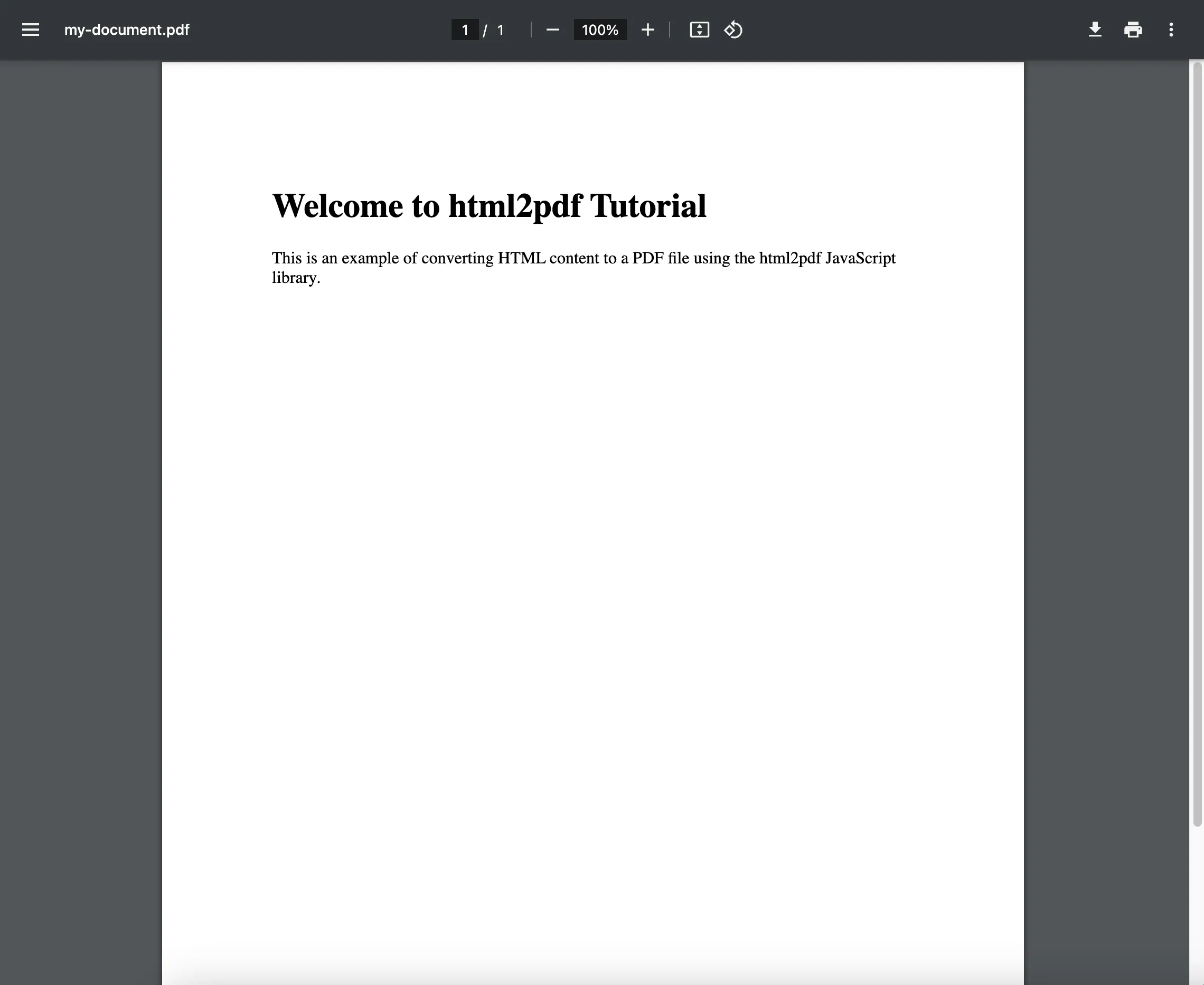
<div>with some text and basic styling:<!DOCTYPE html><html><head><meta charset="utf-8" /><meta http-equiv="X-UA-Compatible" content="IE=edge" /><title>HTML to PDF Using html2pdf</title><metaname="viewport"content="width=device-width, initial-scale=1"/><!-- html2pdf CDN link --><scriptsrc="https://cdnjs.cloudflare.com/ajax/libs/html2pdf.js/0.12.1/html2pdf.bundle.min.js"integrity="sha512-D25Z8/1q2z65ZpJ3NzY6XiPZfwjhbv34OTQHDIZd+KPK+uWCovGt+fMkSzW8ArzCMFUgZt6Cdu7qoXNuy6a2GA=="crossorigin="anonymous"referrerpolicy="no-referrer"></script></head><body><div id="content"><h1 id="my-element">Welcome to html2pdf Tutorial</h1><p>This is an example of converting HTML content to a PDF fileusing the html2pdf JavaScript library.</p></div><script src="index.js"></script></body></html>Create a JavaScript file (e.g.
index.js). Select the HTML element to convert using a DOM selector. To convert the entire page, usedocument.documentElement(opens in a new tab):const element = document.documentElement;This selects the
<html>element and all its children. To convert only a specific part of the page, target an element by ID or class:const element = document.querySelector('#my-element');This selects the element with the ID
my-element.Configure conversion options such as file name, paper size, page orientation, margins, and image quality:
const options = {filename: 'my-document.pdf',margin: 1,image: { type: 'jpeg', quality: 0.98 },html2canvas: { scale: 2 },jsPDF: { unit: 'in', format: 'letter', orientation: 'portrait' },};This names the output
'my-document.pdf', uses JPEG images at 98 percent quality, and passes additional settings to html2canvas and jsPDF.Call
html2pdf()to run the conversion and save the PDF:html2pdf().set(options).from(element).save();Here’s the complete
index.js:index.js const element = document.getElementById('content');const options = {filename: 'my-document.pdf',margin: 1,image: { type: 'jpeg', quality: 0.98 },html2canvas: { scale: 2 },jsPDF: { unit: 'in', format: 'letter', orientation: 'portrait' },};html2pdf().set(options).from(element).save();Open the HTML file in Chrome, Firefox, or Edge. The browser downloads the PDF automatically.
Customization examples
Below are two common PDF configuration adjustments.
- Example 1: Set page size and orientation
Choose from standard page sizes (e.g. A4, letter) and set the orientation (portrait or landscape):
const options = { jsPDF: { unit: 'mm', format: 'a4', orientation: 'landscape' },};- Example 2: Control page breaks
const options = { jsPDF: { unit: 'in', format: 'letter', orientation: 'portrait' }, pagebreak: { mode: 'avoid-all', before: '#page2el' },};html2pdf.js provides many more configuration options(opens in a new tab) in its documentation.
Multipage documents with page breaks
html2pdf.js respects CSS break-before, break-after, and break-inside rules. You can also add the html2pdf__page-break class to force a break after any element:
<div id="report"> <section> <h2>Page 1 content</h2> <p>First page text here...</p> </section> <div class="html2pdf__page-break"></div> <section> <h2>Page 2 content</h2> <p>Second page text here...</p> </section></div>html2pdf() .set({ margin: 10, filename: 'report.pdf', pagebreak: { mode: ['avoid-all', 'css', 'legacy'] }, jsPDF: { unit: 'mm', format: 'a4', orientation: 'portrait' }, }) .from(document.getElementById('report')) .save();The pagebreak.mode array tells html2pdf.js to respect CSS break rules and the legacy html2pdf__page-break class, and to avoid splitting elements across pages.
Using html2pdf.js with React
Use useRef to reference the DOM element and trigger the conversion from an event handler:
import { useRef } from 'react';import html2pdf from 'html2pdf.js';
function Invoice() {  const ref = useRef();
  const downloadPDF = () => {    html2pdf()      .set({        margin: 10,        filename: 'invoice.pdf',        html2canvas: { scale: 2 },        jsPDF: { unit: 'mm', format: 'a4' },      })      .from(ref.current)      .save();  };
  return (    <>      <div ref={ref}>        <h1>Invoice #1234</h1>        <p>Amount due: $150.00</p>      </div>      <button onClick={downloadPDF}>Download PDF</button>    </>  );}
Install with npm install html2pdf.js. The library accesses the DOM directly via the ref, so it works with any React setup (Vite, Next.js client components, Create React App).
Troubleshooting common issues
| Problem | Cause | Fix |
|---|---|---|
| Blank PDF | Element not in DOM when html2pdf() runs | Wrap in setTimeout or call after DOMContentLoaded. Verify the selector returns an element. |
| Blurry or pixelated text | Default html2canvas.scale is 1 (low resolution) | Set html2canvas: { scale: 2 } or higher. This increases canvas resolution. |
| Content cut off | Margins too large or element overflows page | Reduce margin, or set html2canvas: { scrollY: 0, scrollX: 0 } to capture from the top. |
| Page breaks in wrong places | Missing page break configuration | Add pagebreak: { mode: ['avoid-all', 'css', 'legacy'] } and use CSS break-before: page or the html2pdf__page-break class. |
| Images missing | Cross-origin images blocked by html2canvas | Set html2canvas: { useCORS: true } or host images on the same domain. |
| Large file size | High-resolution canvas and JPEG quality | Lower html2canvas.scale to 1.5 or reduce image.quality (e.g. 0.8). |
| Non-selectable text | html2pdf.js renders the page as an image, not as vector text | This is by design. For selectable text, use either jsPDF directly or a server-side tool like Playwright. |
When to use html2pdf.js (and when not to)
html2pdf.js is a good fit when:
- You need client-side PDF generation with no backend.
- The document is simple — text, images, basic tables.
- You want minimal setup — one CDN script, no build step required.
Consider alternatives when:
- You need selectable, searchable text in the PDF — html2pdf.js renders pages as images. Use jsPDF (programmatic) or Playwright (server-side) instead.
- Your HTML uses complex CSS (flexbox, grid,
position: sticky) — html2canvas doesn’t fully support these. Use Playwright or Nutrient’s HTML-to-PDF API for full CSS3 rendering. - The document is large (50+ pages) — browser memory limits apply. Use a server-side solution.
- You need fillable forms, signatures, or annotations — these require a document SDK like Nutrient.
Converting HTML to PDF with Nutrient
If you need full CSS3 support, selectable text, fillable forms, or server-side generation, Nutrient’s HTML-to-PDF API handles HTML-to-PDF conversion as a cloud service — no browser binary or local rendering engine required.
Quick example: Convert an HTML file to PDF (Node.js)
// This code requires Node.js. Do not run this code directly in a web browser.
const axios = require('axios')const FormData = require('form-data')const fs = require('fs')
const formData = new FormData()formData.append('html', fs.createReadStream('index.html'))
;(async () => {  try {    const response = await axios.post('https://api.nutrient.io/processor/generate_pdf', formData, {      headers: formData.getHeaders({        'Authorization': 'Bearer your_api_key_here'      }),      responseType: "stream"    })
    response.data.pipe(fs.createWriteStream("result.pdf"))  } catch (e) {    const errorString = await streamToString(e.response.data)    console.log(errorString)  }})()
function streamToString(stream) {  const chunks = []  return new Promise((resolve, reject) => {    stream.on("data", (chunk) => chunks.push(Buffer.from(chunk)))    stream.on("error", (err) => reject(err))    stream.on("end", () => resolve(Buffer.concat(chunks).toString("utf8")))  })}
Using Document Engine (self-hosted)
If you need to keep documents on your own infrastructure, Document Engine provides the same HTML-to-PDF conversion as a self-hosted API:
curl -X POST http://localhost:5000/api/build \ -H "Authorization: Token token=<API token>" \ -F page.html=@index.html \ -F instructions='{ "parts": [{ "html": "page.html" }] }' \ -o result.pdfDocument Engine renders HTML with a full browser engine, so flexbox, grid, custom fonts, and @media print rules all work. It also converts HTML form elements into fillable PDF fields.
html2pdf.js vs. Nutrient
| html2pdf.js | Nutrient | |
|---|---|---|
| Runs in | Browser | Cloud API or self-hosted server |
| CSS support | Limited (html2canvas) | Full CSS3 (browser engine) |
| Text output | Image-based (not selectable) | Vector text (selectable, searchable) |
| Forms | Not supported | HTML forms → fillable PDF fields |
| Setup | One script tag | API key and HTTP request |
| Cost | Free | Free tier(opens in a new tab), then pay-per-use |
Start with 50 free credits(opens in a new tab) — no commitment required.
Other alternatives
- Puppeteer / Playwright — Node.js libraries that launch a headless browser and call
page.pdf(). Full CSS3 support, selectable text, server-side rendering. Heavier to deploy but more capable. See our top JavaScript PDF libraries post. - jsPDF(opens in a new tab) — Client-side like html2pdf.js, but you build the PDF programmatically instead of rendering HTML. Produces vector text (selectable and searchable), but no HTML input — you position elements with code.
- wkhtmltopdf(opens in a new tab) — Command-line tool using WebKit to convert HTML to PDF. Supports headers, footers, and page numbering, but requires server-side installation. See our HTML to PDF in C# using wkhtmltopdf post.
Conclusion
html2pdf.js is the fastest way to generate a PDF from HTML in the browser — no server, no build step, one script tag. It works well for simple documents like invoices, receipts, and reports. For complex CSS layouts, selectable text, or production-scale generation, use Playwright (server-side) or Nutrient’s API.
If you’re weighing html2pdf.js against other options, HTML to PDF in JavaScript: Five libraries compared provides code examples and a full tradeoff breakdown for html2pdf.js, jsPDF, pdfmake, Playwright, and Nutrient.
Related reading
- HTML in PDF format: Five conversion methods — Browser print, online converters, and Python options alongside the JavaScript approach used here
FAQ
html2pdf.js is a client-side JavaScript library for converting HTML to PDF. It uses html2canvas to render the page as an image and jsPDF to create a downloadable PDF file — no server needed.
Include it via CDN or install it with npm install html2pdf.js. Then call html2pdf().from(element).set(options).save() to convert an HTML element into a PDF with optional customization.
Yes. You can configure filename, page size, margins, orientation, image type/quality, and more using the set() method and options like jsPDF and html2canvas settings.
It can struggle with large documents, dynamic or script-generated content, and complex CSS layouts. Since rendering is image-based, output may lose fidelity or appear blurry on high-resolution screens.
Nutrient offers HTML-to-PDF generation through a cloud API, SDKs, and no-code tools. Unlike html2pdf.js, Nutrient supports server-side rendering, pixel-perfect layouts, embedded fonts, forms, and enterprise features like security and compliance.
Use html2pdf.js for fast, simple, client-side exports. Choose Nutrient when you need high fidelity, support for large documents, or production-grade PDF output with full customization and backend integration.
Send a POST request to https://api.nutrient.io/processor/generate_pdf with your HTML file as a multipart form field named html and an Authorization: Bearer <API_KEY> header. The API returns a PDF stream. See the Nutrient section above for a complete Node.js example.
Yes. Nutrient uses a full browser rendering engine, so flexbox, grid, @media print rules, custom fonts, and other CSS3 features render accurately. html2pdf.js uses html2canvas, which has limited CSS support.
Yes. Nutrient Document Engine converts HTML form elements — text inputs, checkboxes, dropdowns — into interactive fillable PDF fields. This isn’t possible with html2pdf.js or other client-side libraries.
Yes. Nutrient offers 50 free credits(opens in a new tab) with no commitment. Each HTML-to-PDF conversion costs 1 credit. After the free tier, pricing is pay-per-use.