How to convert PDF to Markdown in Python

Table of contents
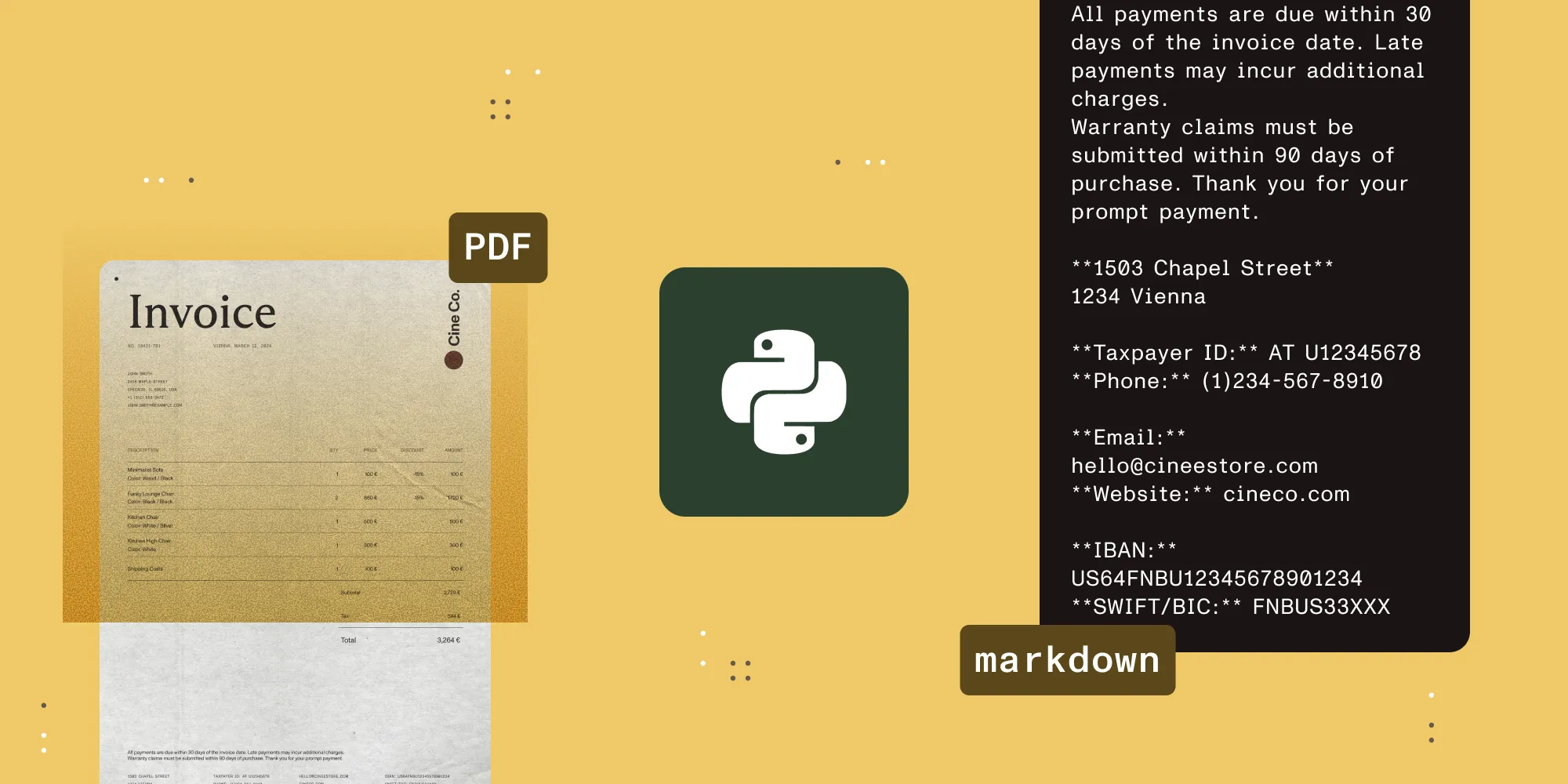
Nutrient provides two ways to convert PDF to Markdown in Python. Use Nutrient Python SDK to process files in your own environment, or call the cloud-based Nutrient Document Web Services (DWS) Processor API from any Python application. This tutorial includes complete examples for both approaches, plus DWS options for selected pages and scanned PDFs.
Markdown is a common input format for large language model (LLM) and static-site workflows because it combines plain text with lightweight structure. Raw PDF extraction can lose relationships between headings, lists, tables, and body text. Converting a PDF to Markdown gives downstream tools a structured text representation of the document.
Choose between Nutrient Python SDK and DWS
Choose based on where the files should be processed. Nutrient Python SDK runs in your environment, while Nutrient DWS Processor API runs in Nutrient’s cloud.
| Approach | Where processing runs | Setup | Best for |
|---|---|---|---|
| Nutrient Python SDK | In your application environment | Install nutrient-sdk and activate the SDK | Local or on-premises processing that keeps files in your environment |
| DWS Processor API | In Nutrient’s cloud | Install requests and use a DWS API key | Cloud and serverless workflows that call a REST API |
Part 1 — Convert PDF to Markdown with Nutrient Python SDK
Use the Python SDK when your application needs to process documents in its own environment. The SDK exposes PDF-to-Markdown conversion through Document.export_as_markdown().
Install Nutrient Python SDK
The Python SDK requires Python 3.8 or higher. Install the nutrient-sdk package:
python -m pip install nutrient-sdkPlace the source PDF in the working directory and name it document.pdf.
Convert the PDF with the Python SDK
Create convert_with_sdk.py and add the following code. The example activates trial mode, opens the source PDF, and exports it to result.md:
from nutrient_sdk import Document, License, NutrientException

def main():    try:        # Register an empty key for trial mode, or use your license key.        License.register_key("")
        with Document.open("document.pdf") as document:            document.export_as_markdown("result.md")
        print("Successfully converted document.pdf to result.md")    except NutrientException as error:        raise SystemExit(f"Conversion failed: {error}") from error

if __name__ == "__main__":    main()
Run the script:
python convert_with_sdk.pyThe SDK writes the Markdown to result.md. Replace the empty string in License.register_key() with your license key for licensed use. The Python SDK PDF-to-Markdown guide provides additional implementation details and a downloadable sample.
Convert PDFs to Markdown in your own Python environment.
Part 2 — Convert PDF to Markdown with Nutrient DWS Processor API
Use DWS when your Python application can send documents to a cloud API. The /build endpoint accepts the source PDF and returns Markdown when output.type is markdown.
DWS prerequisites
- Python 3.8 or higher
- The
requestslibrary - A Nutrient DWS Processor API key (a free account(opens in a new tab) includes 50 credits per month)
Get a DWS API key
Create a free Nutrient account(opens in a new tab) and copy the API key from the dashboard.
Install requests
Install the requests library:
python -m pip install requestsPlace the source PDF in the working directory and name it document.pdf.
Convert the PDF with DWS
Create convert_with_dws.py and add the following code. It posts the PDF to the /build endpoint, sets the output type to markdown, and streams the result to result.md:
import sys
import requestsimport json
response = requests.request(  'POST',  'https://api.nutrient.io/build',  headers = {    'Authorization': 'Bearer your_api_key_here'  },  files = {    'file': open('document.pdf', 'rb')  },  data = {    'instructions': json.dumps({      'parts': [        {          'file': 'file'        }      ],      'output': {        'type': 'markdown'      }    })  },  stream = True)
if response.ok:  with open('result.md', 'wb') as fd:    for chunk in response.iter_content(chunk_size=8192):      fd.write(chunk)else:  print(response.text)  sys.exit(1)
Replace your_api_key_here with the key from the DWS dashboard.
Run the DWS script
Run the script:
python convert_with_dws.pyThe API returns the Markdown, and the script writes it to result.md in the working directory.
For a document with a heading, a paragraph, and a cleanly structured table, result.md looks like this:
# Quarterly report
Revenue grew across all regions.
| Region | Revenue || ------ | ------- || EMEA   | $1.2M   || AMER   | $2.4M   |
Headings and lists come through as Markdown structure rather than fixed visual layout. Table fidelity depends on the source document: Cleanly structured tables convert to Markdown table syntax, while simpler or loosely formatted ones may come back as plain text rows. For typed table cells, bounding boxes, or schema-shaped JSON, use the Data Extraction API instead.
How the request works
The /build endpoint takes a multipart request with two fields. The file field carries the PDF, and the instructions field is a JSON object describing the job: parts lists the input (referenced by the form field name file), and output.type set to markdown selects Markdown conversion. Streaming the response writes the output without holding the whole file in memory. The API allows 100 requests per minute per API key (test keys are limited to 10 per minute). Batch large jobs and add retries with exponential backoff.
Convert only selected pages with DWS
To convert a page range instead of the whole document, add a pages object to the part. Page indexes are zero-based, and the end value is inclusive, so the following converts the first three pages:
{ "parts": [ { "file": "file", "pages": { "start": 0, "end": 2 } } ], "output": { "type": "markdown" }}Convert scanned PDFs with DWS
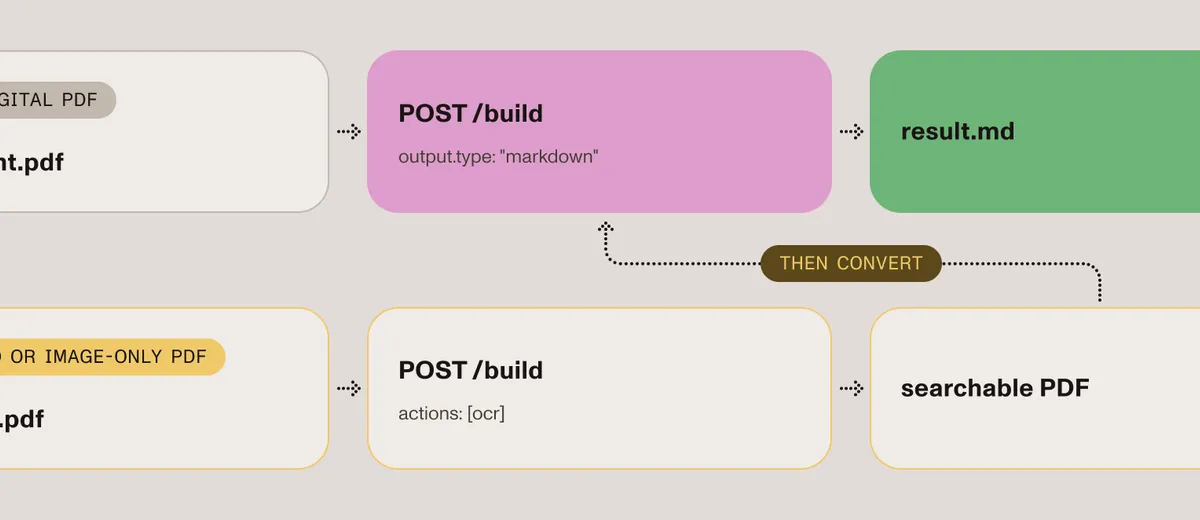
PDF-to-Markdown conversion works best with born-digital PDFs that already contain selectable text. For scanned or image-only PDFs, run optical character recognition (OCR) first to produce a searchable PDF. Then convert that result to Markdown.
The first request runs OCR with an actions step and no Markdown output — the response is a searchable PDF. The part’s "file" value must match the name of the multipart field that convert_with_dws.py uploads ('file' in this example):
# First request: OCR the scanned PDF into a searchable PDF.ocr_response = requests.request(  'POST',  'https://api.nutrient.io/build',  headers = {    'Authorization': 'Bearer your_api_key_here'  },  files = {    'file': open('scanned.pdf', 'rb')  },  data = {    'instructions': json.dumps({      'parts': [        {          'file': 'file'        }      ],      'actions': [        {          'type': 'ocr',          'language': 'english'        }      ]    })  })
if ocr_response.ok:  with open('searchable.pdf', 'wb') as fd:    fd.write(ocr_response.content)else:  print(ocr_response.text)  sys.exit(1)
Then run convert_with_dws.py against searchable.pdf. The second /build request with output.type set to markdown completes the flow. The PDF-to-Markdown API guide documents the full OCR-then-convert flow.
When to use the Data Extraction API instead
Processor API Markdown is the right tool when Markdown is simply the output format of a conversion. For retrieval-augmented generation (RAG)-grade extraction — layout-aware structure, tables and key-value pairs, bounding boxes, schema-shaped JSON, or citations and confidence scores — use the Data Extraction API. The engine tradeoffs are compared in Document AI vs. traditional OCR.
Start a free trial Talk to our teamFAQ
Yes. Nutrient Python SDK processes the PDF in your application environment and exports Markdown with Document.export_as_markdown(). DWS is the cloud alternative for applications that call a REST API.
Markdown represents headings, lists, and tables with explicit text syntax. This gives text-based LLM pipelines a more predictable structure to parse than unstructured PDF text.
Conversion works best on born-digital PDFs with selectable text. For scanned or image-only PDFs, run OCR first to create a searchable PDF. Then convert that result to Markdown.
The Processor API produces Markdown as an output format in a conversion workflow. The Data Extraction API adds layout-aware, RAG-grade extraction — typed elements, tables, bounding boxes, schema-shaped JSON, and confidence scores.
Yes. Add a zero-based pages range to the part. The end value is inclusive, so a range of 0–2 converts the first three pages.
To run the same conversion from Claude without writing code, read about teaching LLMs to read PDFs or use the PDF-to-Markdown skill.