How to convert PDF to JPG using JavaScript

Table of contents
Convert PDF to JPG using JavaScript (Node.js) and Nutrient DWS Processor API. Create a free account, get API credentials, and implement conversion using axios and form-data. Combine with 30+ other API tools for merging, OCR, and watermarking.
Convert PDF files to JPG images using Nutrient DWS Processor’s PDF-to-JPG JavaScript API. The free plan includes 50 credits. Different operations consume different amounts of credits. Create a free account(opens in a new tab) to get your API key.
Why convert PDF to JPG?
Converting PDF files to JPG is essential for workflows requiring image formats. Common use cases include:
- Web optimization — Convert PDFs to JPG for faster page loading and better web compatibility, especially for document previews and galleries.
- Thumbnail generation — Create preview images for document management systems, file browsers, and content libraries.
- Image processing pipelines — Extract pages as images for OCR, computer vision analysis, or machine learning workflows.
- Social media sharing — Convert documents to shareable image formats for platforms that don’t support PDF embedding.
- Archive and preview — Generate lightweight previews of PDF documents without requiring full PDF rendering capabilities.
The PDF-to-JPG API automates this process in your workflow.
Nutrient DWS Processor API
Converting PDF to JPG is one of 30+ operations available through our PDF API tools. Combine PDF-to-JPG conversion with other tools for complex workflows:
- Converting various file formats and extracting pages as images
- Converting PDFs to images after watermarking and flattening
- Processing PDFs with page manipulation before image export
Your account includes access to all PDF API tools.
Step 1 — Creating a free account on Nutrient
Go to the signup page(opens in a new tab) to create your free account.
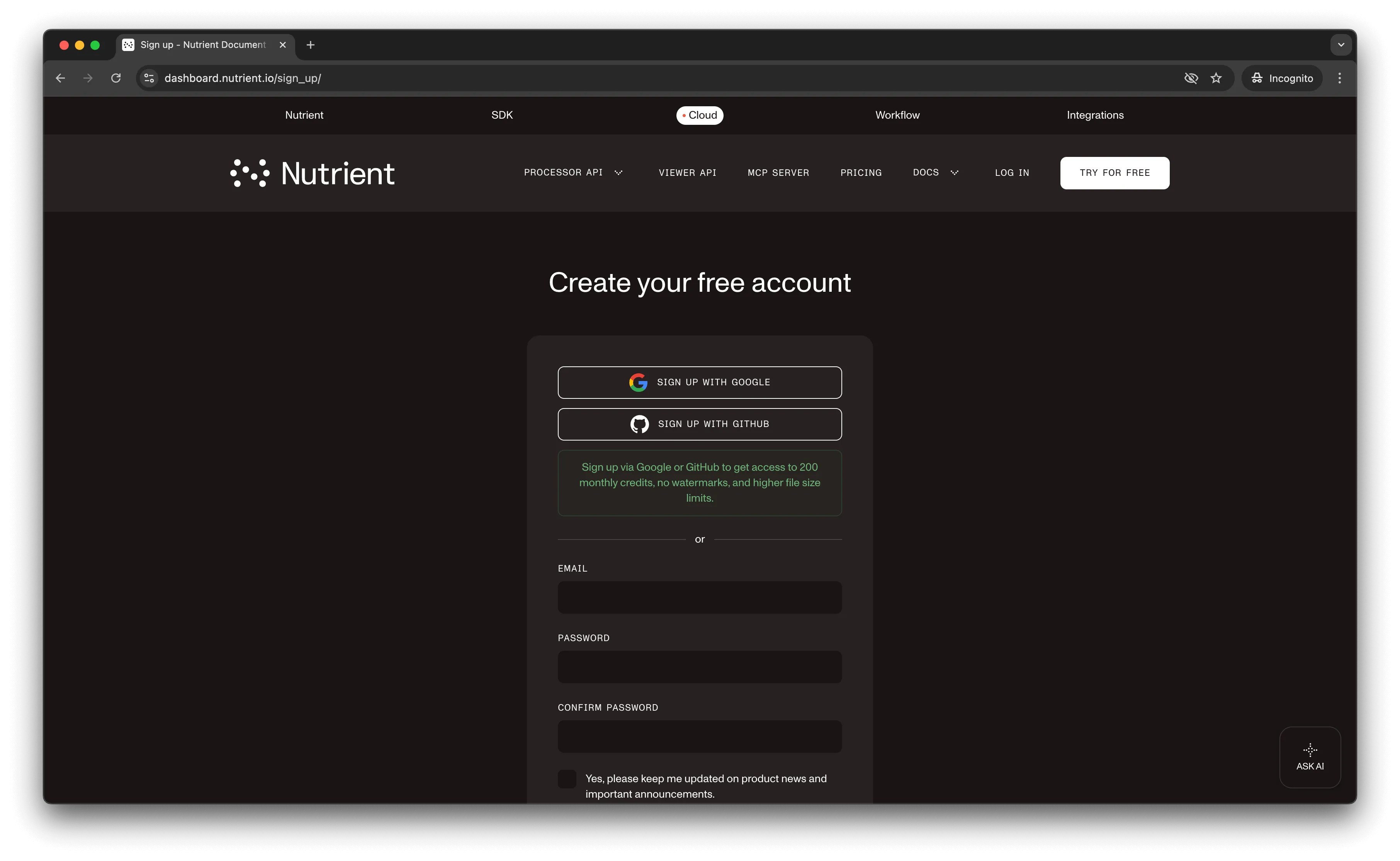
After account creation, the dashboard shows your plan details.
You start with 50 credits and access to all PDF API tools.
Step 2 — Obtaining the API key
After email verification, get your API key from the dashboard. Click API keys in the left menu to see your keys.
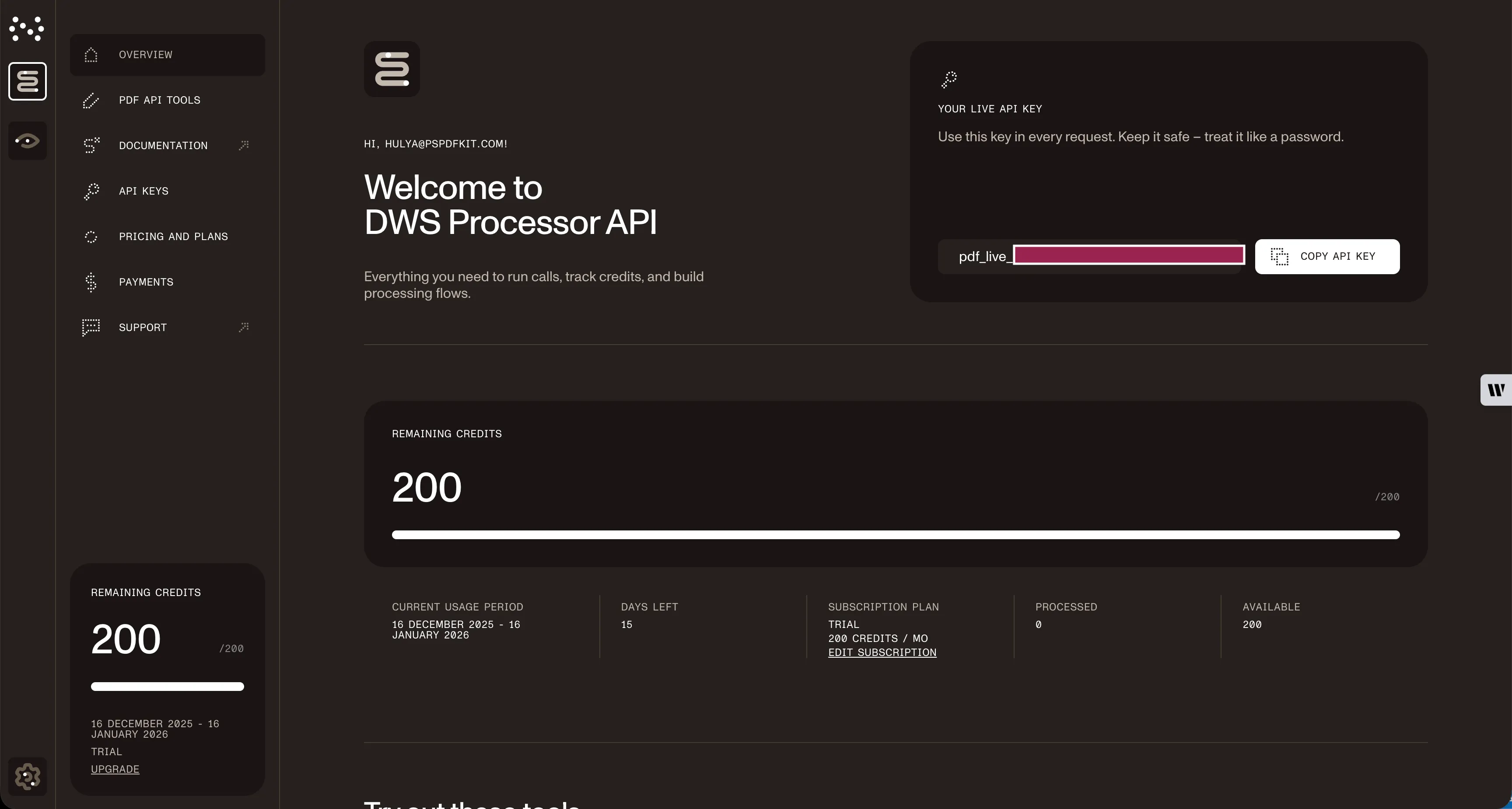
Copy the Live API key for the PDF-to-JPG API.
Step 3 — Setting up folders and files
Create a folder called pdf_to_jpg and open it in a code editor. This tutorial uses VS Code. Create two folders inside pdf_to_jpg: input_documents and processed_documents.
Copy your PDF file to the input_documents folder and rename it to document.pdf. Use the demo document if needed.
In the root folder, pdf_to_jpg, create a file called processor.js for your code.
Folder structure:
pdf_to_jpg├── input_documents| └── document.pdf├── processed_documents└── processor.jsStep 4 — Installing dependencies
This tutorial requires Node.js 14+ installed on your system.
Install these dependencies:
- axios(opens in a new tab) — For making REST API calls
- Form-Data(opens in a new tab) — For creating form data
Install both packages:
npm install axiosnpm install form-dataStep 5 — Writing the code
Open the processor.js file and add this code:
// This code requires Node.js. Do not run this code directly in a web browser.
const axios = require('axios')const FormData = require('form-data')const fs = require('fs')
const formData = new FormData()formData.append('instructions', JSON.stringify({  parts: [    {      file: "document"    }  ],  output: {    type: "image",    format: "jpg",    dpi: 500  }}))formData.append('document', fs.createReadStream('input_documents/document.pdf'))
;(async () => {  try {    const response = await axios.post('https://api.nutrient.io/build', formData, {      headers: formData.getHeaders({        'Authorization': 'Bearer YOUR_API_KEY_HERE'      }),      responseType: "stream"    })
    response.data.pipe(fs.createWriteStream("processed_documents/image.jpg"))  } catch (e) {    const errorString = await streamToString(e.response.data)    console.log(errorString)  }})()
function streamToString(stream) {  const chunks = []  return new Promise((resolve, reject) => {    stream.on("data", (chunk) => chunks.push(Buffer.from(chunk)))    stream.on("error", (err) => reject(err))    stream.on("end", () => resolve(Buffer.concat(chunks).toString("utf8")))  })}
Make sure to replace YOUR_API_KEY_HERE with your API key.
Code explanation
The formData variable contains instructions for the API. createReadStream reads the input PDF file from the input_documents folder. The axios.post() function makes the POST request to the PDF-to-JPG API.
The response is saved to image.jpg in the processed_documents folder.
This code requires Node.js and won’t run in a browser environment.
Output
Run the code:
node processor.jsAfter execution, you’ll find image.jpg in the processed_documents folder.
Final folder structure:
pdf_to_jpg├── input_documents| └── document.pdf├── processed_documents| └── image.jpg└── processor.jsAdditional resources
Explore more ways to work with Nutrient API:
- Postman collection — Test API endpoints directly in Postman
- Zapier integration — Automate document workflows without code
- MCP Server — PDF automation for LLM applications
- JavaScript client — Official JavaScript/TypeScript library
Conclusion
This post covered PDF-to-JPG conversion using the JavaScript API.
Integrate these functions into your existing applications. The same API token works for other operations like merging documents, adding watermarks, and more. Sign up(opens in a new tab) for a free trial.
FAQ
No. This code uses Node.js features like fs.createReadStream and requires the axios and form-data packages. It must run on a Node.js server. For browser-based conversion, use our Web SDK or make API calls from your backend.
Node.js 14 or higher is required. The code uses modern JavaScript features, including async/await and native promises. Check your version with node --version.
Use the dpi parameter in the output configuration. The example uses 500 DPI for high quality. Standard web images use 72–150 DPI, while print requires 300+ DPI. Higher DPI values create larger files with better image quality.
Yes. The Nutrient JavaScript client provides a higher-level interface for API operations. While this tutorial uses direct HTTP requests with axios for transparency, the JavaScript client simplifies authentication, error handling, and response parsing for production applications.