How to convert PDF to JPG using PHP

Table of contents
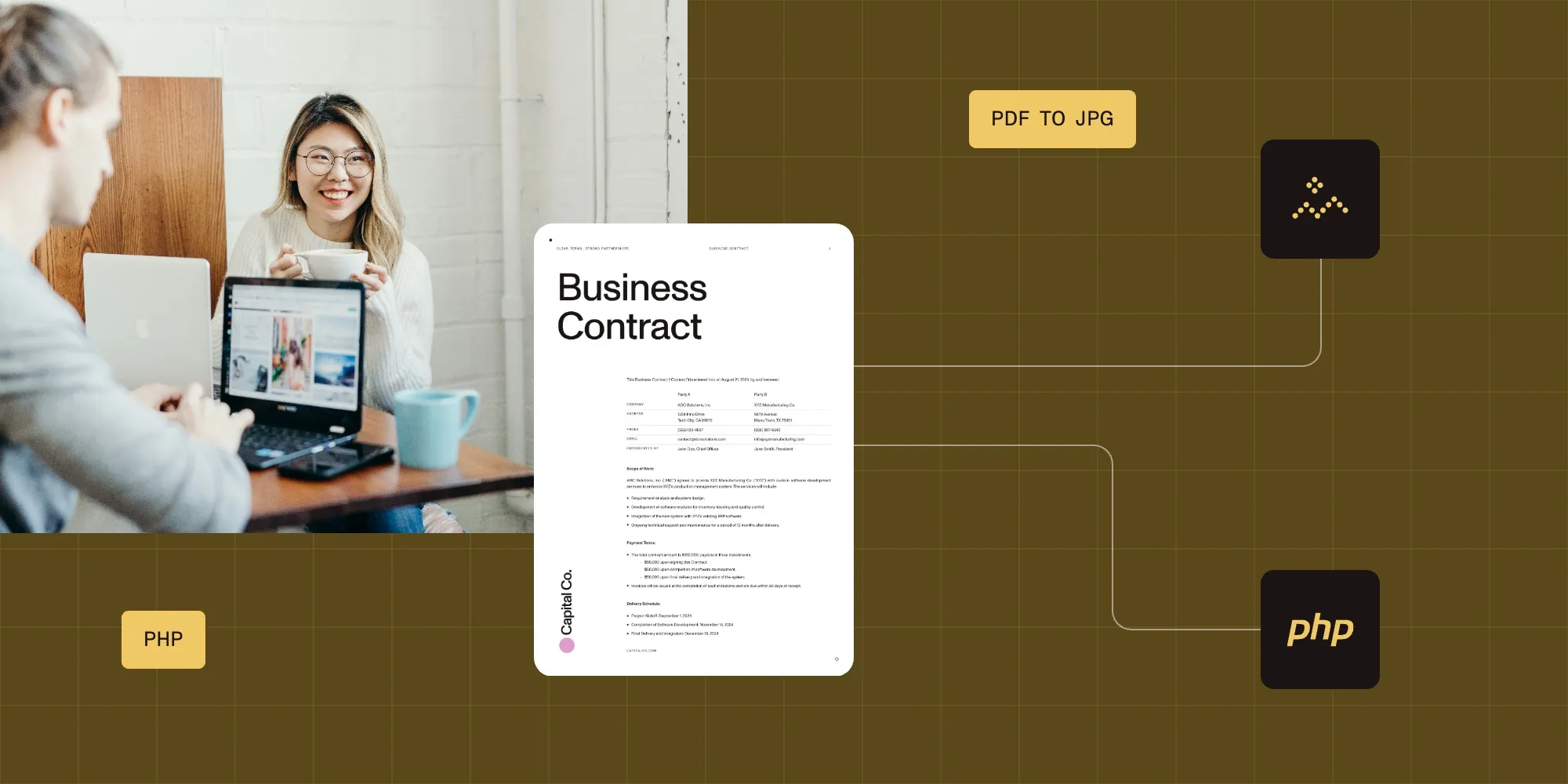
Convert PDF to JPG using PHP and Nutrient DWS Processor API. Create a free account, get API credentials, and implement conversion using cURL. Combine with 30+ other API tools for merging, OCR, and watermarking.
This tutorial shows how to convert PDF files to JPG images using Nutrient DWS Processor’s PDF-to-JPG PHP API. The free plan includes 50 credits. Different operations consume different amounts of credits. Create a free account(opens in a new tab) to get your API key.
Why convert PDF to JPG?
Converting PDF files to JPG is essential for workflows requiring image formats. Common use cases include:
- Web optimization — Convert PDFs to JPG for faster page loading and better web compatibility, especially for document previews and galleries.
- Thumbnail generation — Create preview images for document management systems, file browsers, and content libraries.
- Image processing pipelines — Extract pages as images for OCR, computer vision analysis, or machine learning workflows.
- Social media sharing — Convert documents to shareable image formats for platforms that don’t support PDF embedding.
- Archive and preview — Generate lightweight previews of PDF documents without requiring full PDF rendering capabilities.
The PDF-to-JPG API automates this process in your workflow.
Nutrient DWS Processor API
Converting PDF to JPG is one of 30+ operations available through our PDF API tools. Combine PDF-to-JPG conversion with other tools for complex workflows:
- Converting various file formats and extracting pages as images
- Converting PDFs to images after watermarking and flattening
- Processing PDFs with page manipulation before image export
Your account includes access to all PDF API tools.
Step 1 — Creating a free account on Nutrient
Go to the signup page(opens in a new tab) to create your free account.
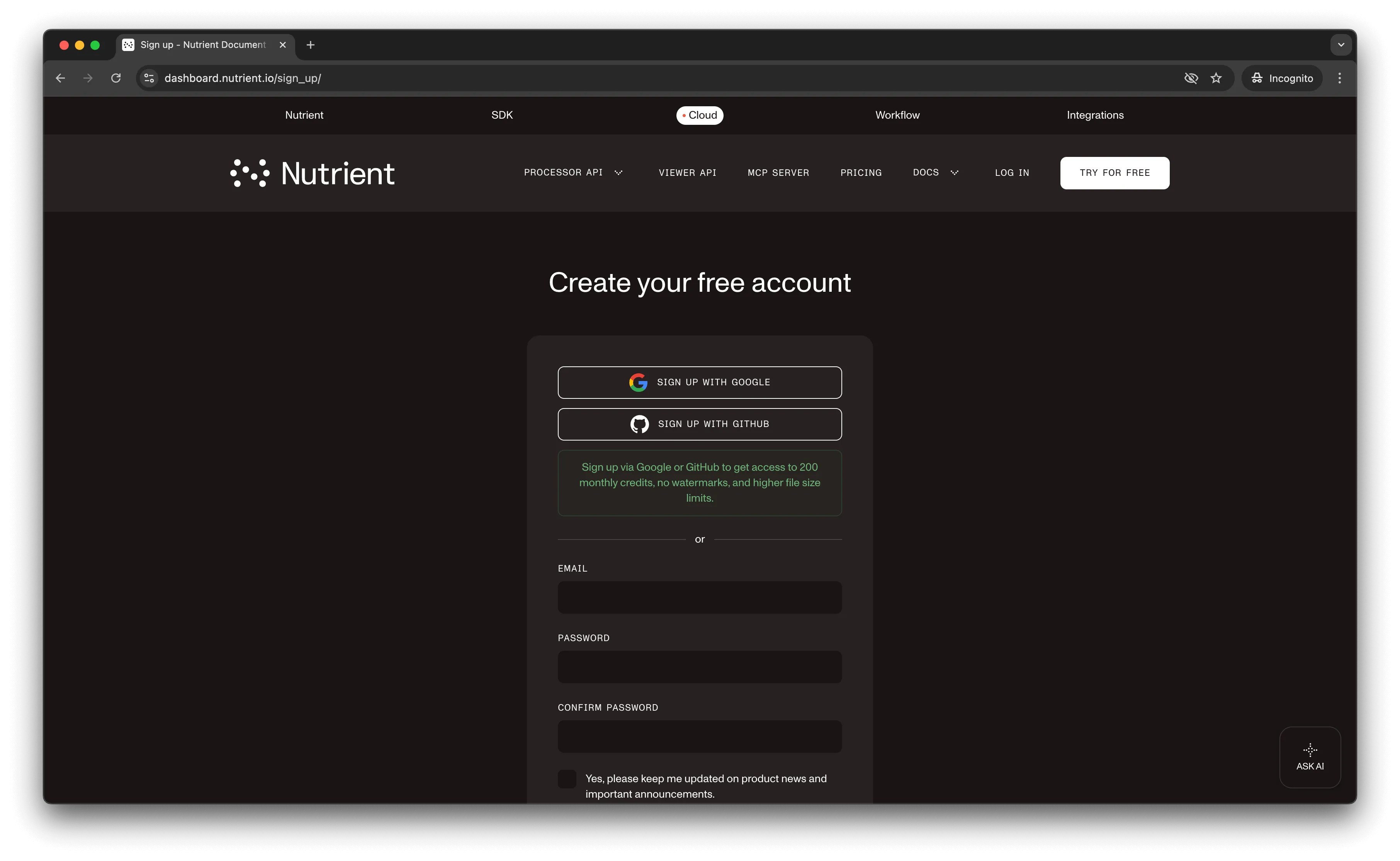
After account creation, the dashboard shows your plan details.
You start with 50 credits and access to all PDF API tools.
Step 2 — Obtaining the API key
After email verification, get your API key from the dashboard. Click API keys in the left menu to see your keys.
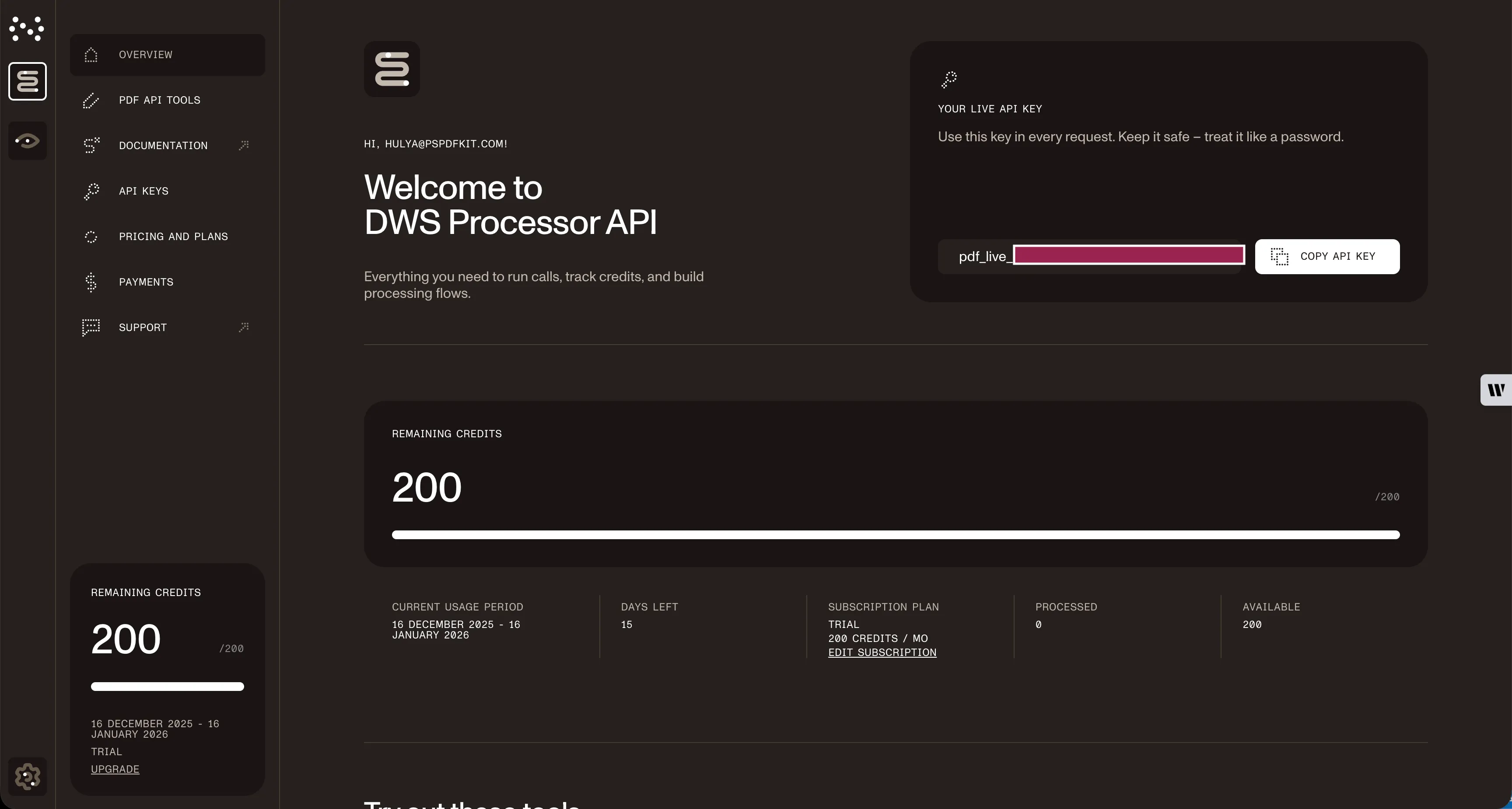
Copy the Live API key for the PDF-to-JPG API.
Step 3 — Setting up folders and files
Create a folder called pdf_to_jpg and open it in a code editor. Create two folders inside pdf_to_jpg: input_documents and processed_documents.
Copy your PDF file to the input_documents folder and rename it to document.pdf. Use the demo document if needed.
In the root folder, pdf_to_jpg, create a file called processor.php for your code.
Folder structure:
pdf_to_jpg├── input_documents| └── document.pdf├── processed_documents└── processor.phpStep 4 — Writing the code
Open the processor.php file and paste the code below into it:
<?php
$FileHandle = fopen('processed_documents/image.jpg', 'w+');
$curl = curl_init();
curl_setopt_array($curl, array(  CURLOPT_URL => 'https://api.nutrient.io/build',  CURLOPT_CUSTOMREQUEST => 'POST',  CURLOPT_RETURNTRANSFER => true,  CURLOPT_ENCODING => '',  CURLOPT_POSTFIELDS => array(    'instructions' => '{      "parts": [        {          "file": "document"        }      ],      "output": {        "type": "image",        "format": "jpg",        "dpi": 500      }    }',    'document' => new CURLFILE('input_documents/document.pdf')  ),  CURLOPT_HTTPHEADER => array(    'Authorization: Bearer YOUR_API_KEY_HERE'  ),  CURLOPT_FILE => $FileHandle,));
$response = curl_exec($curl);
curl_close($curl);
fclose($FileHandle);
Make sure to replace YOUR_API_KEY_HERE with your API key.
Code explanation
The code creates a FileHandle variable to save the file in the processed_documents folder.
The instructions variable stores API instructions as a JSON string. A CURL request processes the target file.
Output
Run this command:
php processor.phpAfter execution, image.jpg appears in the processed_documents folder.
Final folder structure:
pdf_to_jpg├── input_documents| └── document.pdf├── processed_documents| └── image.jpg└── processor.phpAdditional resources
Explore more ways to work with Nutrient API:
- Postman collection — Test API endpoints directly in Postman
- Zapier integration — Automate document workflows without code
- MCP Server — PDF automation for LLM applications
- PHP SDK — Official PHP library for Nutrient API
Conclusion
This tutorial covered PDF-to-JPG conversion using the PHP API.
The same API token works for other operations like merging documents, adding watermarks, and more. Sign up(opens in a new tab) for a free trial.
Related reading
- Enterprise PDF SDKs — How developer-first platforms compare to specialized tools for enterprise apps
- JavaScript PDF libraries — Comprehensive comparison of JavaScript PDF libraries
- Top five document viewers for developers — Compare DOCX and PDF viewer libraries side by side
FAQ
Yes. The API maintains high image quality during conversion. Control output quality using the dpi parameter (shown as 500 in the example). Higher DPI values create larger files with better quality. Standard web images use 72–150 DPI, while print requires 300+ DPI.
PHP 7.4+ is required. The tutorial uses the cURL extension for HTTP requests. Most PHP installations include cURL by default. Check with php -m | grep curl or phpinfo() to verify it’s enabled.
Check the cURL response code using curl_getinfo($curl, CURLINFO_HTTP_CODE). Common errors include 401 (invalid API key), 400 (malformed request), or 500 (server error). Add error handling to parse the response body for detailed error messages.
Yes. The API supports PNG, WebP, and TIFF formats. Change the format parameter in the output configuration. PNG supports transparency, WebP offers better compression, and TIFF is ideal for archival purposes.