How to convert TIFF files to PDF using PHP

Table of contents

Convert TIFF files to PDF using our TIFF-to-PDF PHP API. Create a free account, get API credentials, and implement conversion using cURL. Combine with 30+ other API tools for merging, OCR, and watermarking.
Convert TIFF files to PDF using our TIFF-to-PDF PHP API. Start with 50 free credits — no payment required. Different operations consume different credit amounts, so the number of PDF documents you can generate will vary. Create a free account(opens in a new tab) to get your API key.
Why convert TIFF to PDF?
Converting TIFF files to PDF is essential for document workflows that require standardized, shareable formats. Common use cases include:
- Universal compatibility — Convert TIFF images to PDFs that open on any device without specialized software, ensuring recipients can view documents regardless of platform.
- Reduced file sizes — Multipage TIFF files often compress better as PDFs, reducing storage costs and improving transfer speeds for document-heavy workflows.
- Enhanced security — Add password protection, digital signatures, and encryption when converting to PDF, securing sensitive scanned documents or medical records.
- Web integration — PDFs render consistently in browsers, while TIFFs require plugins or downloads, improving user experience for web-based document viewers.
- Archival compliance — Many industries require PDF/A format for long-term document preservation, making TIFF-to-PDF conversion critical for regulatory compliance.
The TIFF-to-PDF API automates this process in your workflow.
Nutrient DWS Processor API
Converting TIFF to PDF is one of 30+ operations available through our PDF API tools. Combine TIFF conversion with other tools for complex workflows:
- Converting various file formats and combining them into multi-source PDFs
- Converting TIFFs and then watermarking and flattening PDFs
- Converting images to PDF before merging them with other documents
Your account includes access to all PDF API tools.
Step 1 — Creating a free account on Nutrient
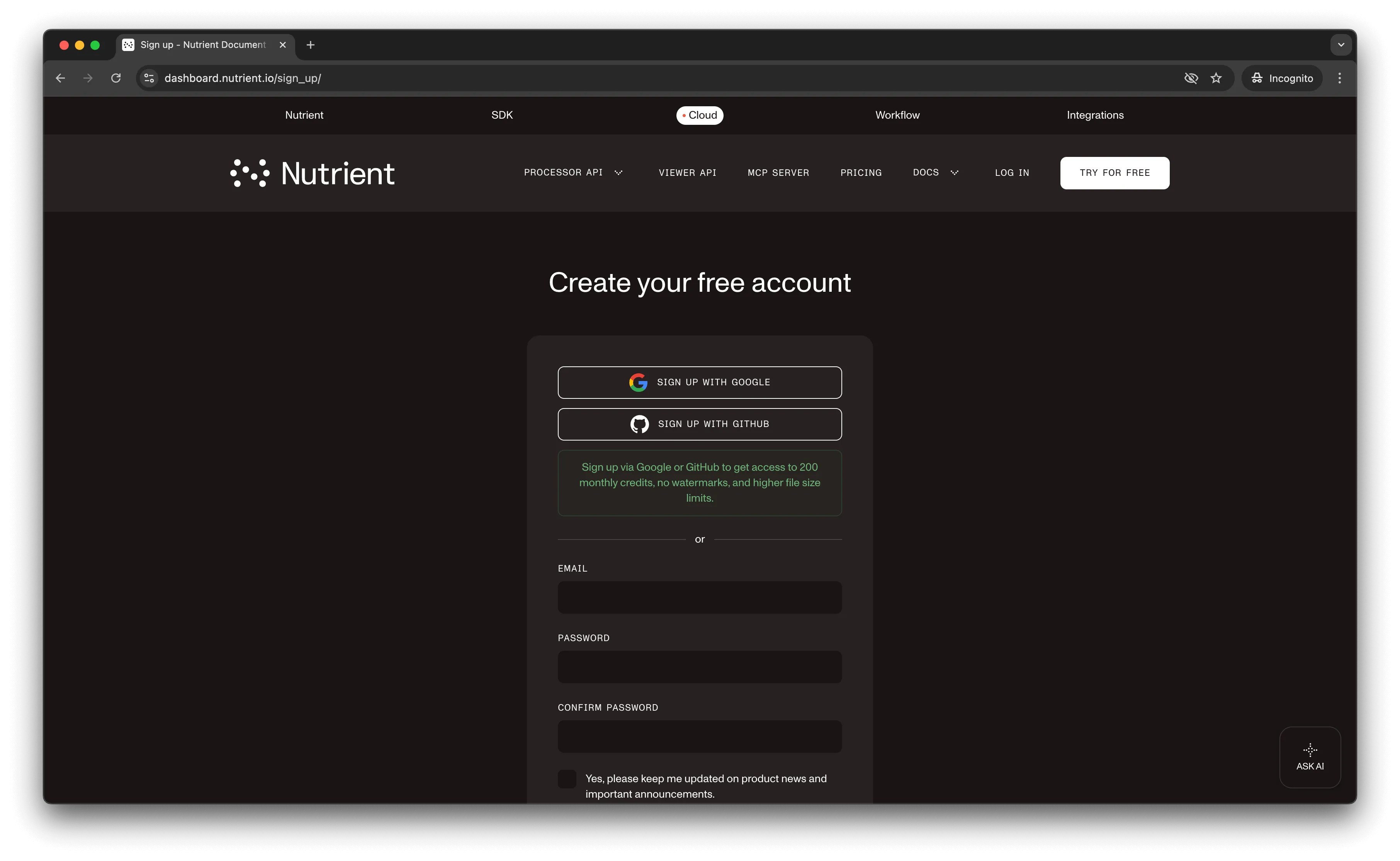
Go to our website(opens in a new tab), where you’ll see the page below, prompting you to create your free account.
Once you’ve created your account, you’ll see a page showing an overview of your plan details.
You’ll start with 50 credits to process and can access all our PDF API tools.
Step 2 — Obtaining the API key
After you’ve verified your email, you can get your API key from the dashboard. In the menu on the left, click API keys. You’ll see the following page, which is an overview of your keys.

Copy the Live API key — you’ll need it for the TIFF-to-PDF API.
Step 3 — Setting up folders and files
For this tutorial, use VS Code as your code editor. Create a folder called tiff_to_pdf and open it in VS Code. Create two folders inside tiff_to_pdf called input_documents and processed_documents.
Paste your TIFF file inside the input_documents folder and rename it to image.tiff. You can use our demo image as an example.
In the root folder, create a file called processor.php. This is the file where you’ll keep your code.
Your folder structure will look like this:
tiff_to_pdf├── input_documents| └── image.tiff├── processed_documents└── processor.phpStep 4 — Writing the code
This tutorial requires PHP 7.4+ with the cURL extension enabled.
Open the processor.php file and paste the code below into it:
<?php
$FileHandle = fopen('processed_documents/result.pdf', 'w+');
$curl = curl_init();
curl_setopt_array($curl, array(  CURLOPT_URL => 'https://api.nutrient.io/build',  CURLOPT_CUSTOMREQUEST => 'POST',  CURLOPT_RETURNTRANSFER => true,  CURLOPT_ENCODING => '',  CURLOPT_POSTFIELDS => array(    'instructions' => '{      "parts": [        {          "file": "file"        }      ]    }',    'file' => new CURLFILE('input_documents/image.tiff')  ),  CURLOPT_HTTPHEADER => array(    'Authorization: Bearer YOUR_API_KEY_HERE'  ),  CURLOPT_FILE => $FileHandle,));
$response = curl_exec($curl);
curl_close($curl);
fclose($FileHandle);
Make sure to replace your_api_key_here with your API key.
Code explanation
The code creates a FileHandle variable to save the processed PDF file in the processed_documents folder.
Then, it creates the instructions as a JSON string containing the conversion instructions. The code uses cURL to make an API call with the TIFF file attached. When the request succeeds, the PDF is written to result.pdf. Common errors include:
- 401 Unauthorized — Invalid or missing API key.
- 400 Bad Request — Incorrect file path or malformed instructions.
- 500 Internal Server Error — Check that cURL extension is enabled.
Output
To execute the code, run the command below:
php processor.phpOn successful execution, you’ll see the new PDF file in the processed_documents folder. The folder structure should look like this:
tiff_to_pdf├── input_documents| └── image.tiff├── processed_documents| └── result.pdf└── processor.phpAdditional resources
Explore more ways to work with Nutrient API:
- Postman collection — Test API endpoints directly in Postman
- Zapier integration — Automate document workflows without code
- MCP Server — PDF automation for LLM applications
- JavaScript SDK — Official JavaScript/TypeScript library
Conclusion
This tutorial showed how to convert TIFF files to PDF in PHP using our TIFF-to-PDF API.
Integrate TIFF conversion into your existing applications. Use the same API token for other operations like merging documents, adding watermarks, and more. Sign up(opens in a new tab) for a free trial.
FAQ
Yes. The API maintains the original TIFF image quality during conversion. Multipage TIFF files are automatically converted to multipage PDFs, with each page preserved at its original resolution and color depth.
You need the cURL extension to make API requests. Most PHP installations (5.5+) include cURL by default. Check with php -m | grep curl or phpinfo() to verify it’s enabled.
Yes. Upload multiple TIFF files with different parameter names and reference them in the parts array. This allows you to merge multiple TIFF images into one consolidated PDF document in a single API call.
Check the cURL response code and handle errors appropriately. Common issues include missing cURL extension, invalid API credentials, or file path errors. Use curl_getinfo($curl, CURLINFO_HTTP_CODE) to check the response status.