How to split PDFs using Java

Table of contents
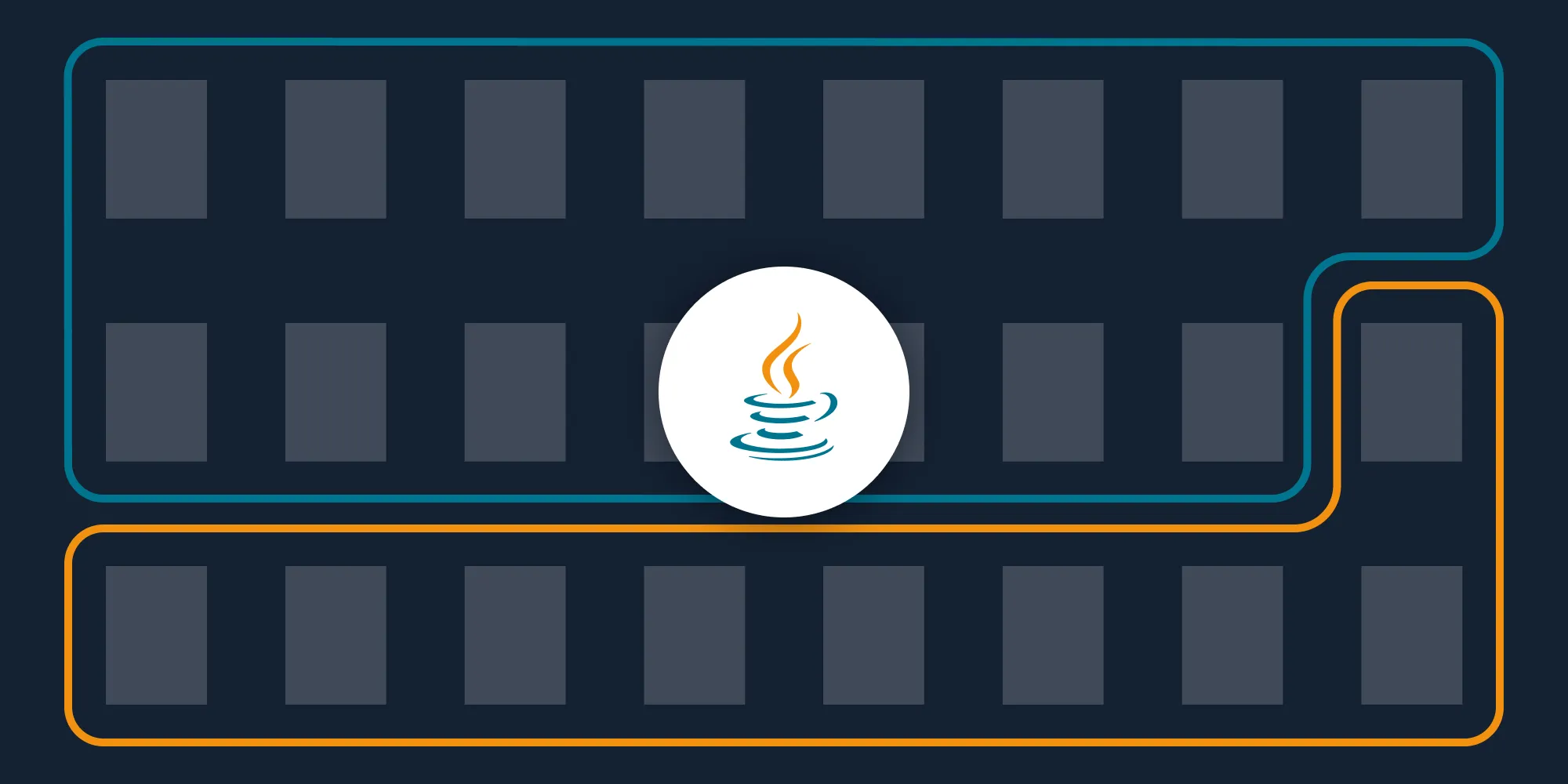
Split PDF documents using our split PDF Java API. Create a free account, get API credentials, and implement splitting using OkHttp and JSON libraries. Combine with 30+ other API tools for merging, watermarking, and page manipulation.
Split PDF files using our split PDF Java API. Start with 50 free credits — no payment required. Different operations consume different credit amounts, so the number of PDF documents you can generate will vary. Create a free account(opens in a new tab) to get your API key.
Splitting a PDF document is a common use case when working with PDFs and PDF forms because it enables logical archiving of information. A PDF splitting API automates the process of splitting documents in your workflow.
For example, a financial services company might receive a single PDF with clients’ personal and financial information, as well as a questionnaire. By integrating a PDF splitting API into the workflow, you can automatically split these documents into logical parts that can be stored separately.
Nutrient DWS Processor API
Document splitting is just one of our 30+ PDF API tools. You can combine our splitting tool with other tools to create complex document processing workflows, such as:
- Converting MS Office files and images into PDFs and splitting them
- Performing OCR on documents and splitting them
- Watermarking and flattening PDFs and splitting them
Step 1 — Creating a free account on Nutrient
Go to our website(opens in a new tab), where you’ll see the page below, prompting you to create your free account.
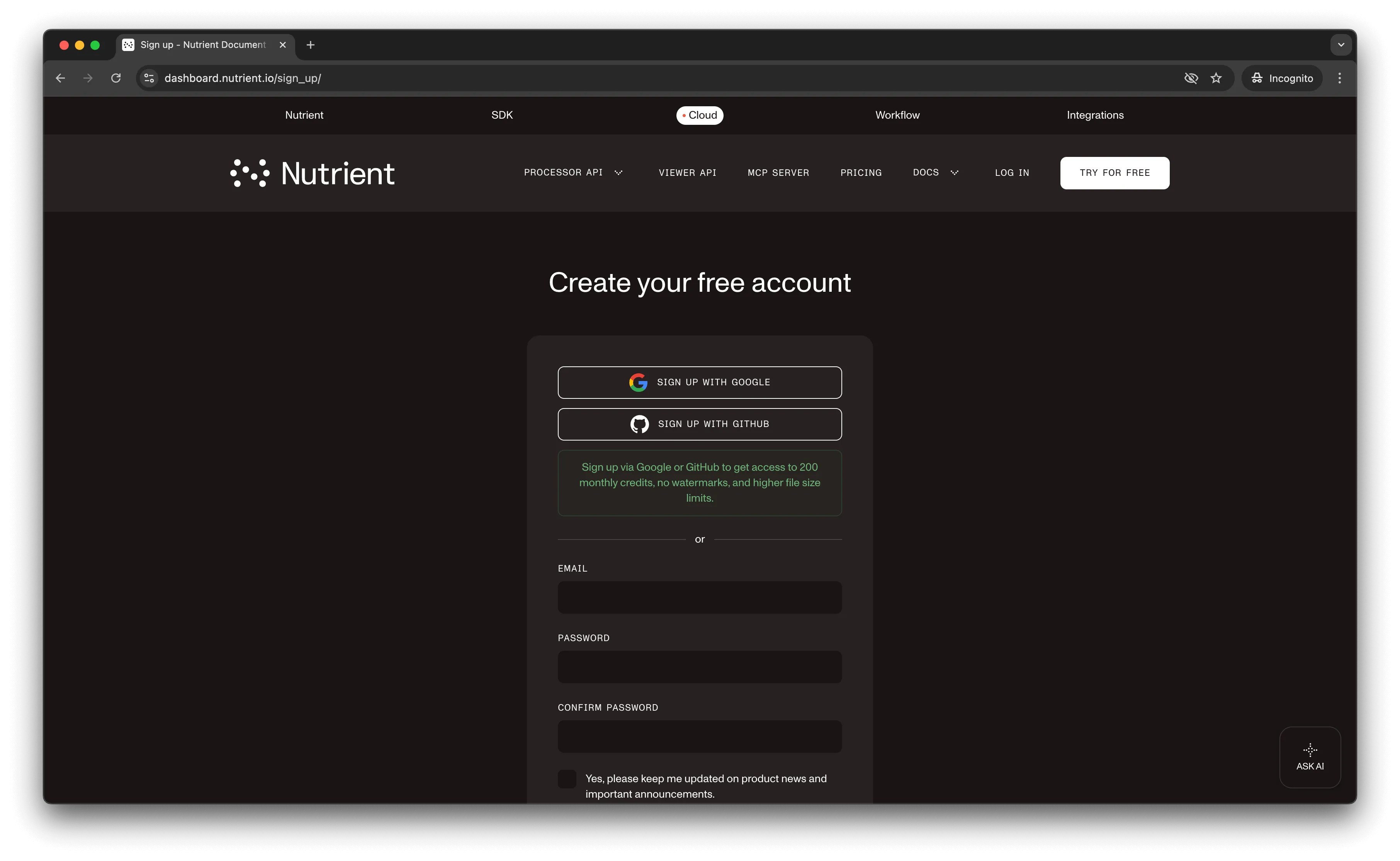
Once you’ve created your account, you’ll see a page showing an overview of your plan details.
You’ll start with 50 credits to process and can access all our PDF API tools.
Step 2 — Obtaining the API key
After you’ve verified your email, you can get your API key from the dashboard. In the menu on the left, click API keys. You’ll see the following page, which is an overview of your keys.
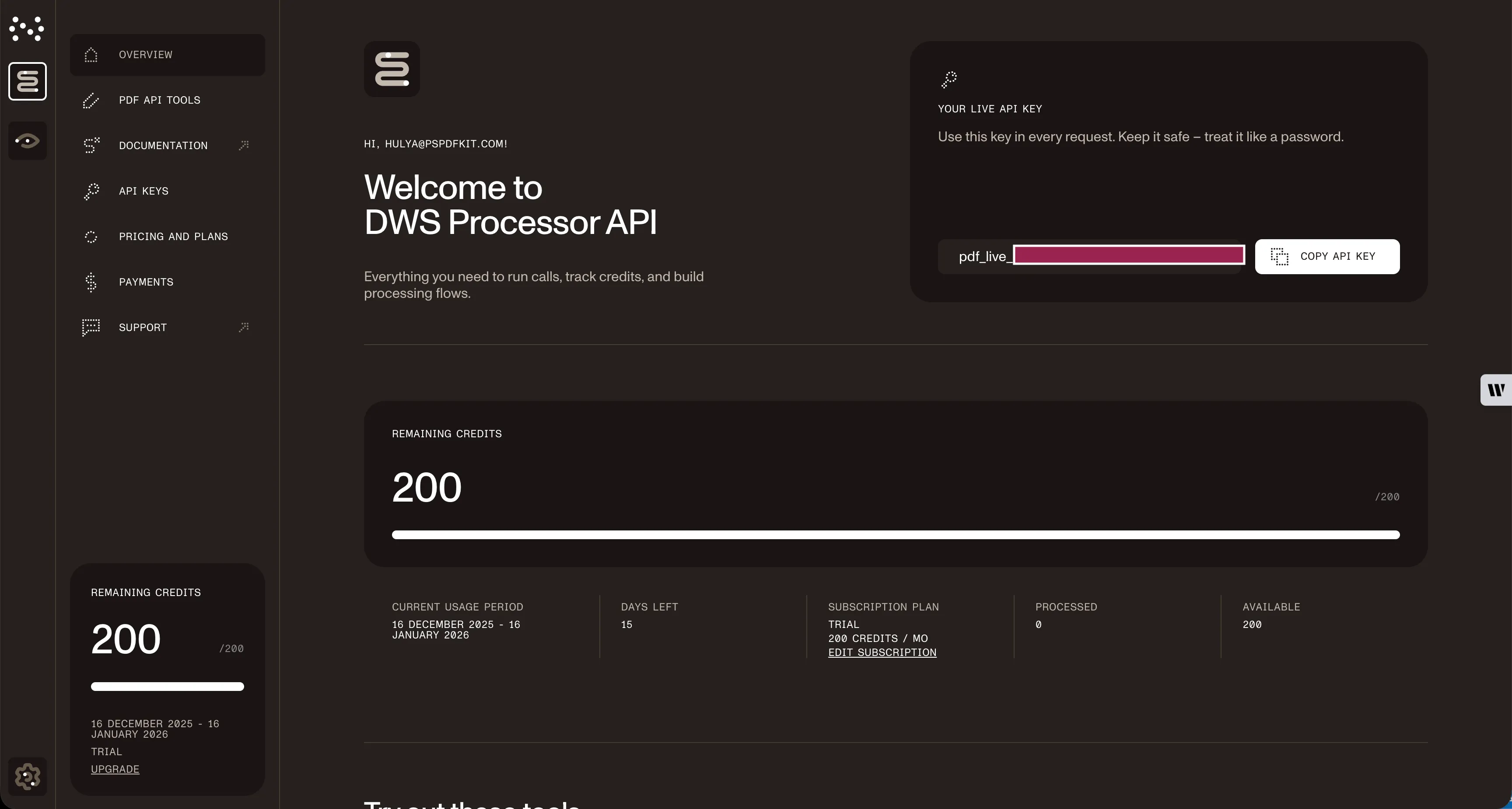
Copy the Live API key — you’ll need it for the split PDF API.
Step 3 — Setting up folders and files
For this tutorial, use IntelliJ IDEA as your code editor. Create a new project called split_pdf. You can choose any location, but select Java as the language, Gradle as the build system, and Groovy as the Gradle DSL.
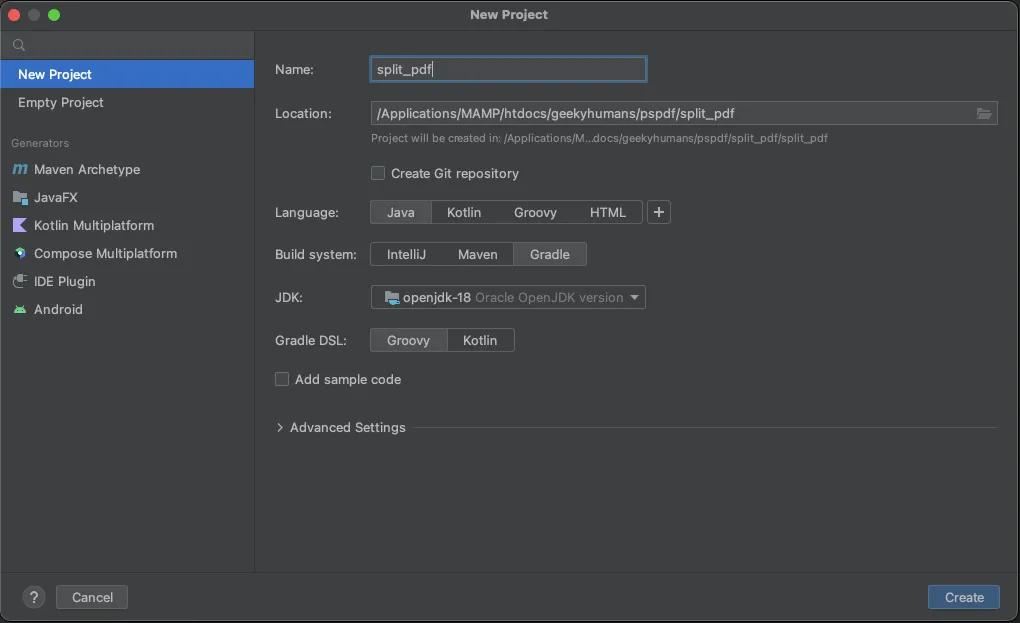
Create a new directory in your project. Right-click your project’s name and select New > Directory. From there, choose the src/main/java option. Create a class file inside the src/main/java folder called processor.java, and create two folders in the root folder called input_documents and processed_documents.
Paste your PDF file inside the input_documents folder.
Your folder structure will look like this:
split_pdf├── input_documents| └── document.pdf├── processed_documents├── src| └── main| └── java| └── processor.javaStep 4 — Installing dependencies
Install two libraries:
- OkHttp — This library makes API requests.
- JSON — This library will parse the JSON payload.
Open the build.gradle file and add the following dependencies to your project:
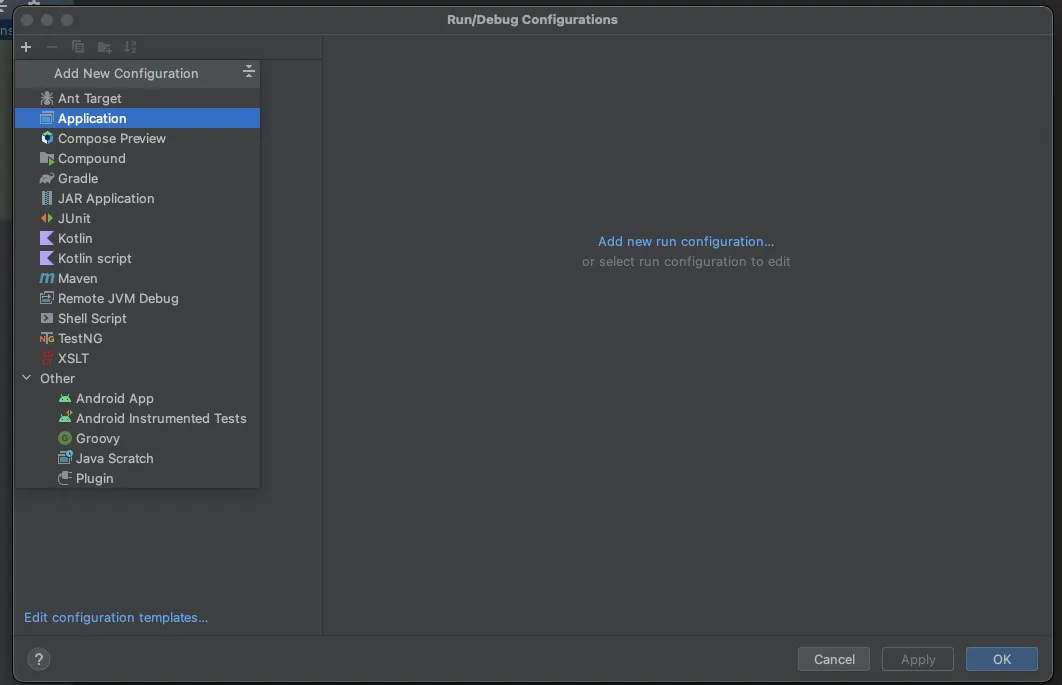
dependencies { implementation 'com.squareup.okhttp3:okhttp:4.9.2' implementation 'org.json:json:20210307'}Once done, click the Add Configuration button. This will open a dropdown menu. Next, select Application.

Now, fill the form with the required details. Most of the fields will be prefilled, but you need to select java 18 in the module field and add -cp split_pdf_4.main in the main class.
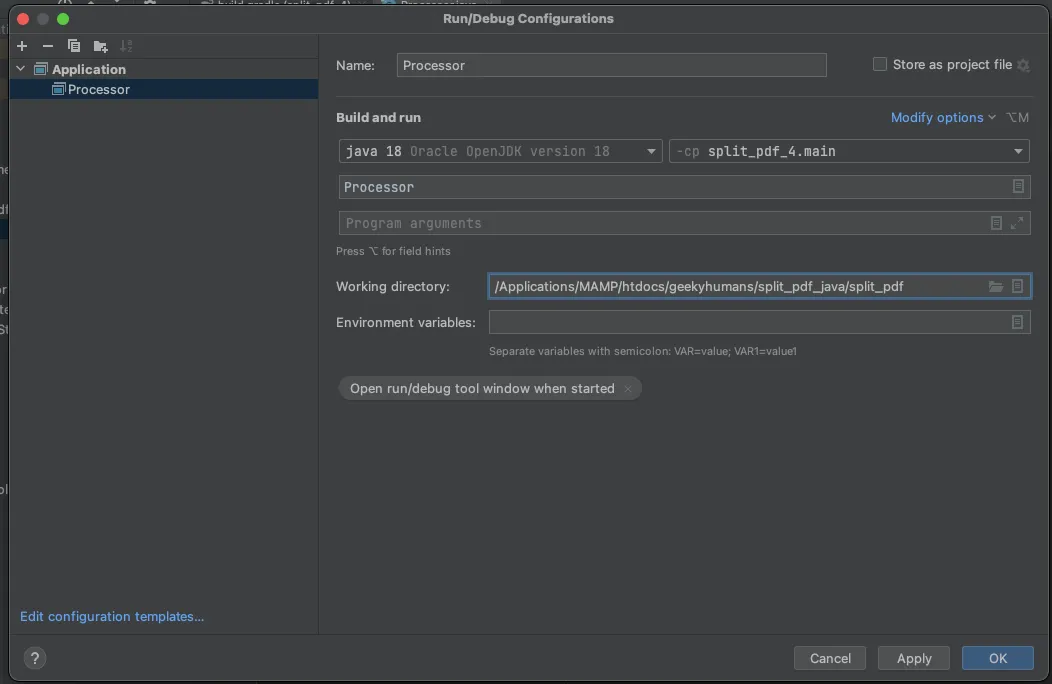
To apply settings, click the Apply button.
Step 5 — Writing the code
Open the processor.java file and paste the code below into it:
package com.example.pspdfkit;
import java.io.File;import java.io.IOException;import java.nio.file.FileSystems;import java.nio.file.Files;import java.nio.file.StandardCopyOption;
import org.json.JSONArray;import org.json.JSONObject;
import okhttp3.MediaType;import okhttp3.MultipartBody;import okhttp3.OkHttpClient;import okhttp3.Request;import okhttp3.RequestBody;import okhttp3.Response;
public final class Processor {  public static void main(final String[] args) throws IOException {    final RequestBody firstHalfBody = new MultipartBody.Builder()      .setType(MultipartBody.FORM)      .addFormDataPart(        "document",        "document.pdf",        RequestBody.create(          MediaType.parse("application/pdf"),          new File("input_documents/document.pdf")        )      )      .addFormDataPart(        "instructions",        new JSONObject()          .put("parts", new JSONArray()            .put(new JSONObject()              .put("file", "document")              .put("pages", new JSONObject()                .put("end", -6)              )            )          ).toString()      )      .build();
    final Request firstHalfRequest = new Request.Builder()      .url("https://api.nutrient.io/build")      .method("POST", firstHalfBody)      .addHeader("Authorization", "Bearer YOUR_API_KEY_HERE")      .build();
    final RequestBody secondHalfBody = new MultipartBody.Builder()      .setType(MultipartBody.FORM)      .addFormDataPart(        "document",        "document.pdf",        RequestBody.create(          MediaType.parse("application/pdf"),          new File("input_documents/document.pdf")        )      )      .addFormDataPart(        "instructions",        new JSONObject()          .put("parts", new JSONArray()            .put(new JSONObject()              .put("file", "document")              .put("pages", new JSONObject()                .put("start", -5)              )            )          ).toString()      )      .build();
    final Request secondHalfRequest = new Request.Builder()      .url("https://api.nutrient.io/build")      .method("POST", secondHalfBody)      .addHeader("Authorization", "Bearer YOUR_API_KEY_HERE")      .build();
    executeRequest(firstHalfRequest, "processed_documents/first_half.pdf");    executeRequest(secondHalfRequest, "processed_documents/second_half.pdf");  }
  private static void executeRequest(final Request request, final String outputFileName) throws IOException {    final OkHttpClient client = new OkHttpClient()      .newBuilder()      .build();
    final Response response = client.newCall(request).execute();
    if (response.isSuccessful()) {      Files.copy(        response.body().byteStream(),        FileSystems.getDefault().getPath(outputFileName),        StandardCopyOption.REPLACE_EXISTING      );    } else {      // Handle the error.      throw new IOException(response.body().string());    }  }}
Code explanation
In the code above, you import all the packages required to run the code and create a class called processor. In the main function, you first create the request body for the API call that contains all the instructions for splitting the PDF. Then you call the API to process the instructions.
Finally, you call the executeRequest function and pass both form data variables: firstHalfRequest and secondHalfRequest. The API response is stored in the processed_documents folder.
Output
To execute the code, click the Run button (which is a little green arrow). This is next to the field that says Processor, which is where you set the configuration.

On successful execution, it’ll create two files in the processed_documents folder: first_half.pdf and second_half.pdf. The folder structure will look like this:
split_pdf├── input_documents| └── document.pdf├── processed_documents| └── first_half.pdf| └── second_half.pdf├── src| └── main| └── java| └── processor.javaAdditional resources
Explore more ways to work with Nutrient API:
- Postman collection — Test API endpoints directly in Postman
- Zapier integration — Automate document workflows without code
- MCP Server — PDF automation for LLM applications
- JavaScript client — Official JavaScript/TypeScript library
Conclusion
You’ve learned how to split PDF files for your Java application using our split PDF API.
You can integrate these functions into your existing applications. With the same API token, you can perform other operations like merging documents into a single PDF, adding watermarks, and more. To get started with a free trial, sign up(opens in a new tab) here.
FAQ
Nutrient DWS Processor API offers 30+ PDF operations, including merging, watermarking, OCR, flattening, and converting Office documents to PDF. You can combine these operations in a single workflow. For example, split a PDF, watermark each part, and then merge specific sections back together — all through the same API.
Yes! Use our Postman collection to test all API endpoints directly in Postman. Import the collection, add your API key, and experiment with different operations and parameters. This helps you understand the API before integrating it into your Java application. You can also test using cURL in your terminal.
Use our Zapier integration to automate PDF processing without writing code. Connect Nutrient DWS Processor API with 5,000+ apps like Google Drive, Dropbox, Gmail, and Slack. For example, automatically split PDFs when they’re uploaded to Google Drive, or split invoices from email attachments and save them to separate folders.
Make separate API calls for each page you want to extract. For a single page, specify {"pages": {"start": 1, "end": 1}} in the instructions. To extract pages 1, 3, and 5 as separate files, make three individual API calls with different output filenames. Use a loop to automate this process and save each page with a numbered filename.
Negative page numbers count from the end of the document. -1 is the last page, -2 is the second-to-last page, and so on. In the example code, {"end": -6} gets all pages except the last 5 pages, while {"start": -5} gets only the last 5 pages. This is useful when you don’t know the total page count.