Nutrient Extract Studio for macOS
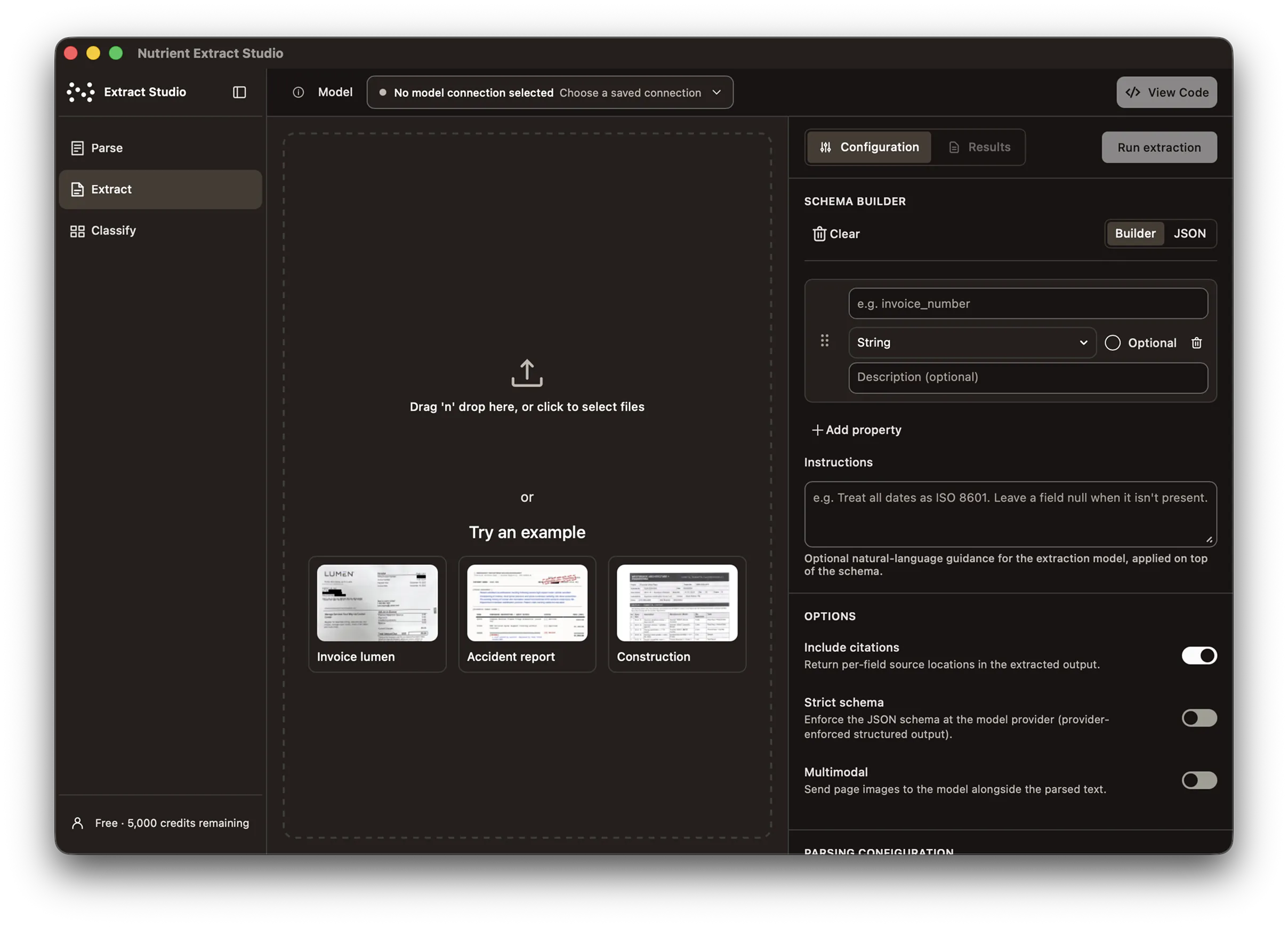
Extract Studio reads your PDFs, pulls out the fields you need as structured data, and sorts documents by type, using Nutrient’s extraction engine on your own Mac. Pair it with an AI model running locally through Ollama or LM Studio, and your documents never leave the machine. It runs on Apple silicon Macs with macOS Tahoe 26.4 or later.
Why a desktop app
Trying an extraction engine usually means uploading sample PDFs and scans to someone else’s cloud. Extract Studio runs the engine on your Mac instead, so you can test it on your real documents.
If the AI model runs on your Mac, your documents never leave it. Nutrient counts pages for credits, and nothing else.
Use Ollama, LM Studio, or vLLM on your Mac or your network, or your own OpenAI or Anthropic key. Save several connections and rerun a document on a different model.
When a result looks right, viewing the code in the app shows the Python code that runs the same extraction with the Data Extraction SDK on your own servers.
How it works
The app ships with its own Python runtime and Nutrient Python SDK, so there’s no Python to set up. The only thing to bring is an AI model for extraction.
Download the DMG installer, install the app, and sign in through the browser. A free Nutrient account is enough.
Point the app at an AI model you already run with Ollama, LM Studio, or vLLM, or add your own OpenAI or Anthropic API key. Classification works without one.
Parse, extract, or classify a document and check every value against the page. Then view the code in the app to copy the matching Python code.
Workspaces
Data Extraction Studio, Nutrient’s browser app, has three workspaces: parse, extract, and classify. Extract Studio brings them to your Mac and runs them with the Data Extraction SDK.
Detect every document element
Identify tables, forms, formulas, images, charts, handwriting, key-value regions, headings, lists, and reading order across complex files.
Preserve page context
Keep elements connected to page position, confidence, and reading order so you can validate, highlight, and use results downstream.
Map data to your schema
Define a JSON Schema for the fields you need. Every extracted value comes back with bounding boxes, match labels, and confidence scores.
Extract complex tables
Extract tables, forms, images, and handwriting with rows, columns, spans, captions, and footnotes preserved.
Score against labels you define
Send at least two labels, or the ID of a classifier saved in Studio. It’s zero-shot, so no training data or templates are required.
Get a ranked list, not one guess
Every candidate label comes back with an independent confidence score from 0 to 1, highest first, so close calls are easy to spot.
Detect every document element
Identify tables, forms, formulas, images, charts, handwriting, key-value regions, headings, lists, and reading order across complex files.
Preserve page context
Keep elements connected to page position, confidence, and reading order so you can validate, highlight, and use results downstream.
Map data to your schema
Define a JSON Schema for the fields you need. Every extracted value comes back with bounding boxes, match labels, and confidence scores.
Extract complex tables
Extract tables, forms, images, and handwriting with rows, columns, spans, captions, and footnotes preserved.
Score against labels you define
Send at least two labels, or the ID of a classifier saved in Studio. It’s zero-shot, so no training data or templates are required.
Get a ranked list, not one guess
Every candidate label comes back with an independent confidence score from 0 to 1, highest first, so close calls are easy to spot.
Convert a PDF or scan into text and structure. Then review it side by side with the page. Agentic mode, for documents that need deeper reasoning, uses the AI model you connect.
Detect every document element
Identify tables, forms, formulas, images, charts, handwriting, key-value regions, headings, lists, and reading order across complex files.
Preserve page context
Keep elements connected to page position, confidence, and reading order so you can validate, highlight, and use results downstream.
Name the fields you need, such as invoice number, policy date, or patient name, and get them back as structured data. Every value links to where it appears on the page.
Map data to your schema
Define a JSON Schema for the fields you need. Every extracted value comes back with bounding boxes, match labels, and confidence scores.
Extract complex tables
Extract tables, forms, images, and handwriting with rows, columns, spans, captions, and footnotes preserved.
Sort documents into the types you define — such as invoice, contract, or ID — using the SDK’s own classification models. You don’t need an AI model or API key.
Score against labels you define
Send at least two labels, or the ID of a classifier saved in Studio. It’s zero-shot, so no training data or templates are required.
Get a ranked list, not one guess
Every candidate label comes back with an independent confidence score from 0 to 1, highest first, so close calls are easy to spot.
Privacy
Where document content goes depends on the model you connect. The app shows the destination before every run and never switches to another provider on its own.
| Setup | What leaves your Mac |
|---|---|
| AI model running on this Mac | No document content. Documents stay on this Mac. |
| AI model on another machine you run | Documents go to that machine and nowhere else. |
| Your OpenAI or Anthropic API key | Page images, your schema, and your instructions go to that provider under your account. |
| Classify, with any setup | No document content. Classification runs on this Mac with the SDK’s own models. |
| Every run | Page counts go to Nutrient for credit usage. Your documents don’t. |
Requirements
Current version: 1.0.0, released 17 September 2026. The app keeps itself up to date.
Running macOS Tahoe 26.4 or later. There’s no Intel, Windows, or Linux version.
Signing in needs an internet connection. Runs use Data Extraction credits, and the free plan includes 5,000 per month.
An AI model you run locally or on your network, or your own OpenAI or Anthropic API key. Agentic parsing uses it too. Classification doesn’t.
The first parse or extract run downloads more than 1 GB of SDK resources. The first classify run adds about 2.65 GB of classification models.
Resources
The engine you tested also runs as the Data Extraction SDK, in Python or Java on your own servers, and as the hosted Data Extraction API.
Deploy the same engine
Privacy and support
It’s for teams deciding whether Nutrient can handle their documents, especially documents too sensitive to upload for a trial. Test on your own files first. When the results hold up, run the same engine in production with the Data Extraction SDK on your servers or the hosted Data Extraction API.
No. Nutrient receives usage records for credits: the operation, the processing mode, the time, and the page count. File names, document content, schemas, and results aren’t sent to Nutrient. If you connect your own OpenAI or Anthropic key, document content goes to that provider under your account.
Through Data Extraction credits. There’s no separate plan for the app: Every run uses credits from your Nutrient account at the same per-page rates as the Data Extraction API, including runs on a local model. The free plan includes 5,000 credits per month. See Data Extraction pricing.
Yes. Extract works with any OpenAI-compatible model server — such as Ollama, LM Studio, or vLLM — on your Mac or on another machine you run. If your model server requires an API key, you can add it in the app. You can also use your own OpenAI or Anthropic API key. The app doesn’t include a model or start a model server for you.
Partly. Signing in needs an internet connection, and classify needs one every time it runs. With a model server on the same Mac, parse and extract can keep running offline for a limited time, until the app needs to check your account again. For fully offline production, run the Data Extraction SDK on your own servers.
No. Extract Studio runs on Apple silicon Macs with macOS Tahoe 26.4 or later. On other platforms, use the Data Extraction SDK for Python or Java, or the hosted Data Extraction API.
Speed depends on the model you connect and the Mac it runs on. Test with the model and hardware you plan to use.
The app updates itself. It looks for a new version shortly after launch and every four hours, or right away when you choose Check for Updates… in the app menu.
Both use the same Studio interface. Extract Studio runs parse, extract, and classify on your Mac with the Data Extraction SDK and the model you connect. Data Extraction Studio in the browser runs on the hosted Data Extraction API and adds presets, run history, and saved classifiers.
Download the DMG installer, sign in with your Nutrient account, and run your first document on your Mac. The free plan includes 5,000 Data Extraction credits per month.




