




How to delete PDF pages using Java

Table of contents
Delete PDF pages using our delete PDF page Java API. Create a free account, get API credentials, and implement page removal using OkHttp and JSON libraries. Combine with 30+ other API tools for merging, splitting, and watermarking.
Delete PDF pages using our delete PDF page Java API. Start with 200 free credits — no payment required. Different operations consume different credit amounts, so the number of PDF documents you can generate will vary. Create a free account(opens in a new tab) to get your API key.
Why delete PDF pages?
Deleting PDF pages is essential for document workflows that require removing sensitive or unnecessary content. Common use cases include:
- Data privacy compliance — Remove pages containing confidential information before sharing documents externally, ensuring sensitive data doesn’t leave your organization.
- Storage optimization — Delete unnecessary pages to reduce file size and cloud storage costs, especially important for high-volume document processing.
- Document preparation — Remove draft pages, cover sheets, or annotations before final distribution to clients or stakeholders.
- Automated processing — Filter out specific page ranges as part of backend document workflows, streamlining document management pipelines.
- Content curation — Extract relevant sections by removing everything else, creating focused documents for specific audiences or purposes.
The delete PDF page API automates this process in your workflow.
Nutrient DWS Processor API
Deleting PDF pages is one of 30+ operations available through our PDF API tools. Combine page deletion with other tools for complex workflows:
- Converting MS Office files and images into PDFs before removing pages
- Removing pages from two documents before merging them
- Deleting pages and then watermarking and flattening PDFs
Your account includes access to all PDF API tools.
Step 1 — Creating a free account on Nutrient
Go to our website(opens in a new tab), where you’ll see the page below, prompting you to create your free account.
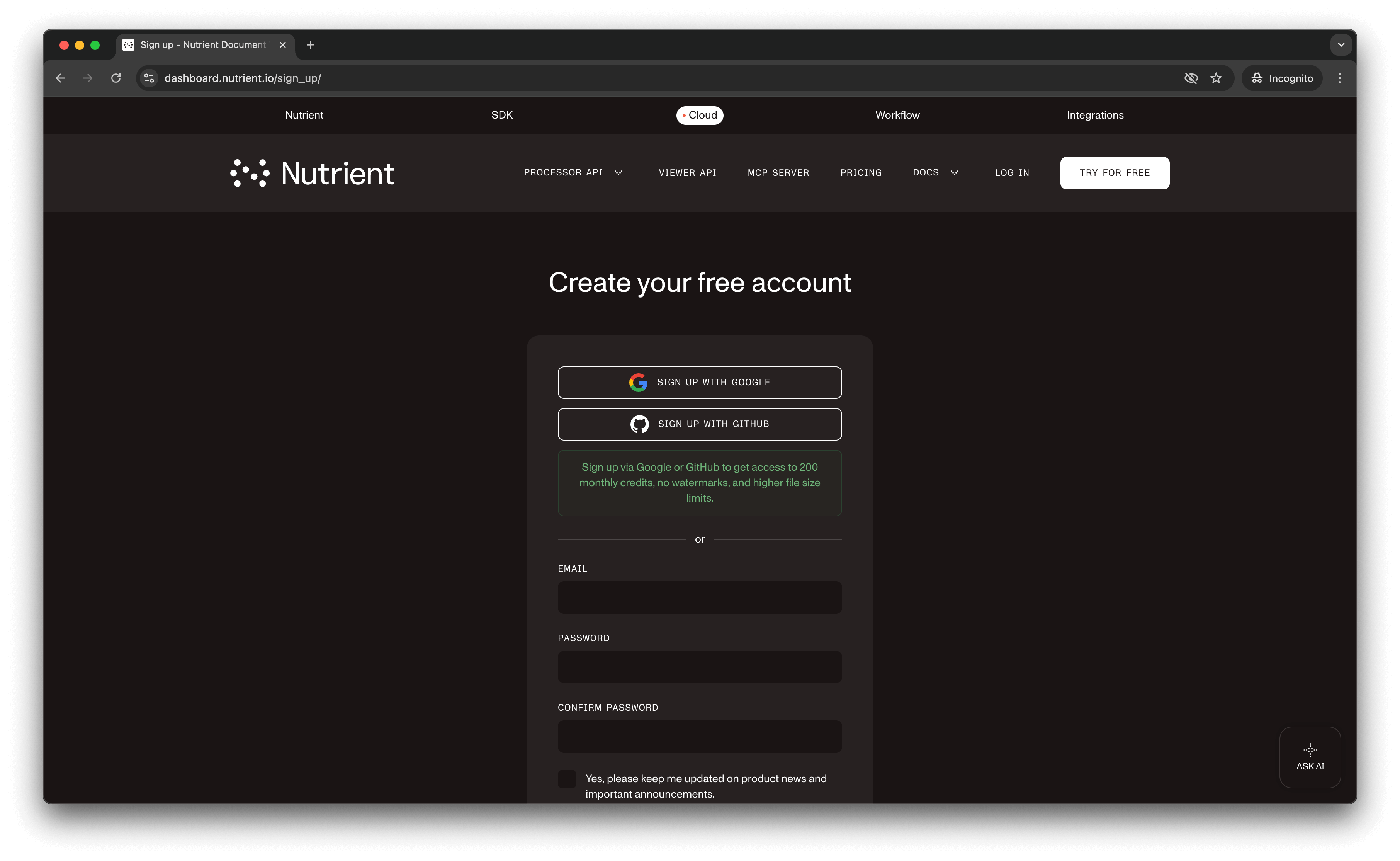
Once you’ve created your account, you’ll see a page showing an overview of your plan details.
You’ll start with 200 credits to process and can access all our PDF API tools.
Step 2 — Obtaining the API key
After you’ve verified your email, you can get your API key from the dashboard. In the menu on the left, click API keys. You’ll see the following page, which is an overview of your keys.
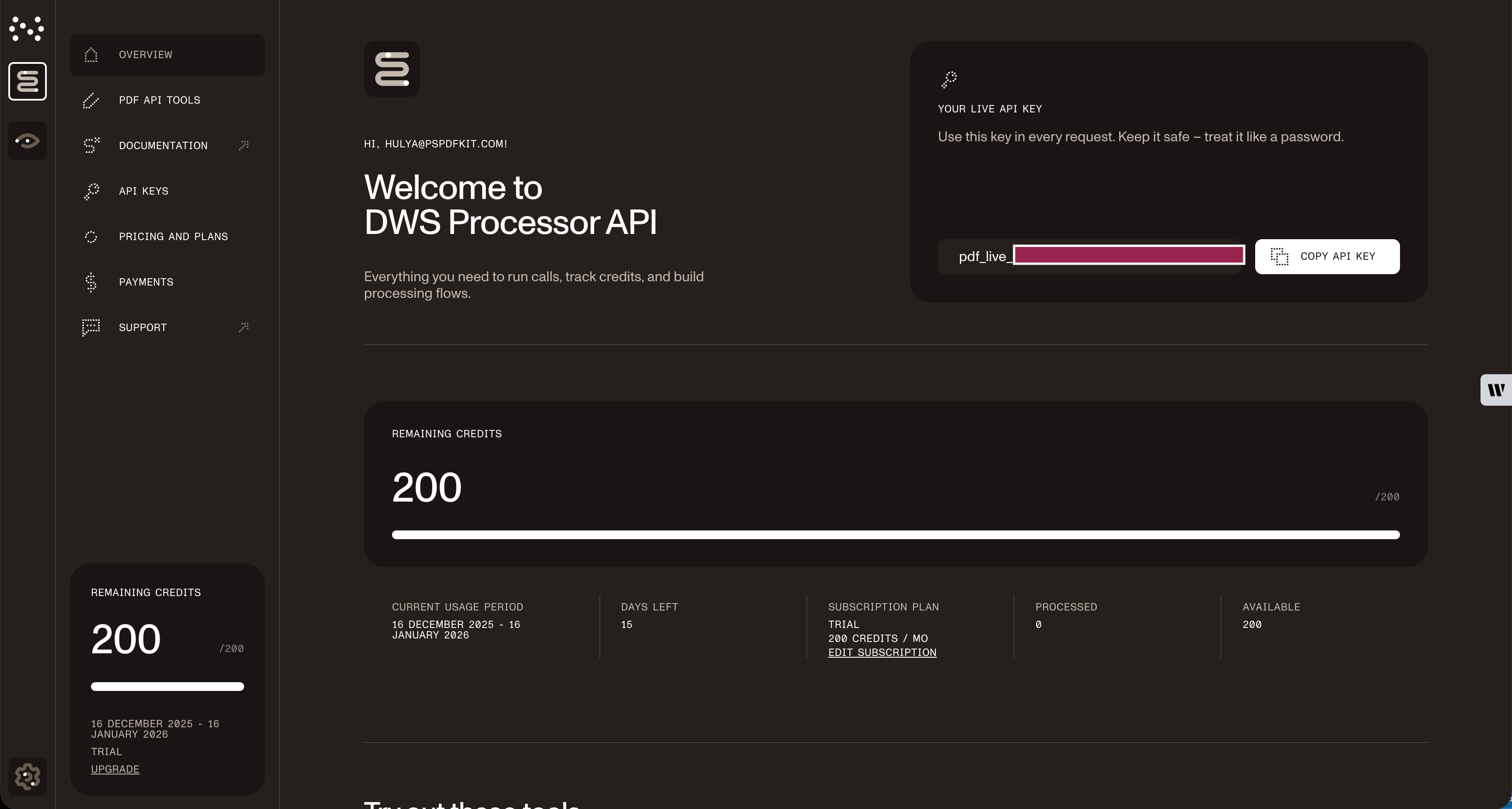
Copy the Live API key — you’ll need it for the delete PDF page API.
Step 3 — Setting up folders and files
For this tutorial, use IntelliJ IDEA as your code editor. Create a new project called delete_pdf. You can choose any location, but select Java as the language, Gradle as the build system, and Groovy as the Gradle DSL.
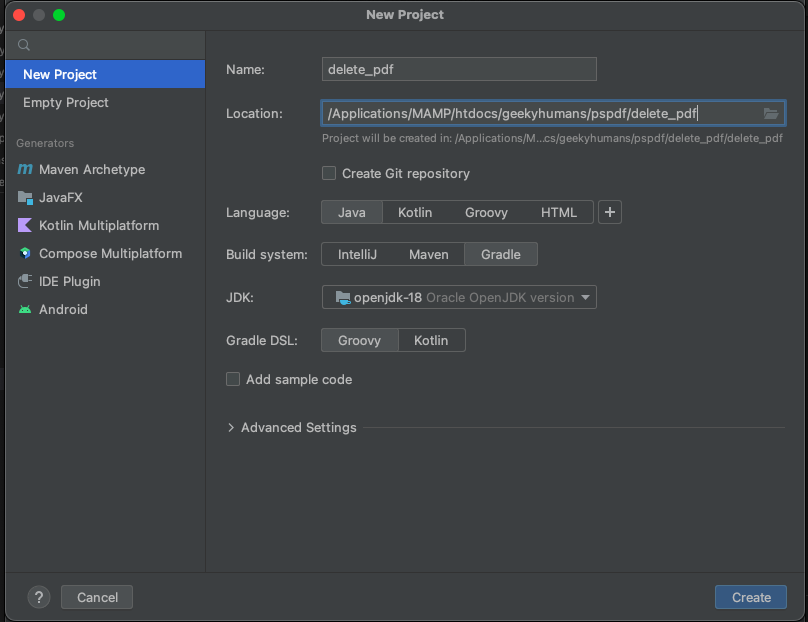
Create a new directory in your project. Right-click your project’s name and select New > Directory. From there, choose the src/main/java option. Create a class file inside the src/main/java folder called processor.java, and create two folders called input_documents and processed_documents in the root folder.
Paste your PDF file inside the input_documents folder.
Your folder structure will look like this:
delete_pdf├── input_documents| └── document.pdf├── processed_documents├── src| └── main| └── java| └── processor.javaStep 4 — Installing dependencies
Install two libraries:
- OkHttp — Makes API requests
- JSON — Parses the JSON payload
Open the build.gradle file and add the following dependencies to your project:
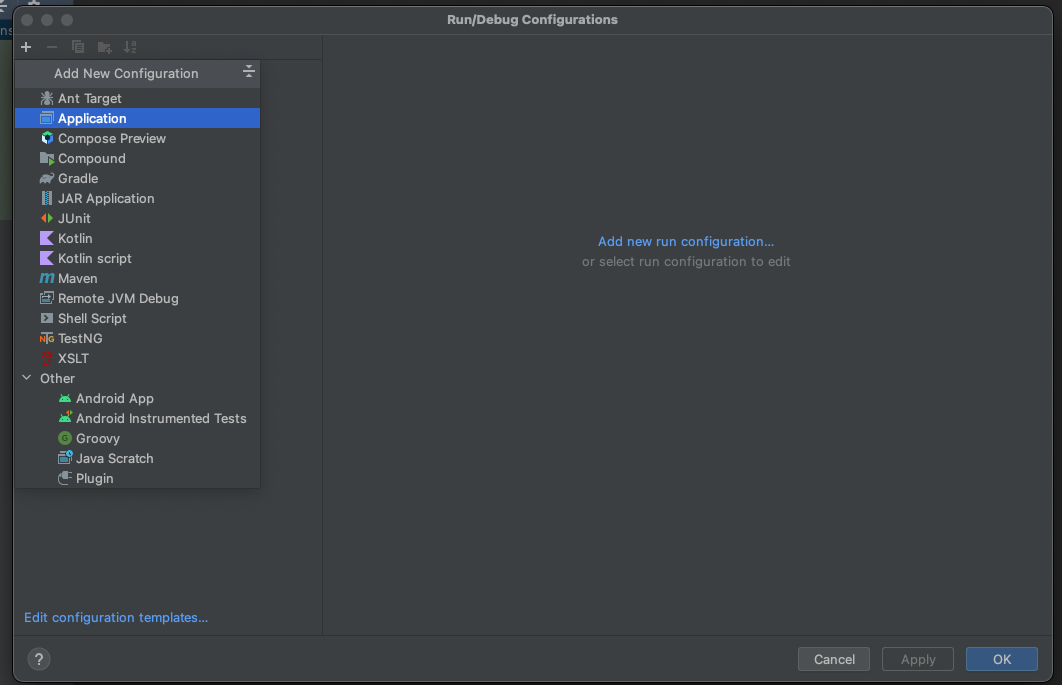
dependencies { implementation 'com.squareup.okhttp3:okhttp:4.9.2' implementation 'org.json:json:20210307'}Once done, click the Add Configuration button in IntelliJ IDEA. This will open a dropdown menu.

Next, select Application from the menu.
Now, fill the form with the required details. Most of the fields will be prefilled, but you need to select java 18 in the module field and add -cp delete_pdf.main as the main class and com.example.pspdfkit.Processor in the field below it.
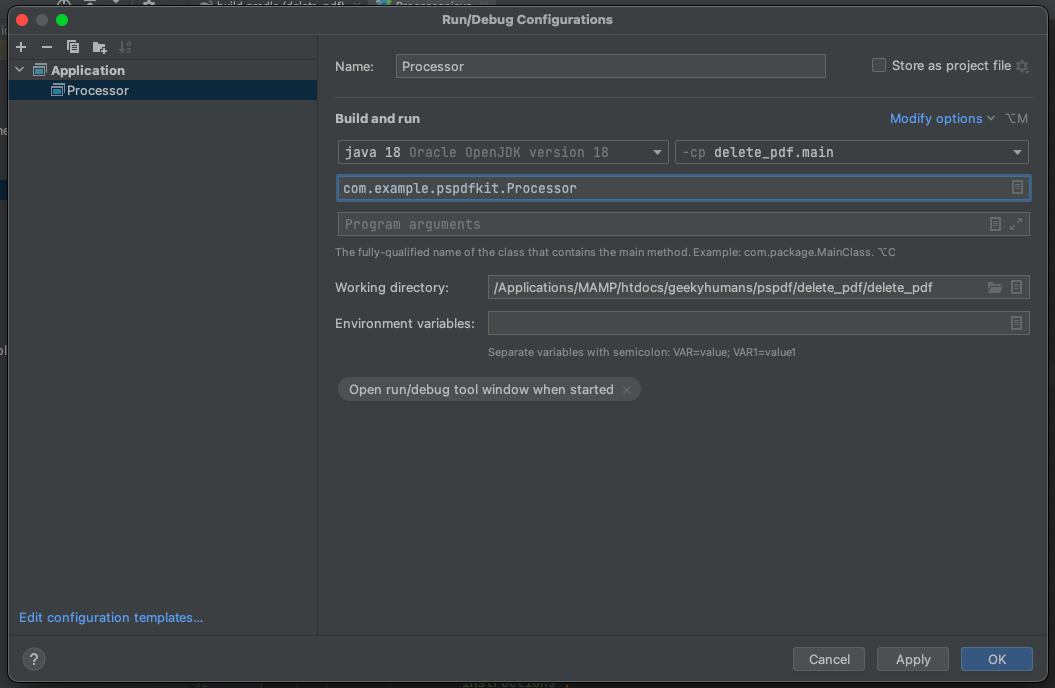
To apply settings, click the Apply button.
Step 5 — Writing the code
Open the processor.java file and paste the code below into it:
package com.example.pspdfkit;
import java.io.File;import java.io.IOException;import java.nio.file.FileSystems;import java.nio.file.Files;import java.nio.file.StandardCopyOption;
import org.json.JSONArray;import org.json.JSONObject;
import okhttp3.MediaType;import okhttp3.MultipartBody;import okhttp3.OkHttpClient;import okhttp3.Request;import okhttp3.RequestBody;import okhttp3.Response;
public final class Processor {  public static void main(final String[] args) throws IOException {    final RequestBody body = new MultipartBody.Builder()      .setType(MultipartBody.FORM)      .addFormDataPart(        "document",        "document.pdf",        RequestBody.create(          MediaType.parse("application/pdf"),          new File("input_documents/document.pdf")        )      )      .addFormDataPart(        "instructions",        new JSONObject()          .put("parts", new JSONArray()            .put(new JSONObject()              .put("file", "document")              .put("pages", new JSONObject()                .put("end", 2)              )            )            .put(new JSONObject()              .put("file", "document")              .put("pages", new JSONObject()                .put("start", 4)              )            )          ).toString()      )      .build();
    final Request request = new Request.Builder()      .url("https://api.nutrient.io/build")      .method("POST", body)      .addHeader("Authorization", "Bearer your_api_key_here")      .build();
    final OkHttpClient client = new OkHttpClient()      .newBuilder()      .build();
    final Response response = client.newCall(request).execute();
    if (response.isSuccessful()) {      Files.copy(        response.body().byteStream(),        FileSystems.getDefault().getPath("processed_documents/result.pdf"),        StandardCopyOption.REPLACE_EXISTING      );    } else {      // Handle the error.      throw new IOException(response.body().string());    }  }}
Make sure to replace YOUR_API_KEY_HERE with your API key.
Code explanation
The code imports required packages and creates a processor class. The main function creates the request body with instructions for deleting PDF pages.
It calls the API using OkHttpClient and checks the response status. If successful, it stores result.pdf in the processed_documents folder.
Output
To execute the code, click the Run button (which is a little green arrow). This is next to the field that says Processor, which is where you set the configuration.

On successful execution, you’ll see the new PDF with the removed pages in the processed_documents folder. The folder structure should look like this:
delete_pdf├── input_documents| └── document.pdf├── processed_documents| └── result.pdf├── src| └── main| └── java| └── processor.javaAdditional resources
Explore more ways to work with Nutrient API:
- Postman collection — Test API endpoints directly in Postman
- Zapier integration — Automate document workflows without code
- MCP Server — PDF automation for LLM applications
- JavaScript SDK — Official JavaScript/TypeScript library
Conclusion
This tutorial showed how to delete PDF pages in Java using our delete PDF page API.
Integrate page deletion into your existing applications. Use the same API token for other operations like merging documents, adding watermarks, and more. Sign up(opens in a new tab) for a free trial.
FAQ
The API uses zero-based indexing, where page 0 is the first page. You can use negative indexing too: -1 refers to the last page, -2 to the second-to-last page. The code example keeps pages 1–3 (indices 0–2) and page 5 onward (index 4+), deleting page 4 (index 3).
Yes. Upload multiple files with different names and reference them in the parts array. Each part can specify which source document and which pages to include, allowing complex multidocument processing workflows where you delete specific pages from different files.
Each deletion operation consumes 1 credit, regardless of the number of pages deleted or file size. Start with a free trial that includes 200 credits, allowing you to process up to 200 PDF deletion requests at no cost.
Yes. Nutrient DWS Processor API supports chaining multiple operations in a single request. Use the actions array to delete pages and then apply operations like watermarking, flattening, or OCR to the resulting document.