How to duplicate a PDF page using Python

Table of contents
Duplicate PDF pages using the duplicate PDF page Python API. Create a free account, get API credentials, and implement page duplication using the requests library. Combine with 30+ other API tools for watermarking, merging, and flattening.
This tutorial shows you how to duplicate specific PDF pages using our duplicate PDF page Python API. The free plan includes 50 credits. Different operations consume different amounts of credits, affecting how many documents you can process. Create a free account(opens in a new tab) to get your API key.
Why duplicate PDF pages?
Duplicating PDF pages is important for document workflows that require processing the same content differently. Common use cases include:
- Multi-recipient workflows — Apply different watermarks or annotations to the same page for different recipients, e.g. watermarked versions for clients and clean versions for internal use.
- Backup and versioning — Create page-level backups before performing destructive operations like flattening or redaction, preserving the original state.
- Template-based generation — Build complex documents by duplicating template pages and customizing each copy with recipient-specific data.
- Testing and validation — Duplicate pages to test different processing operations (compression, OCR, conversion) while keeping the original intact.
- Workflow automation — Process batches of pages programmatically as part of your backend infrastructure, duplicating pages at specific positions for assembly workflows.
The duplicate PDF page API automates this process in your workflow.
Nutrient DWS Processor API
Page duplication is one of 30+ PDF API tools. Combine it with other tools to build processing workflows:
- Convert MS Office files and images to PDF, and then duplicate specific pages
- Merge multiple PDFs and duplicate selected pages
- Apply watermarks, or split or flatten PDFs with page duplication at any step
Your account provides access to all PDF API tools.
Step 1 — Creating a free account on Nutrient
Go to our website(opens in a new tab) to create your free account.
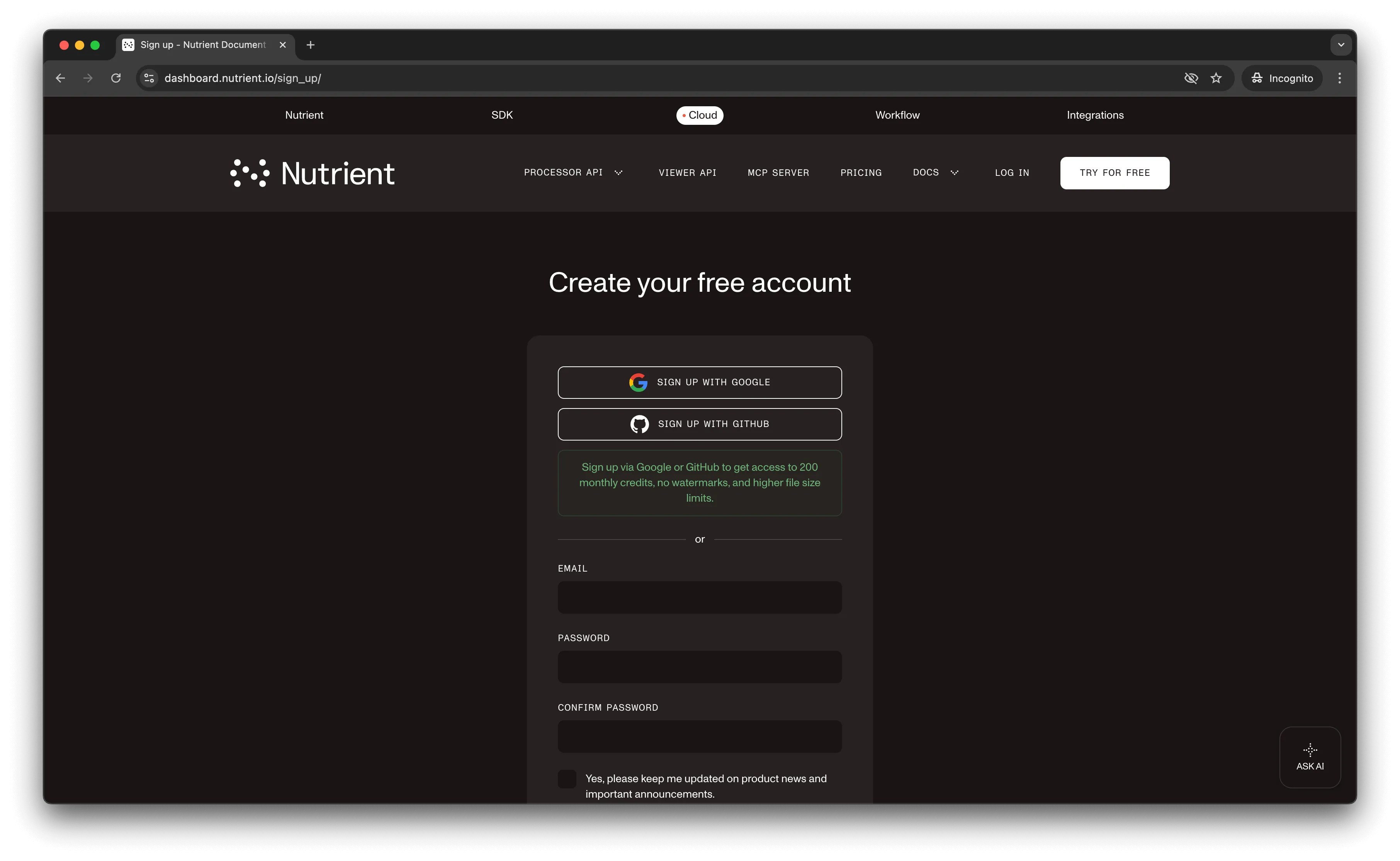
After creating your account, you’ll see your plan overview.
You start with 50 credits and can access all PDF API tools.
Step 2 — Obtaining the API key
After verifying your email, get your API key from the dashboard. Click API keys in the left menu to see your keys.
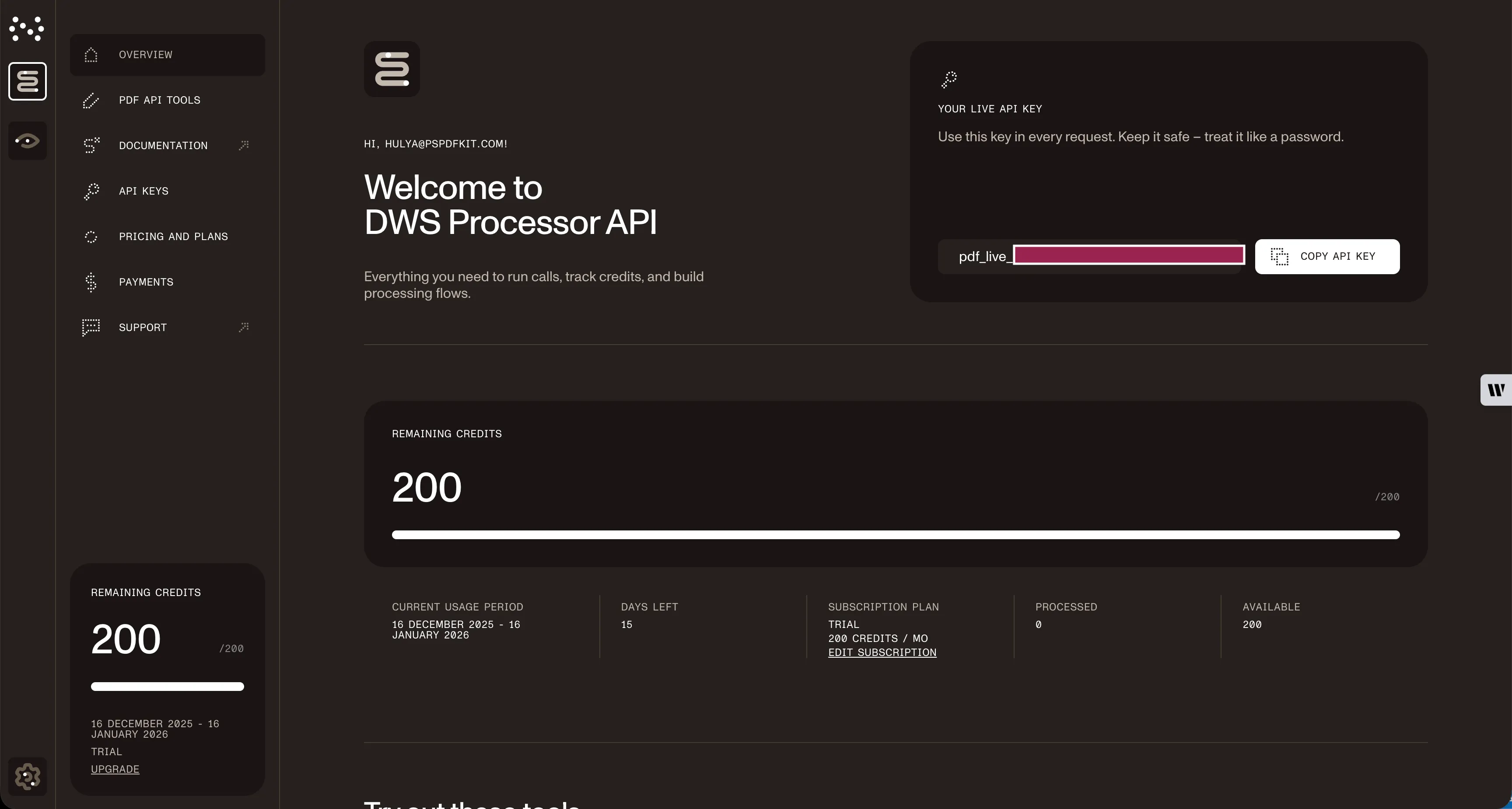
Copy the Live API key for the duplicate PDF page Python API.
Step 3 — Setting up folders and files
Create a folder called duplicate_pdf and open it in VS Code. Inside duplicate_pdf, create two folders: input_documents and processed_documents.
In the root folder, create a file called processor.py for your code. Put your PDF files in the input_documents folder.
Your folder structure:
duplicate_pdf├── input_documents├── processed_documents└── processor.pyStep 4 — Writing the code
Open processor.py and add this code:
import requestsimport json
response = requests.request(  'POST',  'https://api.nutrient.io/build',  headers = {    'Authorization': 'Bearer YOUR_API_KEY_HERE'  },  files = {    'document': open('input_documents/document.pdf', 'rb')  },  data = {    'instructions': json.dumps({      'parts': [        {          'file': 'document',          'pages': {            'start': 0,            'end': 0          }        },        {          'file': 'document'        },        {          'file': 'document',          'pages': {            'start': -1,            'end': -1          }        }      ]    })  },  stream = True)
if response.ok:  with open('processed_documents/result.pdf', 'wb') as fd:    for chunk in response.iter_content(chunk_size=8096):      fd.write(chunk)else:  print(response.text)  exit()
Make sure to replace YOUR_API_KEY_HERE with your API key.
Code explanation
The code imports requests and json, and then it creates instructions for the API call. The instructions duplicate the first page (index 0) and last page (index -1).
The requests module makes the API call and saves the result to processed_documents folder.
Output
Run the code:
python3 processor.pyAfter execution, you’ll find result.pdf in the processed_documents folder:
duplicate_pdf├── input_documents├── processed_documents| └── result.pdf└── processor.pyConclusion
You’ve learned how to duplicate PDF pages in Python using our duplicate PDF page API.
You can add this functionality to existing applications. The same API token works for other operations: merging documents, adding watermarks, and more. Sign up(opens in a new tab) for a free trial.
FAQ
The API uses zero-based indexing, where page 0 is the first page. You can use negative indexing too: -1 refers to the last page, -2 to the second-to-last page, and so on. The code example duplicates both the first page (index 0) and last page (index -1).
Yes. Upload multiple files with different names (like ‘document1’, ‘document2’) and reference them in the parts array. Each part can specify which source document and which pages to include, enabling complex multidocument assembly workflows.
Each duplication operation consumes 1 credit, regardless of the number of pages duplicated or file size. The free account includes 50 credits, enabling you to process up to 50 PDF duplication requests.
Yes. Nutrient DWS Processor API supports chaining multiple operations in a single request. Use the actions array to duplicate pages, and then apply operations like watermarking, flattening, or OCR to the resulting document.
Use the pages object with start and end properties to specify ranges. For example, {"start": 0, "end": 2} duplicates the first three pages (0, 1, 2). Omit the pages object to include all pages from the document.
This code works with Python 3.6 and higher. It requires the requests library, which is installed via pip. The code uses standard Python features like context managers and dictionary handling.