Top 10 Python PDF generator libraries: Complete guide for developers (2026)

Table of contents

One Python SDK for generation, conversion, OCR, and forms - install with pip.
Choose by the document you need to produce:
- Generate and process PDFs through a hosted API → Nutrient API
- Generate basic PDFs → FPDF2
- Design complex layouts and charts → ReportLab
- Render print-oriented HTML templates → WeasyPrint
- Render HTML that needs JavaScript → Playwright with Chromium
- Maintain an existing wkhtmltopdf integration → PDFKit (deprecated)
- Build rich documents with tables and barcodes → borb
- Read, extract, or manipulate existing PDFs → PyMuPDF
- Turn images into PDFs → img2pdf (with optional Pillow preprocessing)
How to generate a PDF in Python
Use fpdf2 for basic documents, ReportLab for charts and flowing reports, WeasyPrint for print-oriented HTML, or Playwright for HTML that needs JavaScript. Use img2pdf when your input is already images. Nutrient API handles generation and subsequent PDF processing through a hosted service.
To generate your first PDF, follow these steps:
- Choose a library — Pick based on your use case: fpdf2 for simple documents, ReportLab for reports, WeasyPrint or Playwright for HTML to PDF, or Nutrient API for hosted generation and processing.
- Install and configure — Install via
pip(e.g.pip install fpdf2). Then import and initialize the library in your script. - Build your document — Add pages, text, images, and formatting using the library’s API — or pass an HTML template directly for HTML-to-PDF libraries.
- Export the PDF — Call the library’s output or save method to write the file to disk or return it from a web endpoint.
The tools in this comparison use four approaches:
- Programmatic layout (fpdf2, ReportLab, borb, PyMuPDF) — Build pages with drawing commands or higher-level layout objects. ReportLab’s Platypus system can flow paragraphs and tables across pages.
- HTML to PDF (WeasyPrint, PDFKit, xhtml2pdf, Playwright) — You write HTML/CSS and the library renders it to PDF. Faster to prototype if you know web tech.
- Cloud APIs (Nutrient) — You send files to a REST endpoint and get a PDF back. No local rendering engine, but you need an HTTP client, an API key, and a network connection.
- Image to PDF (img2pdf) — Package existing images as PDF pages without building a text layout.
The sections below compare 10 Python PDF libraries across these categories.
Need more than generation? Our best Python PDF libraries comparison covers reading, extraction, OCR, forms, and digital signatures.
1. Nutrient API
Nutrient DWS API generates, customizes, and processes PDFs at scale. It handles form filling, signatures, annotations, optical character recognition (OCR), and merging via a cloud REST API — no local rendering engines required.
Key features
- HTML to PDF — CSS, custom fonts, headers/footers, and page numbers
- Document conversion — Convert Office files (Word, Excel, PowerPoint), images, and Markdown to PDF
- PDF operations — Form filling, digital signatures, annotations, watermarking, OCR, merging, compression, and redaction
- Platform-agnostic — Call from Python, JavaScript, or any HTTP client
Getting started
- Sign up — Visit the Nutrient website(opens in a new tab) and sign up for an account.
- Request an API key — After signing up, obtain an API key from the dashboard.
- Pricing — Credit-based. Free trial available.
Example: Generate a PDF from HTML
Create an index.html file in the script’s directory and replace the API key placeholder before running this example. The example sends one HTML file; additional local stylesheets, images, and fonts must also be included as request assets.
import requestsimport json
# Define the HTML part of the document.instructions = {    'parts': [        {            'html': 'index.html'        }    ]}
# Send the request to the Nutrient API.response = requests.request(    'POST',    'https://api.nutrient.io/build',    headers={        'Authorization': 'Bearer {YOUR_API_KEY}' # Replace with your API key.    },    files={        'index.html': open('index.html', 'rb'),    },    data={        'instructions': json.dumps(instructions)    },    stream=True)
# Save the resulting PDF.if response.ok:    with open('result.pdf', 'wb') as fd:        for chunk in response.iter_content(chunk_size=8096):            fd.write(chunk)else:    print(response.text)    exit()
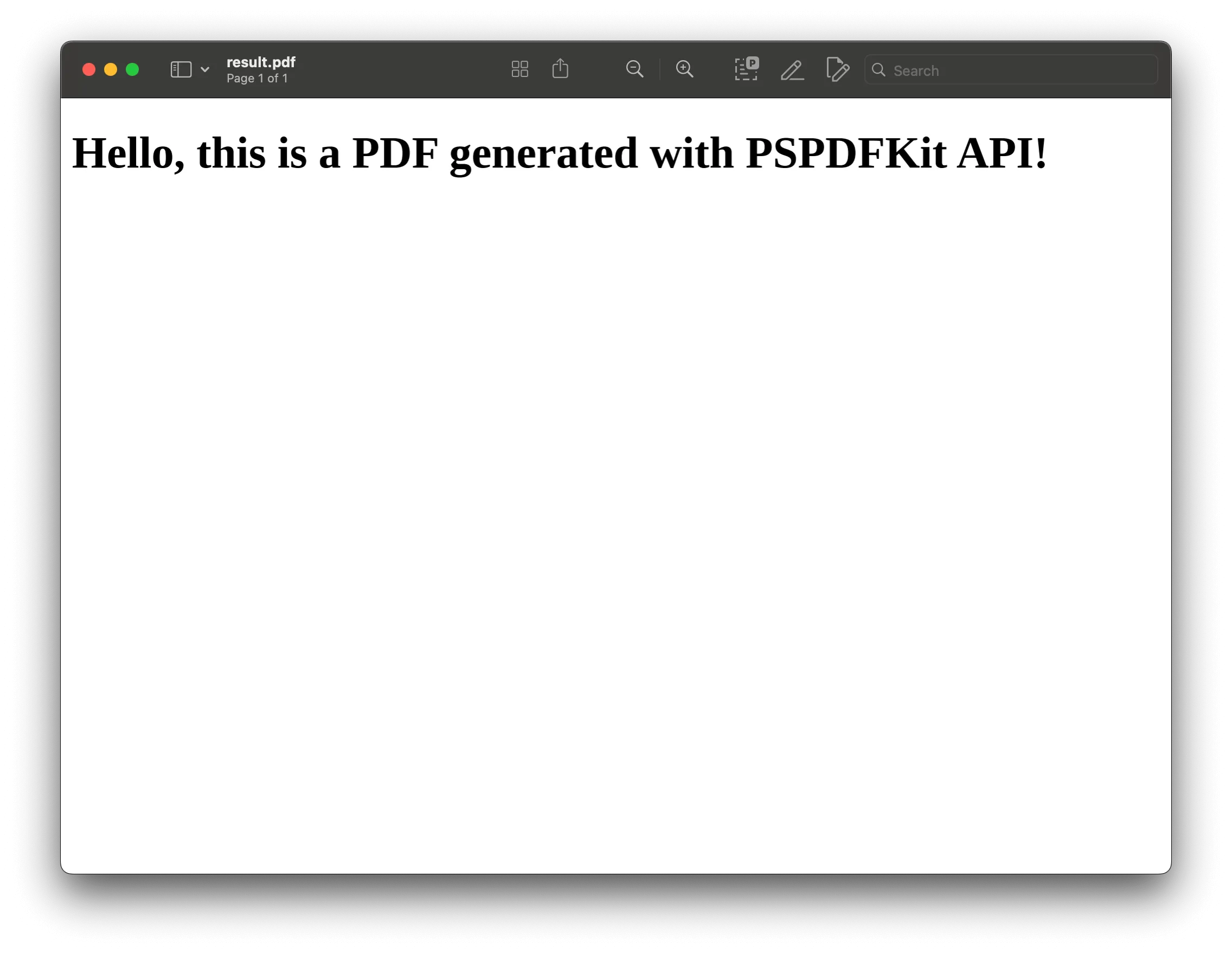
The instructions dictionary tells the API to generate a PDF from index.html. The script sends a POST request with the HTML content, and if the response succeeds, saves the result as result.pdf.
Advanced usage
- Dynamic content — Combine with data sources to generate invoices, reports, or certificates
- Processing after generation — Add annotations, fill forms, or run OCR
- Deployment choice — Compare hosted generation with SDK-based PDF generation
Why use Nutrient API
- PDF processing tools — Conversion, watermarking, OCR, form processing, digital signatures, compression, and redaction in one API
- Credit-based pricing — Usage depends on the operations in a request. Check the pricing guide when estimating generation and processing costs
- Python client — Official async Python client with type hints, available via
pip install nutrient-dws - Rate limit — Up to 100 requests per minute per API key
Sign up for a free account(opens in a new tab) to test the API.
Official Python client for Nutrient Processor API
Nutrient offers an official Python client(opens in a new tab), available via pip install nutrient-dws. It requires Python 3.10+.
The client provides:
- Direct methods — Convert files and perform operations such as merging, OCR, watermarking, and text extraction
- Builder pattern — Chain multiple operations: add parts → apply actions → set output → execute
- Input flexibility — File paths, bytes, file-like objects, and remote URLs
- Async and type-safe — Full type hints with async/await support
- Error handling — Specific exceptions for validation, API, authentication, and network errors
The example above calls /build directly with requests. The Python client also supports HTML input through the workflow builder’s add_html_part() method, with optional CSS, image, and font assets.
2. FPDF Python: Create PDFs with pure Python
FPDF(opens in a new tab) (fpdf2) builds PDFs from text, images, and drawing commands. It’s the maintained successor to PyFPDF and still uses the fpdf import namespace. Install fpdf2 without the older fpdf package in the same environment. Its dependencies include Pillow, fonttools, and defusedxml.
Key features
- Quick text and image insertion — Add paragraphs, pictures, and simple lines.
- Multipage support — Loop through pages with just a few commands.
- Basic formatting — Set fonts, colors, and alignments easily.
- No browser engine — Install the Python package and its dependencies with
pip.
Best for: Simple multipage documents or image-rich flyers that only need basic text, images, and custom formatting.
Installation
Install fpdf2 using pip:
pip install fpdf2Usage example
Create a PDF with FPDF:
from fpdf import FPDF
# Create an instance of an FPDF class.pdf = FPDF()
# Add a page.pdf.add_page()
# Set the font.pdf.set_font("Helvetica", size=12)
# Add a cell.pdf.cell(200, 10, text="Hello, this is a PDF generated using FPDF!", new_x="LMARGIN", new_y="NEXT", align='C')
# Save the PDF.pdf.output("output.pdf")
print("PDF generated successfully!")
This creates a one-page PDF with centered text and saves it to output.pdf.
Advanced example: Multipage PDF with images
The script below generates a three-page PDF, with each page containing custom text and an embedded image. Place an image file (e.g. example.jpg) in the same directory as your script:
from fpdf import FPDF
# Create an instance of an FPDF class.pdf = FPDF()
# Add multiple pages.for i in range(3): pdf.add_page()  # Add a new page. pdf.set_font("Helvetica", size=16)  # Set the font for text. pdf.cell(200, 10, text=f"Page {i+1}", new_x="LMARGIN", new_y="NEXT", align='C')  # Add text to the page. pdf.image("example.jpg", x=10, y=30, w=100)  # Add an image to the page.
# Output the PDF to a file.pdf.output("multi_page.pdf")
print("Multipage PDF with images generated successfully!")
Run the script:
python generate_pdf.pyThis will generate a multi_page.pdf file in the same directory. Each page will have custom text and the example.jpg image placed at specified coordinates.
Try Nutrient API for free and generate PDFs in minutes.
3. Generating PDFs with ReportLab: Charts, tables, and complex layouts
ReportLab(opens in a new tab) is an open source library for creating PDFs with text, images, charts, and graphics.
Key features
- PDF generation — Text, images, charts, and custom graphics
- Advanced graphics — Lines, shapes, curves, and illustrations
- Document templates — Consistent layout across documents
- Custom fonts and styles — Full control over fonts, colors, and styles
Best for: Complex layouts with charts, graphics, and custom typography — reports, brochures, or invoices.
Licensing
The open source ReportLab toolkit uses a BSD license. ReportLab also offers separate commercial products and support.
Installation
To install ReportLab, use pip:
pip install reportlabAlternatively, if you’re using a system like Anaconda, you can install it via conda:
conda install -c conda-forge reportlabUsage example
Generate a PDF with ReportLab:
from reportlab.lib.pagesizes import letterfrom reportlab.pdfgen import canvas
# Create a PDF file.c = canvas.Canvas("example.pdf", pagesize=letter)
# Draw some text.c.drawString(100, 750, "Hello, this is a PDF generated with ReportLab!")
# Save the PDF.c.save()
In this example, a PDF file named example.pdf is created with a simple line of text.
More advanced features
ReportLab offers more advanced features, outlined below.
Adding graphics
You can draw more than just text — for example, lines, shapes, and even custom images:
from reportlab.lib.pagesizes import letterfrom reportlab.pdfgen import canvas
c = canvas.Canvas("example_graphics.pdf", pagesize=letter)
# Draw a line.c.line(50, 700, 550, 700)
# Draw a rectangle.c.rect(50, 600, 200, 100)
# Draw an image.c.drawImage("example_image.jpg", 300, 500, width=100, height=100)
c.save() 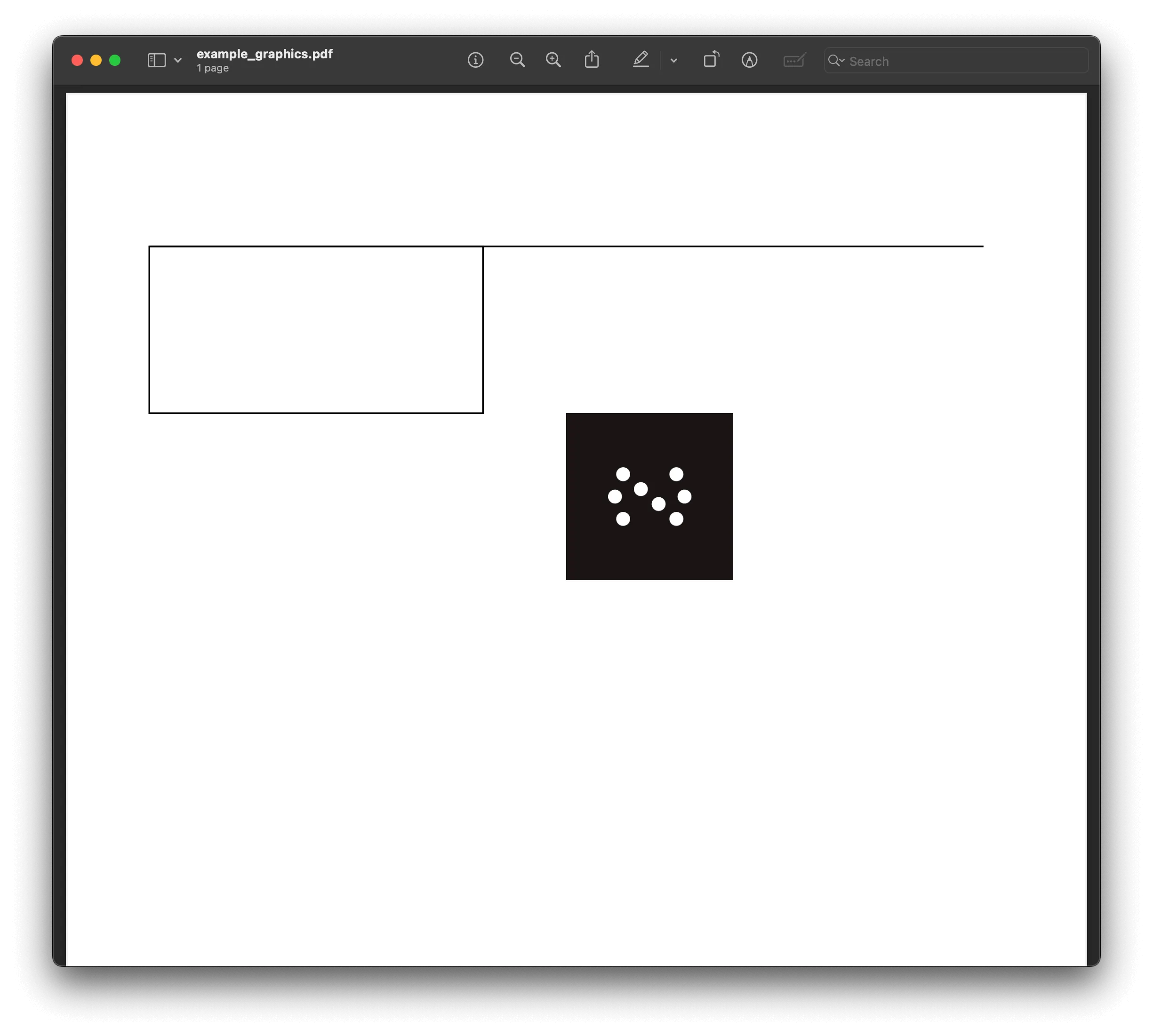
Creating charts
You can also generate various types of charts using ReportLab’s reportlab.graphics.charts module. It enables you to create bar charts, line charts, and pie charts with extensive customization.
ReportLab works well for detailed reports with charts, graphs, and complex page layouts. For simpler PDFs, consider FPDF or img2pdf.
4. Generating PDFs with PDFKit: Convert HTML to PDF in Python
PDFKit(opens in a new tab) wraps wkhtmltopdf(opens in a new tab) to convert HTML to PDF. The Python wrapper is deprecated, and wkhtmltopdf’s repository was archived in January 2023. Consider it for maintaining an existing integration; choose WeasyPrint or Playwright for a new HTML-to-PDF implementation.
Key features
- HTML conversion — Accepts files, strings, and URLs through Python methods.
- Legacy rendering engine — Uses Qt WebKit; modern CSS and JavaScript may render differently or fail.
- External executable — Requires a compatible wkhtmltopdf installation. Headers, footers, and other features depend on how that binary was built.
Best for: Maintaining reports whose templates and deployment already depend on wkhtmltopdf.
Installation
PDFKit requires both the Python package and a compatible wkhtmltopdf executable. The legacy package-manager commands below depend on availability in your operating system’s repositories; they aren’t supported setup paths for every current system.
Install the PDFKit library:
Terminal window pip install pdfkitDownload and install
wkhtmltopdffrom its official website(opens in a new tab), or use a package manager:macOS (Homebrew):
Terminal window brew install wkhtmltopdfUbuntu/Debian:
Terminal window sudo apt-get install wkhtmltopdfWindows: Download the installer from the official website(opens in a new tab) and follow the installation instructions.
Converting HTML to PDF
Here’s a simple guide for converting an HTML file into a PDF:
import pdfkit
# Specify the path to your HTML file.html_file = 'example.html'
# Define the output PDF file name.output_pdf = 'output.pdf'
# Convert HTML to PDF.pdfkit.from_file(html_file, output_pdf)
To learn more about converting HTML to PDF using Python, check out our blog post:
5. Generating PDFs with WeasyPrint
WeasyPrint(opens in a new tab) renders HTML and CSS into PDFs with a focus on paginated documents. It isn’t a browser and doesn’t execute JavaScript. Use it for templates whose content is available before rendering.
Key features
- Print layout — Supports page sizes, margins, page breaks, and running content through CSS.
- Document styling — Supports custom fonts and many CSS features, with documented limitations for layouts such as flexbox and grid.
- Font handling — Uses Pango for text layout; install fonts that cover your document’s languages.
- SVG support — Can embed vector graphics in PDF output.
Best for: Web content conversion, styled reports, invoices, receipts, and eBooks from HTML and CSS.
Installation
Install WeasyPrint via pip:
pip install weasyprintWeasyPrint requires Pango for text layout. On Ubuntu/Debian:
sudo apt-get install libpango-1.0-0 libpangoft2-1.0-0 libharfbuzz-subset0Usage example
Generate a styled PDF with WeasyPrint:
from weasyprint import HTML
# Define HTML content.html_content = '''<!DOCTYPE html><html><head>    <title>Sample PDF</title>    <style>        body { font-family: Arial, sans-serif; }        h1 { color: #333; }    </style></head><body>    <h1>Hello, this is a PDF generated using WeasyPrint!</h1>    <p>This PDF is created from HTML content with CSS styling.</p></body></html>'''
# Convert HTML to PDF.HTML(string=html_content).write_pdf("output.pdf")
print("PDF generated successfully!")
In this example, HTML(string=html_content).write_pdf("output.pdf") converts the provided HTML content into a PDF file named output.pdf.
To learn more about WeasyPrint, visit our blog post on how to generate a PDF from HTML using Python.
6. Generating PDFs with borb
borb(opens in a new tab) is a Python library for both creating and manipulating PDFs.
It provides layout objects for text and graphics, along with drawing commands.
Key features
- Rich layout engine — Paragraphs, images, tables, barcodes, SVG, pie and bar charts.
- Interactive elements — Forms, annotations, document outlines.
- Post-processing — Merging, splitting, redacting, and encrypting existing PDFs.
Best for: Complex pages (tables, charts, barcodes) and PDF manipulation (merge, split, encrypt) with no external binaries.
Installing borb
borb can be installed via pip:
pip install borbUsage example
Create a document with one paragraph:
from borb.pdf import Document, Page, PDF, SingleColumnLayout, Paragraph
# 1. Create the document and a page.doc  = Document()page = Page()doc.append_page(page)
# 2. Choose a layout manager for that page.layout = SingleColumnLayout(page)
# 3. Add content via the layout.layout.append_layout_element(Paragraph("Hello, borb!"))
# 4. Serialize to a PDF file.PDF.write(doc, "borb_hello.pdf")
7. Generating PDFs with img2pdf
img2pdf(opens in a new tab) packages supported image files as pages in a PDF.
Key features
- Image to PDF — Handles supported image formats, including JPEG, PNG, and TIFF.
- Batch combine — Merges dozens of images into one document in file order.
- Lossless conversion — Embeds supported formats such as JPEG directly; other supported inputs may need lossless reencoding.
- Python installation — Installs with dependencies, including Pillow and pikepdf.
Best for: Bundling images — such as scans, photos, and graphics — into a single, lossless PDF when you don’t need additional text or formatting.
Installation
Install via pip:
pip install img2pdfUsage example
Convert images to PDF:
import img2pdf
# List of image file paths.image_files = ['image1.jpg', 'image2.png', 'image3.tiff']
# Convert images to PDF.with open('output.pdf', 'wb') as f:    f.write(img2pdf.convert(image_files))
print("PDF generated successfully!")
In this example, img2pdf.convert() takes a list of image file paths and writes them into a PDF file named output.pdf.
Try Nutrient API for free and generate PDFs in minutes.
Preprocessing with Pillow
Pillow(opens in a new tab) lets you resize, crop, rotate, and convert images before passing them to img2pdf. Resizing changes the pixels, and saving as JPEG can introduce compression loss. The examples below therefore don’t preserve the original image data losslessly.
Key features
- Image editing — Resize, crop, rotate, filter, or watermark images
- Format conversion — Convert supported formats such as TIFF or BMP to JPEG or PNG
- Works with img2pdf — Pass processed images to
img2pdf.convert(...)
Best for: Preprocessing images before converting to PDF.
Installation
Install both libraries:
pip install Pillow img2pdfCode examples
The following examples resize images before converting them to PDF.
Example 1: Preprocess and convert a single image
Resize an image and save it as JPEG before conversion:
from PIL import Imageimport img2pdf
# Open an image using Pillow.image = Image.open('input.jpg')
# Resize the image (optional).image = image.resize((800, 600))
# Convert the image to another format if needed (optional).image = image.convert('RGB')
# Save the modified image temporarily.image.save('modified_image.jpg')
# Convert the modified image to PDF.with open('output.pdf', 'wb') as f:    f.write(img2pdf.convert('modified_image.jpg'))
print("PDF generated successfully!")
Example 2: Preprocess and combine multiple images
Resize each source image and combine the results in file order:
from PIL import Imageimport img2pdf
# List of image file paths.image_files = ['image1.jpg', 'image2.png', 'image3.tiff']
# Preprocess images.processed_images = []for image_file in image_files:    image = Image.open(image_file)    image = image.resize((800, 600))  # Resize image (optional).    image = image.convert('RGB')  # Convert format (optional).    processed_image_path = f'processed_{image_file}'    image.save(processed_image_path)    processed_images.append(processed_image_path)
# Convert preprocessed images to PDF.with open('output.pdf', 'wb') as f:    f.write(img2pdf.convert(processed_images))
print("PDF generated successfully!")
8. Generating PDFs with xhtml2pdf
xhtml2pdf(opens in a new tab) converts HTML and CSS to PDF with a single function call.
Best for: Simple invoices and reports built from HTML templates that fit its supported CSS subset.
Key features
- ReportLab-based rendering — Supports HTML and CSS 2.1 with some CSS3 features; it isn’t a browser renderer.
- Embedded assets — Supports images and custom fonts.
- Page templates — Provides page and frame controls for paginated documents, with documented limitations for long table cells and complex layouts.
Installation
To use xhtml2pdf, you can install it via pip:
pip install xhtml2pdfUsage example
Here’s a simple example of how to convert an HTML file to a PDF using xhtml2pdf:
from xhtml2pdf import pisa
# Define a function to convert HTML to PDF.def convert_html_to_pdf(source_html, output_filename):    # Open output file for writing (binary mode).    with open(output_filename, "wb") as output_file:        # Convert HTML to PDF.        pisa_status = pisa.CreatePDF(source_html, dest=output_file)
    # Return `true` if the conversion was successful.    return pisa_status.err == 0
# HTML content to be converted.html_content = """<!DOCTYPE html><html lang="en"><head>    <meta charset="UTF-8">    <title>Sample PDF</title>    <style>        h1 { color: #2E86C1; }        p { font-size: 14px; }    </style></head><body>    <h1>Hello, PDF!</h1>    <p>This is a PDF generated from HTML using xhtml2pdf.</p></body></html>"""
# Convert HTML to PDF.if convert_html_to_pdf(html_content, "output.pdf"):    print("PDF generated successfully!")else:    print("PDF generation failed!")
In this example, xhtml2pdf is used to convert a simple HTML string into a PDF file named output.pdf. The library handles the HTML structure and CSS styling, enabling you to produce a well-formatted PDF.
9. Generating PDFs with Playwright
Playwright(opens in a new tab) is Microsoft’s browser automation library. Its page.pdf() method generates PDFs through headless Chromium. Firefox and WebKit automation don’t provide this PDF export method.
Key features
- Browser rendering — Runs JavaScript and renders CSS supported by the installed Chromium version.
- Print media — Uses print CSS by default, so PDF output can differ from the onscreen page.
- PDF options — Sets page size, margins, backgrounds, and header/footer templates with
page.pdf().
Best for: HTML reports that depend on browser layout or JavaScript. Wait for application data, charts, and fonts to finish loading before exporting.
Installation
Install Playwright and its Chromium browser:
pip install playwrightplaywright install chromiumUsage example
Render a simple HTML invoice with Chromium:
from playwright.sync_api import sync_playwright
with sync_playwright() as p:    browser = p.chromium.launch()    page = browser.new_page()
    page.set_content("""    <html>    <head><style>        body { font-family: sans-serif; }        h1 { color: #2E86C1; }    </style></head>    <body>        <h1>Invoice</h1>        <p>Generated with Playwright</p>    </body>    </html>    """)
    page.pdf(path="output.pdf", format="A4")    browser.close()
Playwright requires a Chromium binary and its operating system dependencies. For serverless deployment, check the platform’s package-size, memory, and runtime limits before choosing this approach.
10. Reading and creating PDFs with PyMuPDF
PyMuPDF(opens in a new tab) is a high-performance Python binding for MuPDF. It’s primarily known for reading and manipulating PDFs, but it can also create documents from scratch.
Key features
- Text and image extraction — Extract text, images, and metadata.
- PDF creation — Create new PDFs with text, images, and vector drawings.
- Page manipulation — Merge, split, rotate, crop, and reorder pages.
- Annotations — Add highlights, stamps, and free text annotations.
- OCR integration — Use Tesseract for scanned PDFs; install Tesseract and the required language data separately.
Best for: Reading and manipulating existing PDFs, extracting text/images, and batch processing. Also suitable for creating simple PDFs from scratch.
Licensing
PyMuPDF is available under AGPL-3.0 or a commercial license from Artifex(opens in a new tab). Review the applicable license terms for your application and distribution model.
Installation
Install PyMuPDF with pip:
pip install pymupdfUsage example
Create a new PDF and insert a line of text:
import pymupdf
# Create a new PDF.doc = pymupdf.open()page = doc.new_page()
# Insert text.page.insert_text((72, 72), "Hello, PyMuPDF!", fontsize=16)
# Save.doc.save("output.pdf")doc.close()
PyMuPDF can also extract text from existing PDFs:
import pymupdf
doc = pymupdf.open("existing.pdf")for page in doc:    print(page.get_text())
Comparison: Which Python PDF library is right for you?
Choose based on your source content and deployment constraints. These are functional differences, not benchmark rankings.
| Library | Use case | Rendering or input | Deployment requirement |
|---|---|---|---|
| Nutrient API | Hosted generation and PDF processing | HTML, Office files, images, and PDF operations | API key, HTTP client, and network access |
| fpdf2 | Simple documents from Python data | Text, images, and drawing commands | Python package and dependencies; no browser |
| ReportLab | Reports with tables and charts | Canvas or Platypus layout objects | Python package and dependencies |
| PDFKit | Existing wkhtmltopdf integrations | HTML through legacy Qt WebKit | Deprecated wrapper and external wkhtmltopdf binary |
| WeasyPrint | Print-oriented HTML reports | HTML and supported CSS; no JavaScript | Pango and other documented system dependencies |
| borb | Programmatic PDF creation and editing | Layout objects and drawing commands | Python package and dependencies |
| img2pdf | Images packaged as PDF pages | Supported image formats | Python package, Pillow, and pikepdf |
| xhtml2pdf | Simple HTML templates | CSS 2.1 and selected CSS3 features | Python package and dependencies, including ReportLab |
| Playwright | HTML reports that need JavaScript | Headless Chromium with print CSS | Chromium binary and system dependencies |
| PyMuPDF | Existing PDF processing and extraction | PDF pages, drawing commands, and limited HTML layout | MuPDF bindings; Tesseract separately for OCR |
Recommendations
Start with the format you already have. For an HTML invoice, compare WeasyPrint’s paged layout with Playwright’s browser rendering. For Python data that needs tables and charts, evaluate ReportLab. For a folder of scans, use img2pdf. Use Nutrient API when you want hosted generation followed by operations such as OCR, merging, or signatures.
Before adopting a library, generate a representative document with long tables, missing values, large images, and the languages you need. Check page breaks, font coverage, output size, and peak memory in your deployment environment. Review licensing separately: fpdf2 uses LGPL-3.0, ReportLab uses BSD, and borb and PyMuPDF offer AGPL and commercial options.
Common issues while generating PDFs in Python
Here are some problems you may run into when generating PDFs in Python, along with solutions and best practices.
1. Handling large documents
- Problem — Generating large PDFs with many pages, images, or complex content can lead to high memory consumption and slow processing times.
- Solutions and best practices:
- Measure peak memory — Adding pages in a loop doesn’t mean a library writes them incrementally to disk. Profile the complete generation and save operation.
- Optimize image sizes — Compress and resize images before adding them to a PDF to reduce memory usage.
- Bound the workload — Generate smaller documents when your output requirements allow it. Merging them afterward has its own memory cost.
Example
from fpdf import FPDF
pdf = FPDF()pdf.set_font("Helvetica", size=12)for _ in range(1000):    pdf.add_page()    pdf.cell(200, 10, text="Chunk processing example", new_x="LMARGIN", new_y="NEXT")pdf.output("large_output.pdf")
This loop illustrates repeated page creation, not streaming output: fpdf2 retains document state until output().
2. Managing memory usage
- Problem — Memory leaks or excessive memory consumption arise when processing multiple PDF files or handling large datasets.
- Solutions and best practices:
- Use generators — Read source data lazily where possible. The PDF library may still retain its own document state.
- Release resources — Close files and document objects when finished. Garbage collection doesn’t guarantee a reduction in the process’s memory usage.
- Limit concurrency — Bound the number of documents generated at once, especially when each worker launches a browser or loads large images.
Example
import gcfrom fpdf import FPDF
pdf = FPDF()pdf.add_page()pdf.set_font("Helvetica", size=12)pdf.cell(200, 10, text="Memory management example", new_x="LMARGIN", new_y="NEXT")pdf.output("output.pdf")
# Clear memory.del pdfgc.collect()
This example deletes the local reference and requests garbage collection. It doesn’t demonstrate lower peak memory or guarantee that memory returns to the operating system.
3. Ensuring cross-platform compatibility
- Problem — PDF output may look different on various operating systems due to font availability or encoding issues.
- Solutions and best practices:
- Embed fonts — Use built-in font embedding features in libraries like
FPDForreportlabto ensure consistency across platforms. - Check font coverage — Built-in fonts such as Helvetica have limited character coverage. Embed a suitable font for multilingual text.
- Test your languages — Correct text encoding alone doesn’t provide missing glyphs or script shaping. Test the font and renderer together.
- Embed fonts — Use built-in font embedding features in libraries like
Example
pdf.set_font("Helvetica", size=12, style='B') # Built-in font, no OS dependency.pdf.set_auto_page_break(auto=True, margin=15)This fragment continues an existing FPDF instance. It selects a built-in font and enables automatic page breaks; it doesn’t configure multilingual font embedding.
4. Optimizing performance
- Problem — PDF generation can be slow, especially with large datasets, high-resolution images, or complex formatting.
- Solutions and best practices:
- Profile generation — Measure time spent loading assets, laying out content, and writing the PDF before optimizing.
- Use cached resources — Cache repeated elements (e.g. logos, headers) to avoid redundant processing.
- Choose concurrency carefully — Async I/O can help with network waits. Threads don’t necessarily speed up CPU-bound PDF generation; benchmark your workload.
Example
from concurrent.futures import ThreadPoolExecutorfrom fpdf import FPDF
def generate_pdf_chunk(data):    pdf = FPDF()    pdf.add_page()    pdf.set_font("Helvetica", size=12)    pdf.cell(200, 10, text=data, new_x="LMARGIN", new_y="NEXT")    pdf.output(f"chunk_{data}.pdf")
with ThreadPoolExecutor() as executor:    list(executor.map(generate_pdf_chunk, ["Page 1", "Page 2", "Page 3"]))
This creates three separate PDF files using a thread pool. Consuming the results with list() propagates worker exceptions. The example doesn’t merge the files or establish a performance improvement.
5. Maintaining layout consistency
- Problem — Inconsistent layout issues arise when adding dynamic content such as tables, charts, or paragraphs.
- Solutions and best practices:
- Define layout templates — Use a consistent document template to standardize layout across all generated PDFs.
- Auto-adjust layout — Use libraries that support automatic content fitting and page breaks, such as
reportlab. - Test page boundaries — Check your target paper sizes with long paragraphs, oversized table cells, and missing images.
Example
pdf.set_auto_page_break(auto=True, margin=10)pdf.multi_cell(0, 10, "This is a long paragraph that will wrap automatically.")This fragment continues an FPDF instance with a page and font already selected. multi_cell wraps the paragraph within the available width; inspect the resulting page breaks with real content.
Conclusion
Choose a renderer that fits your input. Then test it with a representative document before integrating it. An HTML template, a folder of images, and a report built from Python data need different tools.
For hosted HTML-to-PDF generation and subsequent document processing, try Nutrient API(opens in a new tab).
FAQ
No. Python’s standard library doesn’t include a PDF generator. Use a third-party library such as fpdf2 for basic documents, ReportLab for reports, or WeasyPrint for HTML templates.
Use fpdf2 for documents with text, images, and basic formatting. Install fpdf2 and import FPDF from fpdf. It has Python dependencies but doesn’t require a browser engine.
Yes. ReportLab and WeasyPrint can include images in generated documents. Use img2pdf when each source image should become a PDF page.
Pillow preprocesses images (resize, crop, convert formats) before passing them to img2pdf for PDF conversion.
Nutrient API supports HTML-to-PDF conversion, fillable forms, document merging, watermarks, annotations, OCR, and digital signatures. It has an official Python client library.
PDFKit wraps wkhtmltopdf for HTML-to-PDF conversion. Both rely on a legacy rendering stack, and the wrapper is deprecated. Keep it for existing integrations only after checking your templates and deployment requirements.
Use WeasyPrint for print-oriented HTML and CSS, or Playwright with Chromium when the report needs JavaScript. Nutrient API provides hosted HTML-to-PDF conversion with custom fonts, headers, footers, and page numbers.
There’s no single best choice. Evaluate fpdf2 for simple documents, ReportLab for charts and flowing reports, and WeasyPrint for HTML templates. Each is open source, with different license terms and deployment requirements.
ReportLab supports tables and flowables through Platypus, with charts in its reportlab.graphics module. For chart-heavy reports, combine matplotlib (for chart images) with ReportLab or Nutrient API to embed them in PDF output.