Customizing menus on React Native
Tap or right-click one or more annotations on a page. Nutrient React Native SDK then shows the annotation editing toolbar on Android and a popup menu on iOS. Both appear by default. Read on to learn how you can customize annotation selection.
Android

iOS
Customizing the annotation selection menu
To insert a custom menu element, add it to the buttons array inside the annotationContextualMenu object on your NutrientView component. On Android, specify the image as a drawable resource; on iOS, include it in your application bundle.
The id uniquely identifies the button, and tapping the button triggers the onCustomAnnotationContextualMenuItemTapped callback. The value can be anything, but on Android you must also declare the id as a resource item in your application’s ids.xml file:
<?xml version="1.0" encoding="utf-8"?><resources> <item name="custom_annotation_item" type="id"/></resources>The following example demonstrates how to add a custom menu element to the annotation selection toolbar or menu:
<NutrientView document={DOCUMENT} annotationContextualMenu={{ buttons: [ { id: 'custom_annotation_item', image: 'example_annotation_icon', title: 'Custom', // Will be used on iOS. Omit to use image. }, ], retainSuggestedMenuItems: true, }} onCustomAnnotationContextualMenuItemTapped={(result: any) => { Alert.alert( 'Nutrient', `Custom annotation menu item tapped: ${JSON.stringify( result, )}`, ); }} ref={this.pdfRef} fragmentTag="PDF1"/>The customized toolbar or menu will look like the following image, which shows the custom button.
| Android | iOS |
|---|---|
 | 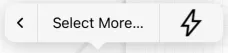 |
Tapping the custom button calls the onCustomAnnotationContextualMenuItemTapped callback with the id you supplied during creation. The stock Nutrient buttons run their default actions without triggering that callback.
To show only your custom buttons and hide the suggested Nutrient buttons, set retainSuggestedMenuItems to false.
Customizing the text selection menu
When you select text in a document, Nutrient shows a text selection menu with actions like copying text and creating text markup annotations. You can customize the items shown in this menu by providing the textSelectionContextualMenu prop when creating your NutrientView component.
To insert a custom menu element into the text selection menu, add it to the buttons array inside the textSelectionContextualMenu object. On Android, specify the image as a drawable resource; on iOS, include it in your application bundle.
The id uniquely identifies the button. Tapping the button triggers the onCustomTextSelectionContextualMenuItemTapped callback. The value can be anything, but on Android you must also declare the id as a resource item in your application’s ids.xml file:
<?xml version="1.0" encoding="utf-8"?><resources> <item name="custom_text_item" type="id"/></resources>The configuration matches annotationContextualMenu. Define custom buttons in the buttons array, and use retainSuggestedMenuItems to control whether the default Nutrient actions stay visible alongside them.
The following example demonstrates how to customize the text selection menu by mixing built-in menu items with a custom menu element:
<NutrientView document={DOCUMENT} textSelectionContextualMenu={{ buttons: [ Annotation.TextSelectionMenuItem.COPY, Annotation.TextSelectionMenuItem.HIGHLIGHT, { id: 'custom_text_item', image: 'example_annotation_icon', title: 'Text Action', }, ], retainSuggestedMenuItems: false, }} onCustomTextSelectionContextualMenuItemTapped={(result: any) => { Alert.alert( 'Nutrient', `Custom text selection contextual menu item tapped: ${JSON.stringify( result, )}`, ); }} ref={this.pdfRef} fragmentTag="PDF1"/>We don’t recommend ignoring the suggested menu or returning an empty menu. Doing so may break important functionality such as copying, modifying, and deleting annotations. Certain actions are only possible through the annotation selection menu.
For more details and sample code, see the AnnotationPresetCustomization.tsx example(opens in a new tab) from the Catalog example project.