How to convert Excel to PDF using JavaScript

Table of contents
Convert Excel files to PDFs in JavaScript using Nutrient DWS Processor’s XLSX-to-PDF JavaScript API. The free plan includes 50 credits. Different operations consume different amounts of credits. Create a free account(opens in a new tab) to get your API key.
It’s now possible to view and edit Word, Excel, and PowerPoint documents directly in the browser, without any server-side processing required.
Why convert Excel to PDF?
Converting Excel files to PDF is essential for workflows requiring document standardization and sharing. Common use cases include:
- Document preservation — Convert spreadsheets to PDFs to preserve formatting, formulas, and layouts regardless of software or device used to view them.
- Professional reporting — Generate polished financial reports, invoices, and data summaries that maintain consistent appearance across platforms.
- Compliance and archiving — Create tamper-resistant records for auditing, regulatory compliance, and long-term document storage.
- Universal sharing — Share data with stakeholders who don’t have Excel or prefer read-only formats that prevent accidental editing.
- Print-ready documents — Ensure spreadsheets print exactly as intended without pagination or formatting issues.
The Excel-to-PDF API automates this process in your workflow.
Nutrient DWS Processor API
Converting Excel-to-PDF is one of 30+ operations available through our PDF API tools. Combine Excel-to-PDF conversion with other tools for complex workflows:
- Converting various file formats and consolidating them into PDFs
- Converting Excel files and then watermarking and flattening the PDFs
- Processing multiple Excel files before merging them into a single PDF
Your account includes access to all PDF API tools.
Step 1 — Creating a free account on Nutrient DWS Processor
Go to the sign-up page(opens in a new tab) to create your free account.
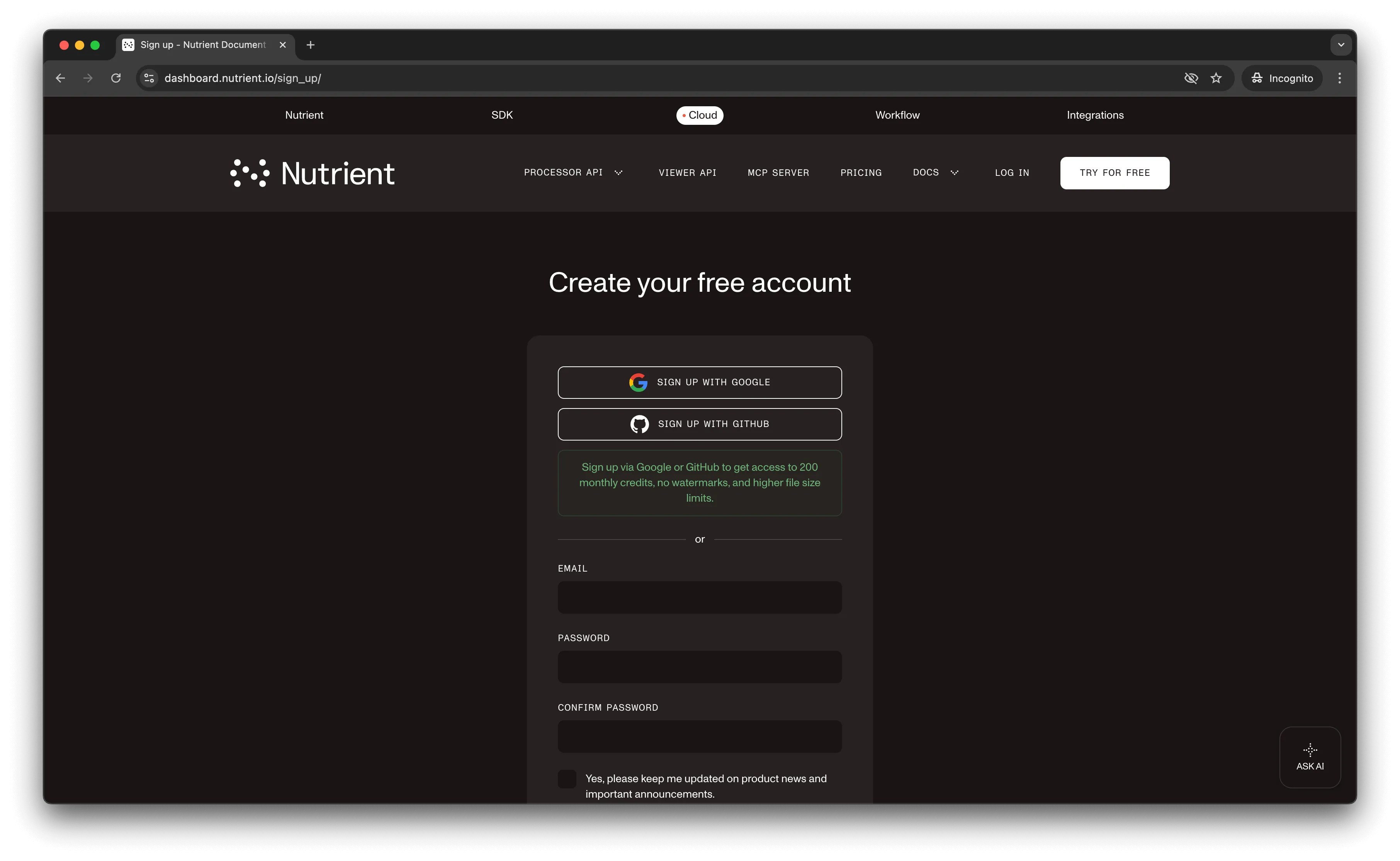
After account creation, the dashboard displays your plan details.
You start with 50 credits for document processing and have access to all PDF API tools.
Step 2 — Obtaining the API key
After verifying your email, get your API key from the dashboard. Click API keys in the left menu to view your keys.
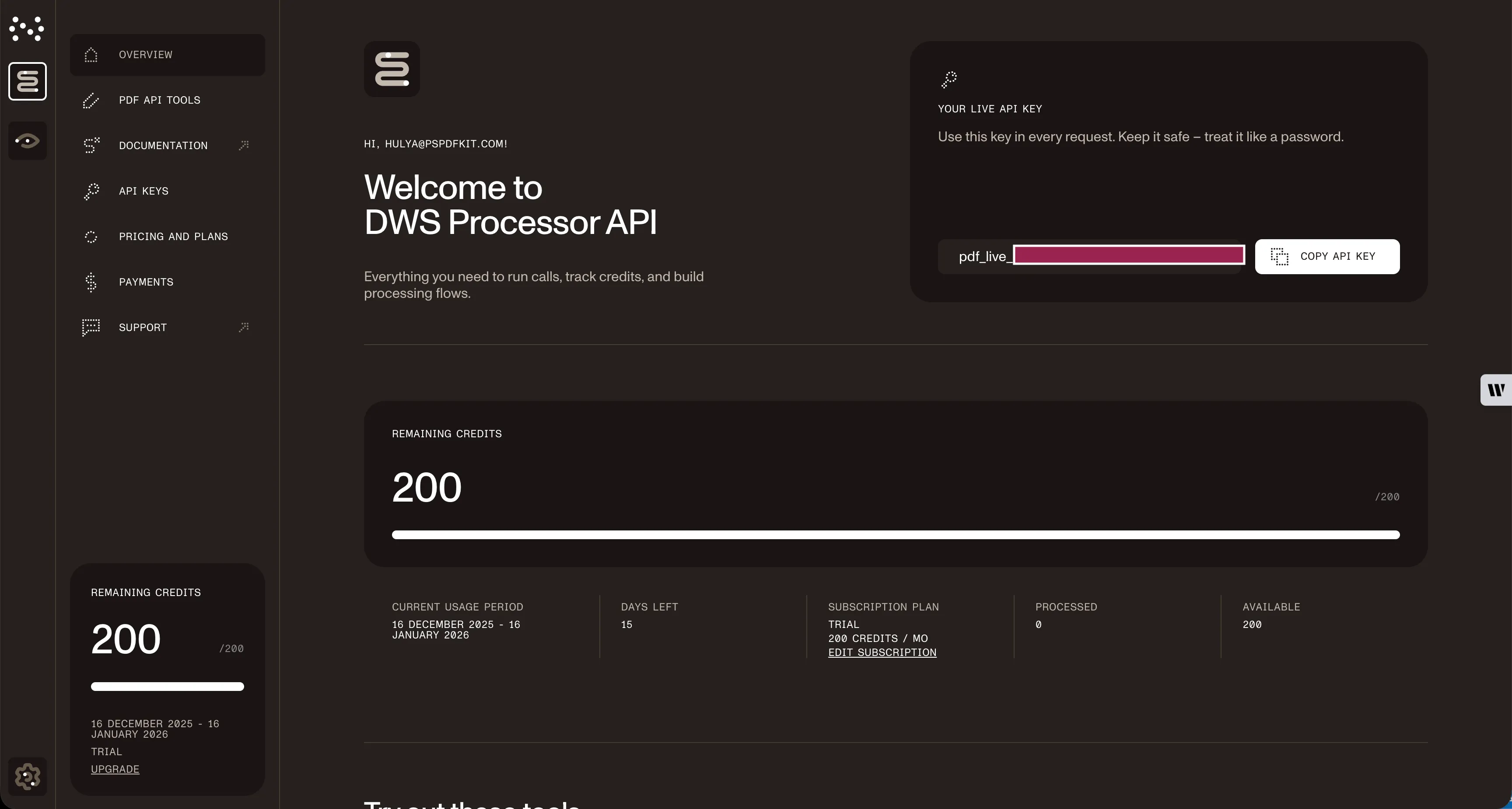
Copy the Live API key for use in the Excel-to-PDF API.
Step 3 — Setting up folders and files
Create a folder called excel_to_pdf and open it in a code editor. Create two subfolders: input_documents and processed_documents.
Copy your Excel file to the input_documents folder and rename it to document.xlsx. You can use the demo document as an example.
In the root folder, create processor.js for your code.
The folder structure:
excel_to_pdf├── input_documents| └── document.xlsx├── processed_documents└── processor.jsStep 4 — Installing dependencies
Install the required dependencies:
- axios(opens in a new tab) — For making REST API calls.
- Form-Data(opens in a new tab) — For creating form data.
Install both packages:
npm install axiosnpm install form-dataStep 5 — Writing the code
Add the following code to processor.js:
// This code requires Node.js. Do not run this code directly in a web browser.
const axios = require('axios')const FormData = require('form-data')const fs = require('fs')
const formData = new FormData()formData.append('instructions', JSON.stringify({  parts: [    {      file: "file"    }  ]}))formData.append('file', fs.createReadStream('input_documents/document.xlsx'))
;(async () => {  try {    const response = await axios.post('https://api.nutrient.io/build', formData, {      headers: formData.getHeaders({        'Authorization': 'Bearer YOUR_API_KEY_HERE'      }),      responseType: "stream"    })
    response.data.pipe(fs.createWriteStream("processed_documents/result.pdf"))  } catch (e) {    const errorString = await streamToString(e.response.data)    console.log(errorString)  }})()
function streamToString(stream) {  const chunks = []  return new Promise((resolve, reject) => {    stream.on("data", (chunk) => chunks.push(Buffer.from(chunk)))    stream.on("error", (err) => reject(err))    stream.on("end", () => resolve(Buffer.concat(chunks).toString("utf8")))  })}
Make sure to replace YOUR_API_KEY_HERE with your API key.
Code explanation
The form variable contains the API instructions. createReadStream reads the input Excel file. The axios.post() function makes the POST request to the Excel-to-PDF API.
The API response saves to the processed_documents folder.
Output
Execute the code:
node processor.jsAfter successful execution, result.pdf appears in the processed_documents folder.
Final folder structure:
excel_to_pdf├── input_documents| └── document.xlsx├── processed_documents| └── result.pdf└── processor.jsAdditional resources
Explore more ways to work with Nutrient API:
- Postman collection — Test API endpoints directly in Postman
- Zapier integration — Automate document workflows without code
- MCP Server — PDF automation for LLM applications
- JavaScript client — Official JavaScript/TypeScript library
Conclusion
This tutorial covered converting Excel files to PDF documents in JavaScript using the Excel-to-PDF JavaScript API.
You can integrate these functions into existing applications. The same API token enables other operations like merging documents, adding watermarks, and more. Sign up(opens in a new tab) for a free trial.
FAQ
No. Start with a free account that provides 50 credits for processing documents. Different operations consume different amounts of credits, so you can process varying numbers of documents depending on the operations you use.
Yes. Nutrient DWS Processor API maintains spreadsheet formatting, including fonts, colors, cell borders, and merged cells. Complex formulas are calculated and displayed as values in the PDF output.
No. This code requires Node.js and uses server-side modules like fs (file system). For browser-based Excel processing, consider using Nutrient’s client-side document viewer, which can display Excel files directly without server-side conversion.
Yes. Nutrient DWS Processor API converts all sheets in an Excel workbook to a single PDF document, with each sheet appearing as a separate page or set of pages depending on the sheet size.