How to delete PDF pages using Python

Table of contents
Delete PDF pages using our delete PDF page Python API. Create a free account, get API credentials, and implement page removal using the requests library. Combine with 30+ other API tools for merging, splitting, and watermarking.
This tutorial shows you how to delete PDF pages using our delete PDF page Python API. The free plan includes 50 credits. Different operations consume different amounts of credits, so the number of PDF documents you can generate varies. Create a free account(opens in a new tab) to access your API key.
Why delete PDF pages?
Deleting PDF pages is essential for document workflows that require removing sensitive or unnecessary content. Common use cases include:
- Data privacy compliance — Remove pages containing confidential information before sharing documents externally, ensuring sensitive data doesn’t leave your organization.
- Storage optimization — Delete unnecessary pages to reduce file size and cloud storage costs, which is especially important for high-volume document processing.
- Document preparation — Remove draft pages, cover sheets, or annotations before final distribution to clients or stakeholders.
- Automated processing — Filter out specific page ranges as part of backend document workflows, streamlining document management pipelines.
- Content curation — Extract relevant sections by removing everything else, creating focused documents for specific audiences or purposes.
The delete PDF page API automates this process in your workflow.
Nutrient DWS Processor API
Deleting PDF pages is just one of the operations possible with our 30+ PDF API tools. You can combine our deletion tool with other tools to create complex document processing workflows, such as:
- Converting MS Office files and images into PDFs before removing pages
- Removing pages from two documents before merging them
- Deleting pages and then watermarking and flattening PDFs
Once you create your account, you’ll be able to access all our PDF API tools.
Getting started
You’ll need to:
- Create a free account to access your live API key.
- Install Python on your system. You can download Python here(opens in a new tab).
Step 1 — Creating a free account on Nutrient
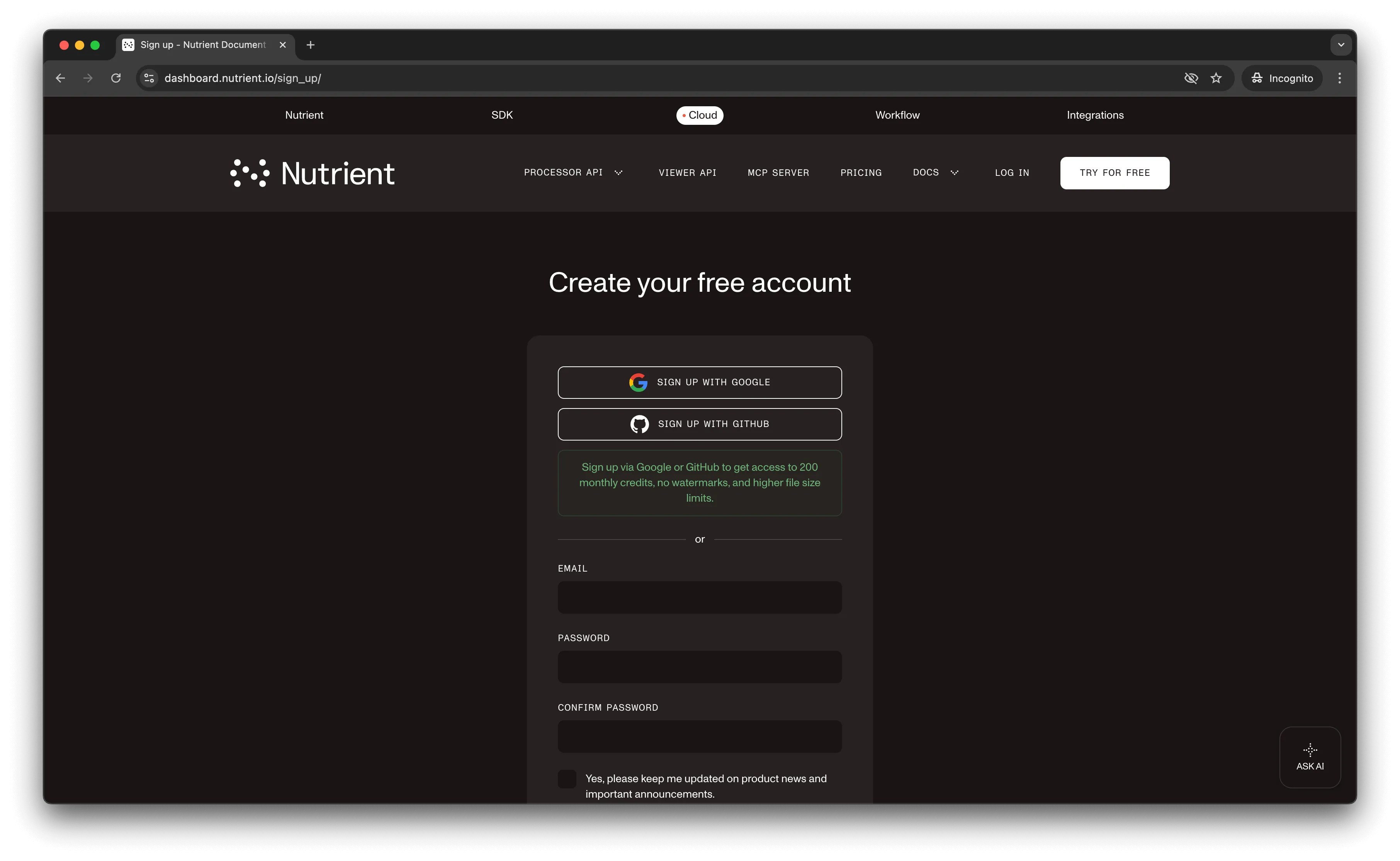
Go to our website(opens in a new tab), where you’ll see the page below, prompting you to create your free account.
Once you’ve created your account, you’ll be welcomed by a page showing an overview of your plan details.
You’ll start with 50 credits to process, and you’ll be able to access all our PDF API tools.
Step 2 — Obtaining the API key
After you’ve verified your email, you can get your API key from the dashboard. In the menu on the left, click API keys. You’ll see the following page, which is an overview of your keys.
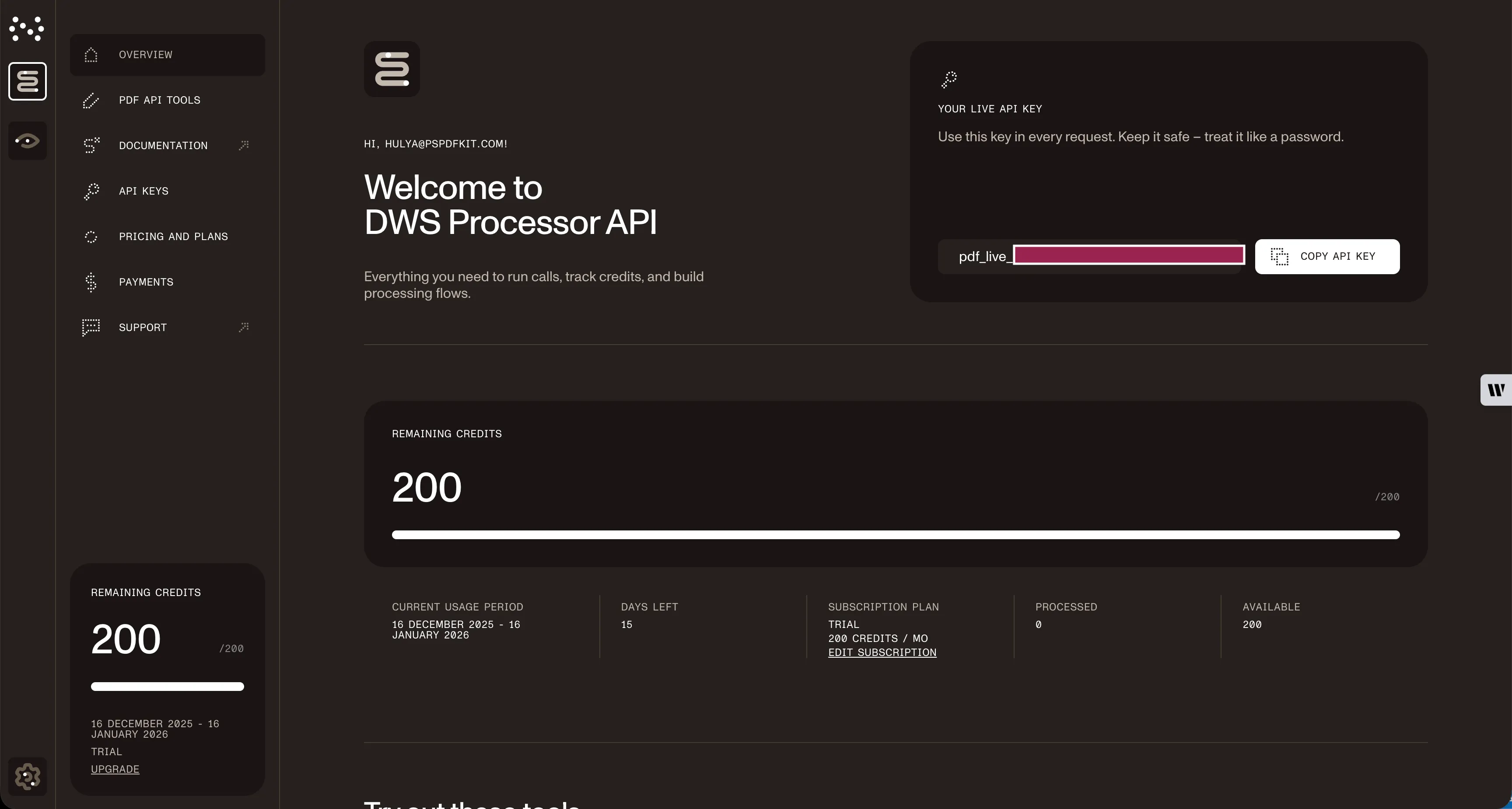
Copy the Live API key, because you’ll need this for the delete PDF page API.
Step 3 — Setting up folders and files
Create a folder called delete_pdf and open it in a code editor. This tutorial uses VS Code. Next, create two folders inside delete_pdf and name them input_documents and processed_documents.
Then, in the root folder, delete_pdf, create a file called processor.py. This is the file where you’ll keep your code.
Now your folder structure will look like this:
delete_pdf├── input_documents├── processed_documents└── processor.pyStep 4 — Writing the code
Open the processor.py file and paste the code below into it:
import requestsimport json
response = requests.request(  'POST',  'https://api.nutrient.io/build',  headers = {    'Authorization': 'Bearer YOUR_API_KEY_HERE'  },  files = {    'document': open('input_documents/document.pdf', 'rb')  },  data = {    'instructions': json.dumps({      'parts': [        {          'file': 'document',          'pages': {            'end': 2          }        },        {          'file': 'document',          'pages': {            'start': 4          }        }      ]    })  },  stream = True)
if response.ok:  with open('processed_documents/result.pdf', 'wb') as fd:    for chunk in response.iter_content(chunk_size=8096):      fd.write(chunk)else:  print(response.text)  exit()
Make sure to replace YOUR_API_KEY_HERE with your API key.
Code explanation
In the code above, you first import the requests and json dependencies. After that, you create the instructions for the API call. These instructions keep pages 1–3 (indices 0–2) and page 5 onward (index 4+), effectively deleting page 4 (index 3).
You then use the requests module to make the API call, and once it succeeds, you store the result in the processed_documents folder.
Output
To execute the code, use the command below:
python3 processor.pyOnce the code has been executed, you’ll see a new processed file under the processed_documents folder called result.pdf.
The folder structure will look like this:
delete_pdf├── input_documents| └── document.pdf├── processed_documents| └── result.pdf└── processor.pyAdditional resources
Explore more ways to work with Nutrient API:
- Postman collection — Test API endpoints directly in Postman
- Zapier integration — Automate document workflows without code
- MCP Server — PDF automation for LLM applications
- Python client — Official Python library
Conclusion
This tutorial showed you how to delete pages from a PDF document in your Python application using our delete PDF page API.
Integrate these functions into your existing applications to remove pages from PDFs. With the same API token, you can perform other operations, such as merging documents into a single PDF, adding watermarks, and more. To get started with a free trial, sign up(opens in a new tab) here.
FAQ
Nutrient DWS Processor API offers 30+ PDF operations, including merging, splitting, watermarking, OCR, flattening, and converting Office documents to PDF. You can combine these operations in a single workflow. For example, delete specific pages, watermark the result, and then flatten it to prevent editing — all through the same API.
Yes! Use our Postman collection to test all API endpoints directly in Postman. Import the collection, add your API key, and experiment with different operations and parameters. This helps you understand the API before integrating it into your Python application. You can also test using tools like cURL or HTTPie in your terminal.
Use our Zapier integration to automate PDF processing without writing code. Connect Nutrient DWS Processor API with 5,000+ apps like Google Drive, Dropbox, Gmail, and Slack. For example, automatically delete specific pages from PDFs when they’re uploaded to Google Drive, or process email attachments and remove sensitive pages before saving them.
Create separate parts entries for the pages you want to keep. For example, to delete only page 3 from a 5-page document, include parts for pages 1–2 ({'end': 2}) and 4 onward ({'start': 4}). The API keeps what you specify in the parts array and removes everything else.
Yes. Use multiple parts in your instructions array. For example, to keep pages 1–3 and 7–10 (deleting 4–6), create two parts: one with {'start': 1, 'end': 3} and another with {'start': 7, 'end': 10}. The API assembles the parts in the order you specify, allowing you to remove specific sections while keeping others.
Each deletion operation consumes 1 credit, regardless of the number of pages deleted or file size. Start with a free trial that includes 50 credits, allowing you to process up to 50 PDF deletion requests at no cost.