AI Schema Generator: Auto-draft a JSON Schema for extraction

Table of contents
An extraction schema written by hand almost never ships as the first draft. One that reaches for oneOf to model two invoice layouts or $ref to reuse a nested object comes back rejected: The extract endpoint accepts seven JSON Schema keywords, and not the dozens standard JSON Schema allows.
The Data Extraction API’s extract endpoint maps a document onto the JSON Schema supplied in the request, and a field left out of that schema never appears in the response. Writing that schema by hand is the slow part of any extraction project. Every field must be named, typed, and described; repeating structures must be modeled as arrays of objects; and values that may be missing must be distinguished from those that always appear. And the schema has to stay inside a dialect narrower than most developers expect.
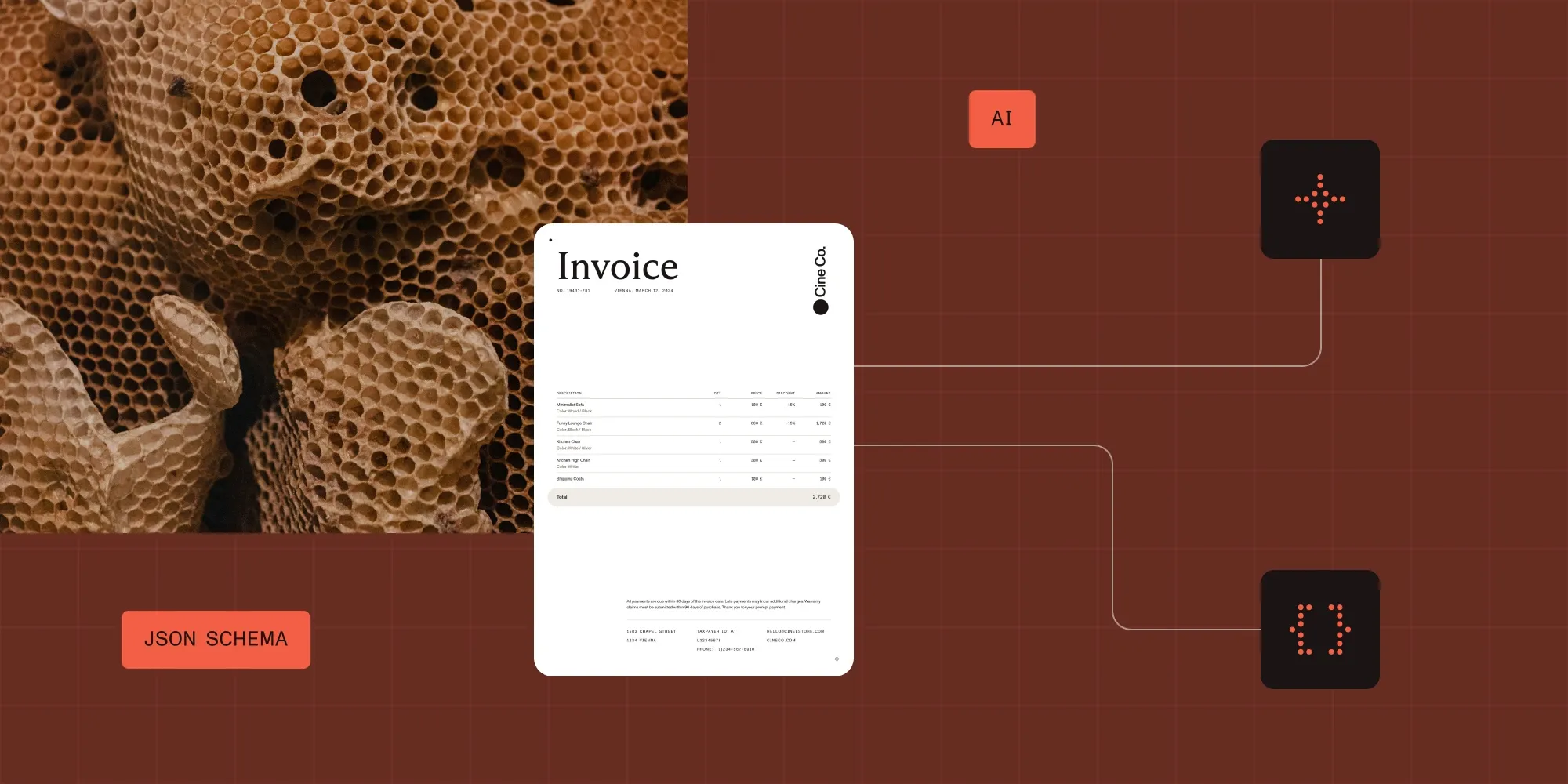
The AI Schema Generator in Nutrient Studio writes that first draft. It reads up to five example documents and a plain-language description of what matters, and then scaffolds a working schema, including the field descriptions that do most of the work at extraction time.
The extract endpoint accepts seven JSON Schema keywords. Habits carried over from general-purpose JSON Schema — $ref, oneOf, validation ranges, an explicit additionalProperties — produce rejected requests rather than a working schema. The AI Schema Generator in Studio drafts one that the endpoint already accepts, from up to five example documents, plus a plain-language description of the fields and rules that matter. The field descriptions are the most useful part of the draft: They’re the instruction the extraction model follows when choosing between a subtotal and a grand total, and they’re the part hand-written first drafts usually skip. Treat the output as a starting point. Run it against a document that wasn’t one of the examples and let the citations show where the schema is still guessing.
The dialect is narrower than standard JSON Schema
Of everything JSON Schema defines, extract accepts seven keywords. It doesn’t support $ref, composition keywords like oneOf, validation ranges, or conditional schemas. The full list of supported keywords and size limits is short enough to read in a minute, but easy to violate out of habit.
Two rules catch even careful authors. The root must be type: "object", and an array root returns a 400 error. And schemas are closed: Every object is processed as though additionalProperties: false were set, so undeclared fields never appear in the response. Setting additionalProperties explicitly, a habit from years of general-purpose JSON Schema, is rejected, not silently ignored.
Asking a general-purpose model for a schema doesn’t avoid this. A model prompted directly for a schema for an invoice reaches for the same keywords a developer would. Examples include $ref for a repeated address block and oneOf for a value that might be a string or a number. That’s what a well-formed JSON Schema looks like everywhere except inside this dialect. The AI Schema Generator only emits schemas the extract endpoint already accepts, so its first draft can be submitted as-is.
Descriptions carry more weight than field names
The extraction model reads the description on each field as an instruction when deciding which value on the page belongs in that field.
This is usually where a working schema and one that produces subtly wrong data differ. A field named total with no description invites ambiguity on an invoice that shows a subtotal, a tax line, a discount, and a grand total. A description that says the final total after discounts and tax resolves it.
Effective descriptions do three things: name the field as it appears in the document, state the expected format when it matters, and say which value to take when the document offers several.
This is the part of schema authoring that takes the longest and is most often skipped.
Generating a schema from example documents
The generator lives in Studio under Extract > Playground in the Schema Builder panel. Selecting Generate schema opens a dialog with three inputs.
Example documents — Up to five documents are accepted, and smaller files generate faster. These ground the schema in real layouts, not an idealized description of the document type. The resulting schema should fit other documents of the same class, not just the uploaded samples.
Document type — This names the kind of document, such as an invoice, a contract, or an insurance claim. It anchors the vocabulary the generator uses when naming fields.
Requirements — This input is optional, and it’s the one most worth spending time on. It accepts a free-form description of the fields that matter and the rules that govern them.
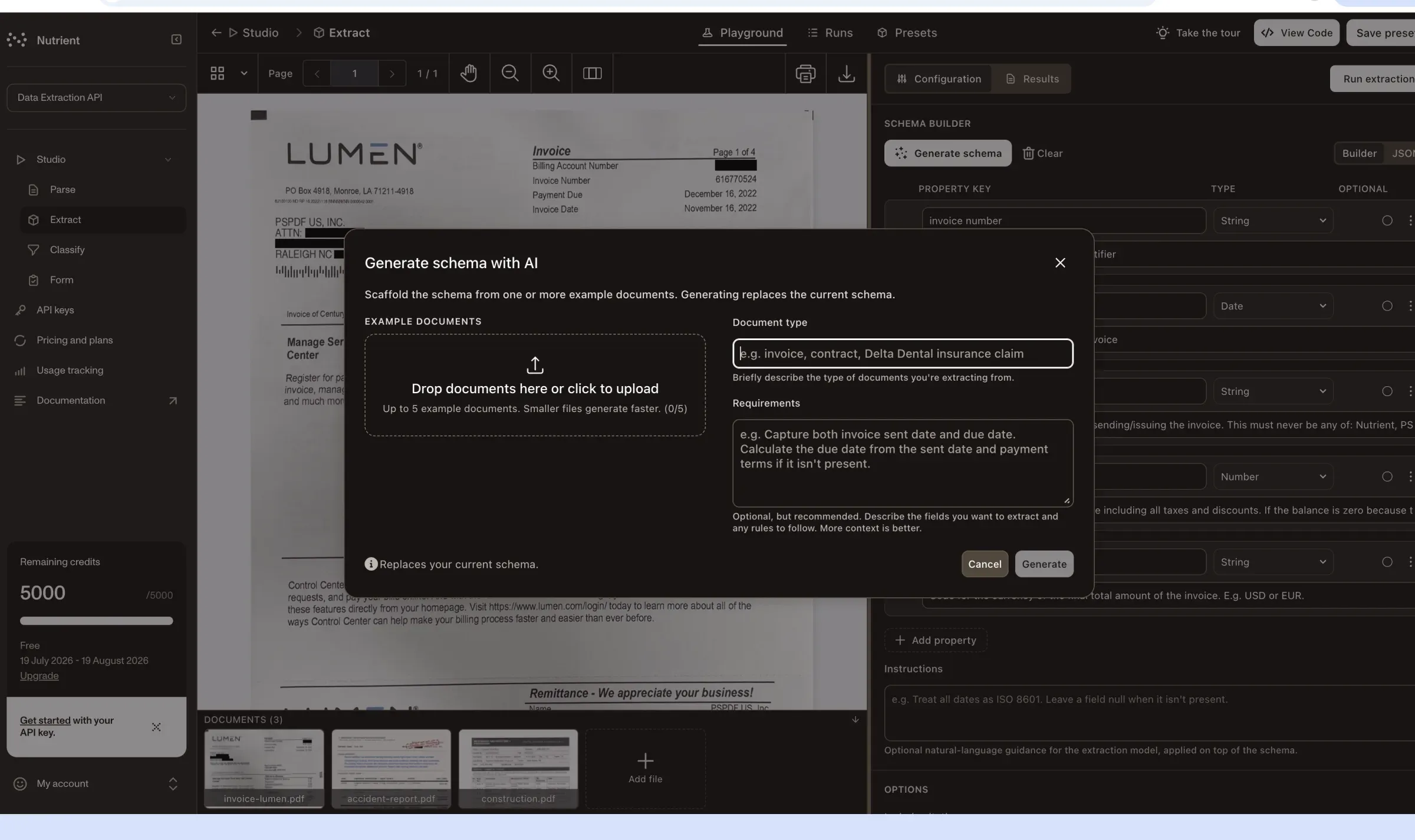
That last field accepts more than a list of names. A requirement can express a rule the schema encodes, for example:
Capture both invoice sent date and due date. Calculate the due date from the sent date and payment terms if it isn’t present.
This is a derivation rule. It tells the generator what to model and how the values relate. Without it, that instruction would be written by hand into a field description after the first extraction run returned nulls.
A detailed requirement produces a closer first draft than a bare list of field names. Describe naming preferences and granularity, identify which checkbox groups should become enumerated fields, and say where repeating rows belong.
Generating replaces the current schema in the builder. Run the generator before hand-tuning a schema, not after.
Reviewing the generated schema
The draft populates the Schema Builder as a list of properties with a type and an optional flag for each, and it can be inspected as raw JSON through the Builder/JSON toggle. Properties can be added, removed, retyped, or reworded from there.
The generated descriptions are the part worth reading closely. They tend to carry the disambiguation and the negative constraints that hand-written first drafts omit. Examples include which party on an invoice counts as the issuer and how to handle a zero balance. Those are the details that determine whether extraction is right on the second document rather than only the first.
Alongside the schema, the Schema Builder exposes an Instructions field for guidance that doesn’t belong to any single property. It might say treat all dates as ISO 8601 or leave a field null when it isn’t present. This maps to the top-level instructions string in the API request and is applied on top of the schema at extraction time.
From draft to extraction
Treat a generated schema as a starting point and review it in four steps:
- Generate from representative examples, with requirements describing the fields and rules that matter.
- Read the generated descriptions and correct anything that misreads the document class.
- Run extraction in the Playground against a document that wasn’t one of the examples.
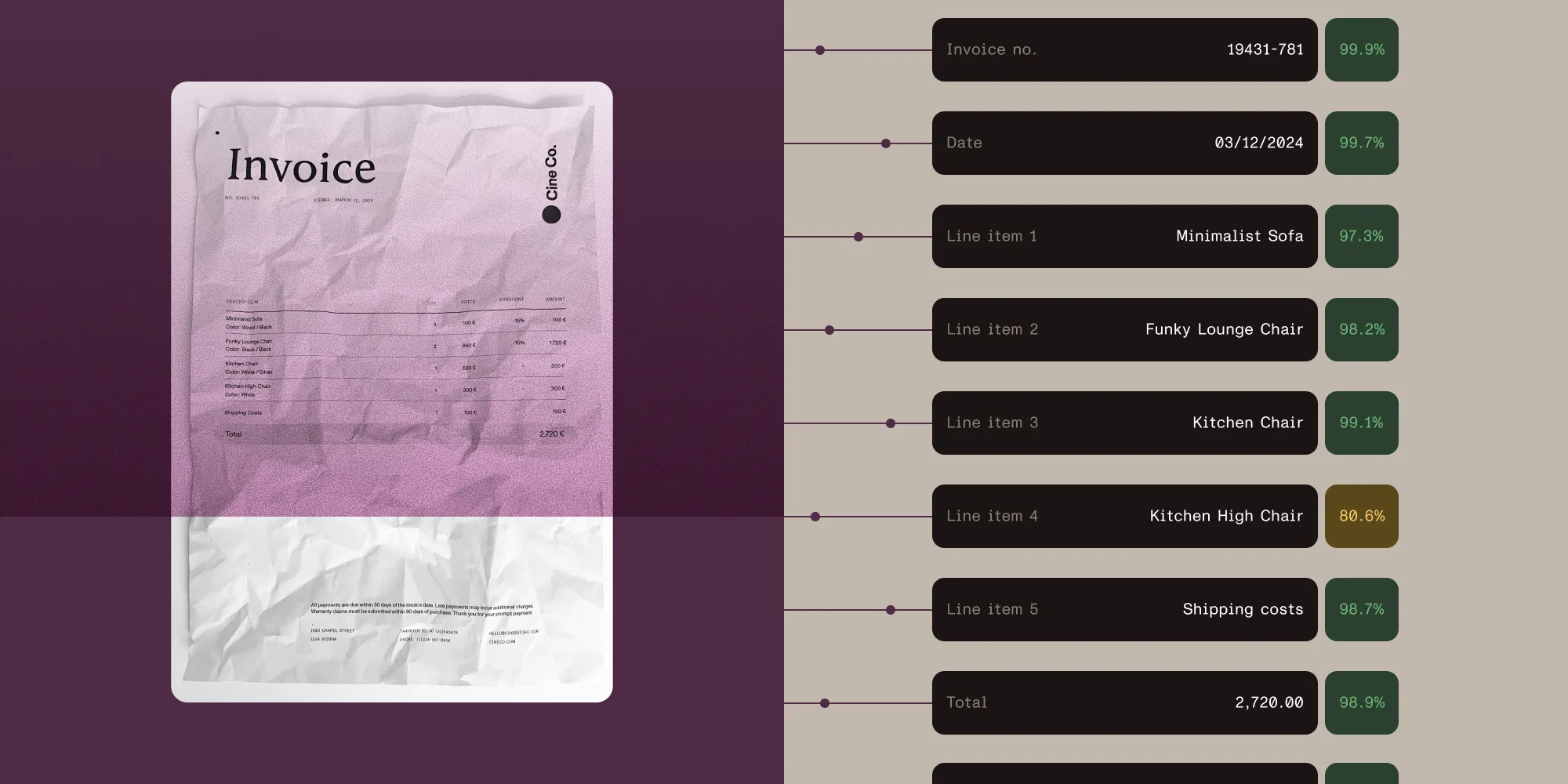
- Check the returned citations and confidence signals to see where the schema is guessing.
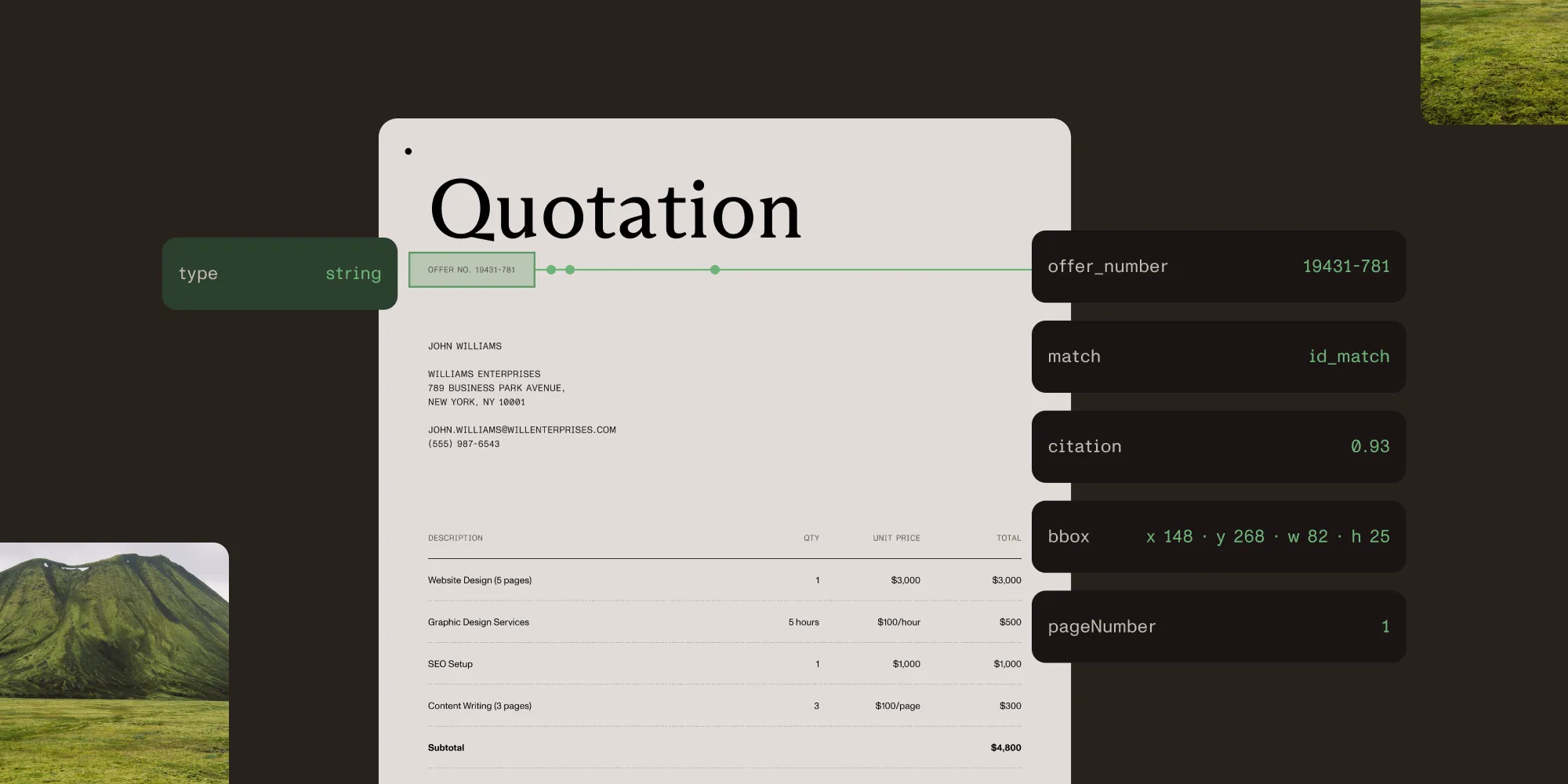
Every extracted value comes back with a bounding box, a match label, and a confidence signal pointing at the region it was drawn from. A field that scored poorly can be traced to the description that produced it. A schema drafted by AI is checked the same way as a hand-written one: against what the citations show.
Try Nutrient Data Extraction API
FAQ
Up to five. Smaller files generate faster.
The document type is the essential input. Examples ground the schema in real layouts and are worth providing when they’re available.
Yes. The dialog warns that generating replaces the current schema in the builder.
Yes. The draft populates the Schema Builder and can be edited as properties or as raw JSON.
The schema is built for the extract endpoint. Reviewing it against the supported keywords and size limits before moving it into production code is still worthwhile.
Yes. The Instructions field carries document-wide guidance and maps to the top-level instructions string in the API request.
Related reading
- Define a schema — Supported keywords, closed-schema behavior, and size limits
- Citations and confidence — Grounding extracted values back to source locations
- Extract invoice data with a schema — A worked example
- What should a document extraction confidence score actually tell you? — How to read the confidence signals returned alongside extracted values
- PDF data extraction developer guide — Parse modes, schema design, and where generated schemas fit the wider pipeline