How to convert PDF to JSON: Structured data extraction

Table of contents
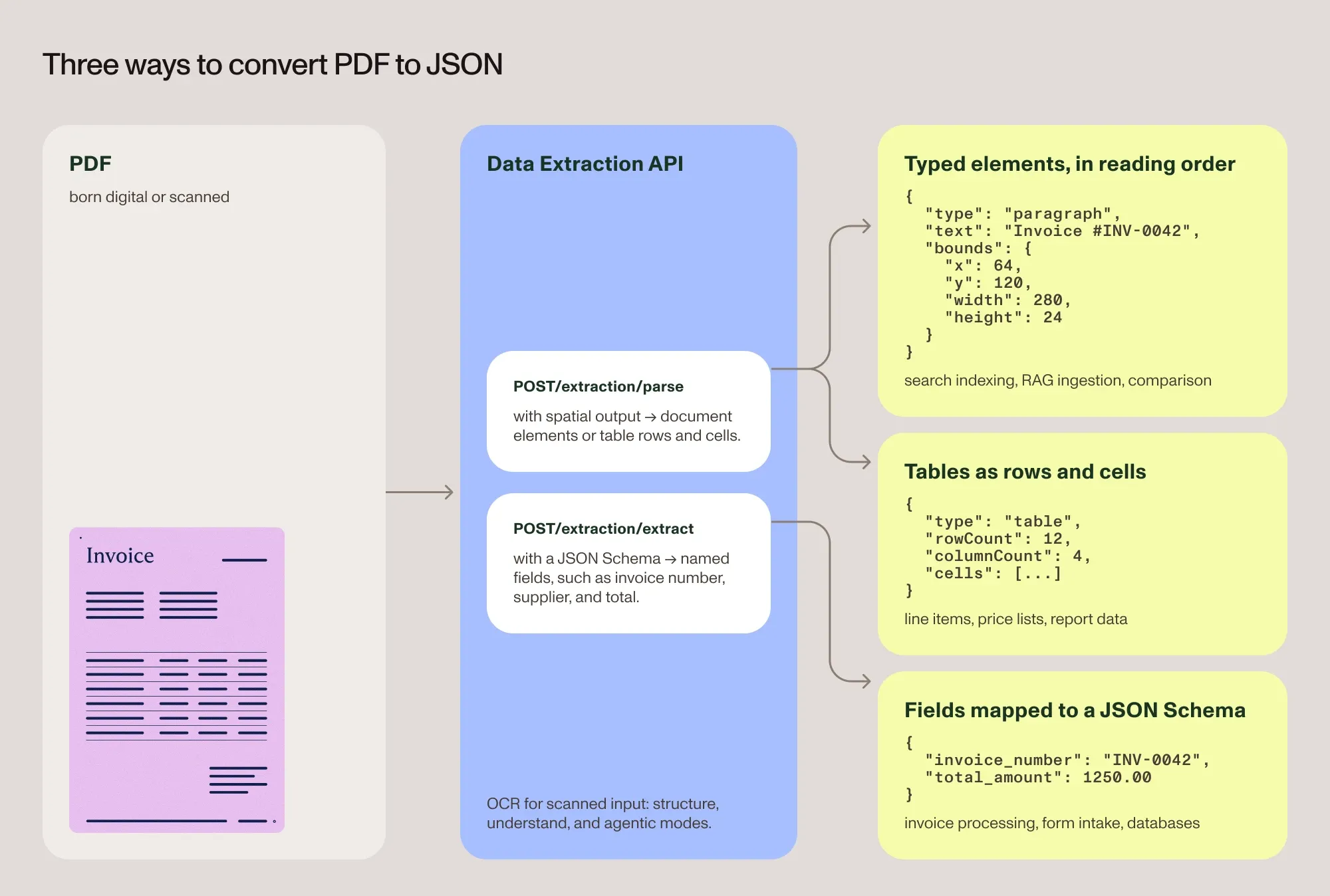
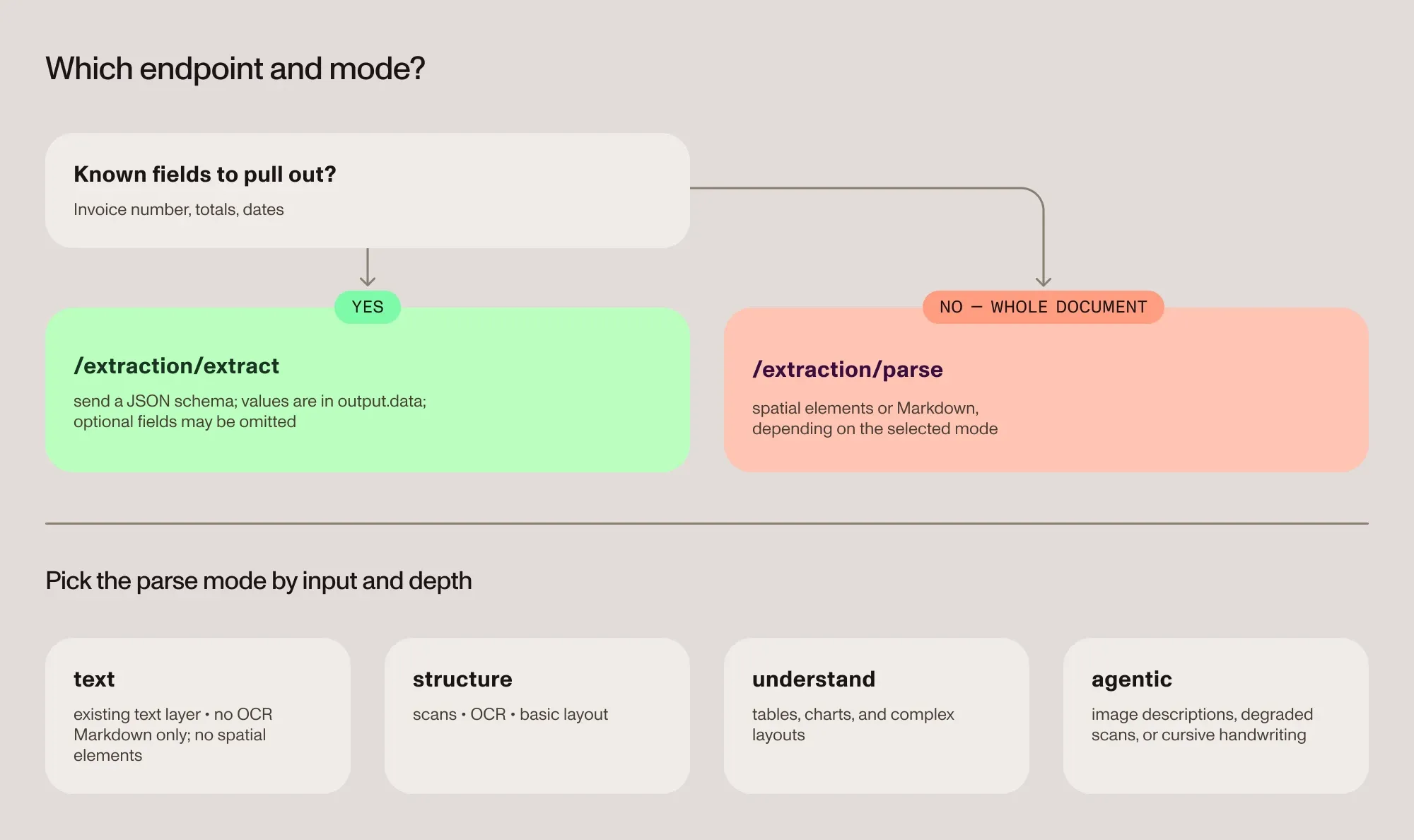
Use the Nutrient Data Extraction API to extract PDF content as JSON. Choose /extraction/parse with spatial output for document elements and table cells, or /extraction/extract with a JSON Schema for known fields. The structure, understand, and agentic modes also run optical character recognition (OCR) on image-only scans.
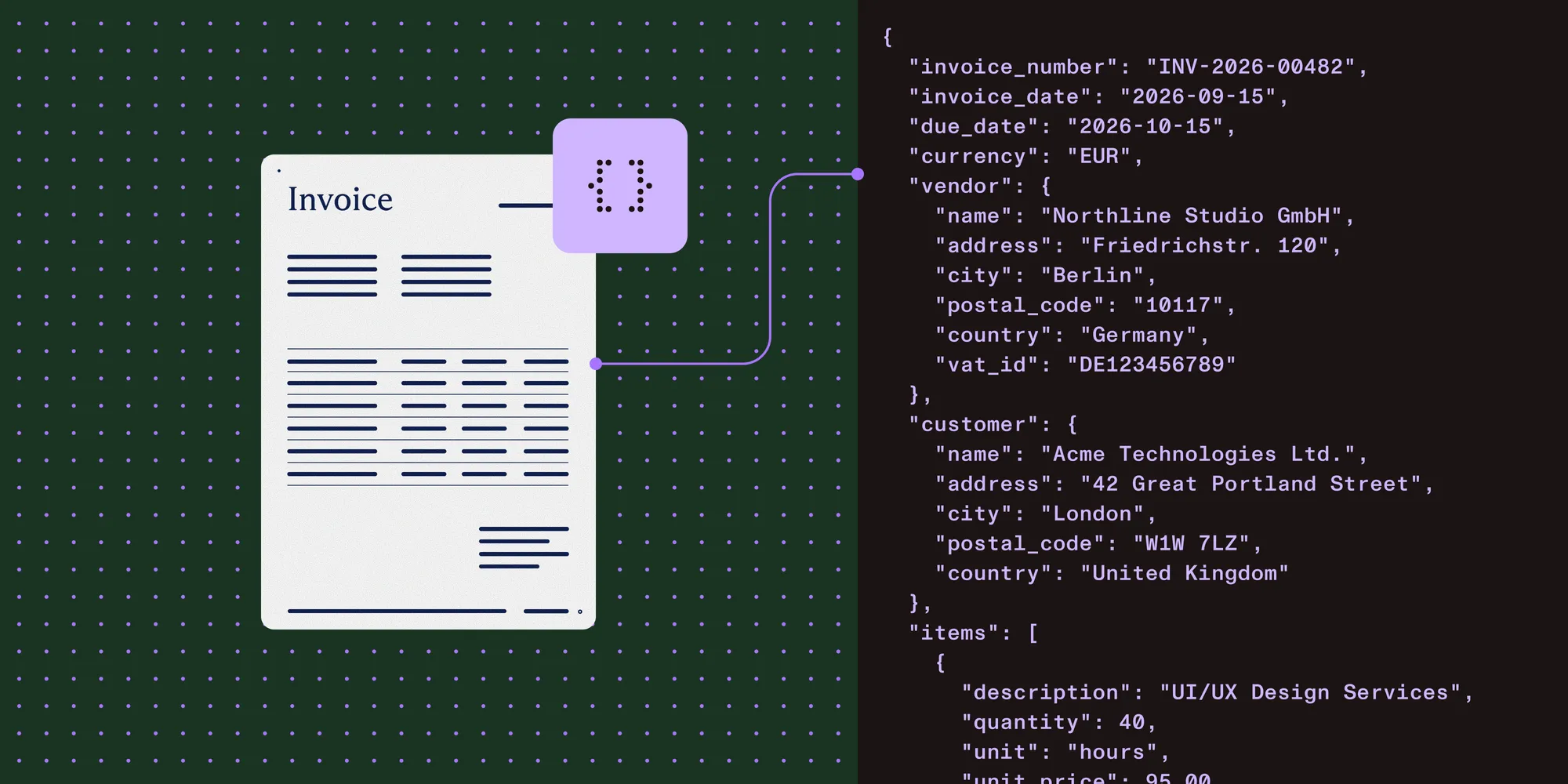
An invoice reads fine as a PDF, but an application needs its number, total, and line items as data. This tutorial uses the Nutrient Data Extraction API to convert PDF content into JSON, including tables and fields from scanned documents. The downloadable invoice example adds a manual review step before the values are exported. For an overview of the hosted endpoint, see the PDF-to-JSON API.
Why convert PDF to JSON?
PDF preserves page layout, but its structure varies. Tagged PDFs can encode a logical reading order, and interactive forms can expose field names and values. Untagged tables and flattened forms may contain only positioned text or pixels, so an extraction step is needed to recover their structure. JSON enables downstream applications to process the extracted fields and document structure.
Choose the JSON output based on what the application needs:
- Full-document structure — Detected paragraphs, headings, tables, and figures as typed elements, in reading order. Use these elements for search indexing, document comparison, and retrieval-augmented generation (RAG) ingestion.
- Tables — Rows and cells as data. Use this output for line items, price lists, and reports.
- Known fields — A fixed set of values mapped to a schema the downstream system already expects. Use this output when processing invoices or collecting form data.
Validate the extracted values against the application’s rules before using them in production.
Get an API key
The examples call the Data Extraction API’s REST endpoints, so they need an API key and a local PDF. Use curl 7.76.0 or newer for the shell examples, or Python with the requests package for the Python example. Sign up on the Nutrient dashboard(opens in a new tab) and copy the live key, which starts with pdf_live_, from the Data Extraction API keys page. The getting started guide covers setup in more detail.
For Python, install the dependency in the project’s virtual environment. On systems that use python3, substitute it for python in the commands below:
python -m pip install requestsTurn a full PDF into structured JSON
With output.format set to spatial, the /extraction/parse endpoint returns detected document elements in output.elements. Their fields depend on the element type and can include text, spatial coordinates, detection confidence, and a page reference:
curl --fail-with-body --max-time 180 -X POST https://api.nutrient.io/extraction/parse \ -H "Authorization: Bearer your_api_key_goes_here" \ -F "file=@document.pdf" \ -F 'instructions={"mode":"understand","output":{"format":"spatial"}}'The same request in Python:
import jsonimport requests
with open("document.pdf", "rb") as document:    response = requests.post(        "https://api.nutrient.io/extraction/parse",        headers={"Authorization": "Bearer your_api_key_goes_here"},        files={"file": document},        data={            "instructions": '{"mode":"understand","output":{"format":"spatial"}}'        },        timeout=(10, 180),    )
response.raise_for_status()result = response.json()with open("document.json", "w", encoding="utf-8") as output:    json.dump(result, output, ensure_ascii=False, indent=2)print(json.dumps(result, ensure_ascii=False, indent=2))
The Python example checks the HTTP status before it saves the response to document.json and prints valid JSON. The response wraps the element array in output, as shown in this illustrative response with one paragraph:
{ "status": 200, "requestId": "req_e5f6g7h8", "output": { "elements": [ { "id": "a1b2c3d4-1111-4000-8000-000000000001", "type": "paragraph", "role": "Title", "text": "Quarterly Report", "confidence": 0.95, "readingOrder": 0, "bounds": { "x": 100, "y": 50, "width": 400, "height": 35 }, "page": { "pageIndex": 0, "pageNumber": 1, "width": 1818, "height": 2422 } } ] }, "metrics": { "processingTimeMs": 4200, "pagesProcessed": 1 }, "configuration": { "mode": "understand", "outputFormat": "spatial" }}The readingOrder field records the detected reading sequence on each page, and bounds locates each element. Both help viewers highlight where a value came from. The extract document elements guide covers the full schema, and the RAG ingestion pipeline example shows these elements feeding a search index or RAG pipeline.
Pull PDF tables out as JSON rows and cells
Tables come back as their own element type in the same /extraction/parse response. A table element includes rowCount, columnCount, and a cells array, so line items and report rows arrive as data, with no separate request or table-detection step. To save the detected tables, including their cell values and row/column spans, run the Python parse example above and append this code to write tables.json:
tables = [e for e in result["output"]["elements"] if e["type"] == "table"]
with open("tables.json", "w", encoding="utf-8") as output:    json.dump(tables, output, ensure_ascii=False, indent=2)print(json.dumps(tables, ensure_ascii=False, indent=2))
For known form fields, use /extraction/extract with a JSON Schema, as shown in the next section. For a no-code table-extraction alternative using Nutrient DWS Processor API, see table extraction on Zapier.
Map known fields to a custom JSON Schema
When the downstream system expects specific fields, skip the full-document structure and use the /extraction/extract endpoint. It maps the document directly to a JSON Schema provided in the request and places the extracted values in the response’s output.data object. The request below asks for invoice_number and total_amount:
curl --fail-with-body --max-time 180 -X POST https://api.nutrient.io/extraction/extract \ -H "Authorization: Bearer your_api_key_goes_here" \ -F "file=@invoice.pdf" \ -F 'instructions={"schema":{"type":"object","properties":{"invoice_number":{"type":"string","description":"Invoice identifier"},"total_amount":{"type":"number","description":"Total amount including tax"}},"required":["invoice_number","total_amount"]},"parseConfig":{"mode":"understand"}}'Read the extracted invoice fields from output.data, not the response root. The response also includes processing information and, when enabled, citation metadata.
The schema’s root must be type: "object", and each field’s description guides the extraction. Treat it as an instruction, not documentation. Arrays model repeated structures such as invoice line items:
{ "type": "object", "properties": { "line_items": { "type": "array", "description": "One entry per row in the line-item table", "items": { "type": "object", "properties": { "description": { "type": "string" }, "quantity": { "type": "integer" }, "unit_price": { "type": "number" } }, "required": ["description", "quantity", "unit_price"] } } }}The API treats schemas as closed: Only declared properties appear in output.data, and fields marked required are included. Optional properties may be omitted when the document doesn’t contain them. Schema conformance doesn’t establish that an extracted value is correct; validate amounts, identifiers, and other business rules before using the result. The API can also return per-field citations that point back to the source location, and the citations and confidence guide covers them. The invoice extraction example shows a complete schema for a real invoice.
Review invoice fields before exporting JSON
Try the workflow with this fictional invoice and the Python extraction and review script. Save both files in the same directory and open a terminal in that directory. The script requires Python 3.10 or later and the requests package installed earlier.
Use these values from the sample PDF to check the extraction:
| Field | Value in the sample PDF |
|---|---|
| Invoice number | INV-DEMO-1042 |
| Supplier | Example Office Supplies |
| Total including tax | USD 176.00 |
This sample uses USD. The script extracts the total as a JSON number for review. Before calculating with extracted amounts, convert them to Python’s Decimal rather than float to avoid rounding drift. For invoices in multiple currencies, add a currency field to the schema and review it separately.
Set the Data Extraction API key and run the extraction in the same terminal session:
export NUTRIENT_API_KEY="your_data_extraction_api_key"python review_invoice.py extract invoice.pdfThe script requests those three fields with citation metadata enabled. It saves the original response and a SHA-256 hash of the source PDF in invoice-extracted.json, and the review step later checks that the supplied PDF matches the file used for extraction.
Open invoice.pdf beside the terminal. Then start the review:
python review_invoice.py review invoice.pdf invoice-extracted.jsonFor each field, the script prints the extracted value and any available citation metadata. Check the value against the PDF and then accept it or enter a correction and a reason. If a value can’t be verified, quit and resolve it before exporting. A source match helps locate evidence, but the value still needs a check.
The script writes invoice-reviewed.json only after all three fields are confirmed, and it never overwrites an existing file. Reviewed values sit under data, while the separate review object records the original values, citations, decisions, and correction reasons. When a value is corrected, the original citations stay in the file, labeled as evidence for the original extraction.
Nutrient supplies extraction and citation metadata; the Python script collects the reviewer’s decisions. Payment approval and reviewer authentication belong in the application. For a browser interface, use the citation coordinate guide to map source regions onto a document view.
Convert your PDF to JSON with NutrientConvert scanned PDFs to JSON with OCR
Image-only scanned PDFs have no text layer, so plain text extraction can’t recover their text, although scans processed earlier with OCR may already contain one. The Data Extraction API handles this through its processing modes: structure, understand, and agentic all run OCR automatically before producing output, across 100+ supported languages.
Choose a mode based on the document and the required output:
| Mode | OCR | Best for |
|---|---|---|
text | No | Existing text layers; Markdown only, no spatial elements |
structure | Yes | Scanned documents needing basic layout segmentation |
understand | Yes | Tables, charts, and complex document layouts |
agentic | Yes | Generated image descriptions, degraded scans, or cursive handwriting |
Don’t change the spatial-output request above to text mode without also changing output.format to markdown, because text mode doesn’t return output.elements.
For known fields from scanned forms, use /extraction/extract with a schema and parseConfig.mode set to understand, which maps the fields to output.data. Use agentic for generated image descriptions or when testing shows that understand misses content. The processing modes guide compares all four in detail.
Convert your first PDF to JSON with Nutrient
Use /extraction/parse for full-document structure and tables, or /extraction/extract with a JSON Schema for known fields. Choose an OCR-enabled mode for scanned input, and review the extracted values against the source PDF before using them in an application.
Sign up on the Nutrient dashboard(opens in a new tab) to try these examples with free credits. Start with the sample invoice, review the extracted values, and save the reviewed JSON. The Data Extraction API guides cover schema definition, citations, and parse configuration, and the Nutrient Data Extraction API page lists supported document types and processing options.
Related reading
- Extract data from PDF: A developer guide to structured JSON — A broader look at extraction, comparing structured elements, Markdown, and schema-mapped output across document types
- Extract tables from PDF with Nutrient Document Web Services API on Zapier — A no-code alternative using Nutrient DWS Processor API
- Multimodal RAG — Where structured JSON extraction fits in a retrieval-augmented generation pipeline
FAQ
Send the PDF to the Nutrient Data Extraction API’s /extraction/parse endpoint via an HTTP POST request. With spatial output, the response contains detected elements, such as paragraphs and tables, in output.elements. Their fields depend on the element type and processing mode, and can include text, coordinates, and confidence scores.
Yes. Table elements in the parse response include row and column counts plus per-cell data, so tables arrive as structured JSON rather than positioned text.
The /extraction/extract endpoint accepts a JSON Schema describing the fields to extract. The API maps the document to that schema and returns the extracted values in output.data. Undeclared properties are excluded; optional properties may be omitted.
Yes. The structure, understand, and agentic processing modes run OCR automatically before extraction, supporting 100+ languages. The text mode requires an existing text layer and supports Markdown output only.