Add barcodes to documents with SharePoint

Table of contents

One of the more popular features of our range of on-premises and online document converters is the ability to automatically apply all kind of watermarks, including text, images, shapes, and even QR codes. This is super popular with our customers, but one important type of watermark was missing until recently: barcodes.
So in version 10.0 of Nutrient Document Converter for SharePoint Online, Nutrient Document Converter Services REST-based API, and our on-premises solutions, we added this capability. With our barcode scanner SDK, you can work with loads of formats, including Codabar, Code 11, Code 32, Code 39, Code 93, Code 128 (A/B/C), GS1-128, and QR code — with more to come.
If you’re reading this, you already know why barcodes can be extremely useful. You’re probably familiar with barcodes when purchasing products in the supermarket, but barcodes also control how your luggage is routed when traveling, provide you with access to events, tracks lab samples, and — most importantly for our particular customers — assist with document management and archiving.

And this new barcode facility is accessible from all our supported platforms and technologies:
- SharePoint Designer Workflows on-premises (using SP2010 Workflow platform)
- SharePoint Designer Workflows on-premises (using Workflow Manager platform)
- SharePoint Designer Workflows Online (using Workflow Manager / 2013 platform)
- Nintex Workflow 2007-2019
- Microsoft Flow
- Azure Logic Apps
- PowerApps
- Watermark on Open for SharePoint on-premises
- Watermark on Open for SharePoint Online
- SOAP API(opens in a new tab)
- REST API(opens in a new tab)
This post in particular will look at what this means for SharePoint Designer workflows, Nintex Workflow, Microsoft Flow, Nutrient Watermark On Open and XML Watermarks, and APIs.
SharePoint designer workflows (on-premises and online)
Regardless of the platform, all SharePoint Designer workflows pretty much look and behave the same, so the following example is the same for SharePoint on-premises, Online, the SP2010 workflow Engine and the 2013 one.
The workflow action name is Add Linear Barcode Watermark to Document.
Nintex workflow
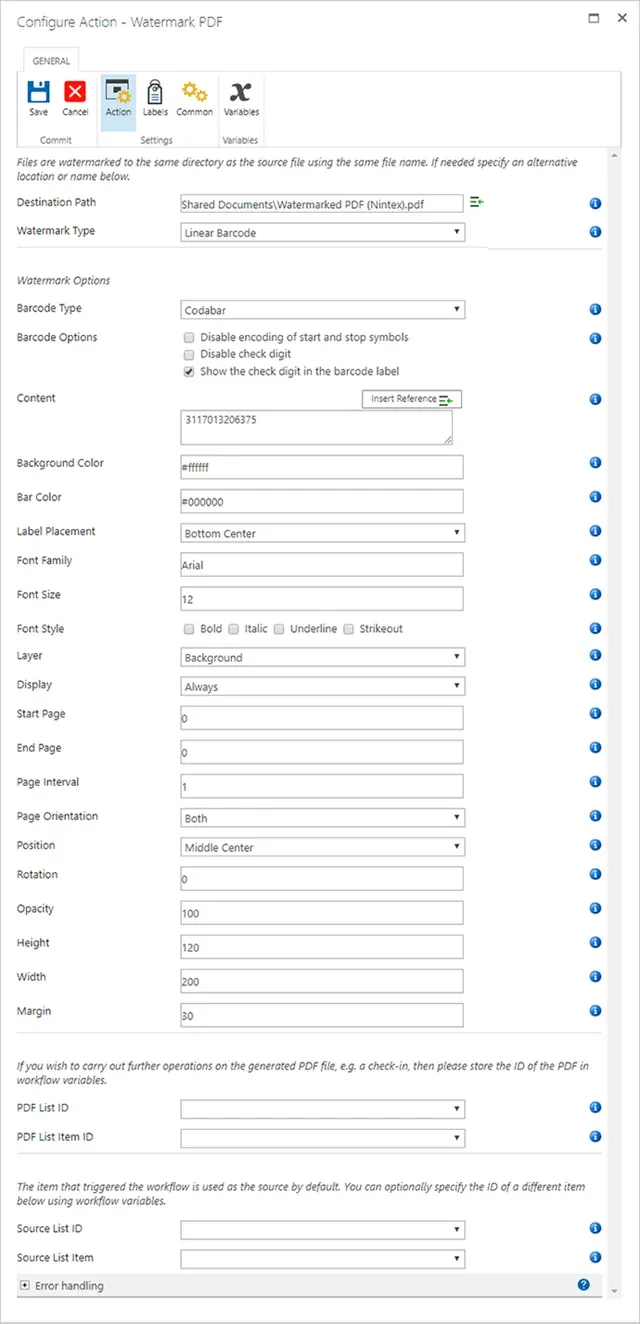
In Nintex Workflow, the barcode facility is integrated in the generic Watermark PDF Nintex action. Just select Linear Barcode in the Watermark Type field and fill in the blanks. Make sure you enable the Nutrient Nintex actions first.
Microsoft Flow (Power Automate)/Azure logic apps
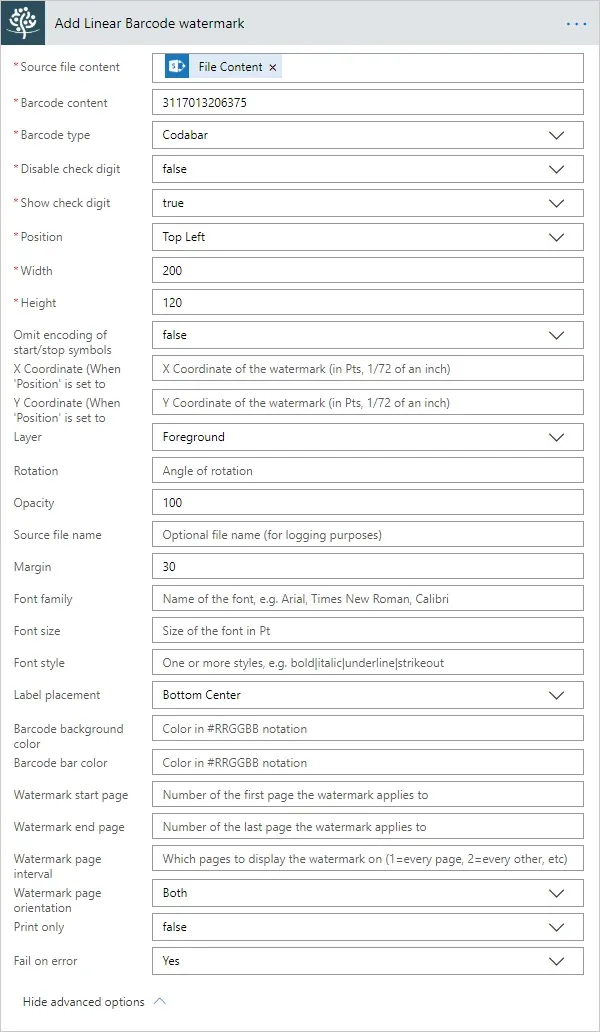
Similar to Nutrient’s other Flow actions, there is no need to install any software. Just insert a new action in the flow and type Nutrient Watermark to surface all our watermarking facilities.
Don’t be put off by the sheer number of options in the screenshot below. Most are hidden by default unless the Show advanced options link is clicked. A great tutorial can be found here(opens in a new tab).
Watermark on open/XML watermarks
Nutrient SharePoint products come with the ability to automatically add watermarks when files are opened. Refer to the SharePoint on-premises and SharePoint Online blog posts for more details. As this new barcode facility behaves just like any other watermark, barcodes can now be added using our real-time watermarking facility as well.
Barcode watermarks must be added using Nutrient’s XML-based watermarking syntax, like so:
<watermark hPosition="right" vPosition="top" width="200" height="100" zOrder="1" opacity="100" printOnly="false" pageOrientation="both"> <linearBarcode width="200" height="100" text="1234567890" barcodeType="Codabar" omitStartStopSymbols="false" disableCheckDigit="false" showCheckDigit="true" textLocation="Bottom" barcodeToTextGapHeight="3" fontFamilyName="Arial" FontSize="8" fontStyle="regular" textAlignment="Center" margin="5" /></watermark>REST / API
Similar to Nutrient’s other online capabilities, the barcode watermark is also available via a REST API call. You can find details about the various actions in the API documentation(opens in a new tab). The on-premises versions of the product support the same functionality using the built-in SOAP webservice interface(opens in a new tab).
The following examples uses cURL to make a POST request. Note how it passes in the source PDF file using the Base64 command — in this example, it’s called test.pdf. The output JSON is fed into the jq command (sudo apt install jq), which extracts the output file. This output file — which is Base64 encoded — is then decoded into a binary PDF file.
REST calls can be executed via most modern programming languages, including Python, Java, JavaScript, C#, and PHP. Various examples can be found in our GitHub repository(opens in a new tab).
Make sure you enter your API_KEY in the example below. You can get one for free by signing up for the Nutrient Document Converter REST-based API(opens in a new tab).
curl "https://api.muhimbi.com/api/v1/operations/linear_barcode_watermark" \ -X POST \ -d "{\"source_file_name\":\"Testing.pdf\",\"use_async_pattern\":false, \ \"source_file_content\": \"$( base64 -w 0 test.pdf)\" ,\"content\":\"1234567890\", \ \"barcode_type\":\"Codabar\",\"omit_start_stop_symbols\":\"false\",\ \"disable_checkdigit\":\"false\",\"show_checkdigit\":\"true\",\"margin\":\"5\", \ \"font_family_name\":\"Arial\",\"font_size\":\"8\",\"font_style\":\"Regular\", \ \"label_placement\":\"Bottom Center\",\"position\":\"Top Center\",\"width\":\"200\", \ \"height\":\"100\",\"opacity\":\"100\",\"start_page\":0,\"end_page\":0,\"page_interval\":0, \ \"page_orientation\":\"Portrait\",\"print_only\":\"false\",\"fail_on_error\":true}" \ -H "API_Key: [INSERT_YOUR_API_KEY_HERE]" \ -H "Content-Type: application/json" \ | jq -r '.processed_file_content' | base64 --decode > watermarked.pdfWhen executing this command using Bash or a similar shell you may want to copy it into a text editor first. Then make sure all line endings are saved using the Unix format (LF).
Parameters
Although the syntax is slightly different depending on the platform / situation, they all support the same parameters. Everything is largely self-describing, but the key ones are described below:
- Type — The barcode type, including Codabar, Code11, Code32, Code39, Code39Extended, Code93, Code93Extended, Code128, Code128A, Code128B, Code128C, and GS1Code128.
- Content — The content for the barcode. Make sure the specified content is compatible with the data that may be stored in the selected barcode type.
- Check digit — If relevant to the barcode type, calculate and encode the check digit into the barcode.
Conclusion
Whether you’re streamlining document workflows, enhancing compliance, or improving traceability, Nutrient’s barcode watermarking capabilities offer a flexible, low-code solution for modern organizations. To get started, explore our barcode scanner SDK, dive into our API documentation(opens in a new tab), or try it out yourself with a free API key by signing up today(opens in a new tab). For tailored guidance or technical support, don’t hesitate to contact our team — we’re here to help you integrate smarter document automation with ease.