Watermark files in SharePoint Online

Table of contents

One of the more popular features of the on-premises version of Nutrient Document Converter for SharePoint is the ability to add watermarks — including metadata, IP addresses, date/time information, and user information — the moment a file is downloaded or opened. The file in SharePoint remains untouched, but the file downloaded by the user includes the watermarks. At the same time, the PDF file can be secured and encrypted to make sure the watermarks cannot be touched. For details about how this works for the on-premises version, which is largely identical to the online product, see this blog post.
This feature is often used for security purposes, but up until now, it’s only been available for SharePoint on-premises. The reason is because SharePoint Online, which is a very restricted platform, has proven to be tricky to work with.
Well, that ends today, as we’re happy to announce the general availability of this functionality for Document Converter for SharePoint Online. Read on for details about how it works and how to enable it.
September 2020 update: This functionality is no longer limited to just PDF files; it also works with MS Word, Excel, and PowerPoint documents. For details, see this blog post.
How it works
For the purpose of this blog post, this feature will be referred to as “OnOpen,” as that’s what our team calls it internally. Once OnOpen is enabled, whenever a PDF file is downloaded, our software automatically adds any configured watermarks and security settings while the file is being sent to the user. It’s up to the site administrators and list owners to define these settings. This can be done by navigating to site settings/PDF watermarking settings and/or PDF security settings to specify the default settings and optionally specify if list owners can override them.
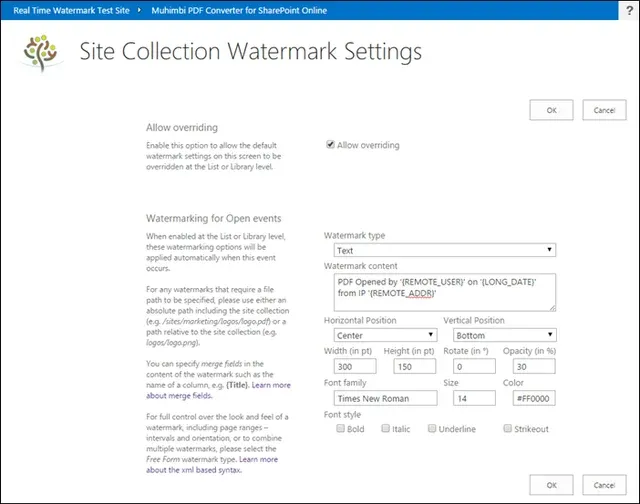
Note that simply specifying this information at the site settings level doesn’t automatically enable watermarks in the site collection’s lists and libraries. Although the default settings can be inherited from the site settings, they must be enabled manually and individually on each library or list.
If there’s no need to centrally control the content of the watermark and security settings, then check the Allow overriding option. This makes it possible for the details to be specified manually on each list or library.
To either manually specify the settings at the list or library level or activate the centrally specified settings, navigate to the relevant list or library, and from the list/library ribbon tab, select library settings/list settings. This screen contains two new entries: PDF watermarking settings and PDF security settings. Selecting the watermark option shows the following screen.
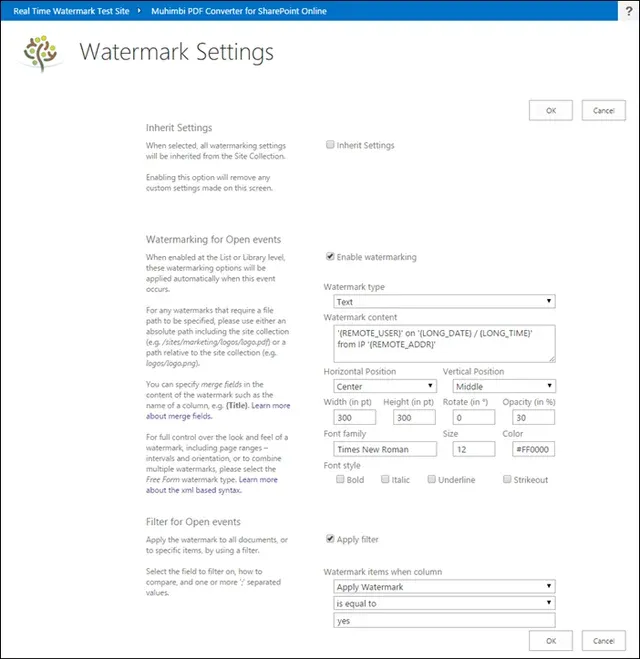
This screen provides the option to inherit the centrally specified settings, or — if permitted — manually specify settings and an optional filter.
By default, watermarks are applied for every PDF file that’s opened, but by specifying a filter, it’s possible to narrow it down based on a file’s metadata, which can be very powerful — for example, applying a “Draft” watermark when the document status is set as such and skipping the watermark if the status is “Final.”
Although adding static watermarks that don’t change over time can be useful, the same thing can be achieved using our workflow capabilities that only apply the watermark once rather than every time a document is opened. The real power of the OnOpen feature comes from the ability to insert metadata or macros in a watermark. This allows such scenarios as:
- Applying a watermark showing when a document was opened from SharePoint.
- Including the name, login ID, and IP address of the user who downloaded the document.
- Including the title, filename, and last modified date in a document.
- Adding hidden watermarks to a document — e.g. fully transparent text that is invisible to the user, but it can be extracted at a later date in case a document is leaked or shared with an unauthorized party.
- A mix of any of the above or any of the other metadata fields and macros. A full list of field codes and macros can be found in our knowledge base.
Additionally, to prevent users from modifying watermarks, and to add additional layers of security by locking down printing and content copying, a secure OnOpen feature is also available.
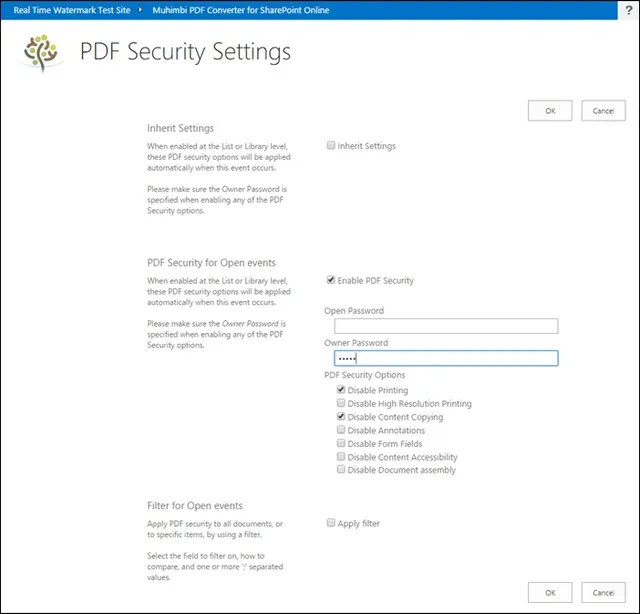 Apply Security when a file is opened
The concept is the same: Defaults can be specified at the site collection level, and individual settings can then be enabled at the list or library levels. Separate filters can be specified if needed. The available security settings are:
- Open Password — The user accessing the PDF file must know a specific password to open it.
- Owner Password — No password is needed to view the content, but all content is encrypted, and any specified security options are locked down.
- PDF Security Options — Specify which option to lock down. The most popular ones are Disable Printing and Disable Content Copying.
What happens when a document cannot be processed?
Although this feature is built upon an established and resilient platform, there are situations where a document cannot be processed. For example, if a PDF is corrupt or already encrypted, or if the subscription has run out of monthly operations, then it won’t work. That said, it’s important to decide upfront what to do in cases like this.
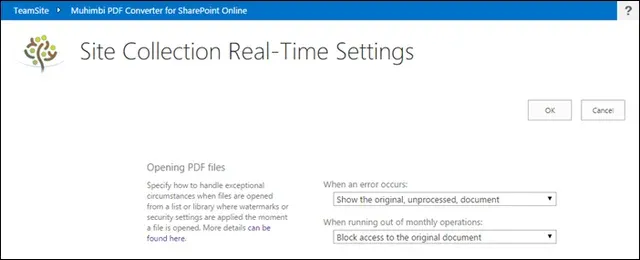
To configure how the system deals with problematic situations, use the PDF real-time settings link under site settings. The options are as follows:
- Show the original, unprocessed, document — For situations where watermarking or PDF security is nice to have but not absolutely necessary, you may want to choose this option, which will return the original document as if the OnOpen feature isn’t active at all.
- Block access to the original document — This option, which is the default, blocks access to the document if it cannot be processed. This is generally used in situations where the document must be processed before it is sent out, no exceptions.
How to enable it
This feature must be enabled by a site collection administrator before it can be used. For details about how to do this, refer to our knowledge base. Don’t forget to enable the automatic PDF processing app feature after elevating the privileges.
Note that extra installation steps are required when using this functionality in a list or library utilizing the modern experience. Details can be found in our knowledge base.
If you have any questions or feedback, take a look at the FAQ, or contact Support.