




A new version of Nutrient Document Automation Server is here

Table of contents

Nutrient Document Automation Server version 6.0.231116 has just been released. It is one of Nutrient’s flagship products and has been a cornerstone of the large-volume optical character recognition (OCR) market for 15 years.
Nutrient Document Automation Server is a no-code/low-code solution that provides a set of steps that can be combined into jobs that can be scheduled or run manually. With an extensive range of step types, Document Automation Server jobs can handle a wide range of document workflows. The documents can originate from the file system, SharePoint on-premises or Online, Office 365, Azure, and email sources, and the processing results can be saved back to the mentioned destinations.
Five new steps have been added to Nutrient Document Automation Server in this release — all of which make use of GdPicture’s capabilities — including the new key-value pairs processing engine, which extracts important data from files in the form of key-value pairs. We also added a step that redacts or highlights PDF text based on a regex pattern or a terms list, as well as new PDF split steps for page ranges, bookmarks, or barcodes.
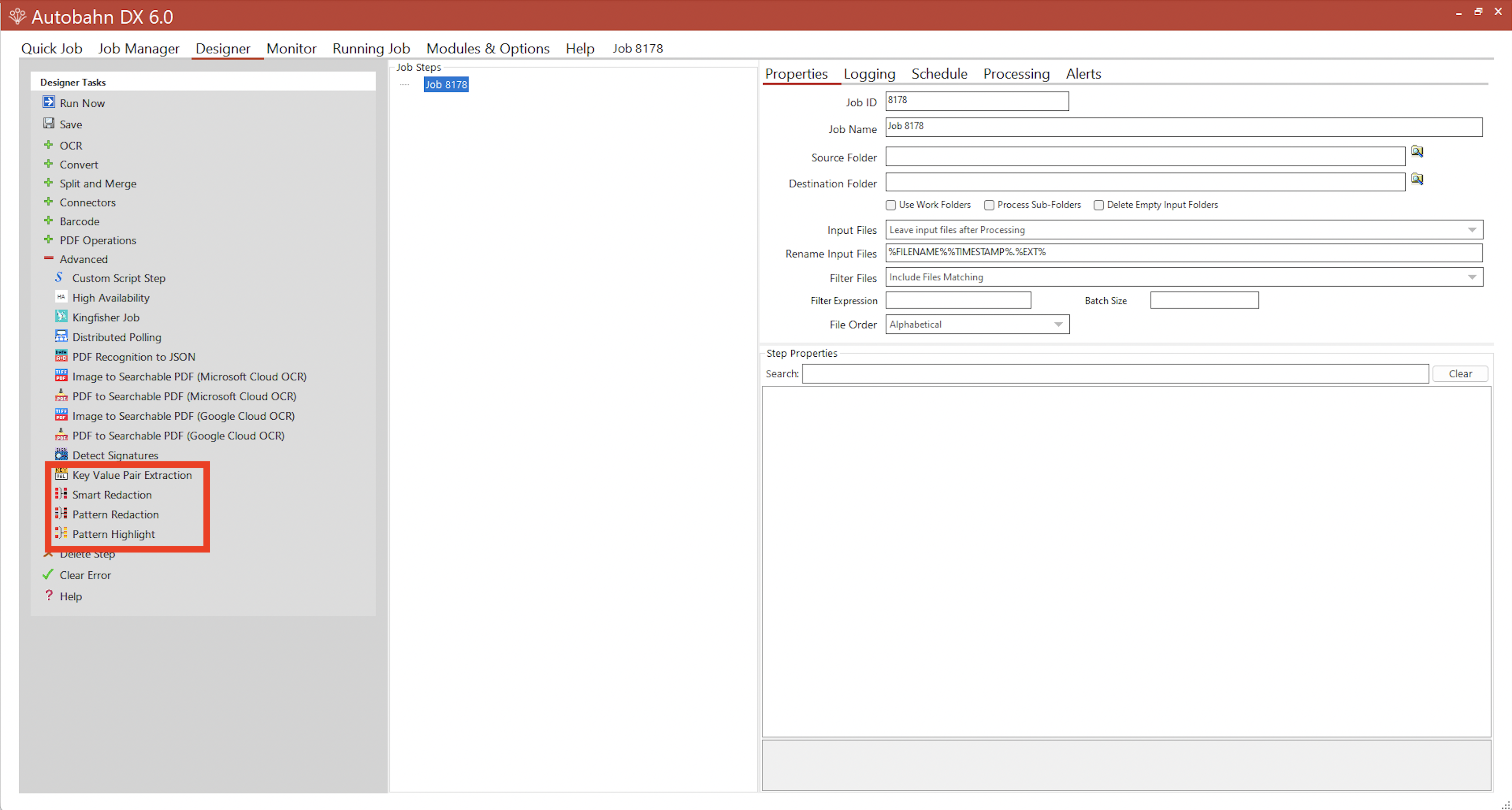
New available steps in Nutrient document automation server
The new steps, outlined below, are designed to give users greater control over data extraction, redaction, highlighting, and splitting of PDF files — all through a no-code, configurable interface. Whether you’re automating compliance workflows or extracting structured data from unstructured documents, these new steps make it easier than ever to build efficient, scalable automation jobs.
Key-value pair extraction
Extracts key-value pairs from PDFs, alongside information about their location, data type, etc. The step outputs the information in the choice of JSON, CSV, and XML output. The user can also specify expected keys, and the closest match for each expected key will be output in a separate file.
Pattern redaction
Redacts text in the input PDF based on a regex expression or terms listed in a text file. The user can also customize the color of the redaction zone.
Pattern highlight
Adds a highlight to text in the input PDF based on a regex expression or terms listed in a text file. The user can also customize the color and transparency of the highlight.
Split PDF (GdPicture)
Splits a PDF based on the criteria specified. The available options are to split by page ranges or bookmarks, or to split into single pages.
Split by barcode
Split a PDF based on the barcodes found. The output files can be named based on the value of each barcode found. After specifying the barcode types, page ranges and regular expressions can further specify the barcodes to split the document on.
Additional improvements in this version
New conversion types available — The Convert Any File To PDF (GdPicture) step previously wasn’t able to process JSON or XML files, as they weren’t supported. Now, they’re treated as text files when converted to PDF, so they’ll now process successfully.
Additional smart redaction options — Improvements to the GdPicture engine have increased the possibilities of the Smart Redaction step, adding two more redaction categories. You can now choose to redact both social security numbers and postal addresses from input PDFs.
Users can now control threads used in GdPicture OCR — The GdPicture OCR step is unique, in that it uses multiple concurrent threads to process multiple pages simultaneously, drastically increasing speed. However, it also uses more CPU to run these threads, so we added the option to limit the threads to not use all the CPU power.
How to upgrade to the latest version of Nutrient document automation server?
Nutrient Document Automation Server Version 6.0.231116 doesn’t require a new license key if you already have one of the version 6 keys. Otherwise, please contact Support to upgrade to the latest version. As our license keys are machine-bound, we’ll need the NetBIOS name of the server running Document Automation Server 6.0. If the server name remains unchanged, we’ll have it on record.
Upgrade process
Upgrading Nutrient Document Automation Server involves uninstalling your current installation, downloading version 6.0.2311.03 from our website, and installing the new version. This process should only take a few minutes.
When Nutrient Document Automation Server starts, it checks the version number of each of the step types and will make the required updates to any step. A status bar will show the progress of this process. This only happens the first time the job definition is checked by Nutrient Document Automation Server. Once completed, your previous job list will appear in the new version as it was previously.
Updating from older versions (before 5.0) may require either manual opening, editing, and saving of the job, or recreating the job from a new one.
On the install server, ADX 6.0.231116 will require .NET Framework 4.7.2 or higher. The Document Automation Server installer will check this requirement before installation.
Upgrading from previous versions
Two versions of Document Automation Server cannot be installed at the same time. To install a new version of Document Automation Server, the previous version must first be uninstalled. Before starting the uninstall, first, stop the Nutrient Document Automation Server service and close the UI. The …Autobahn DX/jobdef folder contains the definitions for all jobs. We advise saving this folder in a separate location before upgrading.
Previous jobs and license keys
Certain files will be left in the Nutrient Document Automation Server install location after the uninstallation. Both the jobdef folder containing the descriptions for all the previous jobs and the license key file will be preserved.
Job definitions
Job definitions are now automatically upgraded to the latest version of Nutrient Document Automation Server on opening the UI. This doesn’t require any action from the user. The jobs before upgrading will be saved in the …Autobahn DX/jobdef_copy folder. If you’re upgrading to the latest version from a version older than v5.0, we recommend recreating your jobs instead of relying on the job upgrade.
License key
The license key will remain from your previous version. For upgrades between minor releases, the license key should still be valid for the newly installed version. If you’re on a new major version (5.0, 5.5, 6.0), then the license key will no longer be valid. In this case, contact Support for a new license key.