Python PDF text extraction with PyMuPDF: Scanned PDFs, tables, and OCR

Table of contents
- PyMuPDF — An open source library for extracting text from native PDFs. It offers table and form APIs and Tesseract-based OCR; review its AGPL or commercial license and deployment dependencies.
- Nutrient API — A cloud-based API with OCR operations and provider-managed processing infrastructure. Your integration still needs error handling. It processes both native and scanned documents.
- Key difference — PyMuPDF requires custom development and ongoing maintenance. Nutrient provides managed processing; compare integration effort on your workflow.
PyMuPDF extracts native PDF text with page.get_text() and offers table, form, and optical character recognition (OCR) methods. Default text output follows the stored order, which may differ from reading order. OCR requires separately installed Tesseract resources. This guide covers native text, coordinates, tables, and an OCR fallback. It then shows Nutrient DWS Processor API for teams that prefer a managed workflow. Review PyMuPDF’s AGPL or commercial license terms for your application.
PyMuPDF
PyMuPDF(opens in a new tab) (imported in Python as pymupdf) is a Python wrapper for MuPDF that enables you to extract text from native PDFs. It supports multiple extraction modes, ranging from simple plain text to detailed coordinate-based data.
Installation and basic setup
# Create and activate a virtual environment (recommended).python -m venv .venv# macOS/Linuxsource .venv/bin/activate# Windows (PowerShell). .venv/Scripts/Activate.ps1
# Install PyMuPDF.pip install PyMuPDF
This installs PyMuPDF. The virtual environment isolates dependencies.
Licensing considerations
PyMuPDF offers AGPL v3 and commercial licenses. Review the terms for your distribution, modifications, integration, and network use. Commercial or server-side use alone doesn’t determine all licensing obligations.
If you’re building a commercial API, closed source product, or enterprise solution, review the AGPL license terms(opens in a new tab).
Text extraction methods
PyMuPDF’s page.get_text() supports several extraction modes:
"text"— Plain text in the PDF’s stored order by default.sort=Truecan approximate reading order, but complex layouts still need review"blocks"/"words"— Lists of blocks or words with positions"dict"— Structured data with fonts, coordinates, and layout information"json"— Same as"dict", but in JSON format"html","xml","rawdict", and"rawjson"— Also available
Use "text" for simple extraction; use "dict" when you need coordinates for tables or forms.
Basic text extraction
To perform basic text extraction, use the following code:
import pymupdf
def extract_text_pymupdf(pdf_path):    doc = pymupdf.open(pdf_path)    try:        text = ""        for page in doc:            text += page.get_text("text") # plain text        return text    finally:        doc.close()
# Extract text from a PDF.result = extract_text_pymupdf("invoice.pdf")print(result)
This opens the document once and concatenates text from each page. It works for native PDFs, but not for scans.
Getting layout information
For tables and forms, you need coordinates:
import pymupdf
def extract_with_coordinates(pdf_path):29 collapsed lines
"""Extract text with position and font information for layout analysis.""" doc = pymupdf.open(pdf_path) try: results = [] # Process each page in the document. for page_num, page in enumerate(doc): # Get structured data: blocks contain lines, lines contain spans. data = page.get_text("dict") # Returns hierarchical text structure
# Navigate the hierarchy: blocks > lines > spans. for block in data["blocks"]: # Skip image blocks (they don't have "lines" key). for line in block.get("lines", []): # Each span is the smallest text unit with consistent formatting. for span in line["spans"]: results.append({ "page": page_num, "text": span["text"], "bbox": span["bbox"], # (x0,y0,x1,y1) coordinates in points "font": span["font"] # Font name for styling analysis }) return results finally: # Always close the document to free memory. doc.close()
# Usage example: Extract positioned text for table detection.result = extract_with_coordinates("invoice.pdf")print(result[:5]) # Preview first 5 text spans with positionsThe "dict" mode returns text spans, along with their bounding boxes and font information. Coordinates are measured in points (1/72 inch) relative to the unrotated page. Use page.rotation_matrix when mapping the returned rectangles to a rotated display, and account for scaling and cropping in the viewer.
Get started with Nutrient DWS Processor API and 50 free credits monthly. Free document output is watermarked; enable pay-as-you-go or choose a paid plan for watermark-free output.
Table extraction (bordered tables)
This example uses the default line-based table detection. page.find_tables() also supports text-based strategies for borderless tables:
import pymupdf
def extract_tables_pymupdf(pdf_path): doc = pymupdf.open(pdf_path)17 collapsed lines
try: all_tables = [] for page in doc: # Returns a `TableFinder` object. table_finder = page.find_tables() # `TableFinder` for table in table_finder.tables: # Sequence of `Table` objects all_tables.append(table.extract()) # Each is a list of rows. return all_tables finally: doc.close()
# Usageresult = extract_tables_pymupdf("invoice.pdf")for i, table in enumerate(result[:5]): # First 5 tables. print(f"--- Table {i} ---") for row in table: print(row)The code above finds tables with visible borders and returns rows as lists. Multipage tables and merged cells need manual handling.
Scanned PDFs — Extracting text with a PyMuPDF and Tesseract OCR fallback
PyMuPDF supports OCR through page.get_textpage_ocr() with separately installed Tesseract resources. This section demonstrates another approach: Render the page, and then use pytesseract for recognition.
For another local OCR option, see the PaddleOCR Python guide for installation, the v3 API, and processing tradeoffs.
- Install OCR prerequisites:
# Python depspip install pytesseract Pillow
# Tesseract engine (system package)# macOSbrew install tesseract# Ubuntu / Debiansudo apt-get install tesseract-ocr# Windows# 1) Install from: https://github.com/UB-Mannheim/tesseract/wiki# 2) Add the install directory (e.g. C:\Program Files\Tesseract-OCR) to PATH- Use the OCR-aware extractor:
import pymupdfimport pytesseractfrom PIL import Imageimport io
def is_scanned(page, threshold=40) -> bool: """Check if page has little text (likely scanned/image-only).""" return len(page.get_text("text").strip()) < threshold
27 collapsed lines
def extract_with_ocr(pdf_path: str, ocr_lang: str = "eng") -> str: """Hybrid extraction: use native text when available, OCR when needed.""" doc = pymupdf.open(pdf_path) try: out = [] for page in doc: if is_scanned(page): # Page has minimal text — likely scanned, use OCR. pix = page.get_pixmap(dpi=300) # Render at 300 DPI for good OCR quality. img = Image.open(io.BytesIO(pix.tobytes("png"))) # Convert to PIL Image # Run Tesseract OCR with specified language. out.append(pytesseract.image_to_string(img, lang=ocr_lang)) else: # Page has native text — extract directly (much faster). out.append(page.get_text("text")) return "".join(out) finally: doc.close()
# Example usage with error handling.if __name__ == "__main__": try: result = extract_with_ocr("invoice.pdf") print(f"Extracted {len(result)} characters") print(result[:500]) # Preview first 500 characters. except Exception as e: print(f"Extraction failed: {e}")The example uses fewer than 40 native characters as a heuristic for running OCR. It can misclassify short native-text pages and miss image text on mixed pages with more native text. Test mixed pages or evaluate partial OCR with get_textpage_ocr(). Set ocr_lang to the installed language code, such as "deu" or "spa", for non-English documents.
Choosing a rendering resolution: Start by testing 300 DPI and compare recognition quality, memory use, and latency on your documents. Higher resolution may help small text but can’t recover detail missing from the source image. When dpi is set on get_pixmap(), it takes precedence over matrix.
For poorly scanned documents, first preprocess them with OpenCV using binarization, deskewing, and denoising techniques.
Performance best practices
- Open once — Call
pymupdf.open()once per document. Don’t reopen for each page. - Prefer
"text"mode — Usepage.get_text("text"), unless you need coordinates or font data. - Skip unnecessary rendering —
page.get_pixmap()is slow, so only use it for OCR. - Handle invalid files — Use
try/exceptfor corrupted PDFs. - Parallelize batches —
Documentobjects are independent, so use multiprocessing for bulk jobs.
Nutrient DWS Processor API for Python
Nutrient DWS Processor API is a cloud-based PDF processing API. Use an explicit OCR action for scanned input and request text or JSON content output.
For new cloud extraction workflows, consider Nutrient Data Extraction API. Its Markdown extraction guide includes Python examples for /extraction/parse, which returns the Markdown string in output.markdown. For known fields, use schema-based key-value extraction.
The Processor walkthrough below uses /build, with different instructions, response formats, and product credentials. Use its Processor signup to run these examples; use the Data Extraction signup for the linked extraction guides.
Step 1: Sign up and get your API key
Sign up at Nutrient Processor API(opens in a new tab). After email verification, get your API key from the dashboard. You start with 50 free credits.
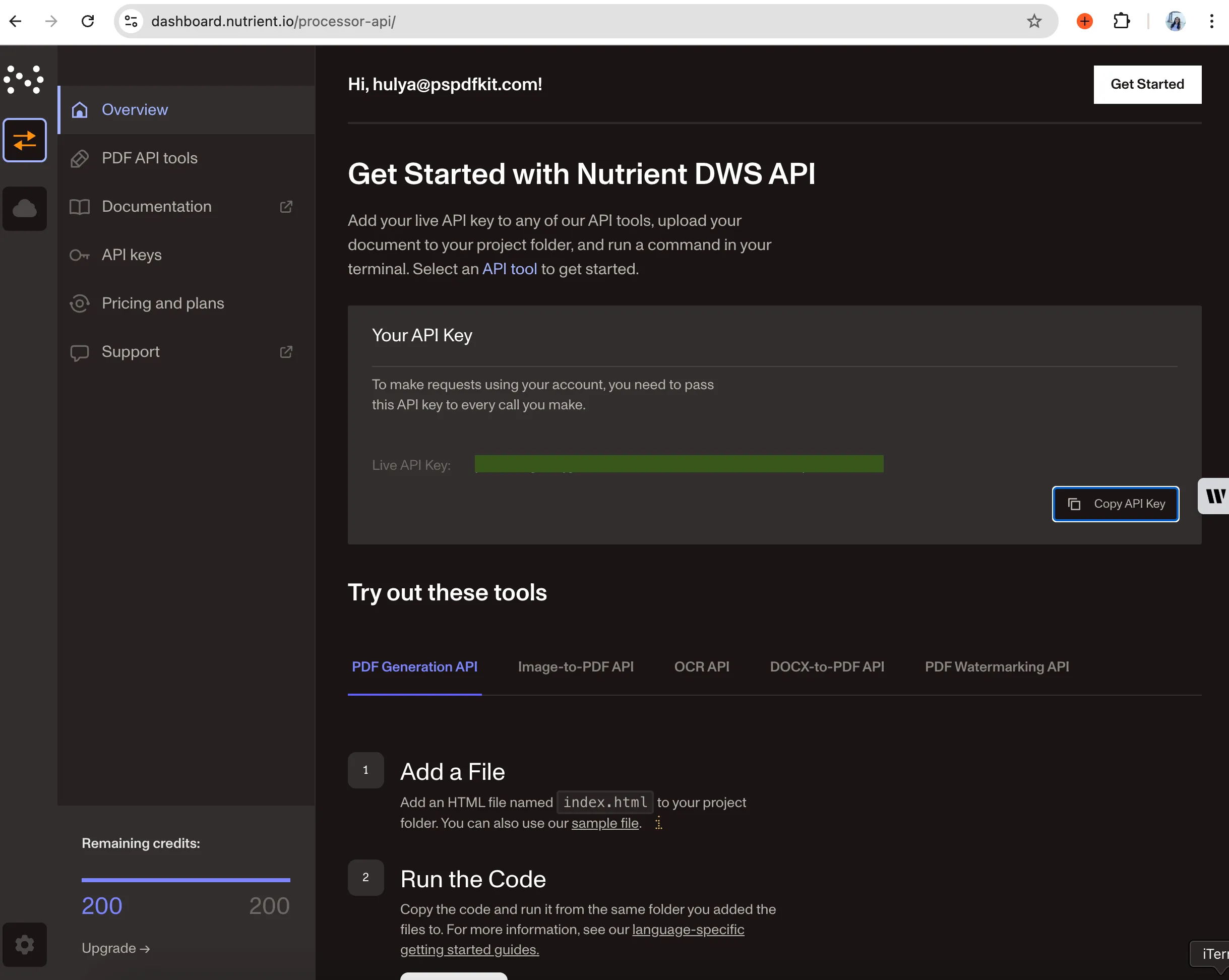
There are two ways to integrate Nutrient. Both use the same processing engine but differ in API interaction.
Step 2: Choose your integration
Choose between the Python client (nutrient-dws) or direct HTTP calls.
Option A — The official Python client
The official Python client (nutrient-dws) handles authentication, uploads, and response parsing. It’s good for automation scripts, backend services, or data pipelines. Additionally, it includes helper functions and error handling.
Use this if you:
- Want clean Python code
- Want a client for document processing with explicit OCR instructions when needed
- Use AI code assistants (Claude, Copilot, Cursor)
pip install nutrient-dwsexport NUTRIENT_API_KEY="your_api_key_here"Minimal extraction:
import asyncio, osfrom nutrient_dws import NutrientClient
async def main():    client = NutrientClient(api_key=os.getenv("NUTRIENT_API_KEY"))    result = await client.extract_text("invoice.pdf")    for page in result["data"]["pages"]:        print(page.get("plainText", ""))
asyncio.run(main())
The client uploads invoice.pdf and extracts its text. For scanned input, configure an OCR action explicitly; installing the client doesn’t make every text-extraction request run OCR automatically.
AI code helpers
The SDK includes helpers for AI coding assistants. After installing, run these commands for better completion:
# Claude Codedws-add-claude-code-rule
# GitHub Copilotdws-add-github-copilot-rule
# JetBrains (Junie)dws-add-junie-rule
# Cursordws-add-cursor-rule
# Windsurfdws-add-windsurf-rule
These enable SDK method suggestions and examples in your editor.
Option B: HTTP API
The HTTP API works with any language. Send a request with your document, and you’ll get JSON back. Use this for non-Python projects or when you need direct control.
Use this if you:
- Use another language (Java, Go, C#, Node.js)
- Need to integrate with existing REST systems
- Want direct control over requests and responses
Start with the Python client for prototyping. Use the HTTP API for multilanguage teams or existing service integration.
pip install requestsexport NUTRIENT_API_KEY="your_api_key_here"Request with an explicit English OCR action and JSON text output:
import jsonimport osimport requests
api_key = os.environ["NUTRIENT_API_KEY"]instructions = { "parts": [{"file": "document"}], "actions": [{"type": "ocr", "language": "english"}], "output": {"type": "json-content", "plainText": True, "structuredText": False},}with open("invoice.pdf", "rb") as document: response = requests.post( "https://api.nutrient.io/build", headers={"Authorization": f"Bearer {api_key}"}, files={"document": document}, data={"instructions": json.dumps(instructions)}, timeout=(10, 180), )response.raise_for_status()with open("result.json", "w", encoding="utf-8") as output: json.dump(response.json(), output, ensure_ascii=False, indent=2)print("Saved to result.json")Feature comparison
The table below compares PyMuPDF and Nutrient across key PDF processing capabilities, from native text extraction to scanned documents, tables, forms, and overall development effort.
| Feature | PyMuPDF | Nutrient |
|---|---|---|
| Native PDF text | Excellent; get_text("text") is very fast | Excellent |
| Scanned documents | Integrated OCR methods require external Tesseract | Processor OCR action must be requested |
| Table extraction | Line- and text-based strategies via find_tables() | Evaluate Data Extraction API spatial output |
| Form fields/KVP | page.widgets() reads PDF form fields; semantic KVP needs application logic | Data Extraction API offers schema-based fields |
| Output format | Plain text, dict/JSON with coordinates | Plain text and structured JSON (order and hierarchy) |
| Setup complexity | pip install PyMuPDF | API key and HTTP or SDK client |
| Development effort | Depends on extraction and deployment requirements | Depends on integration and review requirements |
| Maintenance | Application and local processing environment | Application integration; provider manages service |
PyMuPDF strengths
- Fast on native PDFs, low memory use
- Runs locally, no network latency
- Multiple output formats (text, words, blocks, coordinates)
- Basic table detection with
page.find_tables() - No external dependencies for text extraction
- Full control over processing
When PyMuPDF is sufficient
PyMuPDF works well long-term for specific use cases where document characteristics are predictable:
Internal document processing — Organizations generating their own PDFs (reports, invoices, statements) with consistent formatting benefit from PyMuPDF’s speed and control. When document structure is standardized and predictable, PyMuPDF handles high-volume processing efficiently.
High-volume batch processing — Teams processing millions of native text PDFs monthly can justify the initial development investment. The per-document cost becomes negligible at scale, and local processing avoids API rate limits.
Air-gapped environments — Systems requiring offline operation (government, healthcare, secure facilities) need local processing. PyMuPDF provides extraction capabilities without external dependencies or network calls.
Simple extraction workflows — Applications needing only plain text from native PDFs (content indexing, search engines, basic analytics) don’t require OCR or advanced layout analysis. PyMuPDF’s get_text("text") method handles these efficiently.
Cost-sensitive projects — Small teams or open source projects with AGPL-compatible licensing can use PyMuPDF without commercial licensing costs. Academic research, personal projects, and open source tools fit this category.
PyMuPDF limitations (and hidden costs)
While PyMuPDF excels at native PDF text extraction, production deployments reveal significant challenges:
- OCR dependencies — Built-in OCR methods require external Tesseract resources. Test language configuration and recognition accuracy.
- Table detection — Line- and text-based strategies are available. Complex layouts may need tuning, and joining tables across pages requires application logic.
- Form semantics —
page.widgets()exposes PDF form fields. Inferring named business fields from a flat invoice or scan is a separate extraction task. - Error handling gaps — Corrupted PDFs, password protection, and malformed documents need defensive coding, which is an ongoing maintenance burden.
- Updates and regression testing — Keep the library and OCR dependencies current, and rerun representative documents after upgrades. Test hosted service integrations for regressions too.
- Licensing — Review AGPL or commercial terms for your application and deployment.
Building production-ready PDF processing with PyMuPDF requires substantial initial development, plus ongoing maintenance for edge cases and updates.
Nutrient DWS Processor API strengths
- Consistent handling — Works with digital and scanned text, forms, and complex layouts
- Hosted OCR — Request an OCR action without installing a local OCR engine
- Managed service — Provider-maintained processing infrastructure
- Production-ready — Scales with large document volumes
Nutrient DWS Processor API limitations
- Overhead for small tasks — Open source may be simpler for one-off extractions
- Setup required — Need to integrate SDK or API calls
- Paid service — Commercial solution, not open source
Cost considerations
When evaluating total cost of ownership for PDF processing, consider both direct and indirect costs:
PyMuPDF approach requires
- Initial development time for OCR integration, table extraction, and error handling
- Licensing costs where a commercial license is selected
- Infrastructure costs for processing servers, storage, and monitoring
- Ongoing maintenance for bug fixes, edge cases, and accuracy improvements
- Engineering time diverted from core product development
Nutrient API approach includes
- API integration and representative-document testing
- API credit costs based on requested operations and the selected product
- Zero infrastructure management (cloud-based service)
- Minimal maintenance overhead with automatic updates
- Engineering resources available for product features
Actual costs vary significantly by geographic location, team experience, document complexity, and processing volume. Factor in both implementation time and ongoing maintenance when comparing options.
Choosing the right tool
The decision comes down to three factors: time-to-market, total cost, and accuracy requirements.
Evaluate PyMuPDF if
- You want local text, table, form, or OCR processing
- You want control over the processing configuration
- AGPL licensing compliance is acceptable, or a commercial license budget is available
- The team has capacity for ongoing maintenance
- Measured OCR accuracy with Tesseract meets your requirements
- The local deployment fits your delivery requirements
Choose Nutrient if
- Any scanned documents need processing, or reliable OCR is required
- You prefer integrating a managed service to operating processing infrastructure
- You can budget for API usage, integration, and review
- Documents include forms, tables, or complex layouts
- High accuracy is critical for contracts, invoices, or legal documents
- Building product features takes priority over maintaining PDF parsing code
- Your measured usage costs and latency fit the application’s budget
Teams may find their document processing requirements evolving over time as business needs expand.
When to evaluate cloud API solutions
Some teams start with PyMuPDF and later consider cloud API solutions as requirements evolve. Understanding potential scenarios can help inform your initial architecture decision.
Scenario 1: Document complexity increases
Initial use case — Extract text from native PDFs generated internally or from known sources.
Evolution — Business requirements expand to include customer-uploaded documents (scanned receipts, mixed-format invoices, handwritten forms). OCR integration becomes necessary but proves more complex than anticipated.
Decision point — Teams evaluate whether building and maintaining OCR pipelines aligns with core product goals, or whether a cloud API solution better serves customers.
Scenario 2: Scale and infrastructure
Initial use case — Processing hundreds of documents monthly on existing infrastructure.
Evolution — Volume grows to thousands or tens of thousands of documents. Infrastructure costs increase (storage, compute for OCR), and deployment complexity grows.
Decision point — Compare total cost of self-hosted solution (infrastructure and engineering time) against cloud API pricing at scale.
Scenario 3: Accuracy requirements
Initial use case — Internal documents where 90 percent extraction accuracy is acceptable.
Evolution — Processing contracts, invoices, or compliance documents where errors have business impact. Customers report extraction failures that require manual intervention.
Decision point — Evaluate whether accuracy improvements justify additional development investment or migration to commercial-grade OCR.
Migration considerations
Teams typically migrate from PyMuPDF when encountering:
- Scanned documents requiring reliable OCR beyond Tesseract capabilities
- Complex table structures (borderless, multipage, merged cells)
- Form field extraction needing more than coordinate-based parsing
- Processing volumes that exceed the capacity of the current deployment
- Accuracy requirements for financial or legal documents
Estimate migration effort from the actual integration, document types, review requirements, and deployment constraints.
Conclusion
PyMuPDF is a capable open source library for native PDF text extraction. Production deployments require additional development for OCR integration, table detection, form parsing, error handling, and AGPL licensing compliance.
The Processor examples in this guide cover hosted text extraction and an explicit OCR action. For new cloud parsing or schema extraction, evaluate Nutrient Data Extraction API using its own request format and API key.
Making the decision
Choose based on your document types and output requirements, and on where processing should run. Compare the returned text and structure against the same source documents.
To run the Processor walkthrough, create a Processor API key(opens in a new tab). To evaluate the separate cloud extraction service, try Nutrient Data Extraction API(opens in a new tab) and follow its Python Markdown example.
Related reading
- Top 10 ways to generate PDFs in Python — Creating documents rather than reading them, across 10 libraries
- How to edit a PDF in Python — Watermarks, overlays, and redaction with PyMuPDF and PyPDF
FAQ
Yes. page.get_textpage_ocr() uses separately installed Tesseract resources. You can also render pages and call pytesseract as shown here. Nutrient Processor API provides a hosted alternative with an explicit OCR action.
PyMuPDF offers AGPL and commercial licenses; review the applicable terms and include infrastructure and maintenance in your estimate. For Nutrient, estimate API credits for the required operations plus integration and review costs. Neither option has a universal break-even volume.
Yes. Start with a hybrid approach: Keep simple PDFs on PyMuPDF, and send complex ones to Nutrient. Migrate fully when ready.
Benchmark both on representative files. PyMuPDF throughput depends on local hardware and concurrency; API throughput also depends on network latency, service limits, and request configuration. Compare end-to-end latency and cost at your expected volume.
Yes. Nutrient extracts bordered, semi-bordered, and borderless tables to JSON or Excel. It handles multipage and merged-cell tables in most cases, but very complex layouts may need post-processing.