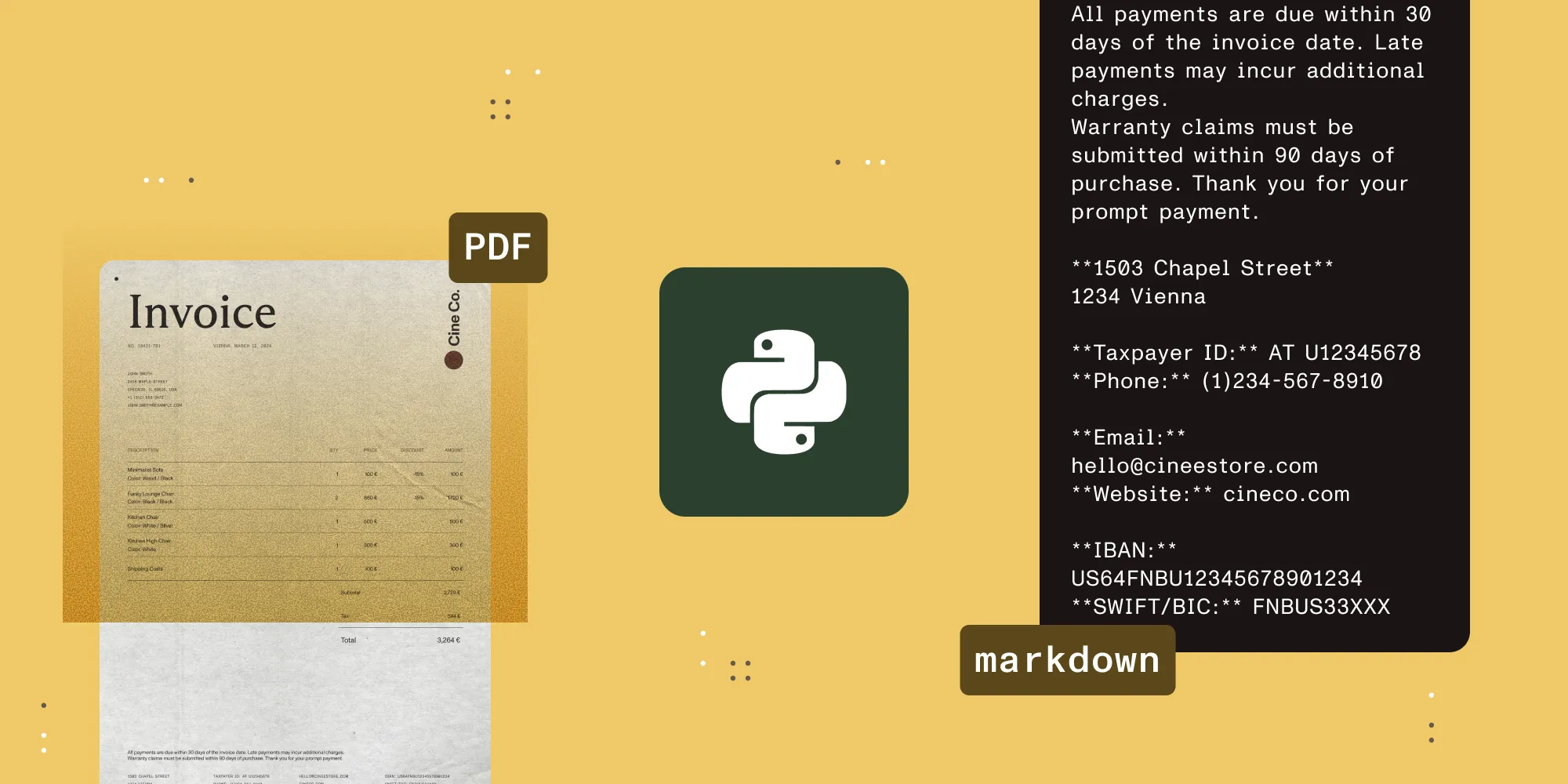
How to edit a PDF in Python: Add text, images, and annotations

Table of contents

Four ways to edit PDFs in Python:
- Overlay text on existing pages → PyPDF(opens in a new tab) and ReportLab(opens in a new tab)
- Insert text and images directly → PyMuPDF(opens in a new tab)
- Full editing with advanced form handling, annotations, redaction, and signatures → Nutrient Python SDK
- Cloud-based editing via HTTP → Nutrient API
Open source tools handle simple overlays and basic form filling. For advanced form workflows, structural redaction, or digital signatures, you’ll need Nutrient Python SDK.
Choosing between libraries? See our Python PDF library comparison for a full feature-by-feature breakdown of seven tools.
What “editing” a PDF means
PDF editing ranges from simple overlays to structural changes. The right tool depends on what you need:
- Text overlay — Stamp new text on top of existing content without changing the original. Good for watermarks or headers.
- Content insertion — Add text, images, or shapes at specific coordinates. The original content stays untouched.
- Form filling — Write values into predefined form fields (AcroForm or XFA).
- Annotation — Add highlights, sticky notes, or freehand drawings as a separate layer.
- Text replacement — Find and replace text in the PDF content stream. This is rare and fragile in open source libraries.
- Redaction — Permanently remove content from the document structure; don’t just draw a black box over it.
- Digital signatures — Apply certificate-based signatures for legal validity.
Most open source Python PDF libraries handle the first two well. Everything below that line typically requires a commercial SDK.
Prerequisites
All examples in this tutorial use Python 3.10+. Create a virtual environment and install the libraries as you go:
python -m venv pdf-edit-envsource pdf-edit-env/bin/activate # macOS/Linux# pdf-edit-env\Scripts\activate # WindowsYou’ll also need a sample PDF to work with. Any multipage PDF with text will do.
Method 1: Add a text overlay with PyPDF and ReportLab
PyPDF(opens in a new tab) can merge PDF pages, so you can generate a “stamp” page with ReportLab(opens in a new tab) and merge it onto an existing page. This is the most common open source approach for adding text to a PDF.
Install
pip install pypdf reportlabCode example
from io import BytesIOfrom pypdf import PdfReader, PdfWriterfrom reportlab.pdfgen import canvas
# Read the source PDF first so the overlay matches its page size.reader = PdfReader("input.pdf")first_page = reader.pages[0]page_width = float(first_page.mediabox.width)page_height = float(first_page.mediabox.height)
# Create a text overlay sized to the source page.buffer = BytesIO()c = canvas.Canvas(buffer, pagesize=(page_width, page_height))c.setFont("Helvetica", 36)c.setFillColorRGB(0.8, 0, 0)  # Red textc.drawString(100, page_height - 100, "DRAFT — DO NOT DISTRIBUTE")c.save()buffer.seek(0)
# Merge overlay onto the first page.overlay_reader = PdfReader(buffer)writer = PdfWriter()
first_page.merge_page(overlay_reader.pages[0])writer.add_page(first_page)
# Copy remaining pages unchanged.for page in reader.pages[1:]:    writer.add_page(page)
with open("output_stamped.pdf", "wb") as f:    writer.write(f)
print("Overlay applied to first page.")
What this approach can do
- Stamp text, shapes, or images anywhere on existing pages.
- Add watermarks or headers/footers across all pages.
- Combine multiple PDFs into one.
Limitations
- You can’t read or change existing text; you can only add new layers on top.
- There’s no annotation or redaction support. PyPDF does support basic AcroForm filling via
update_page_form_field_values(), but that’s a separate workflow from the overlay approach shown here. - Positioning is manual (you specify x/y coordinates in points).
Method 2: Insert text and images with PyMuPDF
PyMuPDF(opens in a new tab) provides direct page-level methods for inserting text and images without needing a separate library.
Install
pip install PyMuPDFCode example: Insert text
import pymupdf
doc = pymupdf.open("input.pdf")page = doc[0]
# Insert text at a specific position.page.insert_text(    (72, 72),  # x, y in points (1 inch from top-left)    "Reviewed: 2026-02-27",    fontsize=14,    color=(0, 0, 0.8),  # Blue)
doc.save("output_text.pdf")doc.close()
print("Text inserted on first page.")
Code example: Insert an image
import pymupdf
doc = pymupdf.open("input.pdf")page = doc[0]
# Define a rectangle where the image should appear.rect = pymupdf.Rect(400, 20, 550, 80)  # x0, y0, x1, y1page.insert_image(rect, filename="logo.png")
doc.save("output_logo.pdf")doc.close()
print("Image inserted on first page.")
Code example: Add a highlight annotation
import pymupdf
doc = pymupdf.open("input.pdf")page = doc[0]
# Search for text and highlight it.text_instances = page.search_for("important")for inst in text_instances:    page.add_highlight_annot(inst)
doc.save("output_highlighted.pdf")doc.close()
print(f"Highlighted {len(text_instances)} instances.")
What this approach can do
- Insert text, images, and vector shapes at precise coordinates.
- Add annotations (highlights, underlines, sticky notes, stamps).
- Basic redaction via
add_redact_annot()andapply_redactions(). - Extract and replace images.
Limitations
- The AGPL-3.0 license requires you to open source your own code or purchase a commercial license.
- Text replacement is fragile — it works by redacting the old text and inserting new text at the same position, which can break with complex fonts or layouts.
- Form filling is supported via the
Widgetclass, but digital signature creation isn’t. - Redaction is annotation-based, which is less robust than structural redaction.
add_redact_annot()andapply_redactions()remove visible page content, but recoverable data may remain depending on the document structure and how the file is saved. Use a commercial SDK for regulatory or compliance redaction.
Method 3: Full PDF editing with Nutrient Python SDK
Nutrient Python SDK supports structural redaction, digital signatures, and reliable text annotation — capabilities missing from open source libraries — in a single pip install.
Install
pip install nutrient-sdkCode example: Add a text annotation
from nutrient_sdk import Document, PdfEditor, Color
with Document.open("input.pdf") as document:    editor = PdfEditor.edit(document)    page = editor.get_page_collection().get_first()    annotations = page.get_annotation_collection()
    annotations.add_free_text(        100.0, 700.0, 250.0, 40.0,  # x, y, width, height        "Reviewer",        "Reviewed and approved",        "Arial",        14.0,        Color.from_argb(255, 0, 0, 0),    )
    editor.save_as("output_annotated.pdf")    editor.close()
print("Text annotation added.")
Code example: Fill form fields
from nutrient_sdk import Document, PdfEditor
with Document.open("form.pdf") as document:    editor = PdfEditor.edit(document)    form_fields = editor.get_form_field_collection()
    name = form_fields.find_by_full_name("name")    if name is not None:        name.set_value("Jane Doe")
    email = form_fields.find_by_full_name("email")    if email is not None:        email.set_value("jane@example.com")
    date = form_fields.find_by_full_name("date")    if date is not None:        date.set_value("2026-02-27")
    editor.save_as("output_filled.pdf")    editor.close()
print("Form fields filled.")
Code example: Apply structural redaction
from nutrient_sdk import Document, PdfEditor, Color
with Document.open("report.pdf") as document:    editor = PdfEditor.edit(document)    page = editor.get_page_collection().get_first()    annotations = page.get_annotation_collection()
    redaction = annotations.add_redact(        72.0, 200.0, 468.0, 30.0,  # x, y, width, height    )    redaction.interior_color = Color.from_argb(255, 0, 0, 0)
    editor.save_as("output_redacted.pdf")    editor.close()
print("Redaction applied — content permanently removed on save.")
Code example: Apply a digital signature
from nutrient_sdk import Document, Signature, DigitalSignatureOptions
with Signature() as signer, Document.open("contract.pdf") as document:    options = DigitalSignatureOptions()    options.certificate_path = "certificate.pfx"    options.certificate_password = "cert-password"    options.signer_name = "Jane Doe"    options.reason = "Contract Approval"
    signer.sign(document, "signed_contract.pdf", options)
print("Digital signature applied.")
What this approach can do
Everything in methods 1 and 2, plus:
- Fill AcroForm and XFA form fields programmatically.
- Apply structural redaction that removes content from the PDF stream (not just a visual overlay).
- Add certificate-based digital signatures.
- Convert between common document and image formats (PDF, Word, Excel, PowerPoint, HTML, and images).
- Perform optical character recognition (OCR) on scanned documents with multilanguage support.
- Batch process thousands of files in server-side workflows.
Limitations
- Commercial license — requires a paid subscription.
- Larger install than pure-Python libraries.
Test form filling, redaction, and signatures with your own documents.
Method 4: Edit PDFs via Nutrient API
Nutrient API provides the same editing operations over HTTP, with no local install. This works well for serverless environments, CI pipelines, or offloading processing to a remote service.
Code example: Add a watermark via API
import osimport requests
# Store the API key in an environment variable — don't hardcode or commit it.api_key = os.environ.get("NUTRIENT_API_KEY")if not api_key:    raise ValueError(        "Set the NUTRIENT_API_KEY environment variable before running this example."    )
url = "https://api.nutrient.io/build"
with open("input.pdf", "rb") as input_file:    response = requests.post(        url,        headers={"Authorization": f"Bearer {api_key}"},        files={"file": input_file},        data={            "instructions": '{"parts":[{"file":"file"}],'            '"actions":[{"type":"watermark",'            '"text":"CONFIDENTIAL","fontSize":48}]}'        },        timeout=30,    )
response.raise_for_status()
with open("output_watermarked.pdf", "wb") as f:    f.write(response.content)
print("Watermark applied via API.")
The free tier includes 50 credits. Sign up here(opens in a new tab).
Comparison: Which method fits your use case?
| Capability | PyPDF and ReportLab | PyMuPDF | Nutrient SDK | Nutrient API |
|---|---|---|---|---|
| Text overlay | ✅ | ✅ | ✅ | ✅ |
| Image insertion | ✅ (via ReportLab) | ✅ | ✅ | ✅ |
| Annotations | ❌ | ✅ | ✅ | ✅ |
| Form filling | ✅ Basic | ✅ | ✅ | ✅ |
| Structural redaction | ❌ | ❌ | ✅ | ✅ |
| Digital signatures | ❌ | ❌ | ✅ | ✅ |
| Text replacement | ❌ | ⚠️ Fragile | ✅ | ✅ |
| License | BSD-3 + BSD | AGPL-3.0 | Commercial | Pay-per-use |
| Local install | ✅ | ✅ | ✅ | ❌ (HTTP) |
Conclusion
For text overlays or watermarks, PyPDF with ReportLab or PyMuPDF work well at zero cost. PyMuPDF is faster and has better annotation support, but its AGPL license restricts commercial use without a separate license.
For structural redaction, digital signatures, or cross-format conversion, open source libraries lack support. Nutrient Python SDK covers those use cases in a single library.
Related reading
- Top 10 ways to generate PDFs in Python — Creating documents from scratch across 10 libraries
- Extract text from a PDF with PyMuPDF — Reading content out of the documents edited here
FAQ
True in-place text editing (changing the words already in a PDF) is difficult with open source libraries. PyMuPDF can redact old text and insert new text at the same position, but this breaks with complex fonts or multiline content. Nutrient Python SDK provides more reliable text editing through its document engine.
A text overlay adds new content on top of an existing page — like placing a sticky note on a printed page. The original content remains unchanged underneath. Real PDF editing modifies the document’s internal content stream, which is needed for operations like form filling, redaction, and text replacement.
Not necessarily. PyPDF supports basic AcroForm filling via update_page_form_field_values(), and PyMuPDF provides form interaction through its Widget class. Both handle simple text fields and checkboxes well. For advanced form types (XFA forms, complex field validation, signature fields) or production batch workflows, Nutrient Python SDK provides broader coverage with support for text fields, checkboxes, dropdowns, radio buttons, and signature fields.
PyMuPDF is released under AGPL-3.0, which requires you to release your source code if you distribute your application. For commercial use without open sourcing, you need a commercial license from Artifex(opens in a new tab). Our Python PDF library comparison covers licensing for all major libraries.