How to build a document scanner with OCR in Python

Table of contents

This blog post shows how to build a document scanner in Python using the Nutrient DWS Processor API. You’ll use its optical character recognition (OCR) endpoint to detect text in scanned documents and turn them into searchable PDFs.
Prerequisites
Before you start, make sure you have:
- Python 3(opens in a new tab)
- A Nutrient API key — sign up for a free account to get one
The Processor API is a hosted service, so there’s nothing to install or run locally beyond Python and an HTTP client.
Setting up the project
The examples use the Python requests(opens in a new tab) library, but any HTTP client works.
Install requests:
python3 -m pip install requestsCreate a folder for the project with two subfolders — input_documents for the files you want to scan and processed_documents for the results — and a scanner.py file for your code.
Calling the Processor API from Python
The OCR endpoint accepts a multipart/form-data request: the file to process, plus a data field containing a JSON configuration. Authentication is a bearer token — your API key.
Add the following to scanner.py:
import requestsimport json
response = requests.request(    "POST",    "https://api.nutrient.io/processor/ocr",    headers={        "Authorization": "Bearer your_api_key_here"    },    files={        "file": open("input_documents/photo.pdf", "rb")    },    data={        "data": json.dumps({            "language": "english"        })    },    stream=True,)
if response.ok:    with open("processed_documents/outfile.pdf", "wb") as outfile:        for chunk in response.iter_content(chunk_size=8096):            outfile.write(chunk)else:    print(f"Got error reply: {response.text}")
Replace your_api_key_here with your API key.
A few things to note about the request:
filescarries the document to scan. The key (file) is the field name the API expects; the value is the opened file.datacarries the OCR configuration as a JSON-encoded string. Here it has a singlelanguageentry telling the API which language to recognize.stream=Truelets you write the response — the processed PDF — to disk in chunks rather than holding it all in memory.
The response body is the processed PDF, written back to disk.
Making the script reusable
The last step is to let the script run OCR on any file by accepting input and output paths as arguments:
import sysimport jsonimport requests
if len(sys.argv) < 3:    print(f"Usage: {sys.argv[0]} <input_pdf> <output_pdf>")    sys.exit(0)
input_path = sys.argv[1]output_path = sys.argv[2]
response = requests.request(    "POST",    "https://api.nutrient.io/processor/ocr",    headers={        "Authorization": "Bearer your_api_key_here"    },    files={        "file": open(input_path, "rb")    },    data={        "data": json.dumps({            "language": "english"        })    },    stream=True,)
if response.ok:    with open(output_path, "wb") as outfile:        for chunk in response.iter_content(chunk_size=8096):            outfile.write(chunk)else:    print(f"Got error reply: {response.text}")
Now run the script against a scanned PDF:
python3 scanner.py input_documents/photo.pdf processed_documents/outfile.pdfOpen the resulting file and select the text to confirm it was recognized.
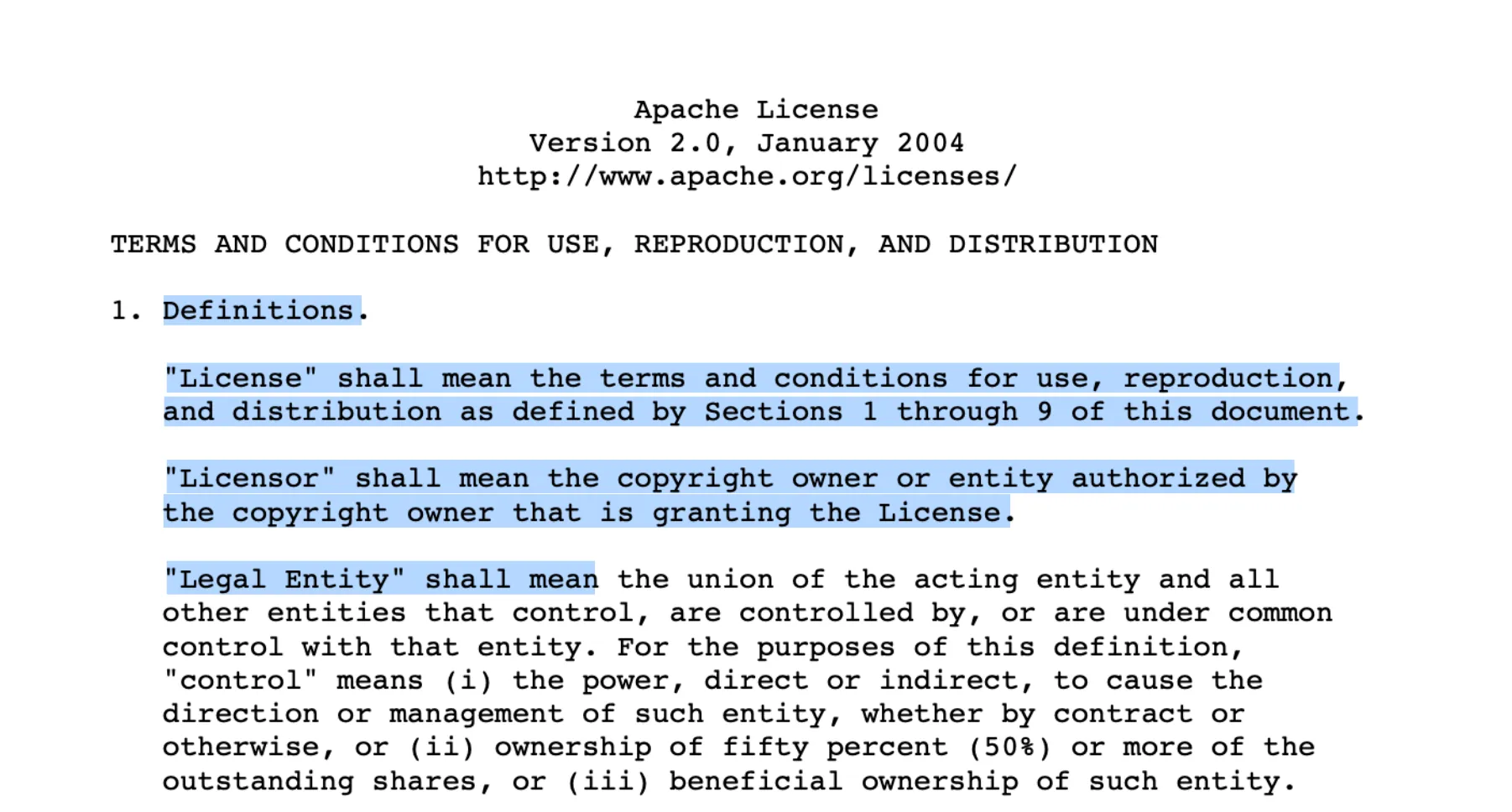
The API also accepts image files as input, so you can scan a photo the same way:
python3 scanner.py input_documents/photo.png processed_documents/image_outfile.pdfThe result is a searchable PDF.
Summary
In this post, you learned how to call the Nutrient DWS Processor API from Python, run OCR on a document or image, and save the searchable result. To go further, see the OCR API guide or explore the full PDF API tools. To try it yourself, sign up for a free account and grab an API key.